Corridor
Corridor#
The plug-in explodes a corridor to get primitive geometry entities like Lines and Hatches, and then export them to a HOOPs file.
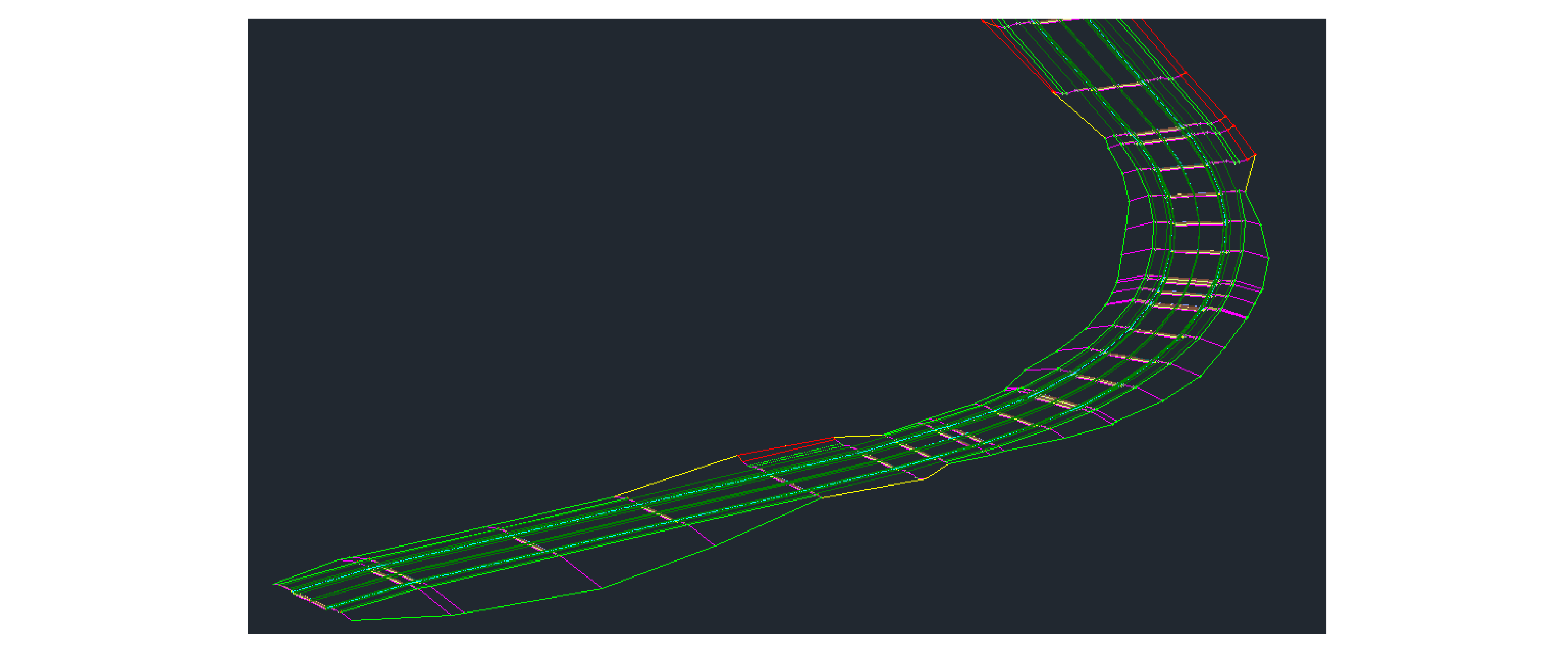
Figure: Corridor geometry composed of curves and hatches
By default, a corridor has no 3D Solid geometry; you must complete the following steps to export it correctly:
On the Corridor tab, in the ribbon, click the Extract Corridor Solids icon.
Figure: Extract Corridor Solids icon

Callout Description A Extract Corridor Solids icon B Corridor tab In the Extract Corridor Solids window, from the Sidebar, click Property Data.
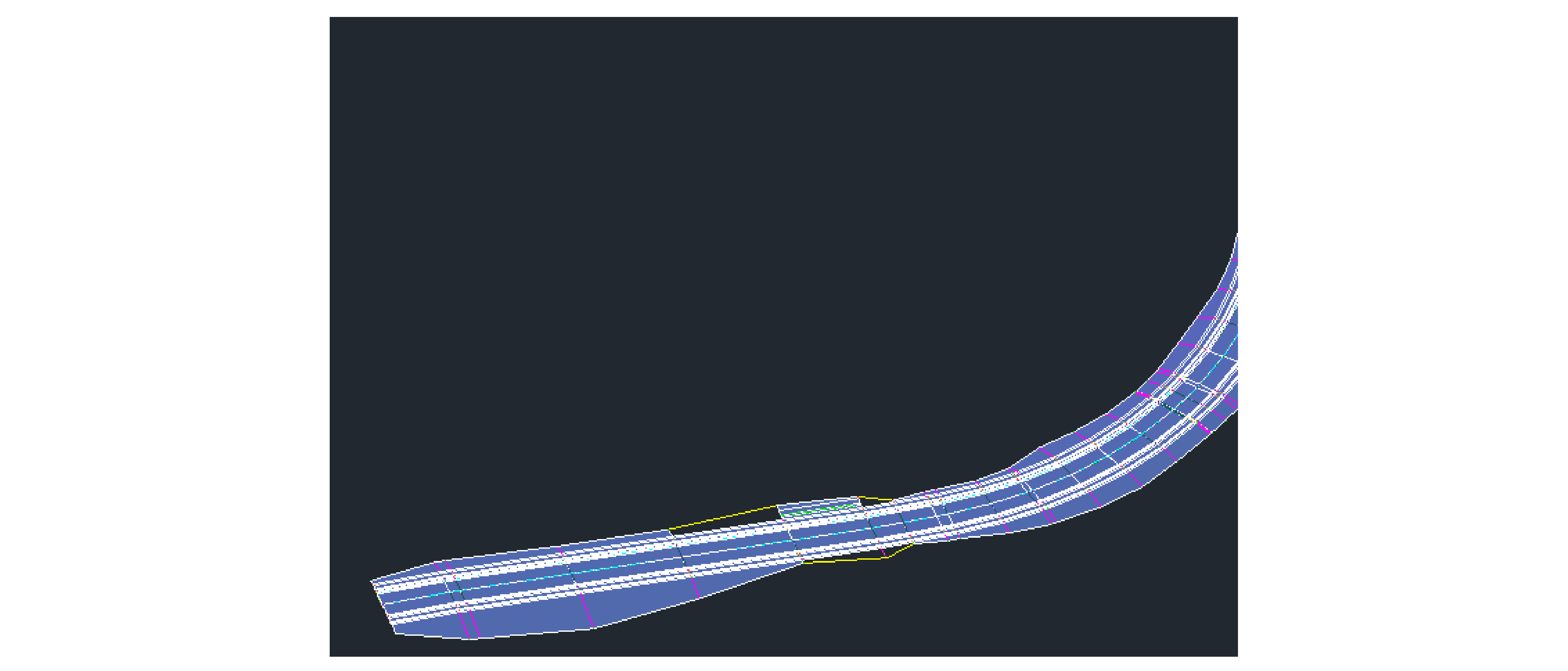
Figure: 3D solids generated for corridor
In the Corridor property set definitions area, expand Property Set Definitions, then click Corridor Model Information.
In the table, find the CorridorName setting and in the Visible column, select the checkbox.
Figure: CorridorName property in Extract Corridor Solids
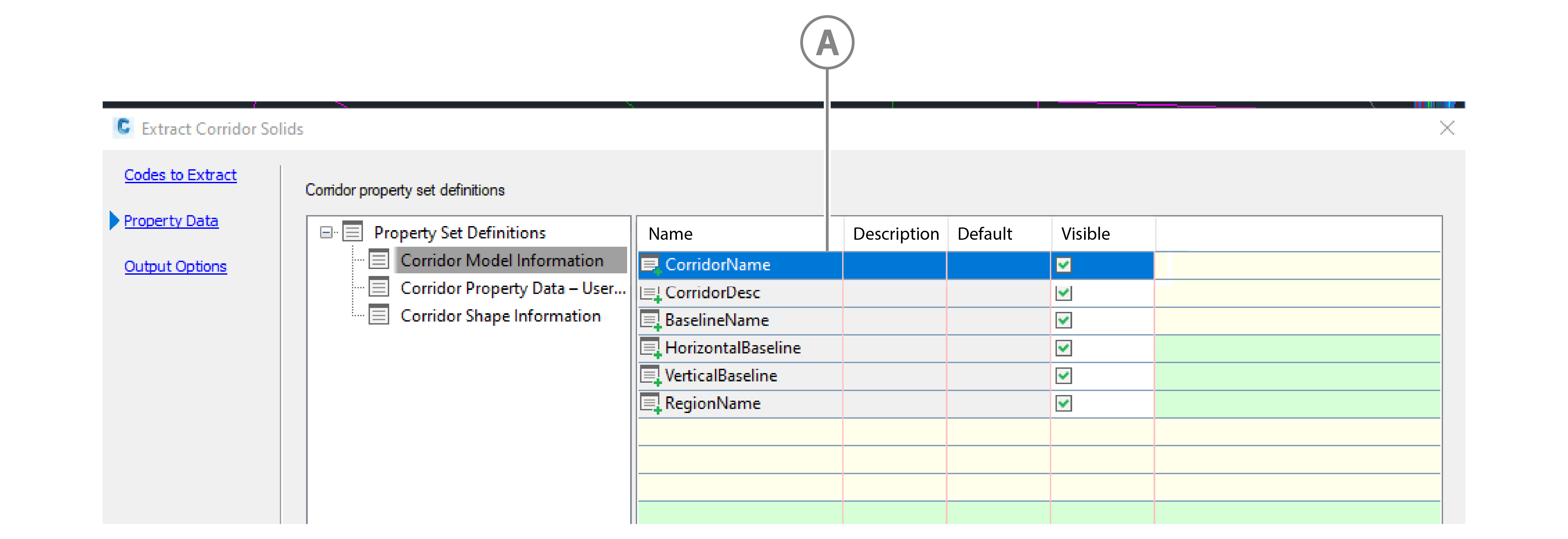
Callout Description A CorridorName property and checkbox From the sidebar, click Output Options, in the Output definition options area, select Insert into current drawing.
Figure: Insert into current drawing option in the Output destination options
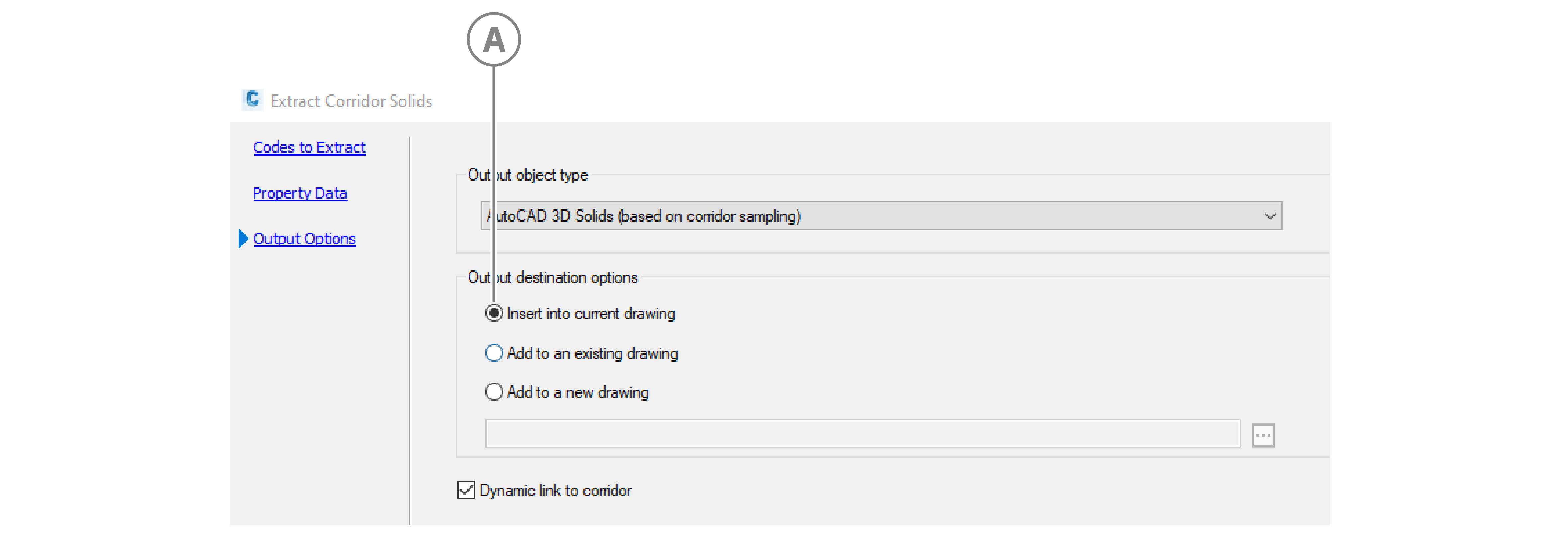
Callout Description A Insert into current drawing option
Other than basic properties, plugin exports following properties for Corridor:
- Data : Code Set Style
- Parameters : Baseline - Name
- Parameters : Baseline - Alignment
- Parameters : Baseline - Region - Assembly
- Parameters : Baseline - Region - Start Station
- Parameters : Baseline - Region - End Station
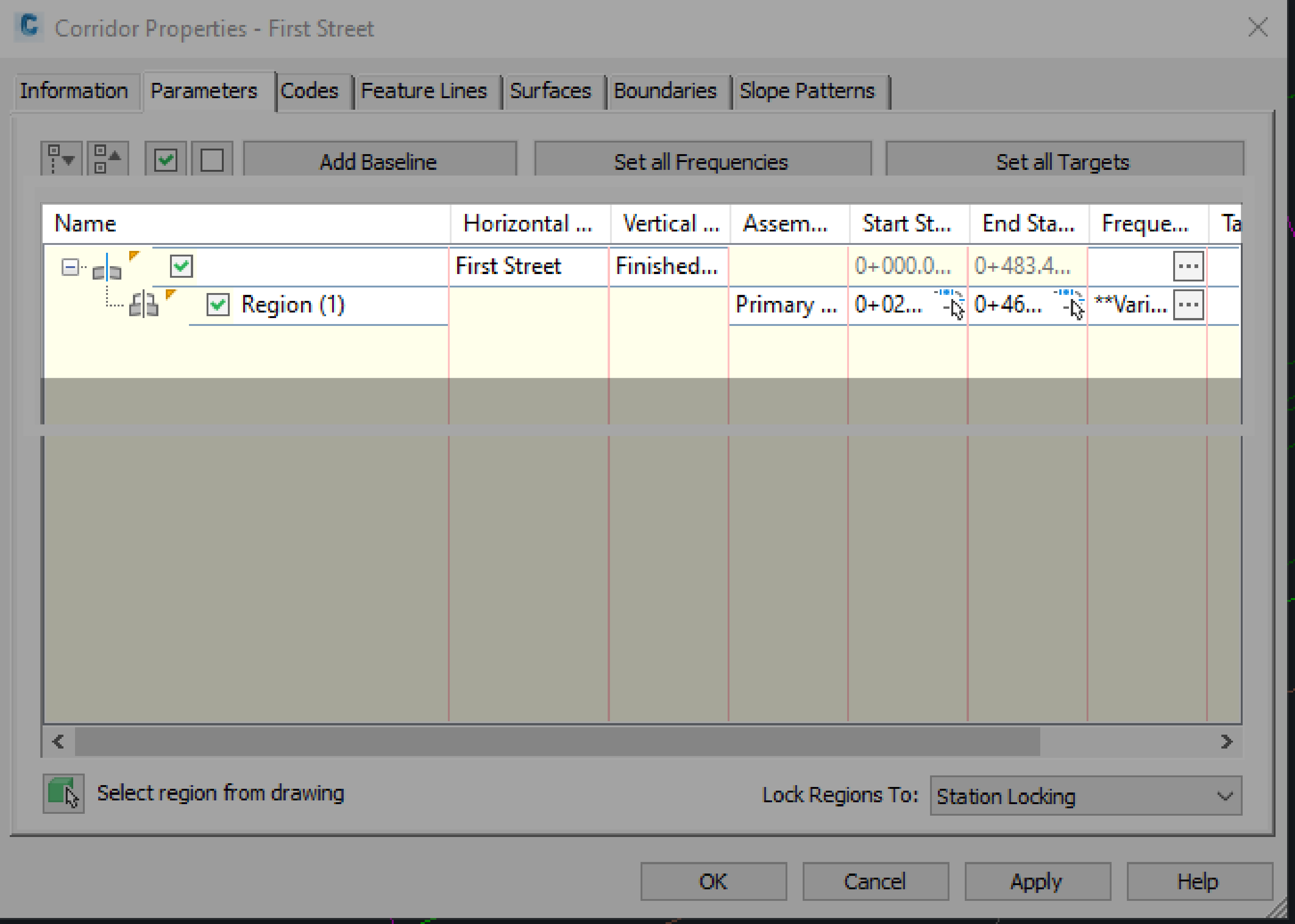
Figure: Corridor properties parameters tab