Telemetry data
The following topics describe how to view an element's telemetry data in the user interface, its data flow diagram representation, and a source code walkthrough of the handlers and API calls.
Viewing an element's telemetry data in the UI#
To view an element's telemetry data, do the following:
- On the Model Elements page, in the Fetch pane, select the element category and element type you want to fetch from the ElementCategory and ElementType dropdowns.
- To fetch only the model elements with related telemetry data, click TELEMETRY instead of FETCH.
- On the Elements pane, click the element you want to view telemetry data for.
- On the Related Items pane, click Telemetry Collection.
- On the Telemetry Collection pane, click FETCH READING.
The fetched readings now appear in the graph, which updates as new readings are taken. To stop fetching telemetry readings, click REMOVE ORCHESTRATOR.
Figure: View telemetry data panes
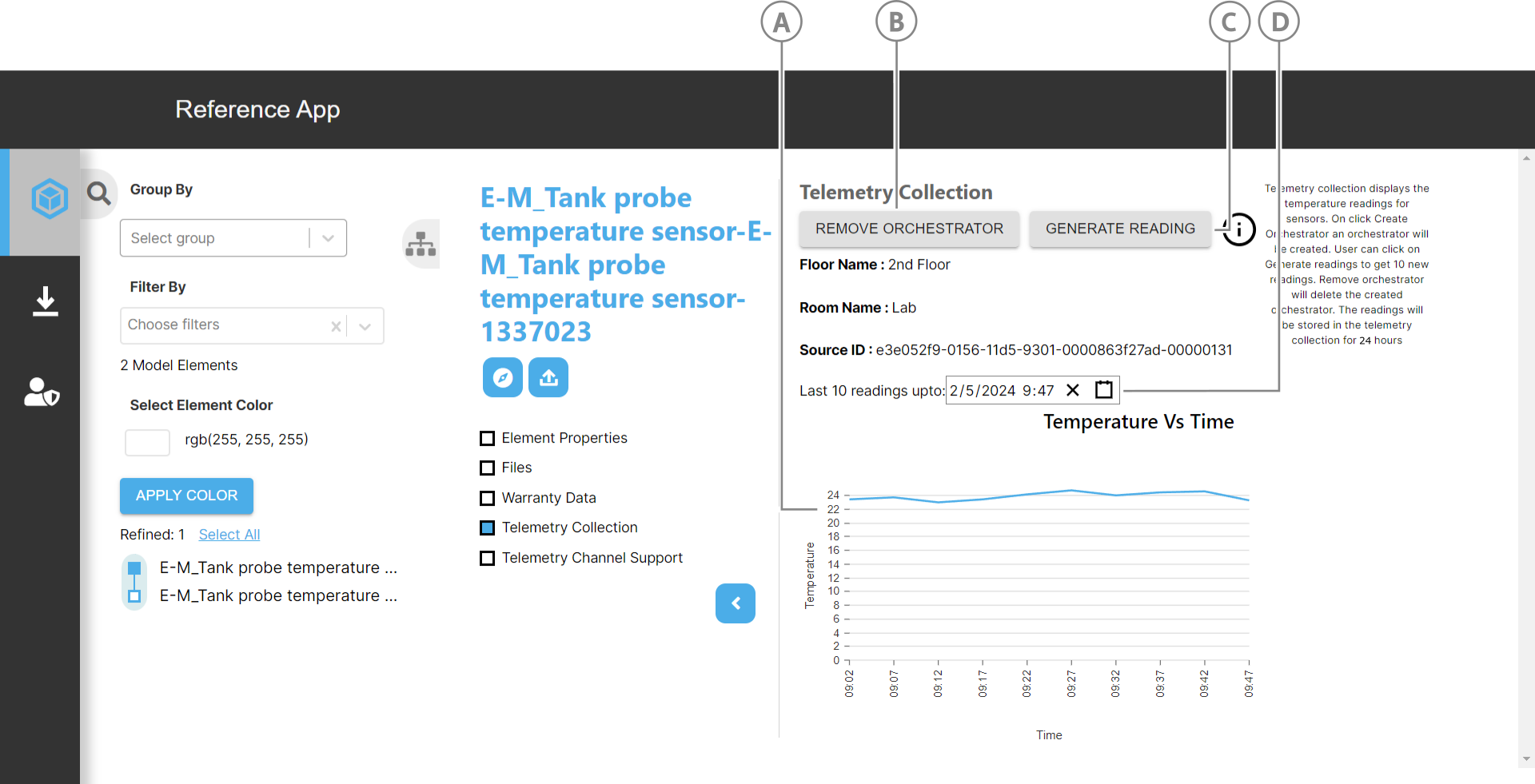
| Callout | Element | Description |
|---|---|---|
| A | Graph | Mapped readings on graph |
| B | REMOVE ORCHESTRATOR button | Deletes the orchestrator to stop generating readings |
| C | GENERATE READING button | Click to generate 10 readings from the date and time picked from the date-time picker |
| D | Date-time picker | Pick a date and time to generate the last 10 readings up to that point in time. |
Telemetry data flow#
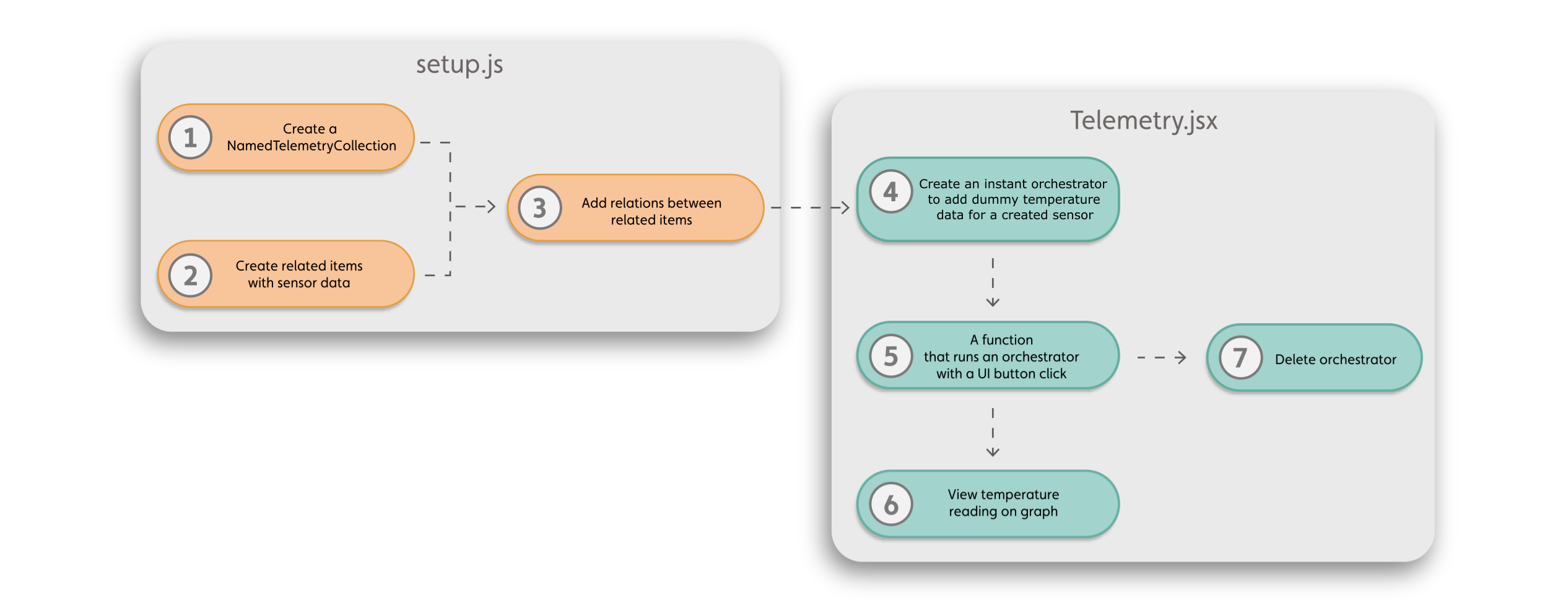
The following diagram shows the data flow in the Reference App for creating telemetry collections and items based on sensor data and interacting with that data in the user interface:
Figure: Telemetry data flow
| Callout | Process |
|---|---|
| 1 | During the project setup, in setup.js, the function createTelementaryCollection uses the platform API call IafItemSvc.createNamedUserItems() to creates a named telemetry collection. |
| 2 | IafItemSvc.createRelatedItems() creates related items with the sensor data. |
| 3 | IafItemSvc.addRelations() relates the telemetry items. |
| 4 | IafScriptEngine.addDatasource() creates an instant orchestrator that adds dummy temperature data readings for the selected temperature sensor. |
| 5 | When the user clicks a UI button, the handleCreate handler runs the orchestrator that gets telemetry readings. |
| 6 | IafScriptEngine.findWithRelatedGraph() enables the user to view the temperature readings of the sensor over a period of time on a graph. |
| 7 | IafScriptEngine.removeDatasource() can delete an orchestrator. |
Code walkthrough#
Setup script#
When the app starts, the createTelementaryCollection setup script in createCollections.js, the function sets up the following:
- Telemetry collection
- Sensors as related items
- Parent-child relationship between the telemetry collection and the sensor related items
- Parent-child relationship between the telemetry model element, such as a device, and the sensor related items
Note: To walkthrough the setup script, see Setting up a telemetry collection.
Creating an orchestrator#
Clicking a UI button calls the handleCreate handler which starts the orchestrator that gets telemetry readings. This handler calls the previously described API, IafScriptEngine.addDatasource.
UI button:
<GenericMatButton onClick={handleCreate} customClasses="systems-secondary-button" > Create Orchestrator </GenericMatButton>
In the handleCreate handler, the following API call creates and runs an instant orchestrator:
let scheduleOrchestrator = await IafScriptEngine.addDatasource( { _name: "Schedule Orchestrator", _description: "Orchestrator to get temperature for telemetry collection", _namespaces: project._namespaces, _userType: "orchestrator", _permissionprofileid: permissionProfiles._list[0]._id, _params: { tasks: [ { name: "default_script_target", _actualparams: { userType: "orchestrator", _scriptName: "telemetryTemperature", // TelemetryCollectionId: data.collectionId, RelatedItemId: relatedItem2._list[0]._relatedToIds[0], sensorId: relatedItems._list[0]._sourceId, }, _sequenceno: 1, }, ], }, }, ctx);
The script telemetryTemperature in scripts\NextScriptEngine\scripts\js\orchestrator.js constructs dummy readings:
async telemetryTemperature(params, libraries, ctx) {  const { IafItemSvc } = libraries.PlatformApi;
  const date = new Date();  const param = params.inparams;  const readings = [];
  for (let i = 0; i < 10; i++) {    const randomTemperature = Math.floor((Math.random() * 30 + 220) * 10) / 100;    const reading = {      "Temperature": randomTemperature,      "TimeStamp": date,      "_ts": date,      "_tsMetadata": {          "_telItemId": params.actualParams.RelatedItemId,          "_sourceId": params.actualParams.sensorId      }    };    readings.push(reading);  }
  // creates related items of readings with relationship between passed telem collection   // and the created reading items  const ReadingItems1 = await IafItemSvc.createRelatedReadingItems(    params.actualParams.TelemetryCollectionId,     readings,         ctx  );}
Getting readings#
To get sensor temperature readings and push them to a timeseries graph, in Telemetry.jsx, in the getGraphData function, the getRelatedReading function calls IafItemSvc.getRelatedReadingItems.
UI button:
<GenericMatButton onClick={() => getGraphData()} customClasses="systems-secondary-button">
Handler:
const getGraphData = async () => {  ...  let getRelatedReading = await IafItemSvc.getRelatedReadingItems(    data.collectionId,    undefined,    ctx,    undefined  );  const data = [  {    id: "data",    data: getRelatedReading?._list      ?.slice(-10)      .map((entry, index) => {        const date = new Date(userSelectedTime);        date.setMinutes(date.getMinutes() - index * 5); // Adjust initial time and reduce by 5 minutes for each reading        const formattedDate = date.toLocaleString();
        return {          x: `${date.getHours().toString().padStart(2, "0")}:${date            .getMinutes()            .toString()            .padStart(2, "0")}`,          y: entry.Temperature || 0, // Assuming Temperature is the property holding the temperature value          z: formattedDate,        };      })      .reverse(),  },];}
Stop readings#
To delete an orchestrator, in Telemetry.jsx, in the handleDeleteOrch function, the IafDataSource.deleteOrchestrator API call deletes the matching orchestrator.
UI button:
<Button onClick={handleDeleteOrch} style={{ background: "var(--app-accent-color)", color: "#fff", }} variant="contained" autoFocus> Stop</Button>
Handler:
const handleDeleteOrch = async () => { handleClose(); // setyaxis([]); let project = await IafProj.getCurrent(); let ctx = { _namespaces: project._namespaces }; let _namespaces = ctx._namespaces; let query = { _namespaces, _name: "Schedule Orchestrator" }; let getOrch = await IafScriptEngine.getDatasources(query, ctx); try { for (var orch in getOrch) if (getOrch[orch]._name == "Schedule Orchestrator") { let res = await IafDataSource.deleteOrchestrator( getOrch[orch].id, ctx ); } } catch (error) {} ...}