IafViewer
Overview#
The IafViewer React component allows you to explore and manipulate 3D models using a powerful set of viewing tools and visual assists. For example, you can use it to view a BIM model in 3D space and interact with it using a range of tools.
The Model Navigator page in the Reference app, is built using the IafViewer component. Refer to the section on the Reference app for more information.
IafViewer UI#
Figure: IafViewer interface elements
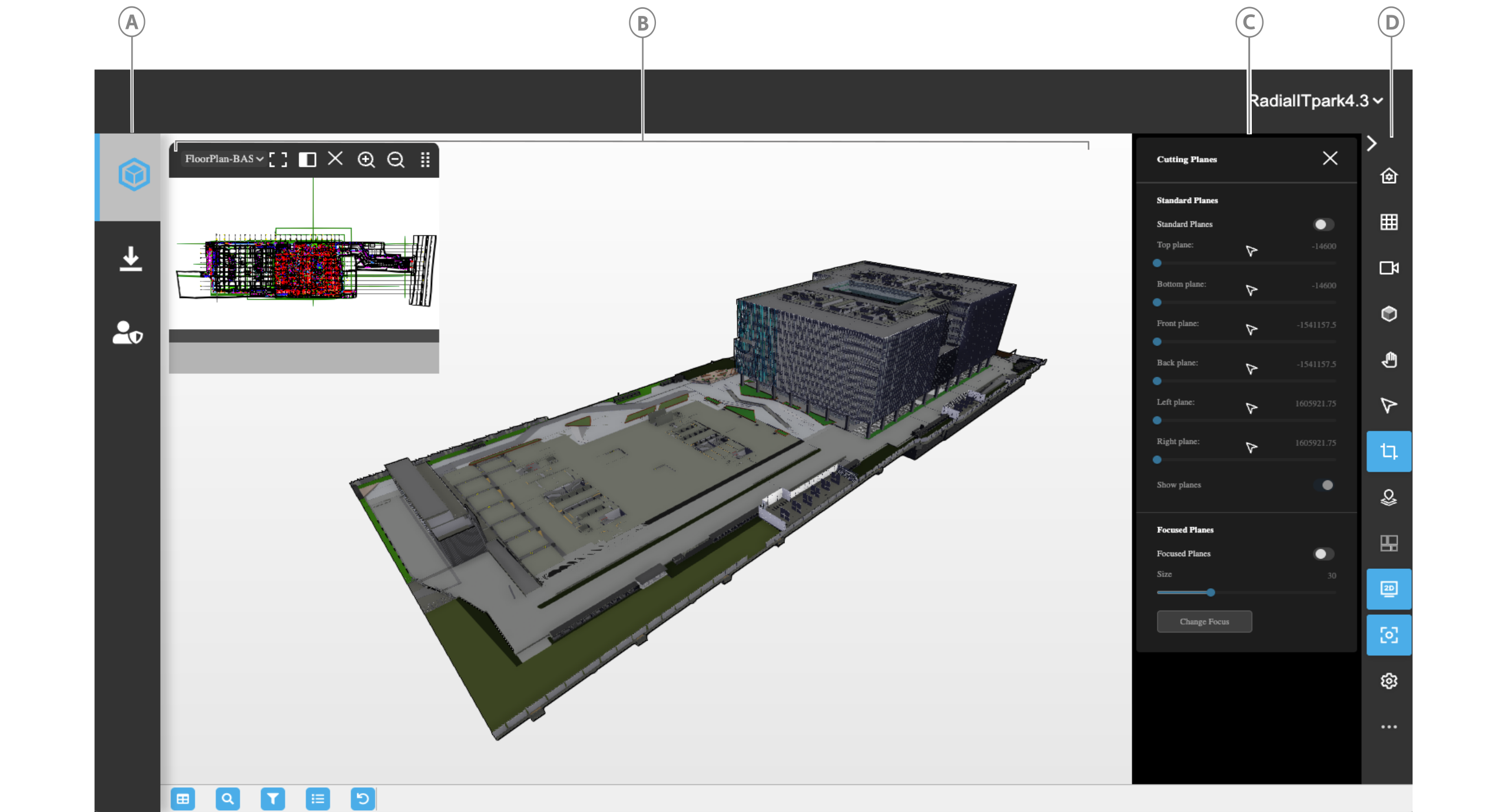
| Callout | Element | Description |
|---|---|---|
| A | Viewer page icon | Click to open the Viewer page |
| B | 3D viewer | Interact with the model |
| C | Configuration pane | When you click a tool in the toolbar, you can further configure the tool's settings in the Configuration pane. |
| D | Toolbar | Click a tool to use it in the IafViewer. For more information on each tool, see IafViewer toolbar icons |
IafViewer toolbar icons#
| Element | Icon | Description |
|---|---|---|
 | Reset view | Reset the viewer to the default coordinates. |
 | Projection | |
 | View | Click to select from the available views, such as front, back, top, and bottom views. |
 | Shading | Enable and configure model shading. |
 | Navigation | Select a navigation modality, such as pan, orbit, or walk view. |
 | Measurement and annotations | Measure the distance between two points and configure the measurement settings. Add annotations to the 3D model such as lines, geometrical shapes, text callouts, and graphics. |
 | Animations | Click to run animations. For more information, see Animations. |
 | Cutting Plane | Cut the model by a horizontal or vertical plane, either by coordinates or by point of mouse click. For more information, see Cutting Planes pane. |
 | GIS Launcher | Activate the GIS functions. For more information, see Geographic Information System (GIS) feature. |
 | 2D Viewer | View a flat 2D representation of the model. |
 | Focus Mode | Click to zoom in and focus on the selected model element. |
 | Viewer customization | Drag and drop the tools you want to appear in the toolbar for a given setting. |
 | Settings | Configure the general and effect settings. |
 | Visibility utilities | Isolate selected model elements, hide the selection, or show all model elements. This option does not appear in the toolbar by default; to enable it, from the toolbar, click the Settings icon, then enable Utilities. |
 | Model composition | Compose which parts of the model you want to load to optimize loading times for your use-case. For more information, see Model composition. |
Main features of IafViewer#
The main features offered by the IafViewer are:
Click on any feature for more information.
React component#
For more information on installing, importing, and configuring the IafViewer React component, see IafViewerDBM component.
React selection handling#
Selection handling refers to the handling of element click events in the IafViewer. To enhance React best practices, promote a more reactive data flow, and provide a more maintainable and efficient codebase, from platform v4.3 and later, implement the React selection handling enhancements.
Callback mechanism#
Any selection directly made within the IafViewer component triggers a callback to the application, passing the selected elements for processing. This ensures a more reactive response to user interactions and follows the principles of one-way data flow in React.
React selection handling workflow#
- User Interaction in IafViewer: In the IafViewer component user interface, a user makes element selections.
- Callback to application: Upon a selection event, the IafViewer component sends a callback to the application, providing details about the selected element.
- Application Response: The application receives the callback and processes the selected element, ensuring one-way data flow.
Note: For more information on using the IafViewer React component refer to the IafViewer page in the APIs section.
Utility function commands#
For more information on utility functions for the IafViewer component, see IafViewer commands.