Annotations and measurement pane
Annotations and measurement pane#
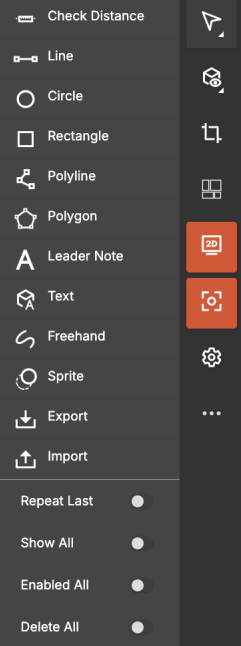
Use the Annotations and measurement pane to measure the distance between two points, as well as add annotations to the 3D model such as lines, geometrical shapes, text callouts, and graphics. You can export and import annotations.
Figure: Annotations and measurement pane
| UI element | Name | Description |
|---|---|---|
 | Check Distance | Measures the distance between two nodes you click. |
 | Line | Click in the viewer to set first node, then the second click completes the line. Press the Escape key to cancel. |
 | Circle | Click in the viewer where you want the circle's centre, then drag to enlarge the circle. Release the mouse click to complete the circle. |
 | Rectangle | Click in the viewer where you want the upper-left corner of the rectangle, then click where you want the bottom-right corner to complete the shape. |
 | Polyline | Click in the viewer to set first node, then continue to add nodes. Right-click to complete the polyline. |
 | Polygon | Click in the viewer to set first polygon point, continue to add points, then right-click to auto-complete the final point. |
 | Leader Note | Creates a callout with text that points to a location. Click in the viewer to set the pointer, then type in the text box. Press the Shift and Enter keys to add a new line. |
 | Text | |
 | Freehand | Click to start, drag the mouse to draw the freehand sketch, then release the mouse click to complete. |
 | Sprite | Adds a graphic annotation using an image URL. Click in the viewer where you want the image, then in the text box, paste the image URL. Click outside the text box to complete. You can use png and gif files. |
 | Export | Exports your annotations. |
 | Import | Imports exported annotations. |
| Repeat Last | Repeats the previous annotation | |
| Show All | Show or hide all annotations | |
| Enabled All | Enable to select any annotation and move it or edit its properties. Disable if you are navigating the model and don't want the annotations to be editable. | |
| Delete All | Deletes all annotations |
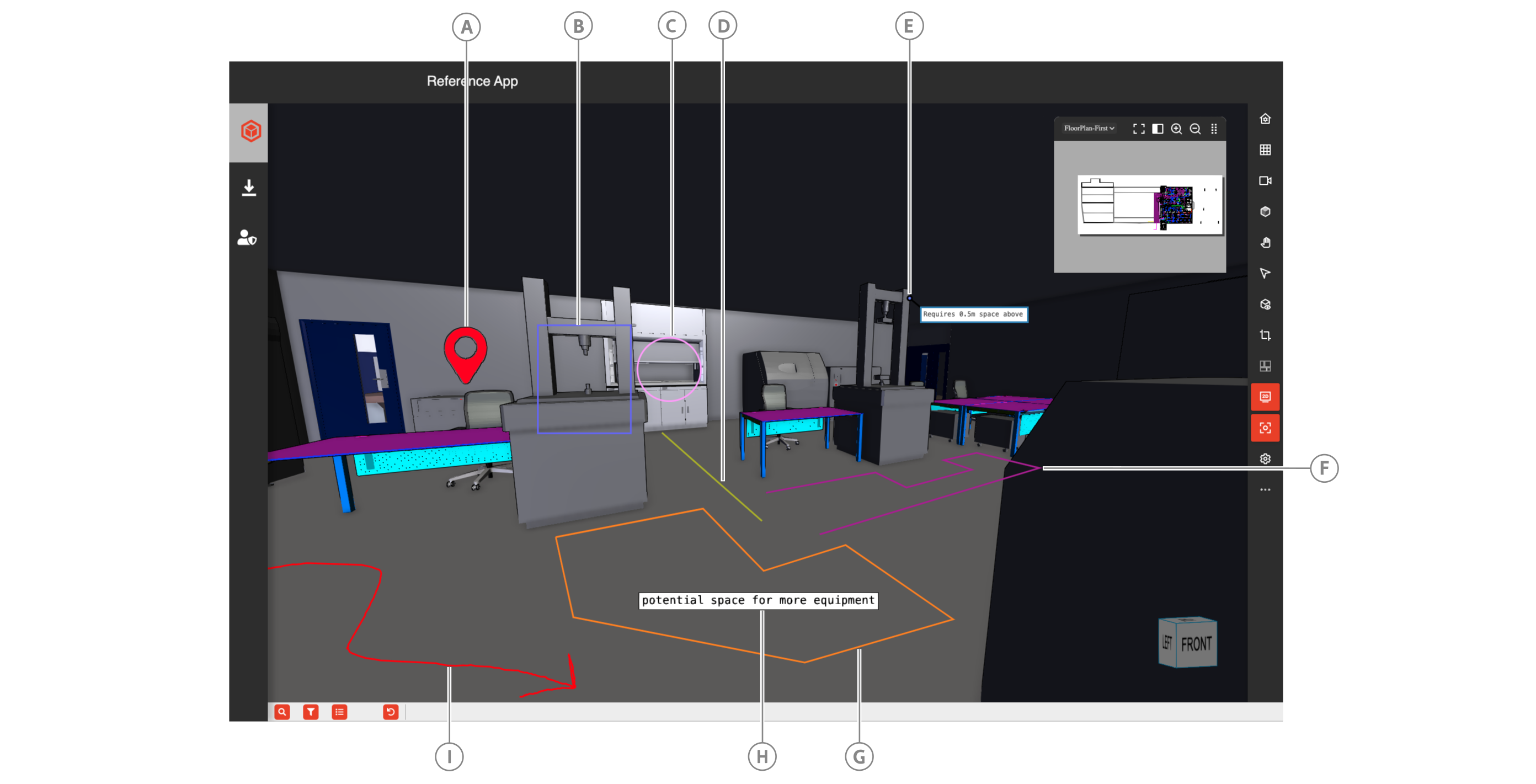
Annotations examples#
| Callout | Name |
|---|---|
| A | Sprite |
| B | Rectangle |
| C | Circle |
| D | Line |
| E | Leader Note |
| F | Polyline |
| G | Polygon |
| H | Text |
| I | Freehand |
Edit annotations panes#
You can edit any annotations in the viewer by clicking the annotation and editing the configuration in the panel.
Text edit pane#
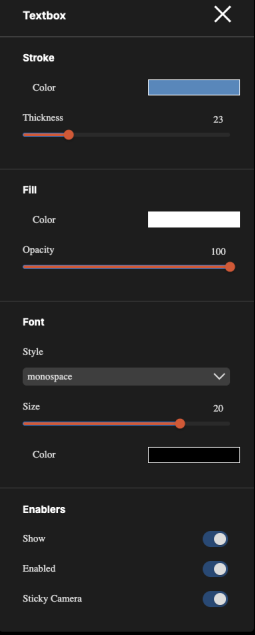
You can change the text font, the text fill color and opacity, the text stroke color and thickness. There are also toggles to display or hide the text annotation, focus the viewer on the annotation, or make the annotation selectable or not.
Figure: Text annotations edit pane
Geometry edit pane#
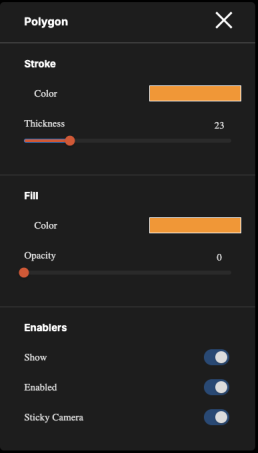
For geometry shapes, you can change the stroke color and thickness, as well as the fill color and opacity. There are also toggles to display or hide the geometry annotation, focus the viewer on the annotation, or make the annotation selectable or not.
Figure: Geometry annotations edit pane