AO 01 | App Owner Concepts
Target Audience
This course is targeted for the technical leader who will be the Twinit Application Owner for your team. The Application Owner will have permissions to create projects, add users, modify application settings, and more. Application Owners can also add other Application Owners and Application Developers.
Material in this course may be informative for Non-Application Owners as well. Even if you are not an Application Owner, it is worthwhile to read through this course.
Finding Help
If you get stuck or have any questions be sure to visit the digitaltwin-factory community!
Post your question in the Ask the Community section and get access to the combined knowledge of the digitaltwin-factory developer community, including the experts at Twinit and Invicara.
Note: Support will not have access to your application settings or data after it is created.
Getting Started
Once you have a Twinit subscription you will be issued your own Twinit application ids. When the application ids are issued one or more Application Owners from your team are assigned. It's essential that any Application Owner understands the following topics.
Organizations and Applications
Organizations
When you first sign up for the digitaltwin-factory, an Organization is created for your company on Twinit. Limits based on your Twinit Subscription level can be applied at the Organization level.
Applications
Applications group workspaces under an application id. You can assign additional Application Owners and Application Developers who have permission to create workspaces for the application.
Application User Groups
Application Owners
The Application Owner role owns an application and manages its resources.
The Application Owner role has the following characteristics:
- This usergroup belongs to an application and can have multiple application owners.
- They are able to manage applications and invite app developers to create WorkSpaces and UserGroups.
- They are able to manage WorkSpaces and UserGroups.
Application Developers
The Application Developer role accesses application resources based on its permission set.
The Application Developer role has the following characteristics:
- The Application Developer role will be available for every application.
- An Application Owner would invite users to be Application Developers.
- They can create WorkSpaces and UserGroups for an application.
The Twinit Console Application
The Twinit Console Application provides Application Owners and Application Developers access to manage their applications, workspaces, and more.
Only Platform Managers, Organization Owners, Application Owners, and Application Developers can access the Twinit Console Application.
An instance of the Twinit Console Application is available for each Twinit environment. Be sure to select the correct one based on your subscription.
Viewing Your Application Settings
- Open the Twinit Console Application and sign in
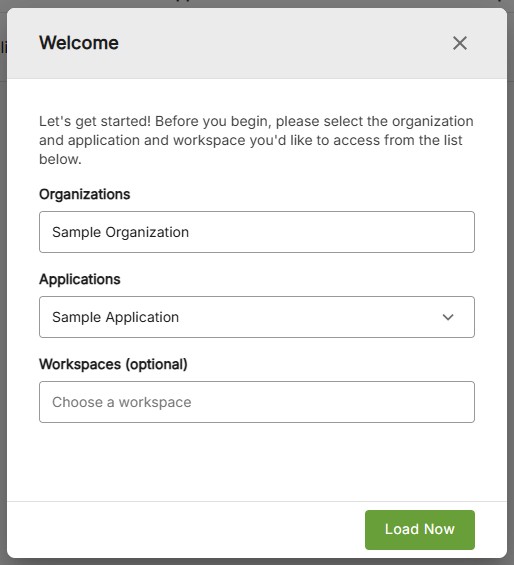
- Select your Organization and Application in the dialog
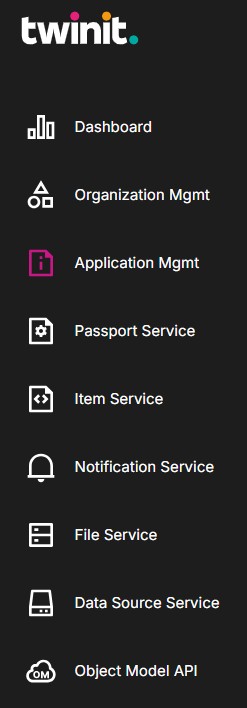
- Click Application Mgmt item in the navigation bar
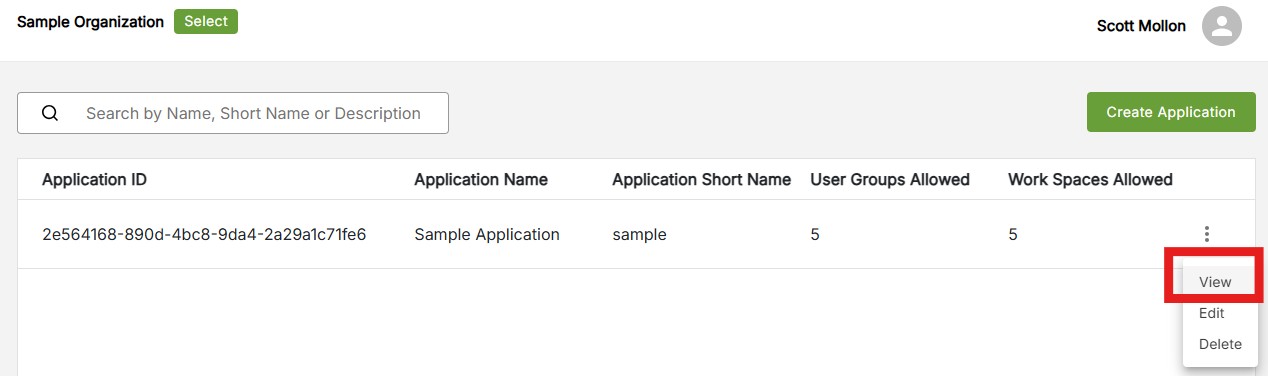
- Find your application in the list and select View from the menu on the right
Here you can see your Application Configuration, including its name, id, and allowed origins and redirects.
The id of your application will be what your client applications use to connect and authenticate users on Twinit.
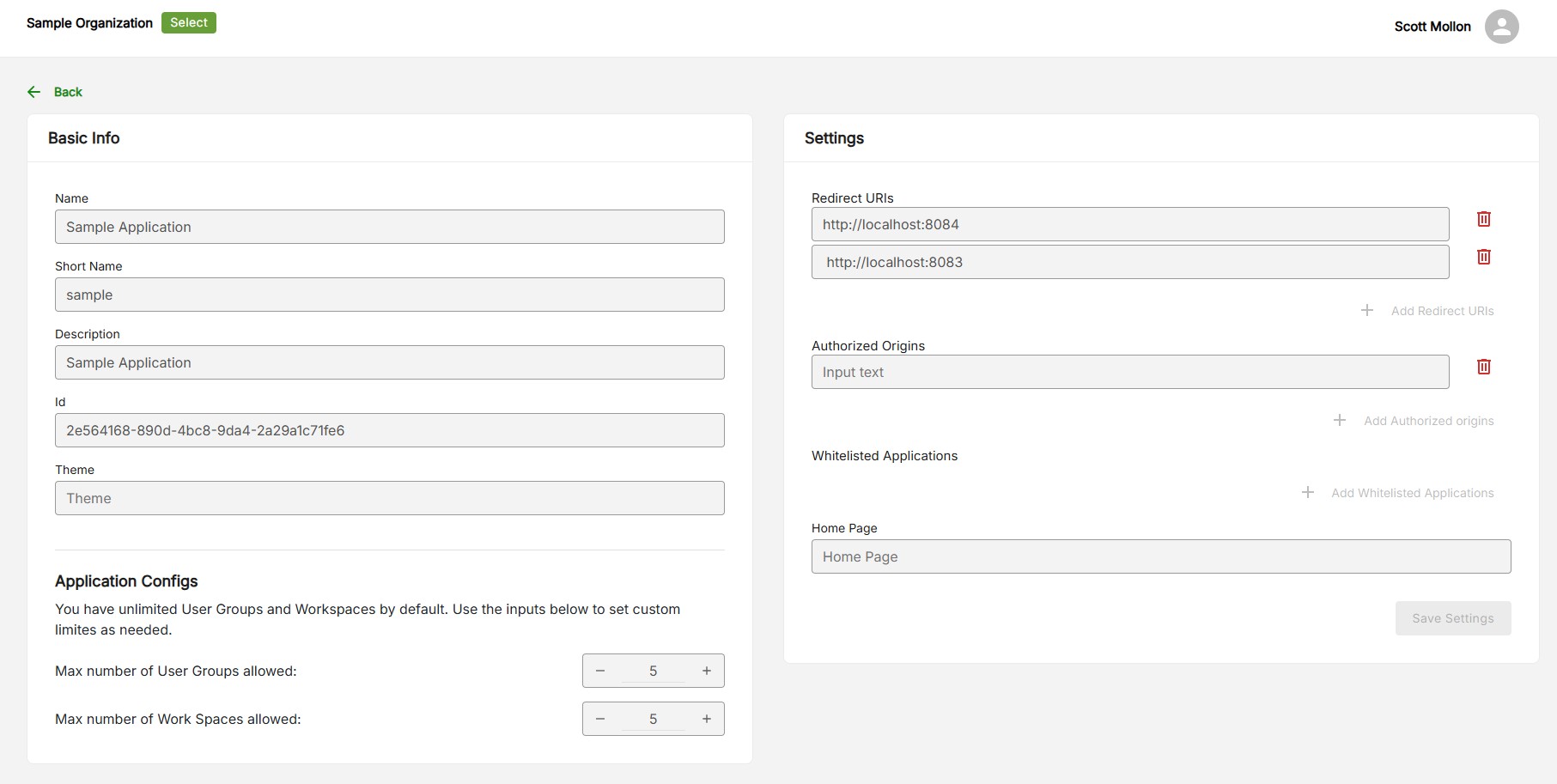
*For more information on the individual application settings and managing your application visit the Console App documentation
Common Application Owner Tasks
Adding Application Owners or Application Developers
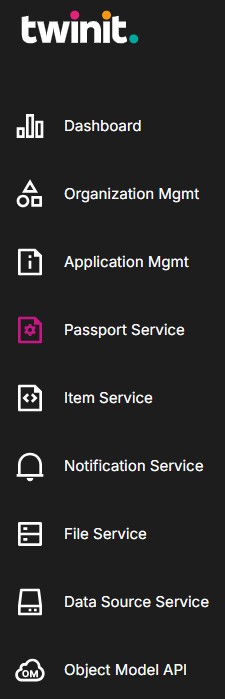
- With your Org and Application selected, click the Passport Service item in the navigation bar
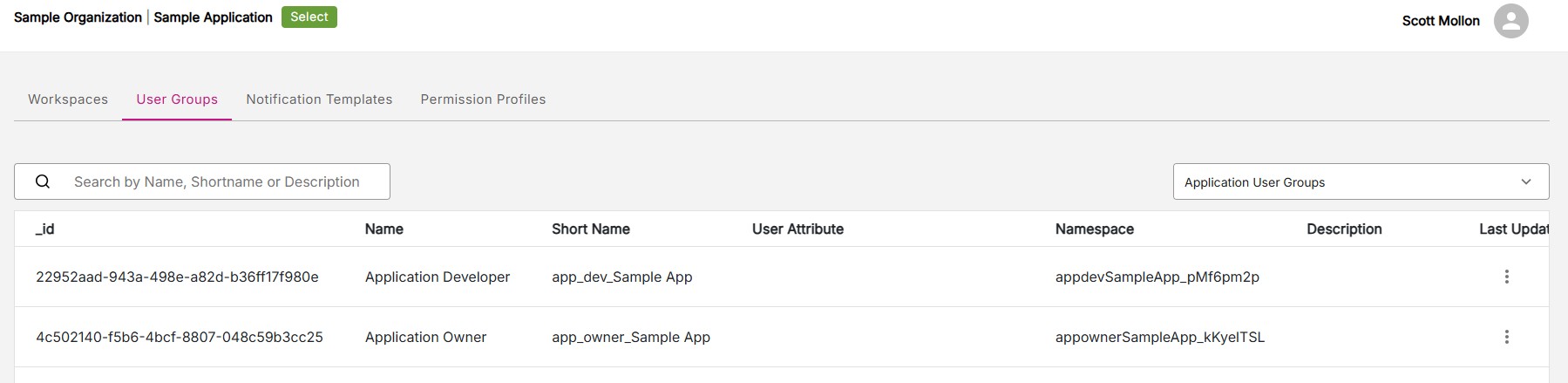
- On the Passport Service page select the User Groups tab
Here you will see a list of all of the User Groups for your application.
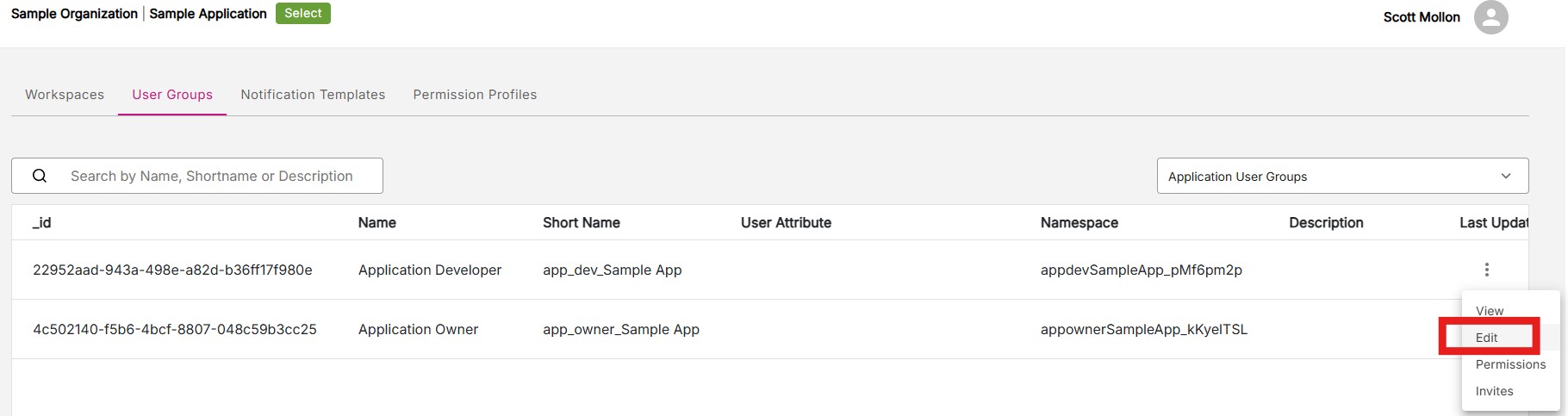
- Choose either Application Owner or Application Developer and select Edit
In the View and Edit dialog you can see the properties and user attributes of the user group.
- Click the 'Invite and remove users' tab.
- To invite users to the group, click the '+Add More' button
- Enter the email of the user you would like to add to the group and click the 'Save & Close' button.
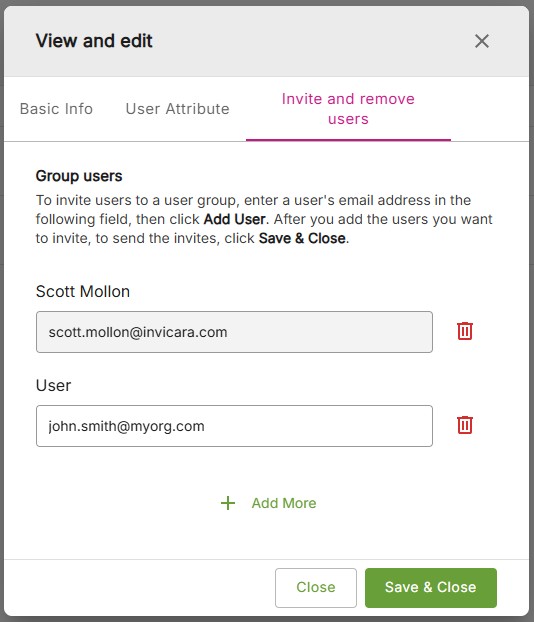
The invited user will receive an email asking them to accept the invitation. If they do not yet have a Twinit account on the environment, they will be guided to set one up.
Removing or Adding Redirect URIs
When your client application signs in on Twinit, it redirects your user's browser to Twinit's sign in page. After the user successfully signs in to Twinit, Twinit will then redirect the user back to your application URL. However, Twinit will only do so if your application settings list your application URL as an allowed Redirect URI.
Most applications are automatically created with two localhost URIs as allowed Redirects as these are the two URIs most often used by ipa-core applications. However you may want to remove default redirects or add new redirects of your own.
- Go to your Application settings
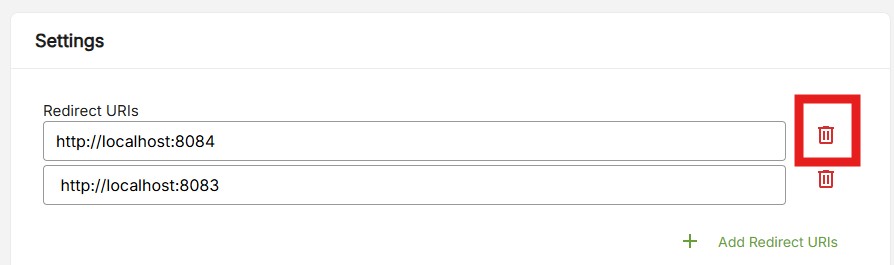
- To remove a redirect click the delete icon next to it
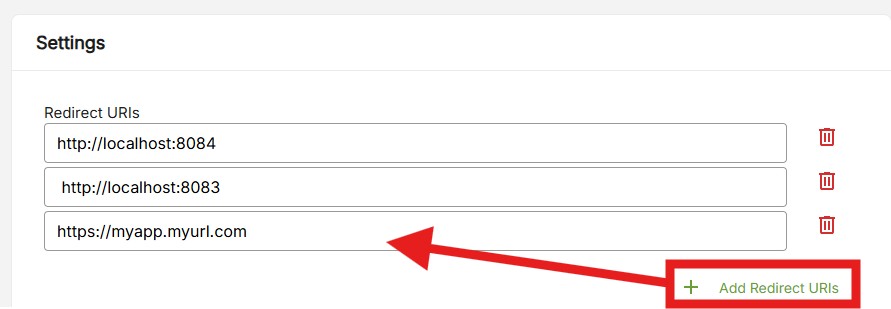
- To add a new redirect click the '+Add Redirect URIs' and add a new URL in the field
- Click Save Settings