User Access Keys
Overview#
This page describes the process of obtaining user access keys.
Any individual user can create their own user access keys and then make API calls programatically. These keys contains both an Access Key and a Secret Key. These keys are used like a username and password to generate an access token, used to make API calls. This process is suitable for command line applications.
Note: User access keys are only shown once when they are generated and should be immediately downloaded and stored safely. If new user access keys are generated, then all keys which were previously generated will be revoked.
Prerequisites#
Before beginning, a Platform Application(PA) is required.
Obtaining user access keys#
To obtain your user access keys, do the following:
From any online documentation page, click the user icon in the top right of the page. You will be presented with your user profile page. Alternatively, just go directly to the user profile page using this link: .
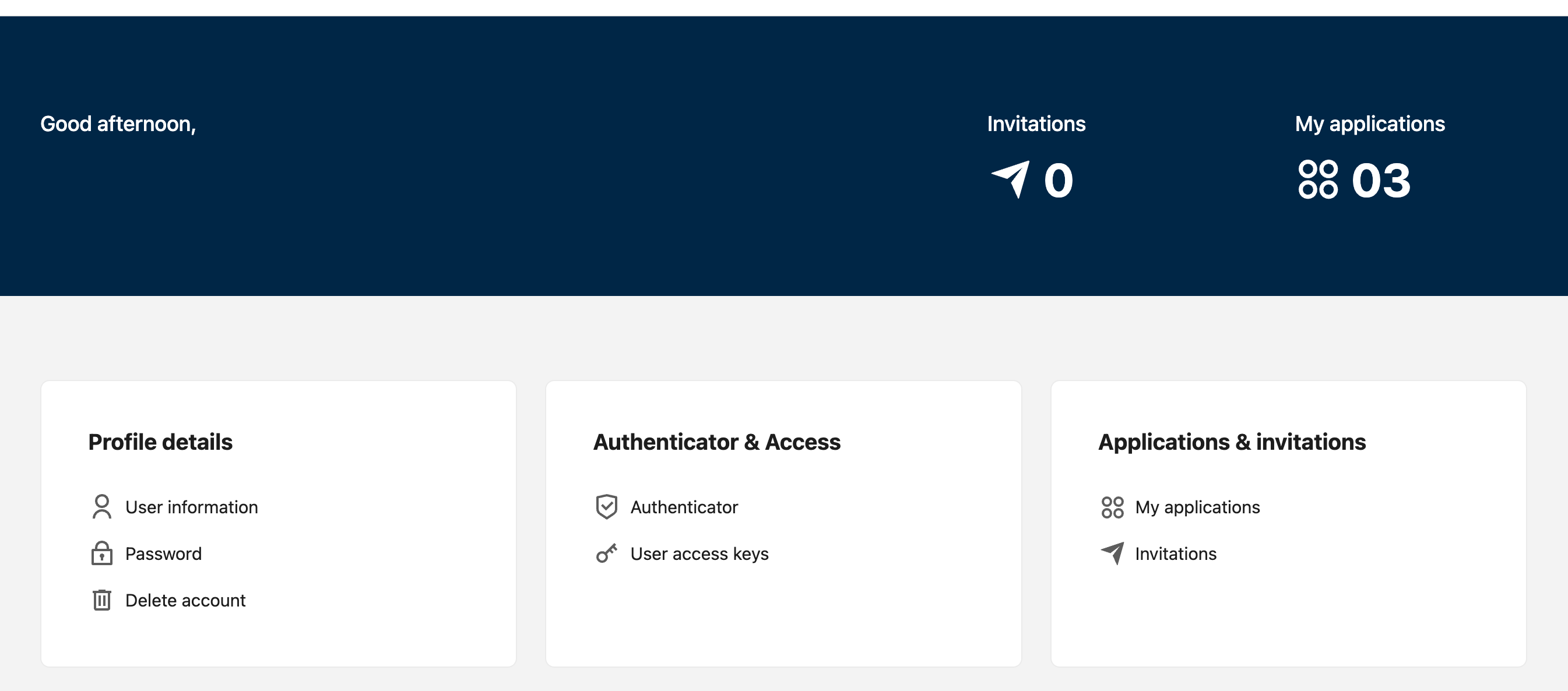
In the Authenticator & Access panel, click User access keys which will take you to the Account setting page.
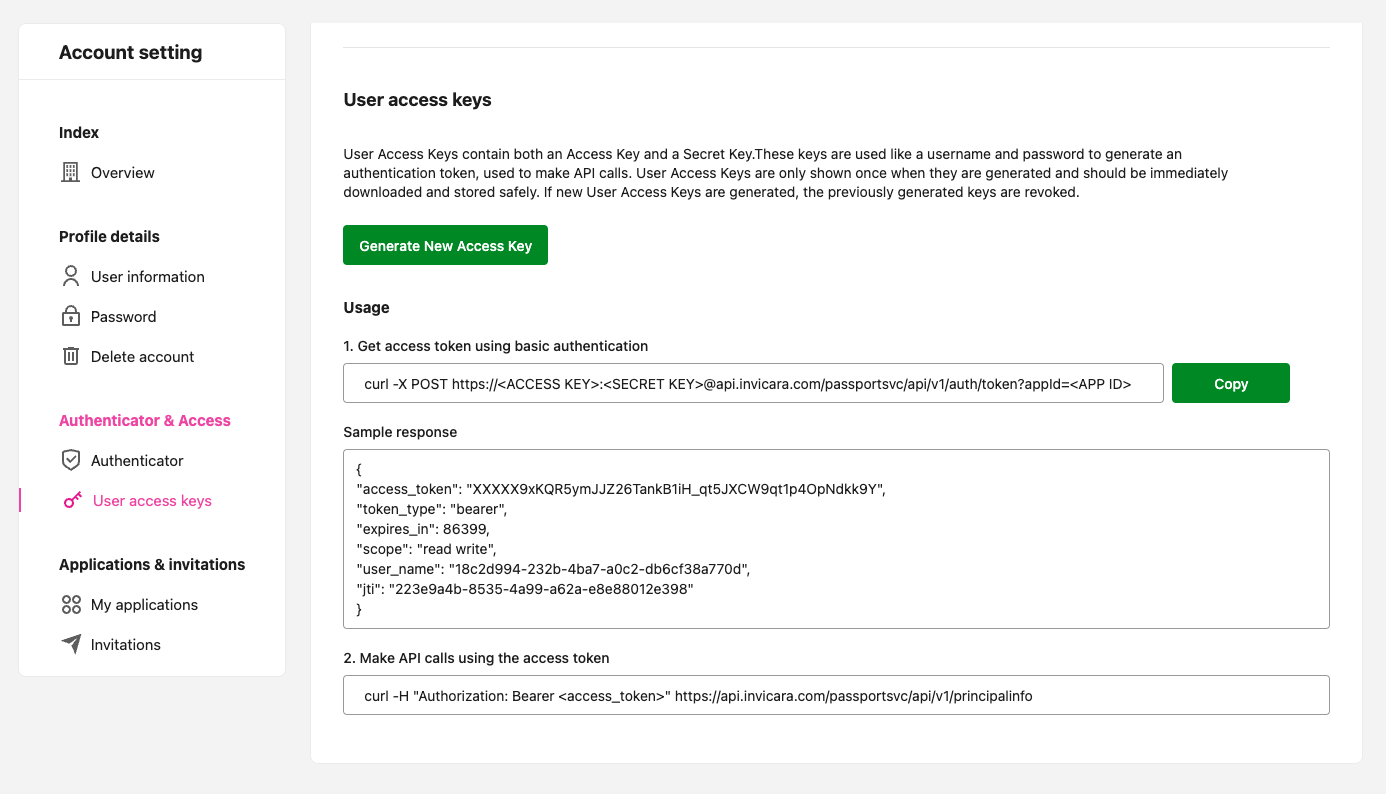
In the User access keys pane, click the button Generate New Access Key. If there are any previously generated access keys present they will be revoked.
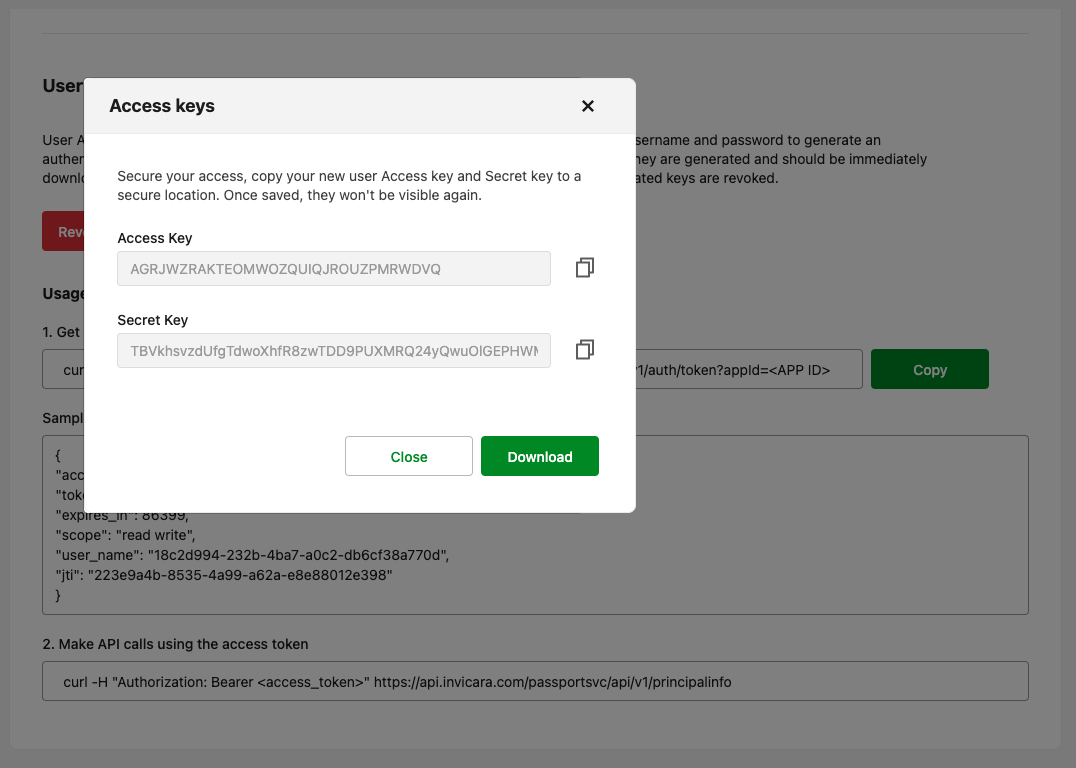
The Access Key and Secret Key information will be displayed. Copy these two keys and store in a safe place.
Note: The Access Key and Secret Key information will not be presented to you again so you must copy and securely store this information at this step.
Obtaining your access token#
Now that you have obtained your user access keys, you can now get an access token. This can be done in two ways:
- Obtaining access token using HTTP requests
- Obtaining access token using Postman
Obtaining access token using HTTP requests#
To get an access token using HTTP requests, do the following:
Get the access token by submitting a HTTP request such as the sample request below.
curl -X POST https://<ACCESS_KEY>:<SECRET_KEY>@api.xxxxxxxxx.com/passportsvc/api/v1/auth/token?appId=<Platform Application ID>Note:
appIdis the Platform application ID used to get the app specific token.You should receive a response similar to the sample shown below which will contain your access token.
{ "access_token": "eyJhbGciOiJIUzI1NiIsInR5cCI6IkpXVCJ9.eyJleHAiOjE2MTYyMzUzNjgsInVzZXJfbmFtZSI6IjE4YzJkOTk0LTIzMmItNGJhNy1hMGMyLWRiNmNmMzhhNzcwZCIsImF1dGhvcml0aWVzIjpbIlJPTEVfVVNFUiJdLCJqdGkiOiIyMjNlOWE0Yi04NTM1LTRhOTktYTYyYS1lOGU4ODAxMmUzOTgiLCJjbGllbnRfaWQiOiJzeXMtY2xpZW50Iiwic2NvcGUiOlsicmVhZCIsIndyaXRlIl19.9xKQR5ymJJZ26TankB1iH_qt5JXCW9qt1p4OpNdkk9Y", "token_type": "bearer", "expires_in": 86399, "scope": "read write", "user_name": "18c2d994-232b-4ba7-a0c2-db6cf38a770d", "jti": "223e9a4b-8535-4a99-a62a-e8e88012e398"}
The access token has the same privileges as other access tokens received via other clients. It can be used to make API calls as shown in the example below.
curl -H "Authorization: Bearer <access_token>" https://api.xxxxxxxxx.com/passportsvc/api/v1/principalinfoObtaining access token using Postman#
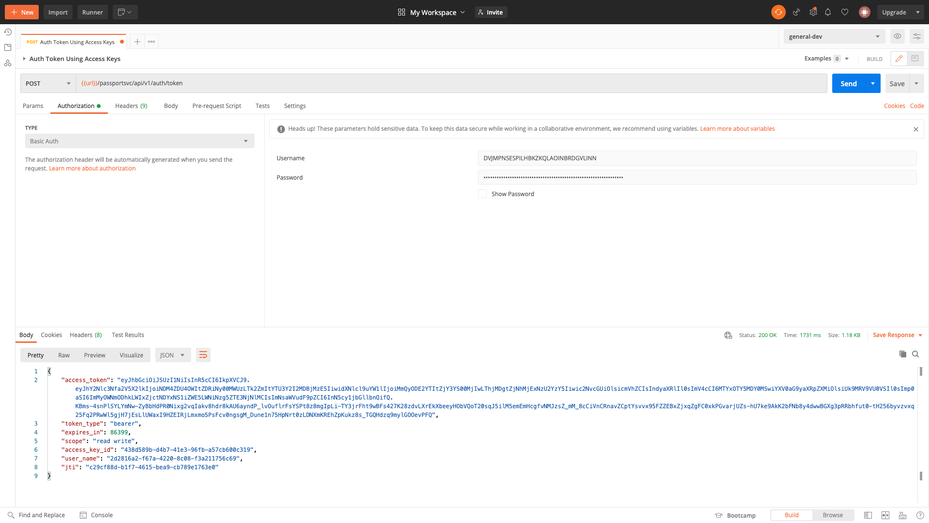
To get an access token using the Postman API client, do the following:
- In Postman, add new request with URI
/passportsvc/api/v1/auth/token?appId=<Platform Application ID>and HTTP method as POST. - Click the Authorization tab and then select Basic Auth from the list of authorization options on the left.
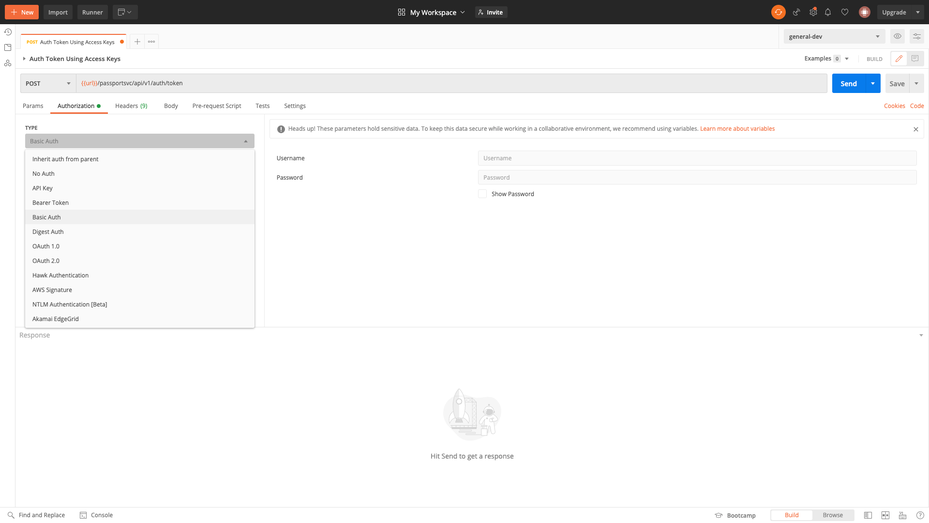
- Paste your access key into the Username field and the secret key into the Password field.
- Click Send to submit the HTTP request and receive your access token in the response.