Exporting images from DWG drawings
Overview
Introduced in Platform version 5.3, the AutoCAD IPA plug-in can now export images in DWG drawings. Whether the plug-in exports an image depends on its file type and on how it was added to the drawing.
Supported image types
The AutoCAD IPA plug-in can export the following image types:
- PNG
- JPG
- BMP
Note: These are the only image types that the plug-in can write to the HOOPS file. Be aware that the HOOPS Communicator viewer currently has a known issue regarding displaying 24-bit BMP images and for now, it is best to avoid using such images.
Supported image cases
You can add an image to a DWG file in several ways. However, the plug-in doesn't export images in every situation. For example, it doesn't support exporting an image that is embedded as an Object Linking and Embedding (OLE) object.
See the list of scenarios below for more information.
| Scenario | Supported | Notes |
|---|---|---|
| XREF image attachment | Yes | Ensure that the XREF image loads correctly. |
| OLE object created from an image file (Create from File), with Link selected | Yes | The linked image file must exist. You can rename the file or move it to another folder, because Windows maintains the link. If the link is valid and AutoCAD displays the image, the plug-in will export it. If you delete the image file, the plug-in will not perform the export. |
| Image in an XREF DWG file instead of the main DWG file | Yes | |
| Image in a paper layout | Yes | |
| OLE object created from an image file (Create from File, with Link cleared) | No | |
| OLE object created as a new Paintbrush Picture (Create New) | No |
Exporting OLE objects that show other data
An existing DWG file can contain OLE objects that show data other than an image, such as Excel data. The plug-in will not export such objects.
Figure: Floorplan drawing with embedded Excel OLE object
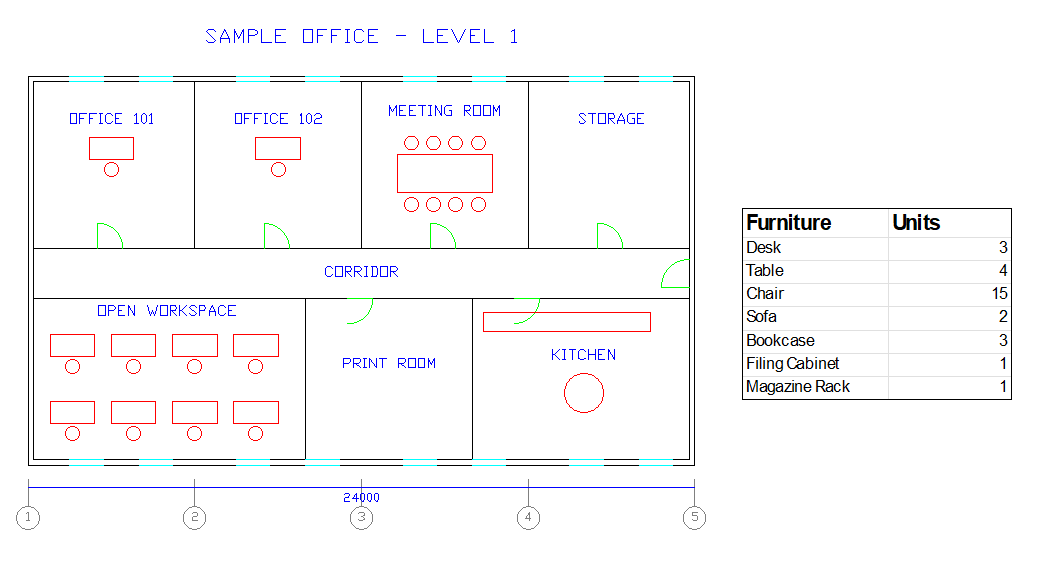
To display the content of OLE objects in the platform viewer (IafViewer), do the following:
- In AutoCAD, capture the area that the OLE object displays as a PNG or JPG file.
- Create a new OLE object that links to the captured image file.
- Place the new OLE object on top of the original OLE object so that it covers it.
- Export and upload the DWG file.
The OLE object content will now be displayed in the platform viewer.