Export consideration for entities
Unsupported entities#
The following entities are not supported:
- Point
- Ray
- XLine: A line of infinite length
- MLine: Parallel lines
- Wipe out: A frame to mask underlying objects with the current background color
- Polyface Mesh
Considerations for supported entities#
Special shapes#
Special shapes such as rectangles, polygons, donuts, helixes, and Rectangular RevCloud are supported.
Figure: Special autoCAD shapes
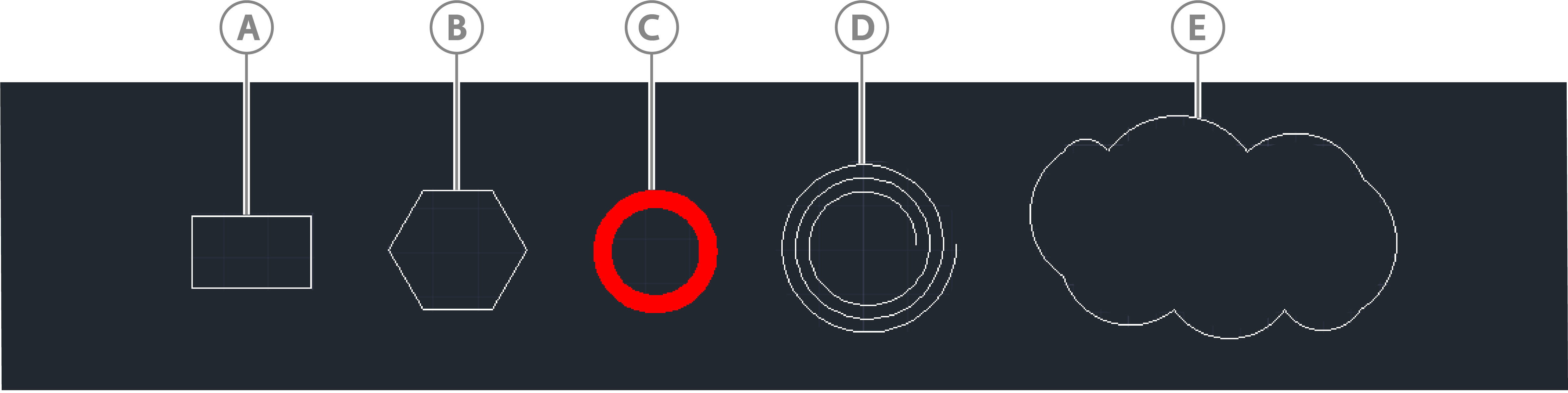
| Callout | Description |
|---|---|
| A | Rectangle |
| B | Polygon |
| C | Donut |
| D | Helix |
| E | Rectangular RevCloud |
Fundamental Curves#
If you export curves such as lines, arcs, polylines, circles, ellipses, and splines, consider the following transformations:
- Non-linear curves tessellate to line segments before they are exported.
- Curve colors are exported.
- For polylines, if the global width is set to a non-zero value, export it as a polyline with thickness.
- Line styles are not supported. For example, a dashed line exports with a solid line style.
Figure: Polyline width
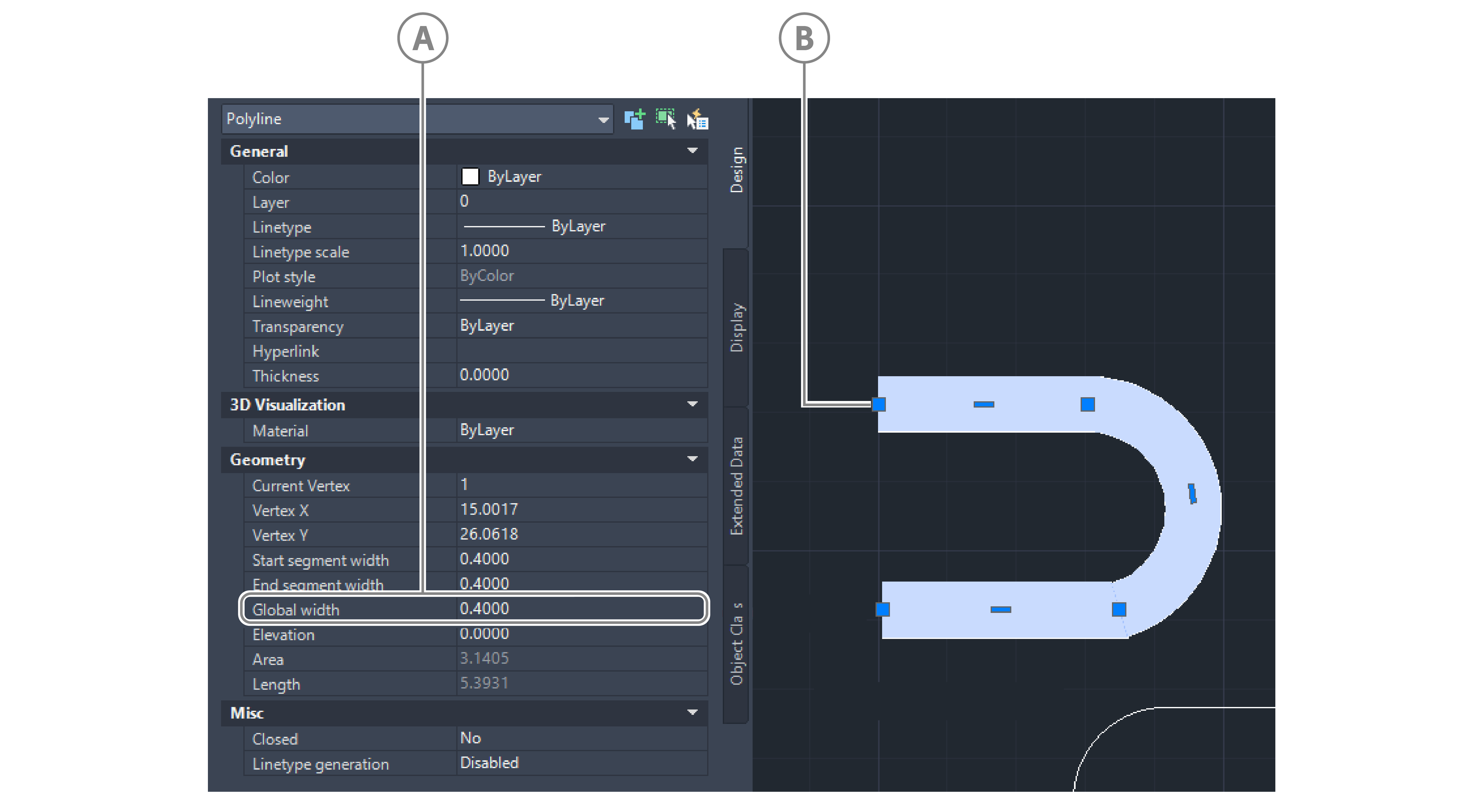
| Callout | Description |
|---|---|
| A | Global width value |
| B | Polyline with width |
DBText and MText#
If you export text data, due to the different ways that AutoCAD and HOOPs define text data, consider the following points:
Font type, size, and text position may output differently
Fonts from a Windows fonts folder, such as Times New Roman, export as expected, otherwise text exports as a default Arial font.
Underlined text is not supported
Some special characters used by AutoCAD to express symbols are supported:
Special character Symbol %%C ∅ %%P ± %%D °
Figure: AutoCAD and HOOPs text
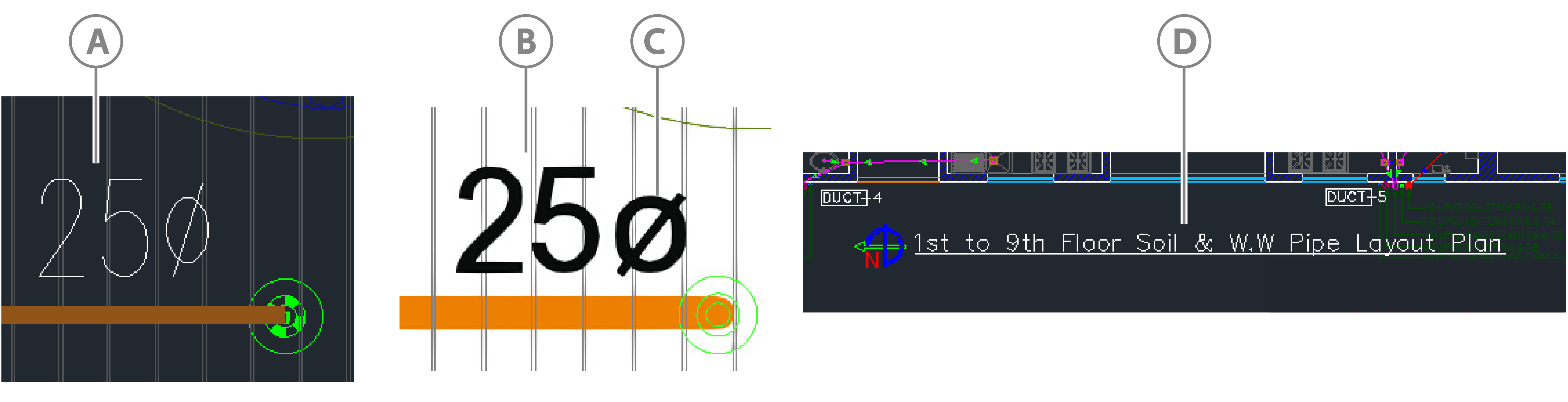
| Callout | Description |
|---|---|
| A | AutoCAD text |
| B | HOOPs text |
| C | Special character |
| D | Underlined text in AutoCAD that is not supported. |
Region#
Export the region's boundary, which could be polylines, lines, circular arcs, circles, elliptical arcs, ellipses, or splines. Regions with a hole are supported.
Solid (2D)#
Export solid-filled shapes as mesh geometry. In AutoCAD, 2D Solid is a solid-filled triangle or quadrilateral.
Figure: Solid-filled quadrilateral

Hatch#
- Solid-filled hatches export as mesh geometry
- Line-filled hatches export as line geometry
- Hatches with holes are supported
Figure: Hatches
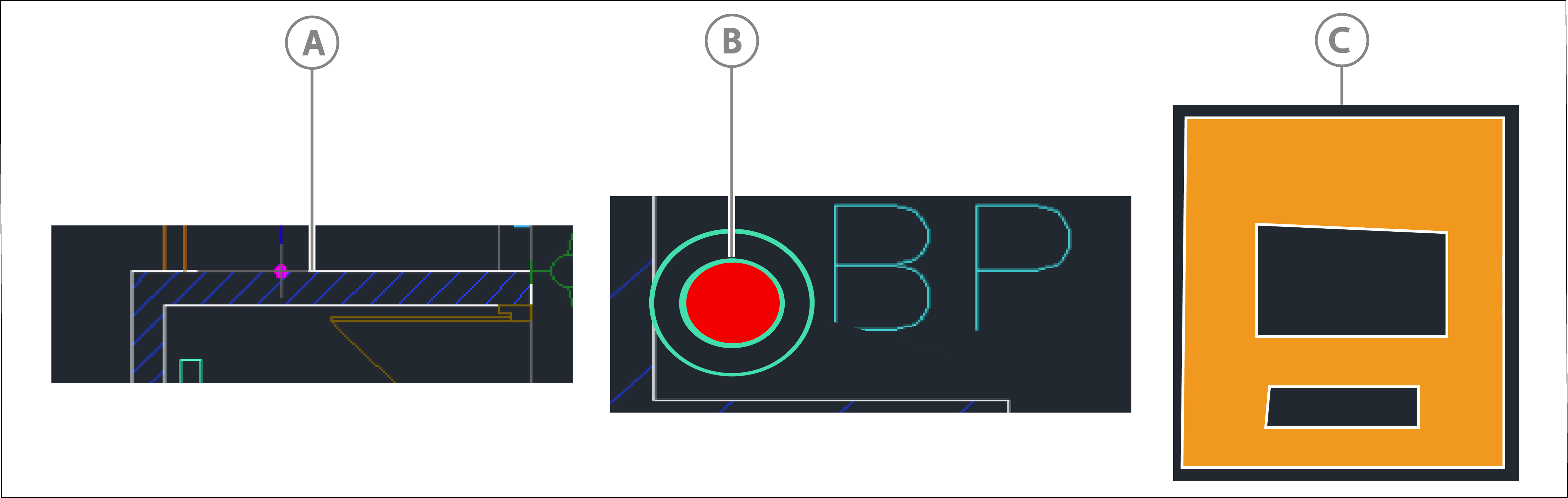
| Callout | Description |
|---|---|
| A | Line-filled hatch |
| B | Solid-filled hatch |
| C | Hatch with holes |
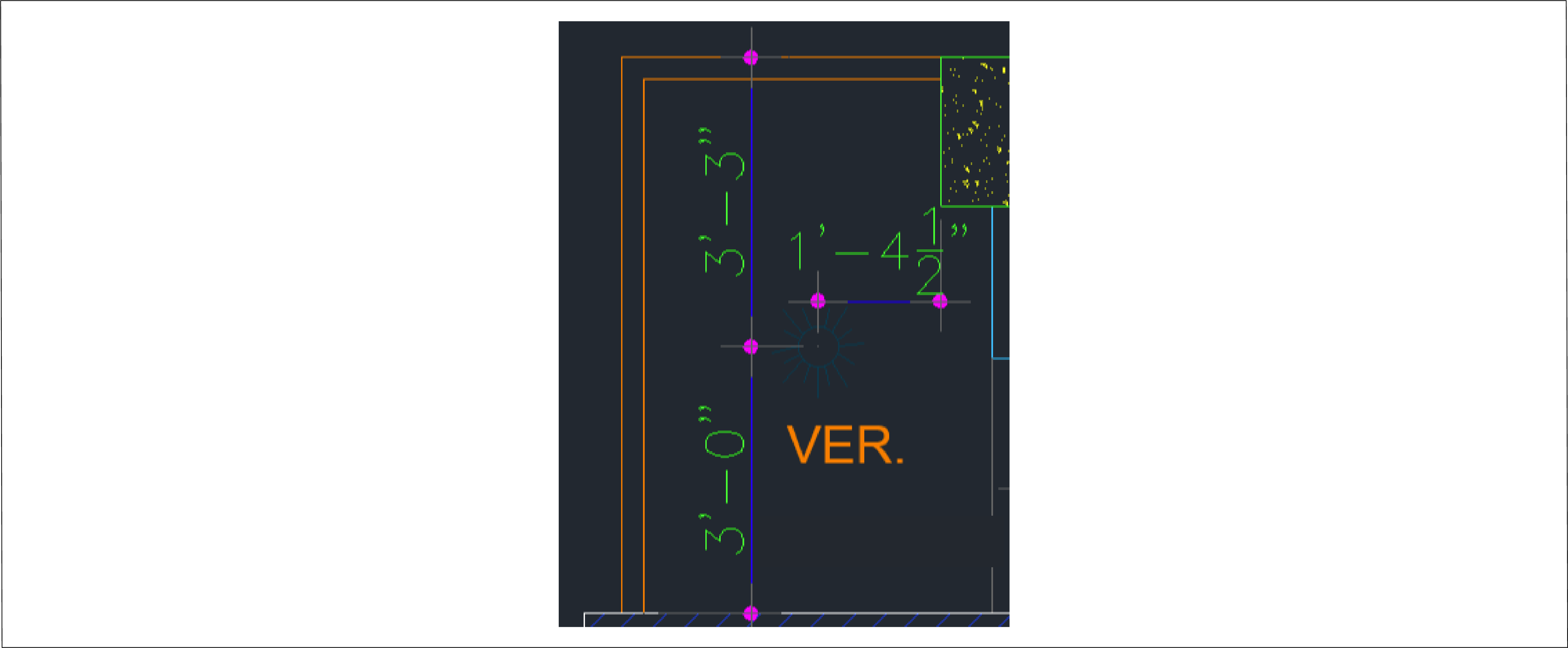
Dimension#
Exports text, lines, and arrowheads that represent dimensions as expected.
Figure: Dimensions
Leader and MLeader#
Exports Leader arrowheads, lines, and horizontal landings.
Figure: Leader
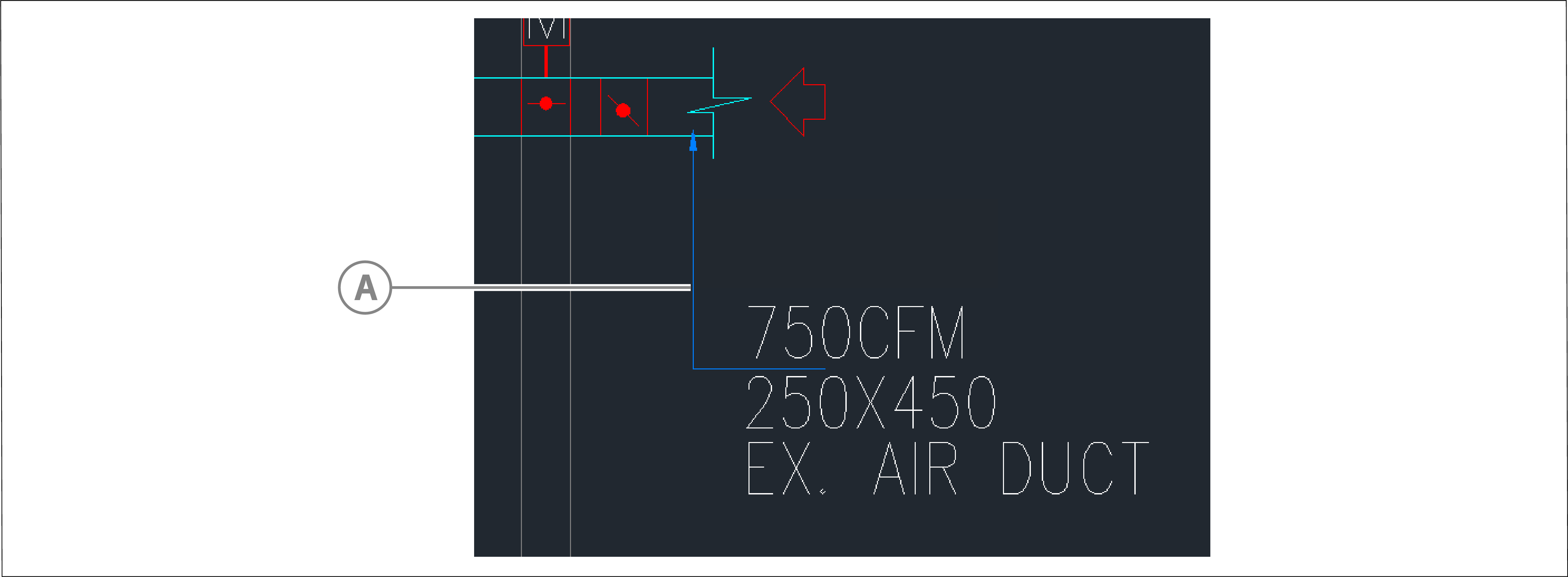
| Callout | Description |
|---|---|
| A | Leader |
Block Reference#
Exports all objects inside a block. In HOOPs, an entire BlockReference is a selectable element.
Figure: Block reference
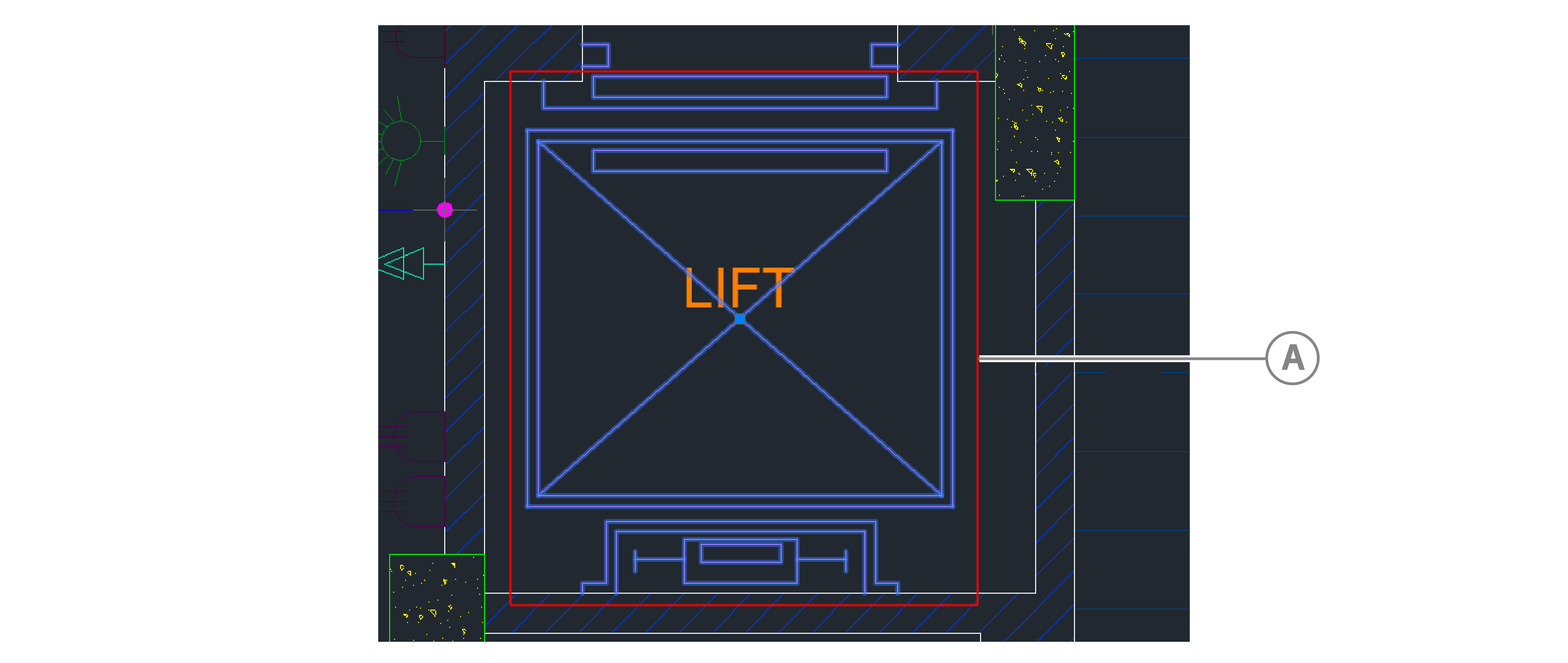
| Callout | Description |
|---|---|
| A | Block |
XRef drawing#
When XRef is also AutoCAD 2D drawing, export entities in XRef. If the XRef drawing is an image, it will not export.
Room/Space#
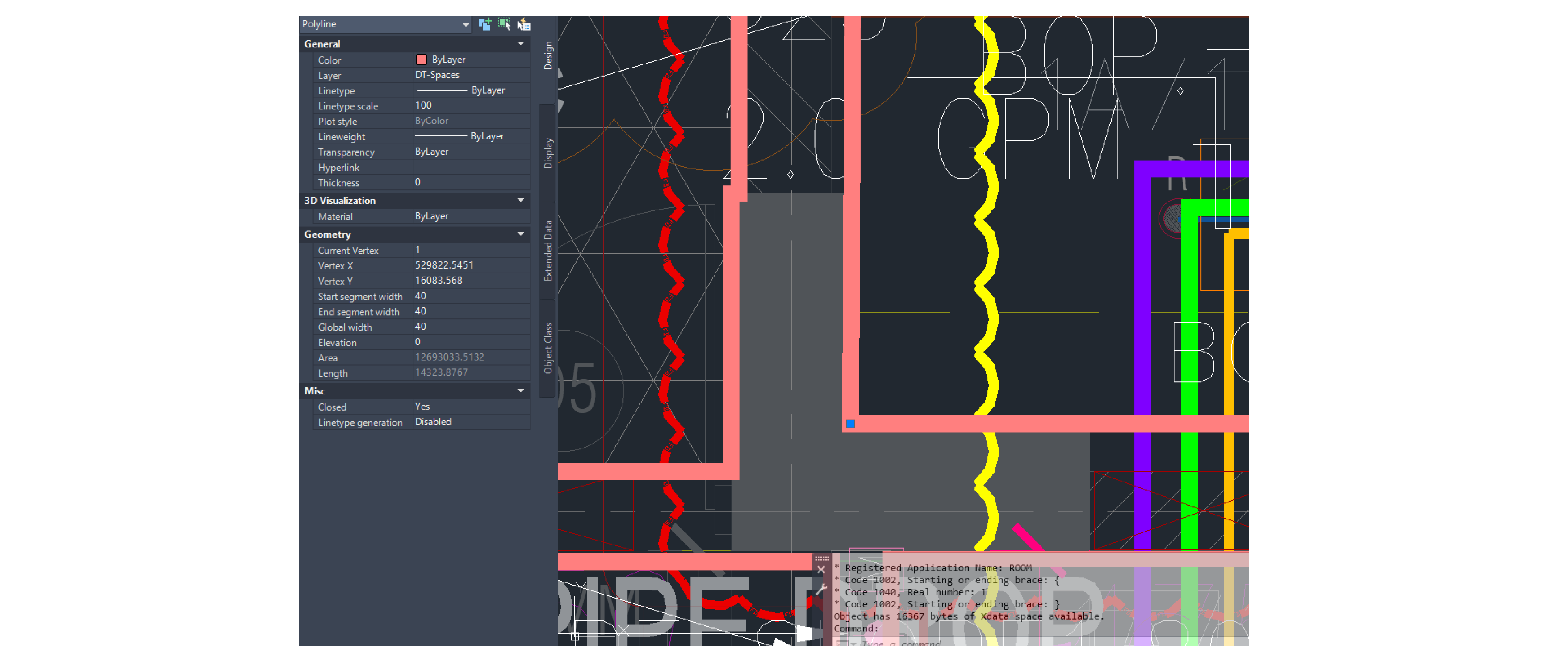
A Room or Space is an Architectural model and not a built-in AutoCAD entity. As a result, it requires special definition and modeling.
Figure: Room/space in AutoCAD
Room definition and modeling#
A model designer must add Space or Room data to a polyline before exporting the model. If a Polyline has Room or Space data and a room number in its XData, it is considered a Room or Space object, and you can export it as one.
To model a polyline as a space or room, complete the following:
- In the polyline's xData, define an application named
ROOM. - In the application data, enter a room number.
- Set the global width to 40 so that it is easier to view and select.
Result: In bimpk/objects.json file, the polyline exports as a Room object with a Room_Number property.
Asset definition and modeling#
Figure: Asset in AutoCAD
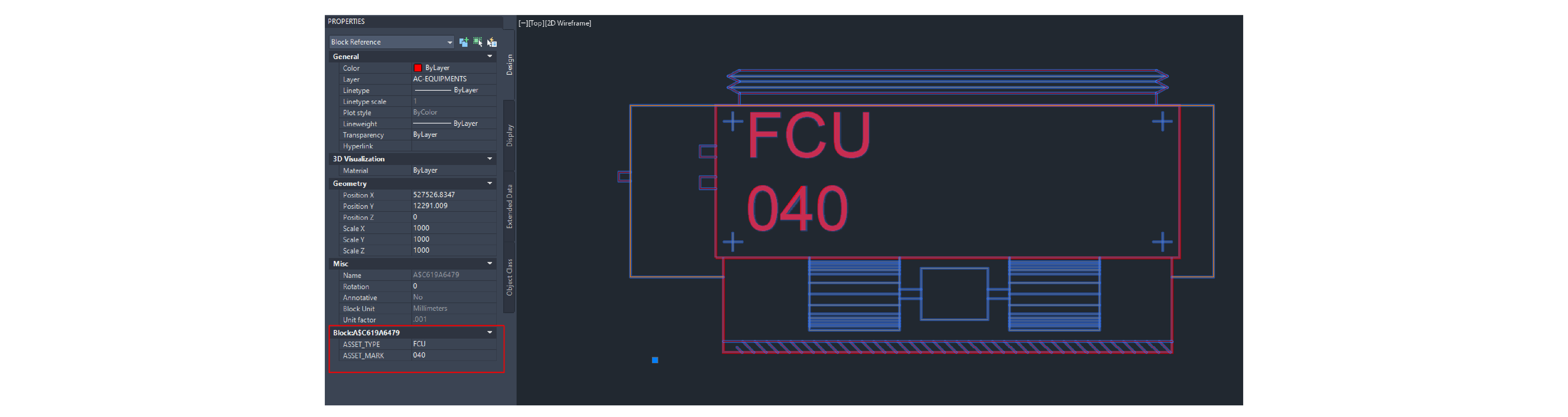
A model designer must add Asset data to a BlockReference before exporting the model by completing the following steps:
- Go to the BlockReference's properties.
- Add an additional attribute,
ASSET_TYPE, and enter a value. - Add an additional attribute,
ASSET_MASK, and enter a value. - Export the asset object.
Result: In the bimpk/object.json file, the asset object exports for this BlockReference with ASSET_TYPE and ASSET_MASK properties.