Item Service console overview
Use the Item Service console to view, query, filter, and manage NamedUserItems stored in the Item Service that you can access in a workspace. Click a NamedUserItem to view its details and the following data:
- Its versions and their details
- Its RelatedItems
- For telemetry items, you can view their related readings and filter them by timestamp.
Figure: Item Service console elements
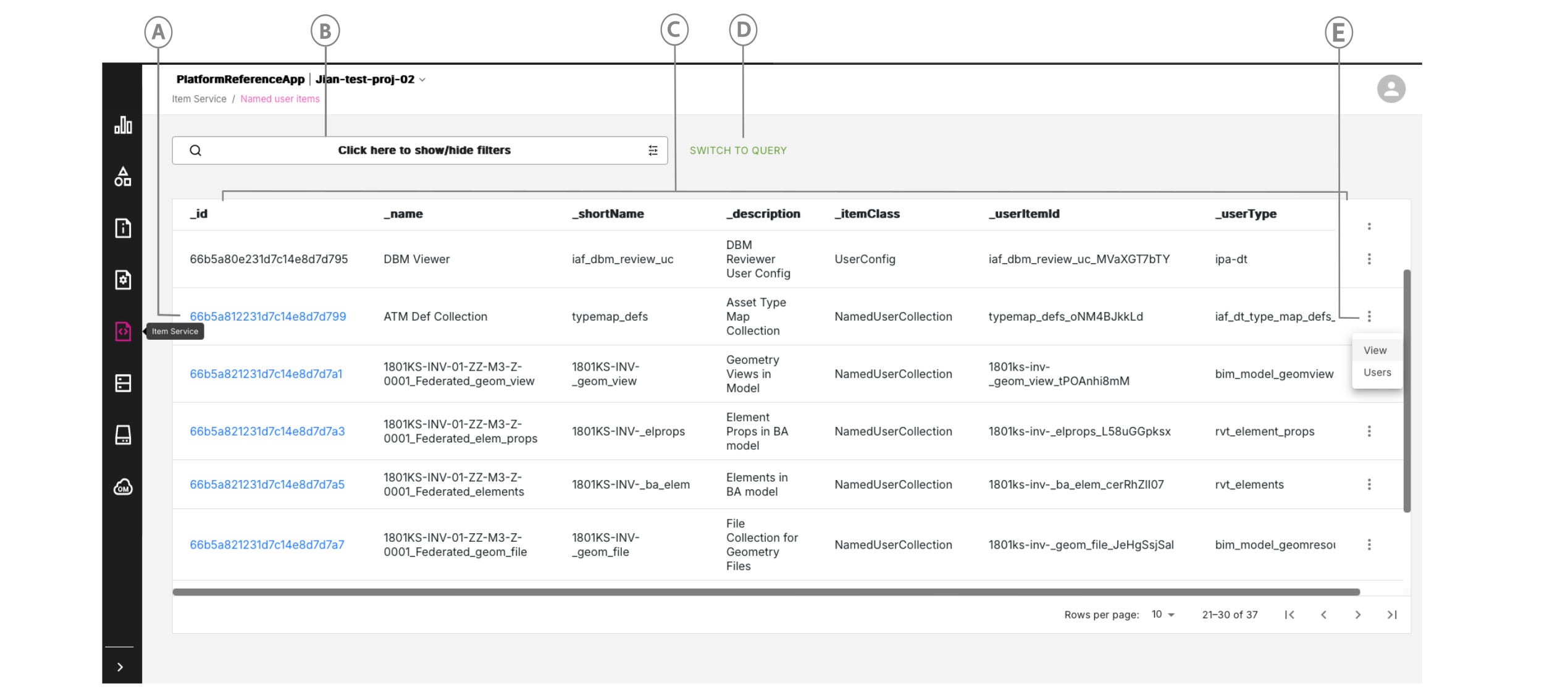
| Callout | Name | Description |
|---|---|---|
| A | RelatedItem ID | Click on an ID marked in blue to drill down to the Related Items Query page and run queries on Related Items. If it is a telemetry item, you can also view its related readings and filter by timestamp. For more information, see Item Service Console Queries |
| B | Search filter | Search for NamedUserItems by id, metadata, or the item's fields. For more information on adding filters to your search, see Filtering your RelatedItem search. |
| C | NamedUserItems list | View a list of NamedUserItems in the app's workspace. |
| D | Switch to Query option | Click this option to switch to a page where you can enter query commands to narrow down your search for a particular collection. This option is very useful when several pages of items are being returned. See Switch to Query. |
| E | Three-dot menu icon | Click this icon to reveal more options; View, Users and for UserConfig item classes, Data. For an item class of Script, you will also see a Version option. Clicking any of these will take you to the View NamedUserItem pop-up, which has tabs to display a NamedUserItem's content in JSON format, view any config scripts associated with this item and see a list of users and their access rights. |
Filtering your RelatedItem search#
To add filters to your RelatedItem search, you can complete the following in the search bar:
- In the search bar, add filters with the user interface
- Add a JSON query object
Adding filters with the user interface#
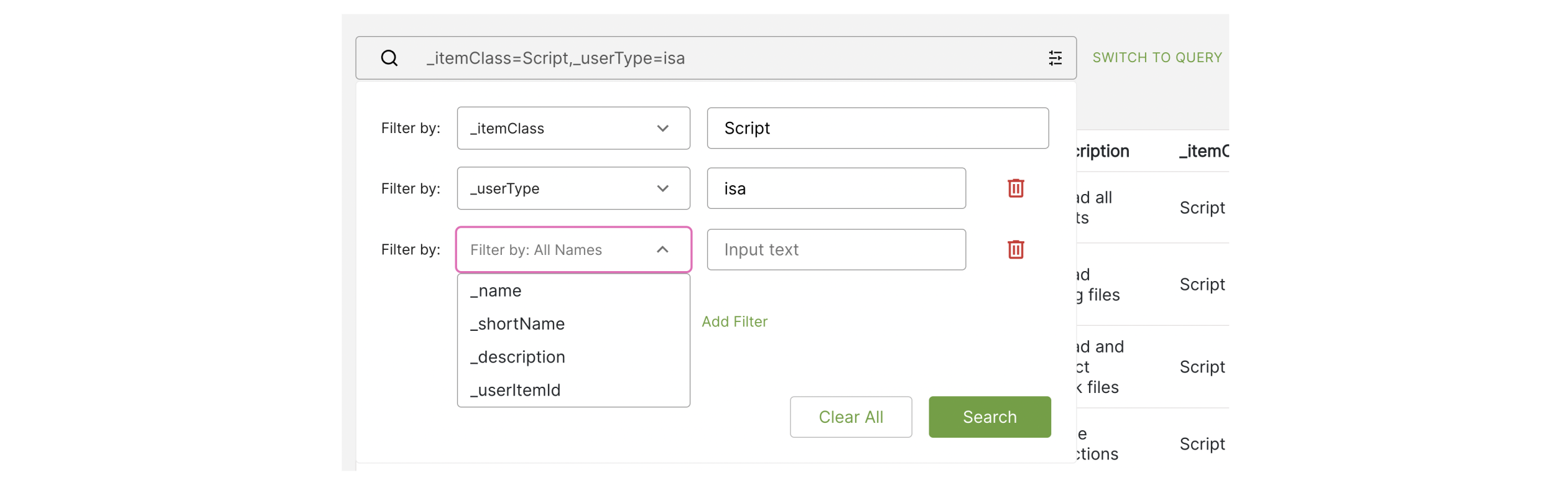
To filter by property, select a property from the Filter by dropdown, then in the Input text field, enter the filter value:
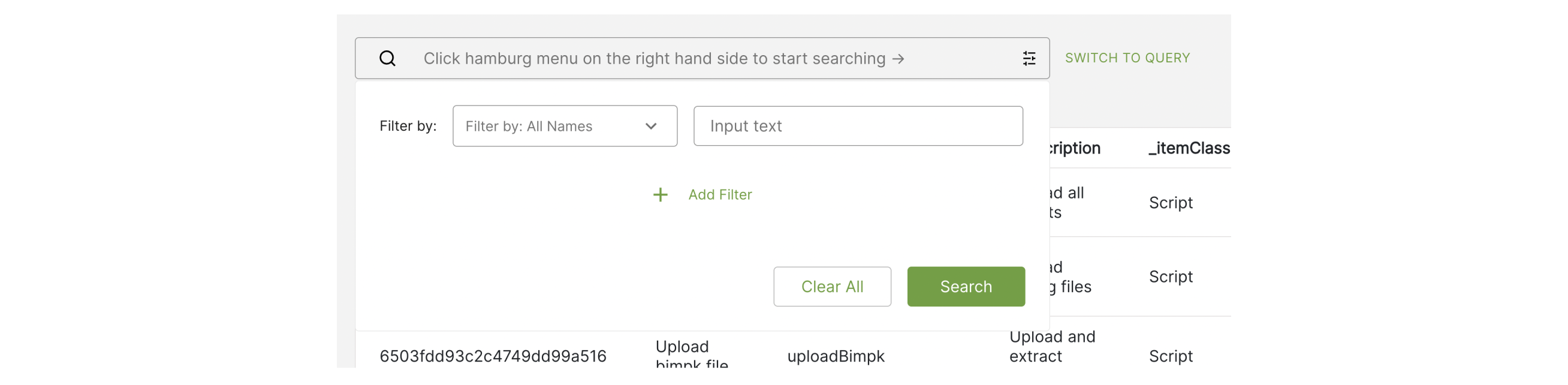
To add more filters, click Add Filter:
Adding filters by pasting JSON text#
You can paste JSON text into the text box in editor mode:
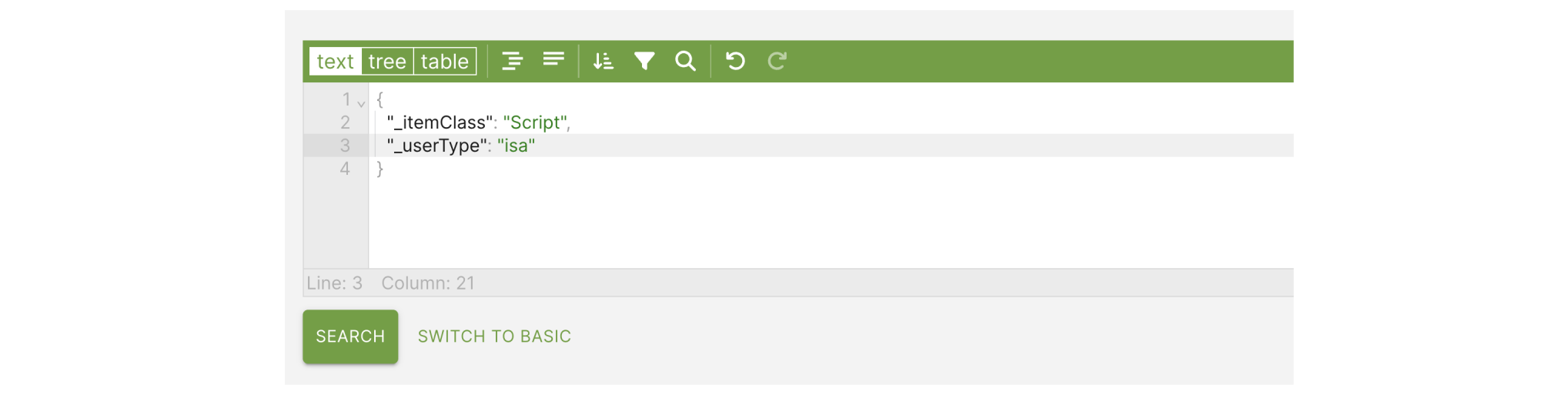
Switch to Query#
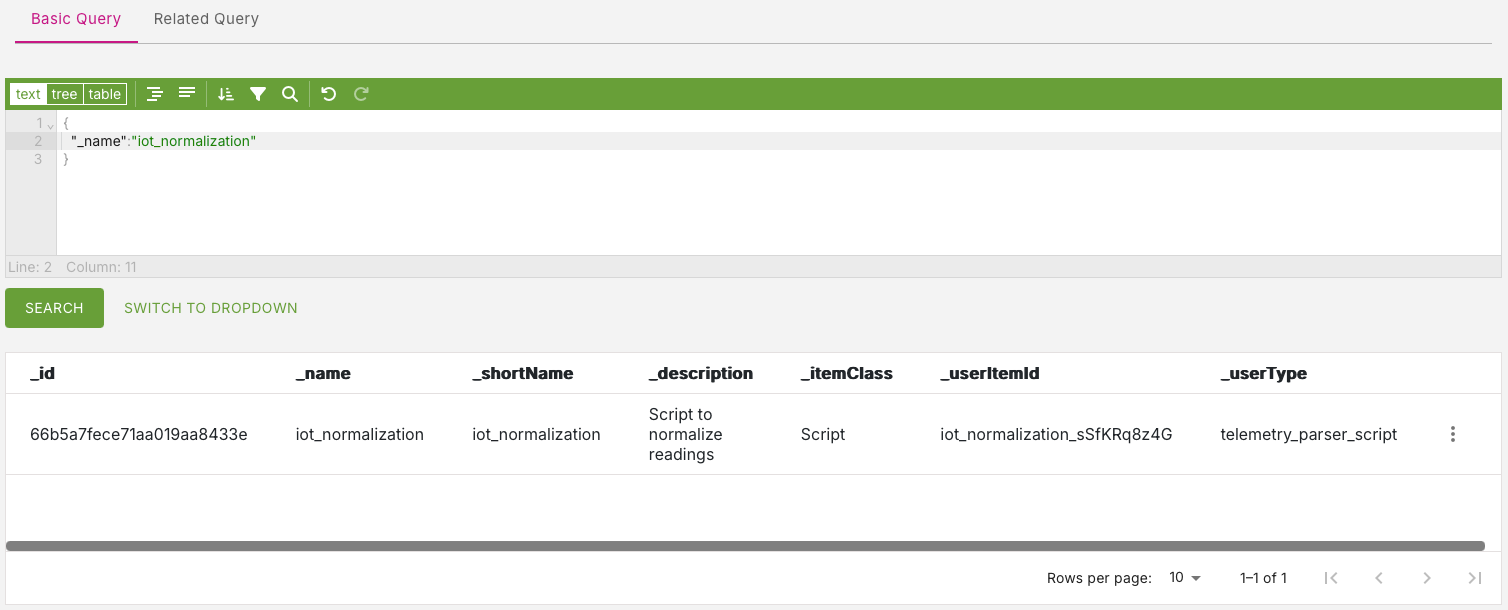
Click Switch to Query to display two tabs Basic Query and Related Query. Both of these tabs present text boxes where you can enter MongoDB type queries to narrow down your search for a particular collection. This feature is particularly useful when large numbers of collection items are being displayed and instead of navigating through many rows of records, you want to narrow down your search.
For example, if you know the name of the item you are looking for, you can enter a query in the Basic Query tab to find just that name and you will get back the record that matches.
In the query command below, we are searching for an item with a name of io_normalization. When you click the Search button, this query will return the one record matching that item name.
{ "_name":"iot_normalization"}Figure: Entering a query on the Switch to Query page
Version support#
You can select the version of a single NamedUserItem or a folder of RelatedItems.
Introduced in Console App 3.4, for items with _itemClass of Script, you can now view multiple versions of a script. See Script versions below for more information on this feature.
Single NamedUserItem#
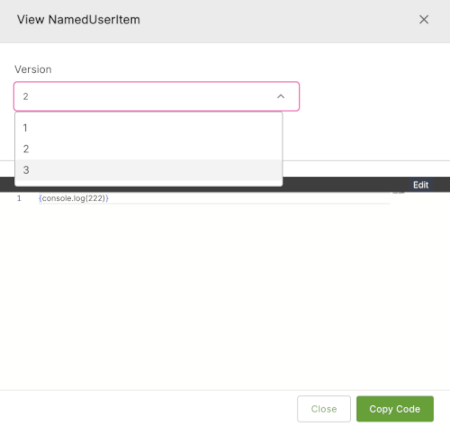
You can select a NamedUserItem version in the modal after you select a NamedUserItem.
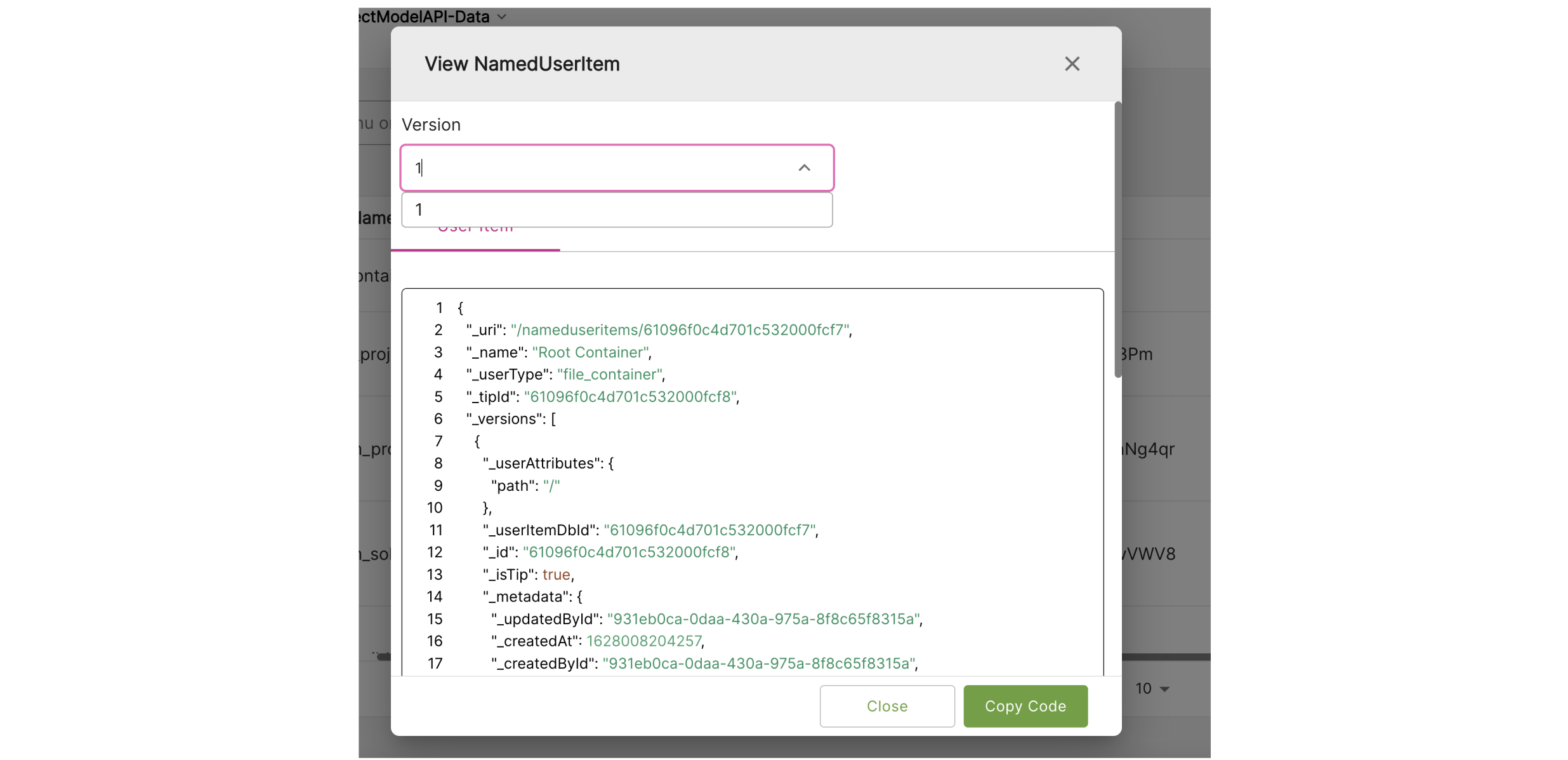
Multiple NamedUserItems at the folder level#
To select the versions of multiple NamedUserItems at the folder level, use the breadcrumb version selector.

Script versions#
For an item with _itemClass of Script, the three-dot menu will have an additional option Version. Click Version to open a View NamedUserItem dialog where you can view the current and previous versions of a script.