Organization Management page
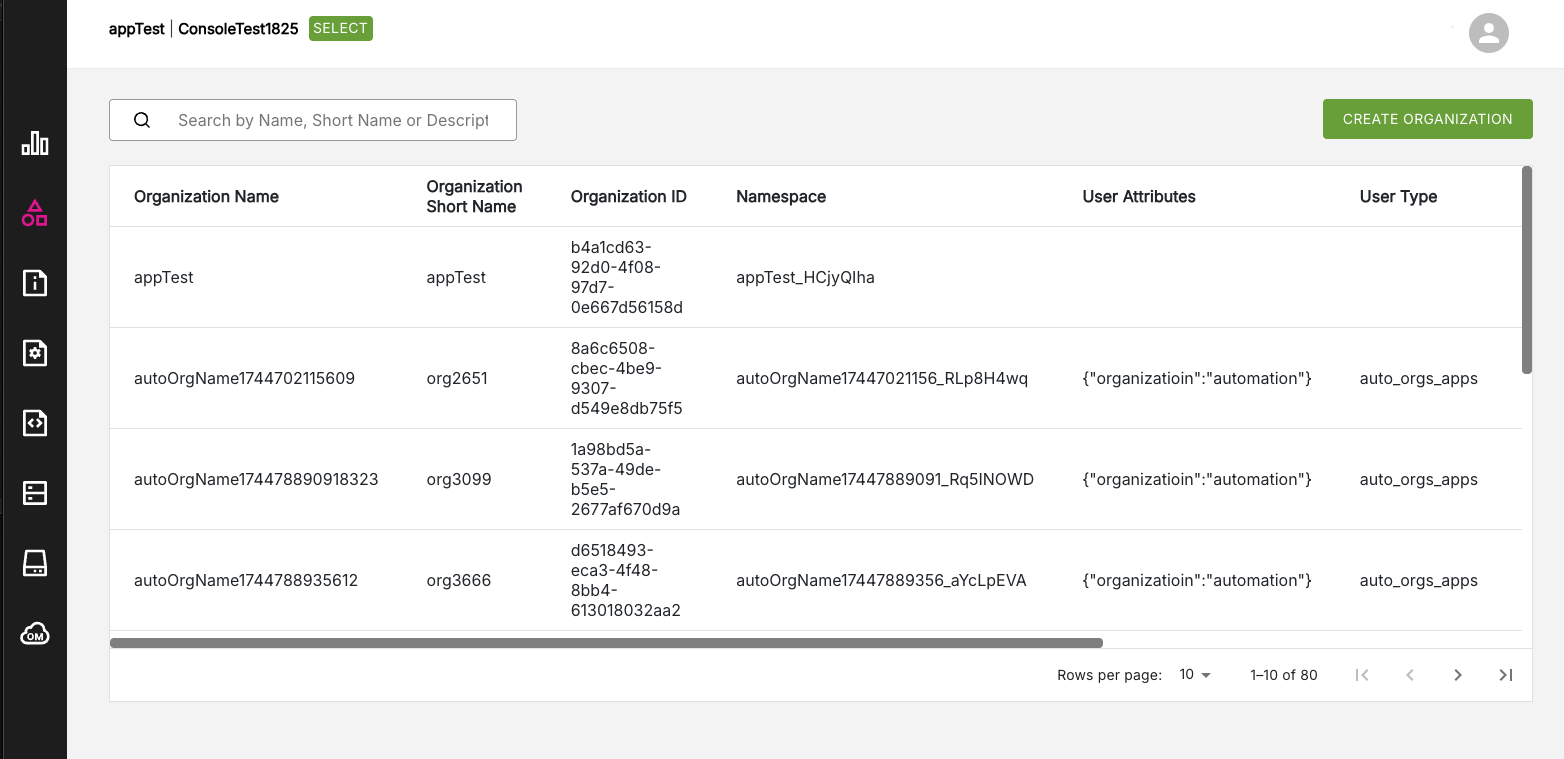
The Organization Management page is where you can perform a range of functions for managing organizations, depending on your Platform role, including:
- Create a new Organization (Platform Managers only).
- View and edit existing Organization details, such as name, description, and user attributes.
- Configure an Organization, where you can set details such as the maximum number of applications or workspaces allowed under a particular Organization.
Note: For a reminder of the different operations permitted for Platform Managers, Organization Owners, and other Platform roles, refer to the Platform Roles page.
Figure: Organization Management page
Creating a new Organization#
If you are a Platform Manager, then you can create a new Organization. No other platform role can perform this operation. When a Platform Manager opens the Organization Management page, the Create Organization button will be visible in the top right of the page.
To create a new Organization, do the following:
Click the Create Organization button.
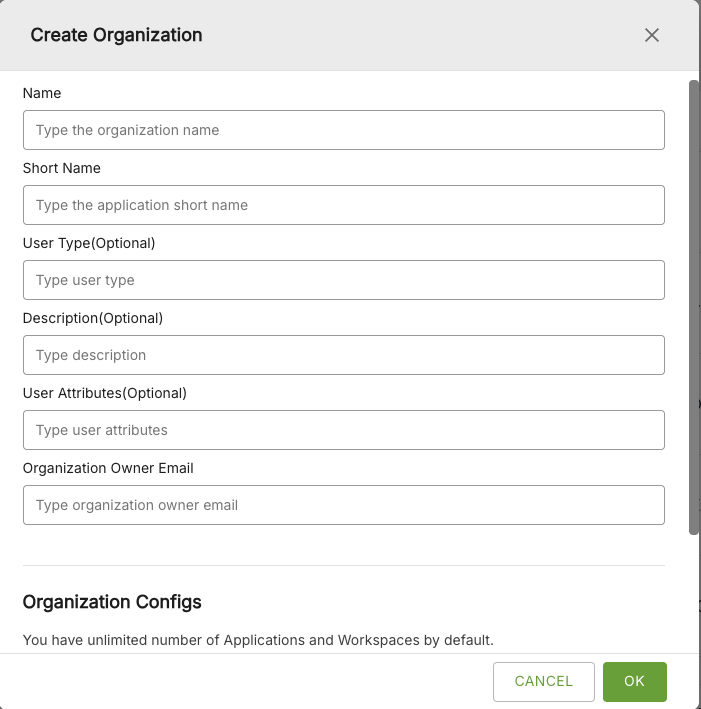
The Create Organization window will appear. Enter the mandatory details for Name, Short Name, and Organization Owner Email. Note that the Short Name provided must be unique across all Organizations. The email address provided must also be the email of a Platform Manager.
Enter the details for the other optional fields as required.
Scroll down to reveal the Organization Configs. Set the maximum number of applications and workspaces allowed, as required.
When finished, click OK. A message should be displayed indicating that the new organization was successfully created.
Figure: Create Organization window
Viewing and editing an existing Organization's details#
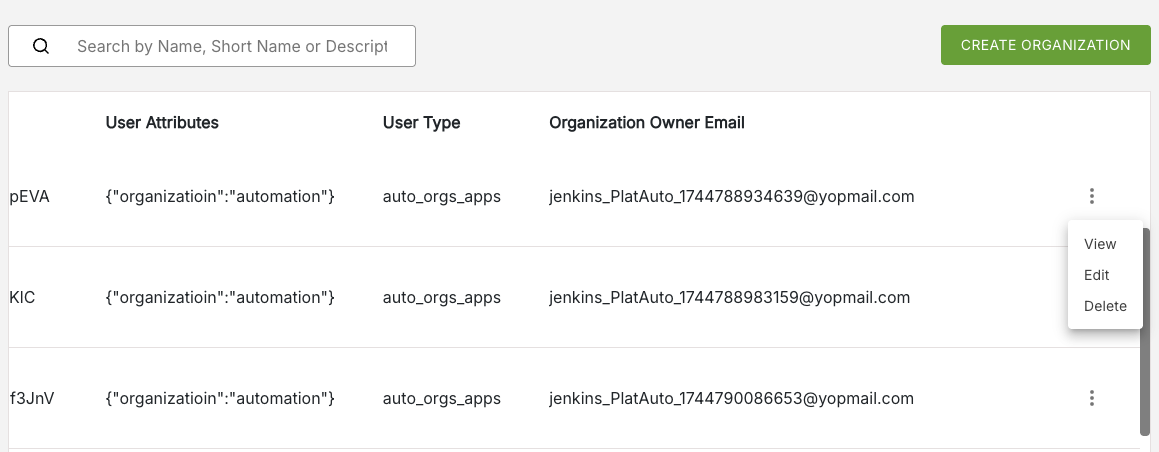
Depending on your Platform role, you can view and edit an Organization's details. This operations are accessible from the More Options menu which is available at the end of each row of an Organization listing. Scroll right along the row to reveal this menu option which will be visible as three dots to the right of the Organization Owner Email field.
The More Options menu has three options:
- View
- Edit
- Delete
Figure: Organization More Options menu
Editing Organization details#
To edit an existing Organization details, do the following:
- On the Organization Management page, locate the row listing for the particular Organization you want to edit.
- Open the More Options menu for the Organization. Click the Edit option.
- The Edit Organization window will appear. Update the fields as required.
- When finished, click OK. A message should be displayed indicating that the Organization was successfully updated.