View or download attachment
Viewing or downloading an element's file attachment in UI#
To view or download an element's file attachment, do the following:
- Fetch the elements that have related element properties you want to view and click a model element. For more information, see Fetching model elements.
- On the Related Items pane, select the Files checkbox. The file now displays on the Files pane.
- Optional: To open the file in doc-viewer, on the Files pane, click the file's name.
- Optional: To download the file attachment, open the file in the doc-viewer, then click the Download button.
Figure: Viewing a model's related files in the UI
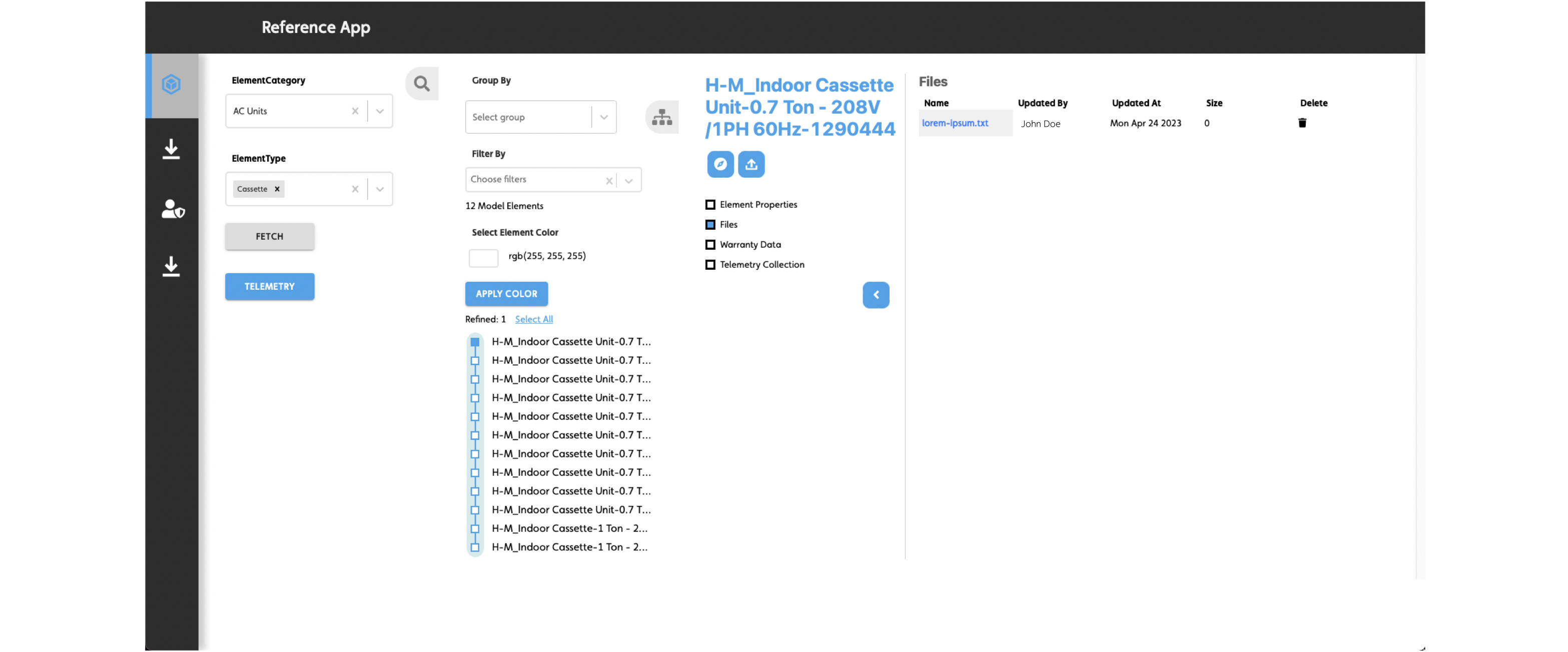
Figure: Doc-viewer Download icon
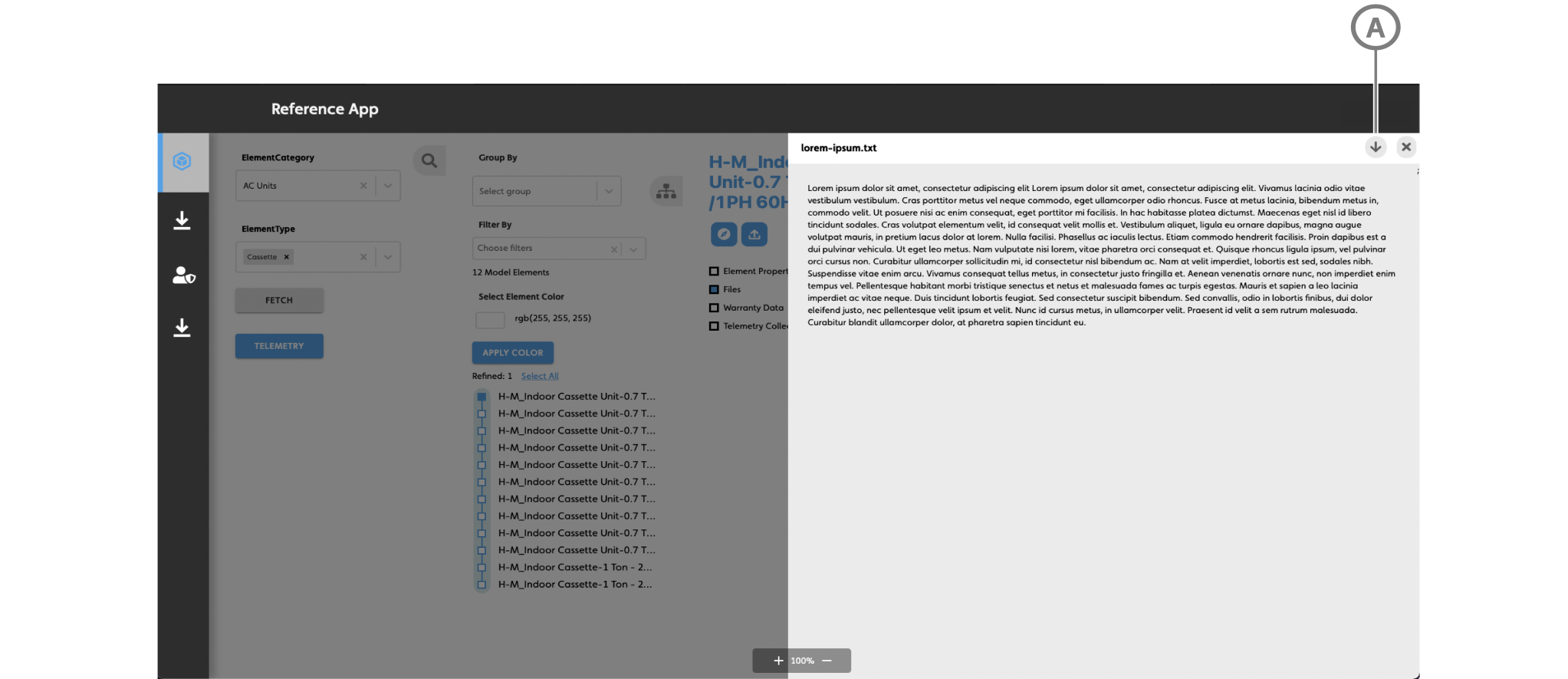
| Callout | Description |
|---|---|
| A | Download button |
Data flow for viewing a model element's related files#
When a user views a model's related files in the user interface, the following data flow occurs:
IafItemSvc.getRelationsgets all the file id’s that are related to the element.- With the returned file ids,
IafFile.getFileItemgets the data of related files, such as the filename and other properties.