Federated Model View
Overview#
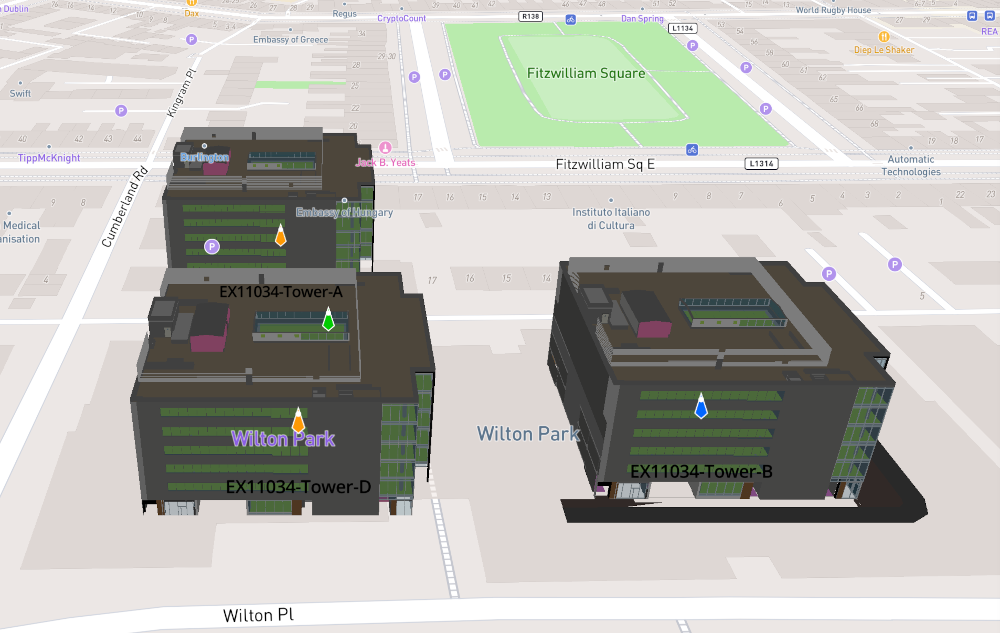
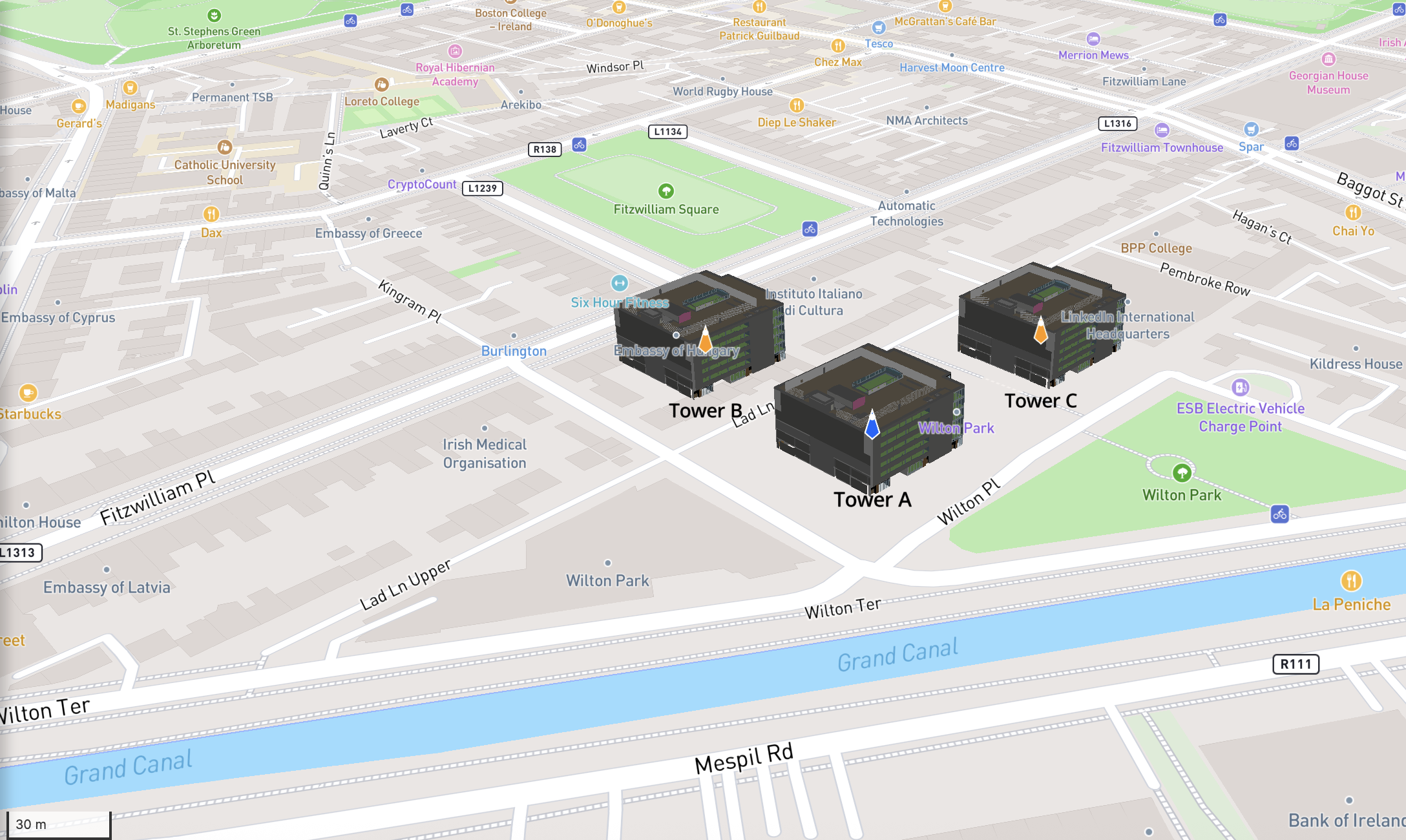
The Federated Model View feature was introduced in Platform 5.1. This feature allows you view multiple instances of building models located at one geographical location, using GIS. The buildings are displayed at an outline or light level of model detail, at their correct geographical positions, without having to load all of the detailed information for each individual building's model.
You can click on any individual building to access its complete, detailed building model. You can also access the detailed building model by simply zooming in on a particular building and it will automatically switch to the detailed model view.
This approach allows you to inspect multiple buildings at one facility without adversely affecting the performance of the IafViewer in the browser.
This feature allows you easily view and navigate multiple building models at once, which are grouped together at a particular geographical location, such as different buildings located at an airport.
Figure: Federated Model view displaying three building models in same geographical region, displayed as outline 3D models
Reference model#
To support this new Federated Model view feature, the concept of a reference model has been introduced for each building.
A reference model offers two versions of a building model:
A light 3D outline of the building model for displaying in its geographical context with surrounding buildings in the Federated Model view.
A complete, detailed bimpk model for viewing individual buildings, which can be fully explored using the existing 2D and 3D viewing modes.
Navigating the Federated Model View#
Enabling Federated Model View#
To see the Federated Model View, do the following:
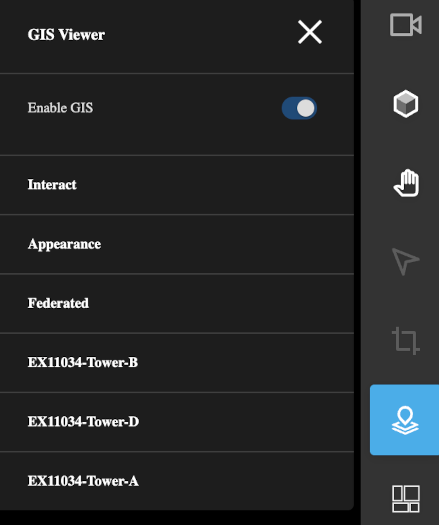
Click the GIS Viewer icon in the right menu side-bar. This will reveal the set of GIS Viewer menu.
Enable that the Enable GIS switch setting at the top of the menu is enabled.
Also ensure that under the Federated setting, that the Federated Mode is set to Dynamic.
Figure: The Enable GIS setting in GIS Viewer options must be turned on
Switching from Federated Model View to detailed view#
To move from the Federated Model View showing several outline models, to a detailed single model view, do the following:
Navigate through the Federated Model View, using mouse and scroll wheel as desired.
Keep zooming into the building model you are interested in. When you get close enough, the view will automatically switch from the Federated Model View to a detailed 3D model view of that individual building. Click on the building to explore its detailed model view.
Note: When navigating the Federated Model View, if you lose sight of a building model at any point, click the Home icon in the menu side-bar on the right to reset the view.
Figure: Federated Model View showing three outline building models in same geographical location