Model composition
Model composition#
2D and 3D file destructuring#
Prior to 4.3, Revit-derived projects were comprised of a single 2D file and a single 3D file. After the release of 4.3, Revit-derived projects are now comprised of an array of linked files. This change means that load times are now optimized. Segmenting the project into multiple 3D and 2D files allows the user to configure which parts of the model to load for their use-case.
Model Composition pane#
The Model Composition pane comprises the Compose On Demand and Designer View sections. Use the Compose On Demand section to configure which parts of the model to load, and use the Designer View section to view the source Revit project files and track which of the linked models are loaded and visible and which are not.
Figure: Model Composition pane
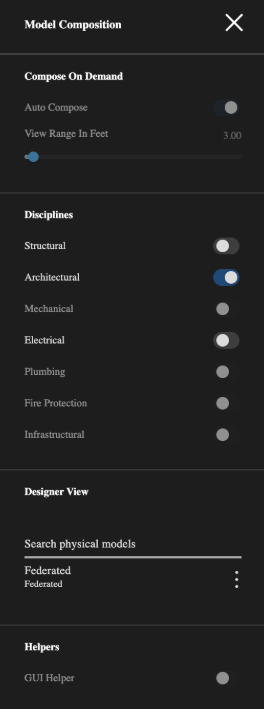
| UI element | Description |
|---|---|
| Auto Compose | Enable to leave the model composition decision-making to the IafViewer and Graphics Service based on view parameters such as view position and the user's enabled disciplines, such as Structural and Electrical. |
| View Range in Feet | Set the range in feet that you want the viewer to load the model. |
| Structural | Enables structural elements |
| Architectural | Always enabled |
| Mechanical | Enables mechanical elements |
| Electrical | Enables electrical elements |
| Plumbing | Enables plumbing elements |
| Search physical models | Search the linked models tags |
Scene Graph features#
You can add and remove tags from parts of the model and then use those tags to filter for Scene Graph derived models, such as for Navisworks projects.
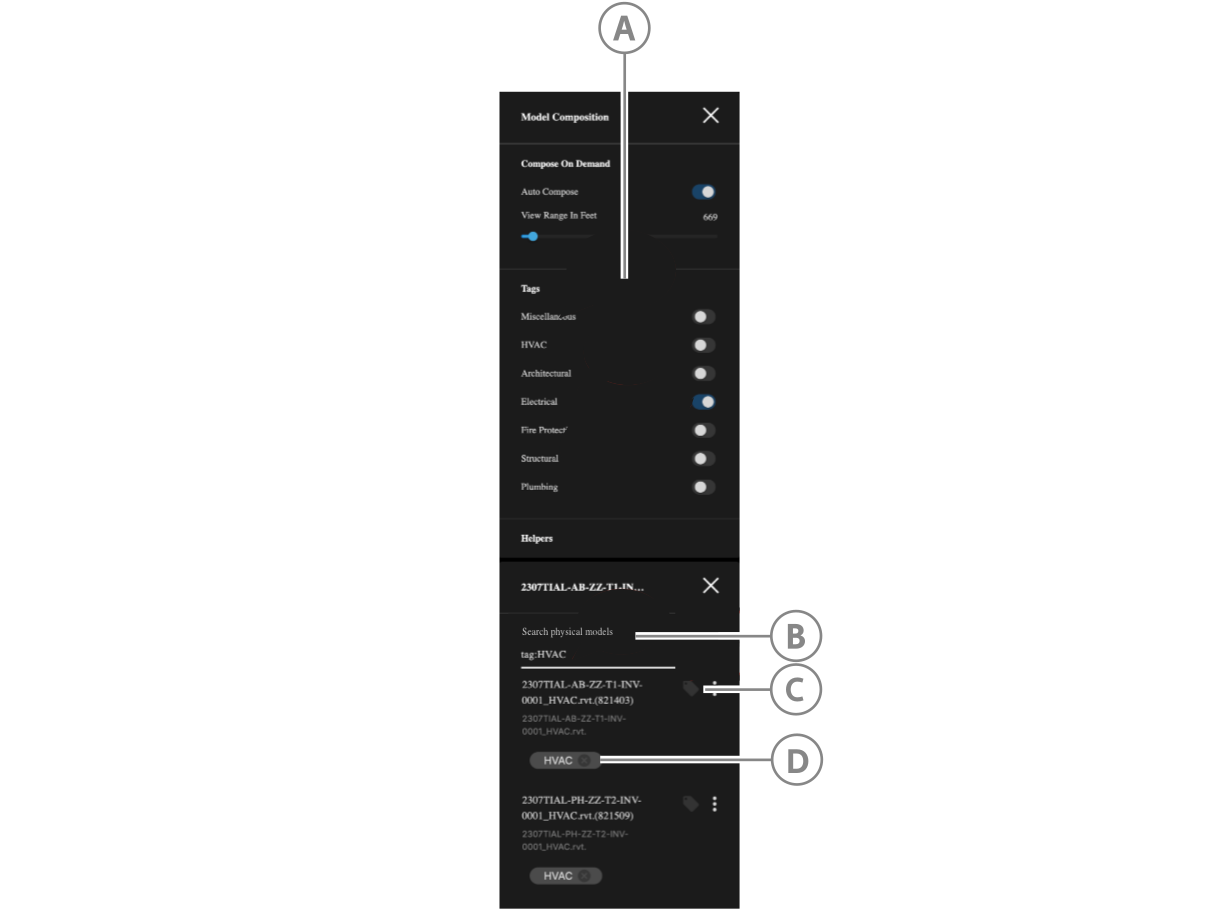
| UI element | Description |
|---|---|
| A | The model's tags appear appear in the Tags section where you can enable or disable their appearance in the model render. Untagged parts of the model appear under the Miscellaneous toggle. |
| B | Search the linked model by tag. |
| C | Click to assign a tag. |
| D | Click to remove a tag. |