EVM overview
Enhanced Viewing Modes (EVM) is a powerful new feature which was introduced in Platform version 5.0. It allows for multiple IafViewer instances which means you can run different IafViewer windows, side by side.
This facility is useful as it provides the following capabilities:
- Enhanced viewing modes across multiple windows: You can render the same model with a range of new enhanced viewing modes in flexible windows alongside the main model.
- Model comparison: You can compare models or different versions of the same model, side by side in split-screen.
- Wide range of IafViewer instance configuration options: You can arrange IafViewer instances in a wide range of configurations which are very useful for displaying and comparing a range of different model views.
Enhanced Viewing Modes across multiple windows#
EVM allows you to view multiple IafViewer instance windows, each displaying different graphics models.
Figure: Range of different graphics models supported by EVM
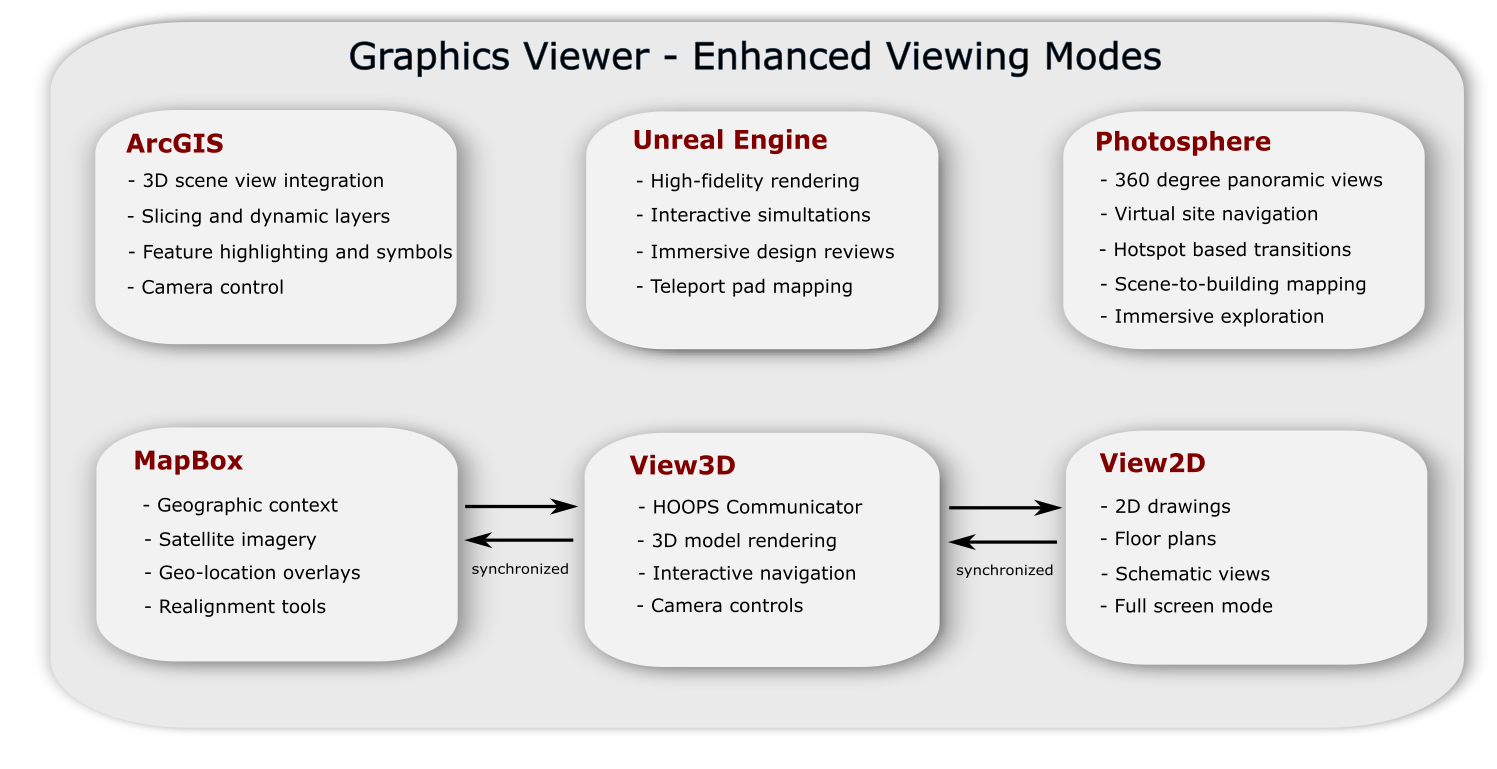
You can render smaller IafViewer instance windows with the following Enhanced Viewing Modes (EVM) over the main IafViewer instance:
- View3D: A three-dimensional visualization tool used to display and interact with 3D models, environments, or data.
- View2D: A two-dimensional viewing interface for flat images, maps, plans, or diagrams.
- Gis (Mapbox): A geospatial visualization platform that allows developers to create custom, interactive maps using vector tiles and real-time data.
- Unreal Engine: A high-fidelity 3D game engine used for real-time rendering, simulation, and immersive visualization
- ArcGIS: A Geographic Information System (GIS) for working with maps, spatial analysis, and geographic data. It also supports data visualization, geoprocessing, and advanced mapping workflows
- ArcGIS Overview: 2D and birds-eye views using ArcGIS
- Photosphere: A 360-degree panoramic image viewer that allows immersive exploration of environments from a single point of view.
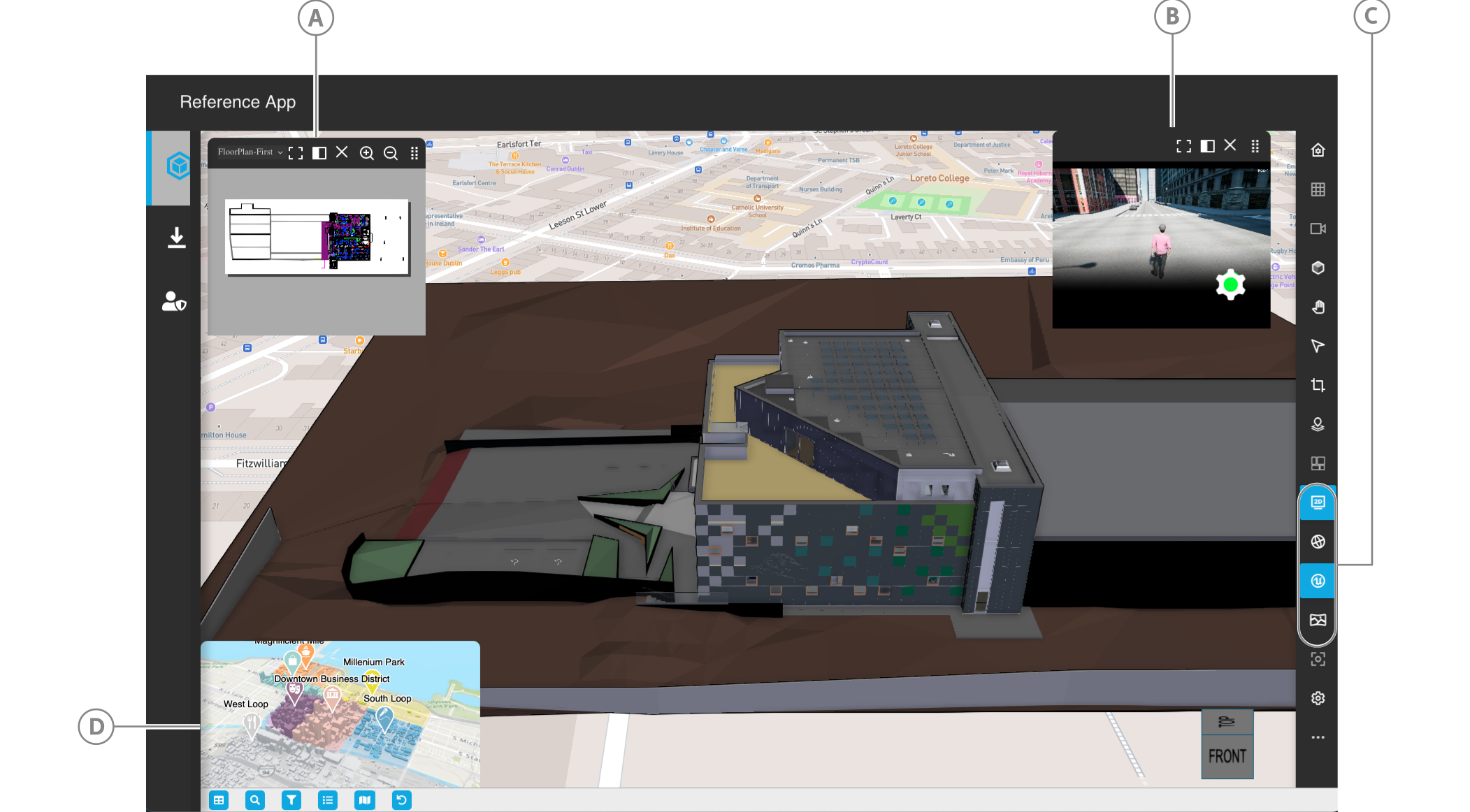
For more information, refer to the screenshot below.
Figure: EVM instances
| Callout | Description |
|---|---|
| A | 2DView instance with toolbar |
| B | Unreal Engine instance with toolbar |
| C | EVM window buttons |
| D | ArcGis overview window without toolbar |
Loose coupling#
The IafViewer instances are loosely coupled in the user interface. Each IafViewer instance has its own toolbar and controls when enabled.
Enhanced viewing modes configurations#
Each IafViewer instance rendering an enhanced viewing mode has its own configuration for that mode, which you can set in the IafViever component props.
For example, you can configure the following viewer options:
- Where on the screen the instance window should render
- Making the window split-screen with another, or full-screen
- Enable a toolbar for an EVM instance using its
showToolbarBoolean prop
Each viewing mode has its own uniquely relevant properties. For more information, refer to the following Enhanced viewing mode props on the IafViewer React component page.
- View 3D
- View 2D
- Gis
- Unreal Engine
- ArcGis
- ArcGis Overview
- Photosphere
- IafViewer
ShowToolbar#
You can enable or disable window toolbars for any EVM mode using the showToolbar Boolean prop.
Note: showToolbar does not affect GIS mode.
App logic control#
Disable showToolbar to turn off automatic window toolbars for instances of that viewing mode.
This also hands over toolbar visibility control to application logic so that developers can implement custom UI controls.
EVM window buttons#
As well as the toolbars, disabling showToolbar hides the EVM window buttons for EVM mode instances.
Model comparison#
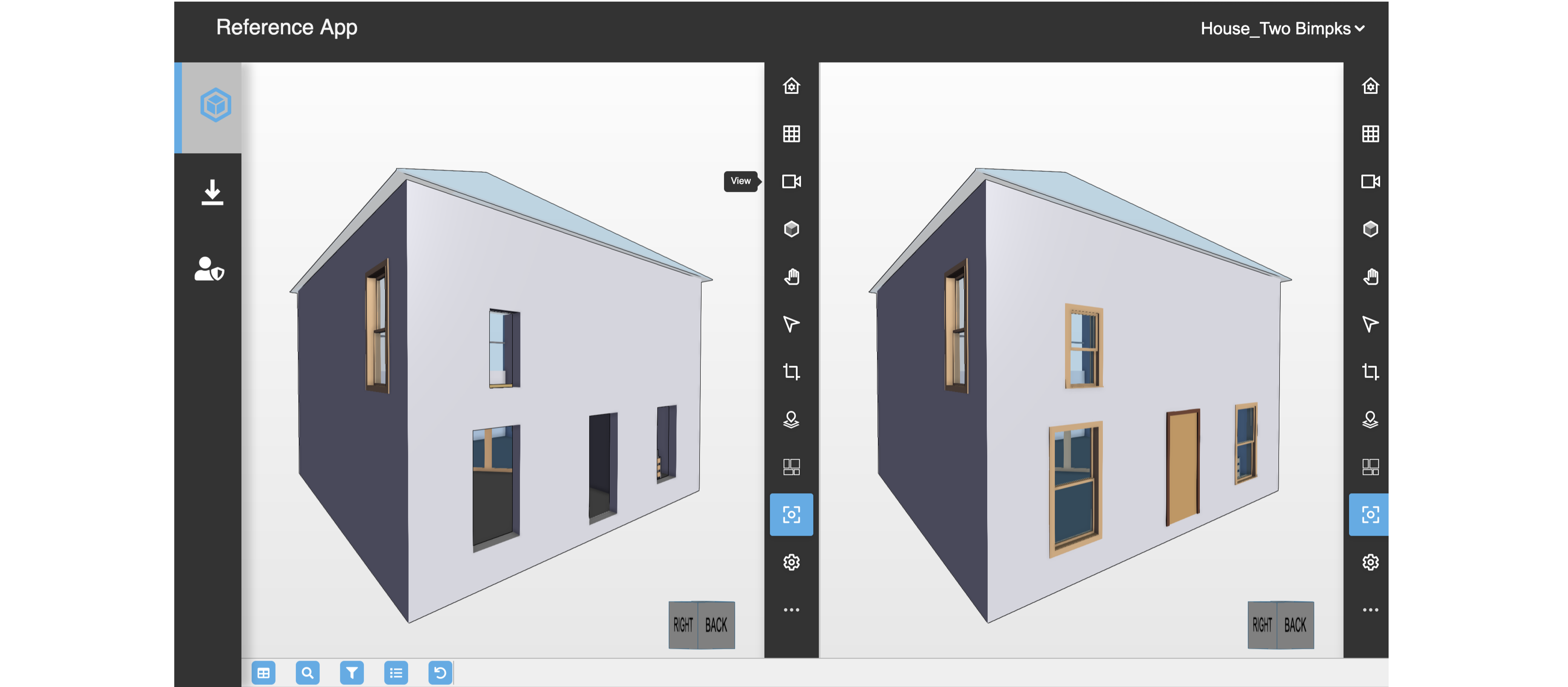
Having multiple IafViewer instances allows you to compare two models or model versions side-by-side. This is achieved by rendering two IafViewer instances in split-screen.
The screenshot below shows one model, on the right, with windows and doors, compared to a previous version, on the left, of the same model without those model elements.
Figure: Comparing two versions of the same model
Enabling model comparison#
To enable model comparison, you need to take a series of actions. For a detailed description of the steps involved, refer to Enabling model comparisons.
Wide range of IafViewer instance configuration options#
You can now arrange IafViewer instances in a wide range of configurations which are very useful for displaying and comparing a range of different model views.
The configuration options can be divided into two types:
- IafViewer single instance configurations
- IafViewer multiple instance configurations
IafViewer single instance configuration options#
The current range of possible IafViewer single instance configurations are listed below.
| Configuration | Models visible | Description |
|---|---|---|
| Configuration 1: 2D applications displaying only View2D mode | View2D | Examples include electrical schematics, HVAC diagrams, plumbing layouts, manufacturing floor plans, architectural blueprints, and process flow diagrams. These applications focus on 2D schematics drawings, piping diagrams, instrumentation layouts, and process flow visualization through specialized 2D viewer components. |
| Configuration 2: Classic 3D/2D applications displaying only View3D and View2D modes | View3D, View2D | Examples include BIM applications, facility management systens, construction coordination platforms, architectural design review tools, and Mechanical, Electrical, Plumbing (MEP) coordination systems. These applications integrate 3D model visualization and 2D drawing views through IafViewer components. View3D and View 2D are synchronized and interact automatically via the IafViewer, enabling coordinated navigation and selection across both viewing modes. |
| Configuration 3: Geo-Referenced 3D/2D applications displaying Mapbox (primary), View3D, and View2D modes. | Mapbox,View3D,View2D | Examples include geo-referenced BIM applications, urban planning systems, site development platforms, infrastructure project management, and smart city applications. These applications integrate building models with geographic context, enavling location-aware visualization, site alignment, and spatial analysis through synchronized map, 3D, and 2D views. Mapbox and View3D are synchronized and interact automatically via the IafViewer, providing coordinated navigation and camera control between geographic and 3D model views. |
| Configuration 4: GIS Analytics Application. | Mapbox, ArcGIS | Examples include: crowd counting systems, population density visualization, heatmaps based on geo-location, traffic analysis dashboards, real-time sensor data overlay, environmental monitoring systems, campus monitoring dashboards, and asset tracking platforms. These applications support geographic data aggregation clustering, and spatial analysis for location-based insights and decision-making. |
| Configuration 5: High-fidelity applications displaying only Unreal Engine models with pixel streaming. | Unreal Engine (UE) | Examples include: Unreal Engine (pixel streaming) visualizations, architectural visualization systems, product design review platforms, virtual showrooms, training simulations, and immersive marketing sequences. These applications leverage Unreal Engine's advanced rendering capabilities for photorealistic graphics, interactive simulations, immersive design reviews, and real-time visualization of complex projects. Pixel streaming enables remote rendering and streaming of high-quality 3D content directly to web browsers. |
| Configuration 6: Multi-modal application displaying multiple EVM modes | ArcGIS, UE, 360, View3D | Examples include: Tourism apps(ArcGIS + UE + Photosphere + View3D), real estate virtual tour platforms, facilty management dashboards, emergency response systems, and immersive virtual exploration applications. These applications provide comprehensive experiences combining geographic 3D scecnes, high-fidelity rendering, 360 degree panoramic views, and 3D building visualization for virtual site exploration. All modes are synchronized as instructed by the application, enabling coordinated navigation and interaction across viewing modes. |
IafViewer multiple instance configuration options#
Use multiple instances of the IafViewer when the application needs more than one instance of any of the EVM modes, such as in-model comparison, or the use of multiple GIS windows to represent different views.
The current range of possible IafViewer multiple instance configurations are listed below.
| Configuration | Models visible | Description |
|---|---|---|
| Configuration 7: Multi-modal application multiple EVM models. | ArcGIS(primary), ArcGIS (top view), UE (scene 1), UE (scene 2), 360 (tour 1), 360 (tour 2), Mapbox (area 1), Mapbox (area 2), View 3D | Applications can create as many instances of any EVM mode as needed, such as multiple UE instances for difference scenes, multiple Photosphere instances for different tours, or multiple Mapbox instances for different geographic areas. Examples include, tourism apps with 2D map (ArcGIS + ArcGIS 2D + UE + Photosphere + View3D), command centers, multi-site monitoring dashboards, complex visualization systems, and specialized multi-viewer applications. These applications provide comprehensive experiences combining geographic 3D scenes, 2D map overview, high-fidelity rendering, 360 degree panoramic views, and 3D building visualization, each in dedicated viewer instances for optimal performance and user experience. All modes are synchronized as instructed by the application enabling coordinated navigation and interaction across viewing modes. |
| Configuration 8: Model comparison applications, all using View3D mode. | View3D (model 1), View3D (model 2), View3D (model 3) | Examples include: side-by-side model comparison systems, version control visualization, design iteration review, "as-built" versus "as-designed" analysis, before/after comparisons, and multi-modal coordination workflows. These applications support overlay comparison, side-by-side analysis, parallel workflows, and synchronized navigation across different model versions or variants. All instances are synchronized as instructed by the application, enabling coordinated navigation and interaction across viewing instances. |