Uploading a model
To upload a model, do the following:
- Select the project to which you want to upload the model file.
- Click the Upload button to begin the model upload.
- The plug-in will perform a check before uploading. This would detect a scenario such as one where you have created a new Navisworks model, and then appended source models to this new model. In this scenario, you will be required to save the new model first and then you can proceed with uploading a new model.
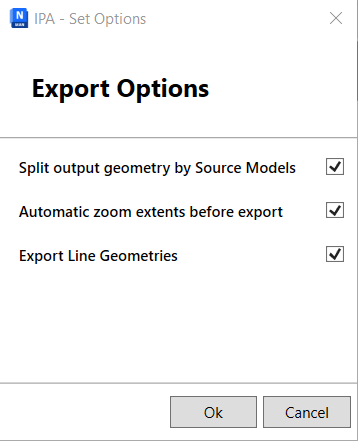
- The Export Options dialog will appear. Select export options as required. Please refere to Notes on export options below for more information.
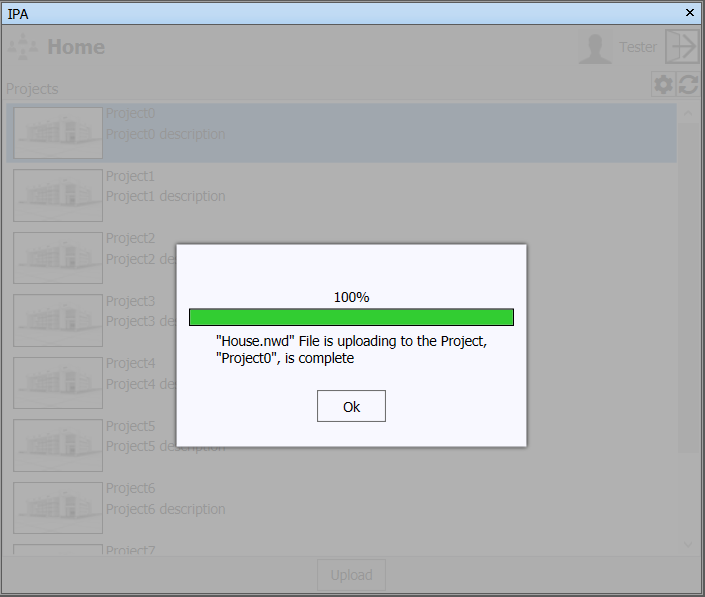
- Once the model export begins, the plug-in will show the progress of the export and upload.
- During the export and upload procedure, you can suspend the upload by clicking the Cancel button. A Cancel-Confirmation dialog will appear, asking you to confirm your decision. If you click Yes, the model upload will be cancelled.
- Once the export and upload process is complete, click OK to return to the main plug-in UI.
Figure: Model export and upload progress UI
Notes on export options#
In the Export Options dialog, there are three options you can select:
- Split output geometry by source models If this option is selected, the plug-in will split model geometry by source models. And then in SGPK file, each occurrence will have its own HOOPS
sczfile. Otherwise the plug-in will output the entire model geometry to one HOOPSsczfile and put it in theocc/1folder. The option is selected by default. - Automatic zoom extents before export If this option is selected, the plug-in will automatically apply zoom extents before exporting. It will affect the camera position in the output HOOPS
sczfile so that the initial view of the model in Platform viewer is fit to show entire model. The option is selected by default. - Export Line Geometries If this option is selected, the plug-in will export line geometries. Otherwise only mesh geometries will be exported. Some models contain line geometries, such as grid lines which are not good for model rendering, in such cases, you can de-select this option. The option is selected by default.
Figure: Export Options