AI Chat
Overview#
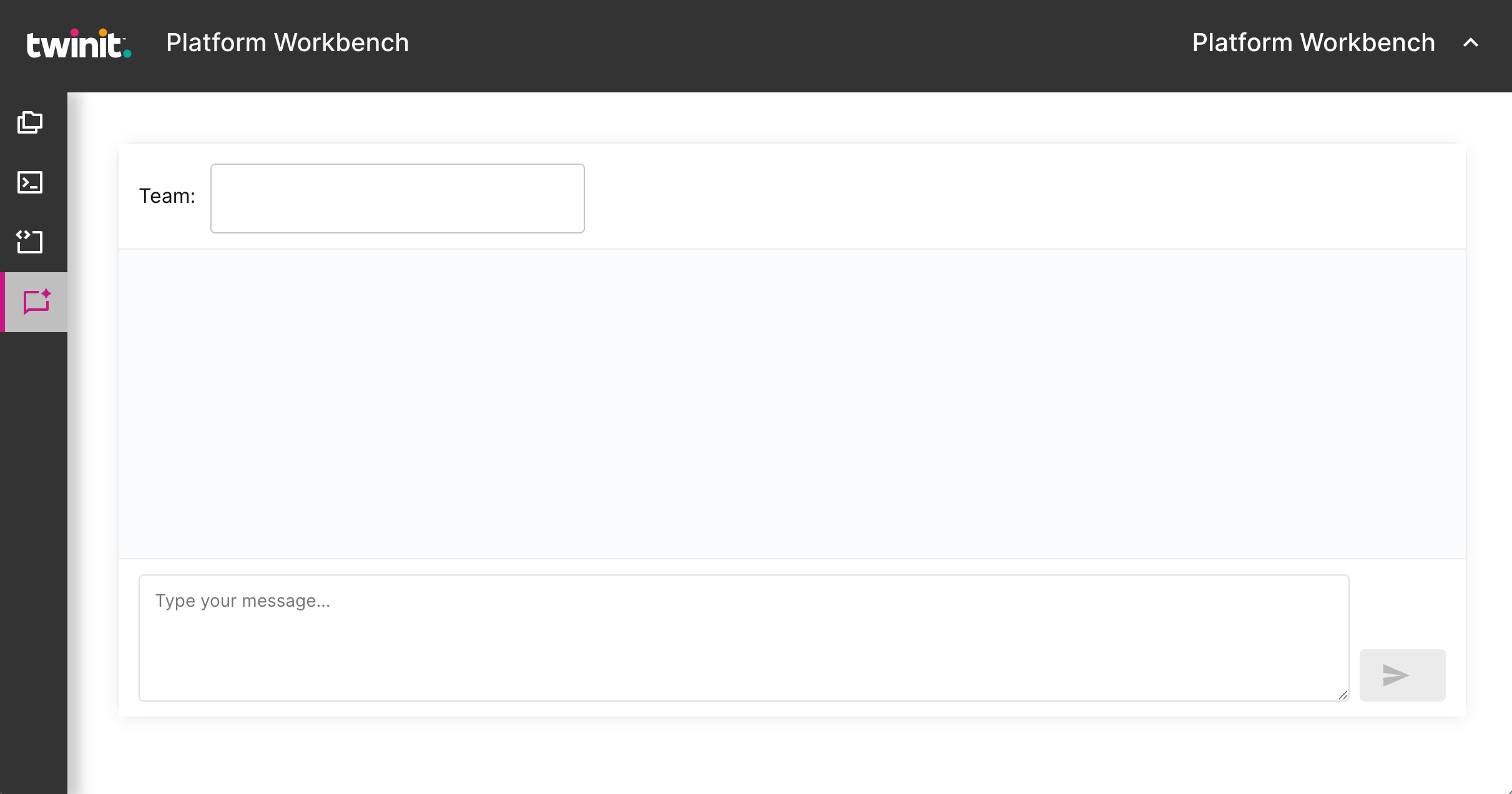
The AI Chat option provide access to the natural language interface which allows you to run natural language queries.
Figure: AI Chat page
How to use natural language queries#
To run a natural language query, do the following:
In the left-side bar, click the AI Chat menu option. Then select the only sub-option AI Chat.
You will see the AI Chat page. In the Team box in the top left, you will see a drop-down list of all the AI teams which are currently available. Click the AI team that you want.
In the text box at the bottom of the page, enter the text for your natural language query. When satisfied with your text query, click the run button on the right.
The query will run and after a moment, the results will be displayed in the main section of the page.
Notes on natural language queries#
Natural language queries are often used to return text based answers. However, you can also ask the AI Chat to return other media in the answer, such as a graph.
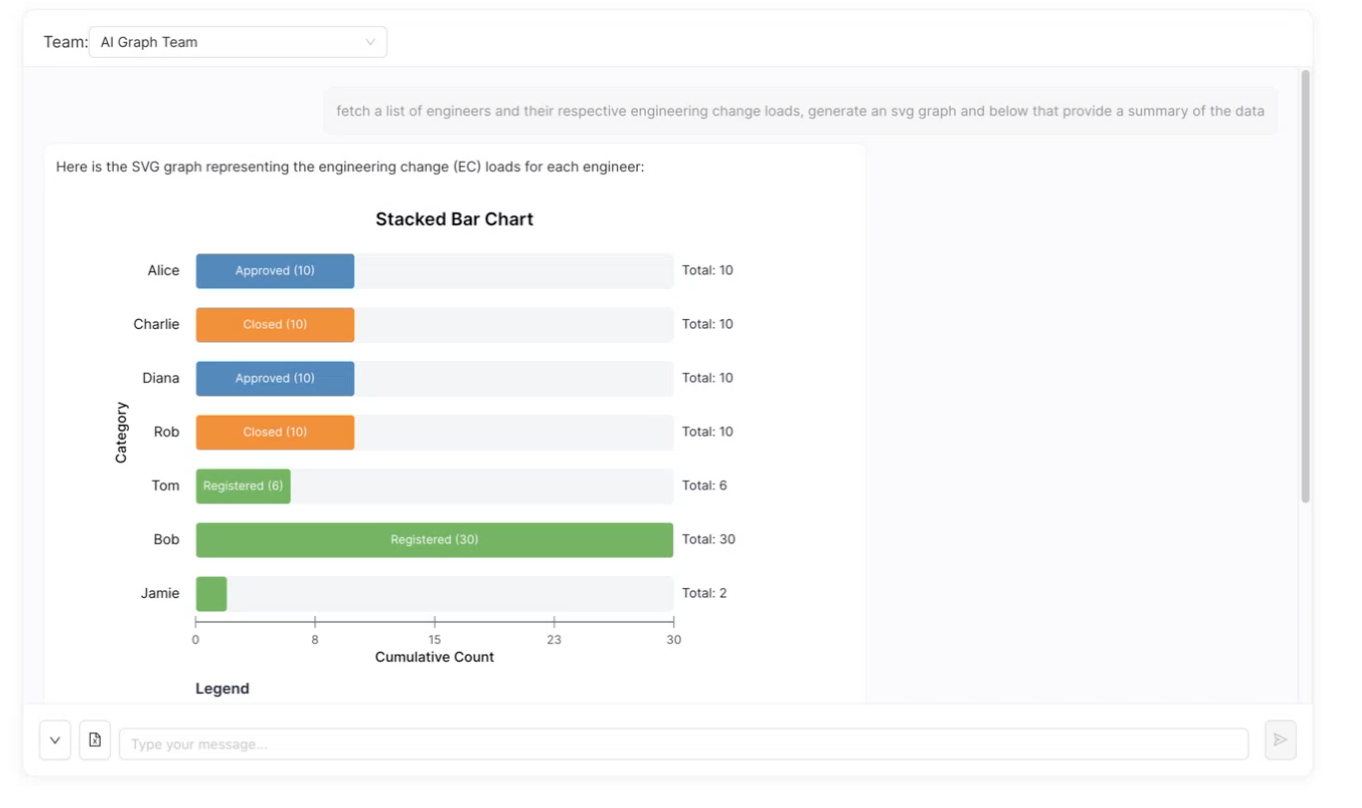
In the query below, the text query requests information on the workload of a group of engineers but also specifies that it be presented as a graph in SVG format.
Figure: AI Chat result example