UserConfigs node
Overview#
Use the UserConfigs node to add and edit user configurations.
Extended edit options#
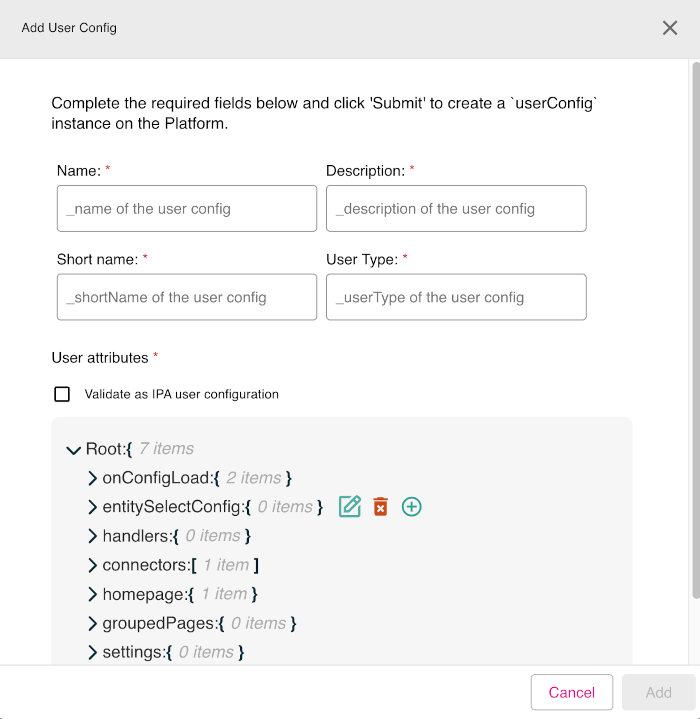
Right-click on the UserConfigs node to access these extended edit options:
- Add User Config
- Show current node relationships
- Show all nodes
Figure: UserConfigs node - extended edit options
Adding User Config#
To use the UserConfigs node to add a user configuration, do the following:
- In edit mode, right-click the UserConfigs node.
- Click the option Add User Config.
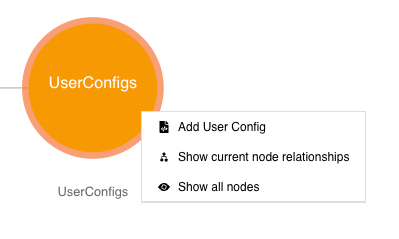
- The Add User Config dialog appears. Enter the mandatory fields: Name, Description, Short name, and User Type.
- In the User attributes section, you can edit every line of the configuration template shown. To edit a line, click on the line and then select the edit icon (indicated by a pencil graphic) which is shown. There are also icons to delete an entry (indicated by a trash can graphic) and an icon to add a new line entry (indicated by a plus sign graphic).
- If you want your configuration to be validated, check the Validate as IPA user configuration check box.
- When done, click Add to add the new user configuration.
Figure: UserConfigs node - Add User Config dialog showing edit icons