File Service console
Use the File Service console to view and delete File Service files and folders that you can access. Folders and files are organized by your selected workspace in the application and workspace selector.
Figure: File Service console elements
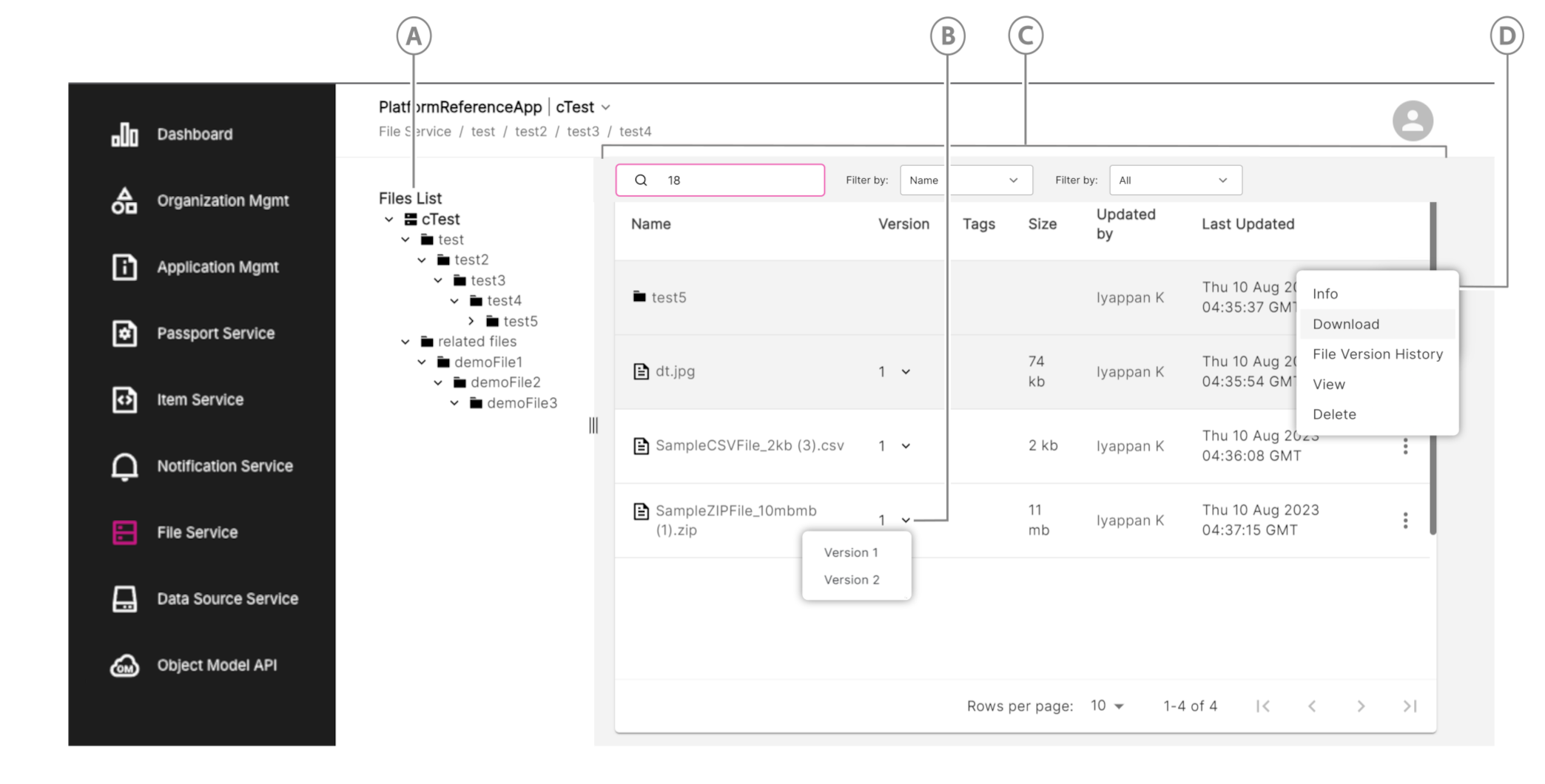
| Callout | Name | Description |
|---|---|---|
| A | Files list | Expand the folder structure and click a file list item to view it and its contents in the file list explorer window. |
| B | File version dropdown | Select the file's version data you want to display. |
| C | File list explorer | View a clicked file list item's contents and their name, version, tags, size, and upload metadata. |
| D | Actions icon | Click to view, delete, dowload, view the metadata of a file or folder. Click File Version History to perform these actions on file versions in the File Version History dialog. |
File Service version support#
You can select a file version from the file list or view a file's version history.
File version dropdown#
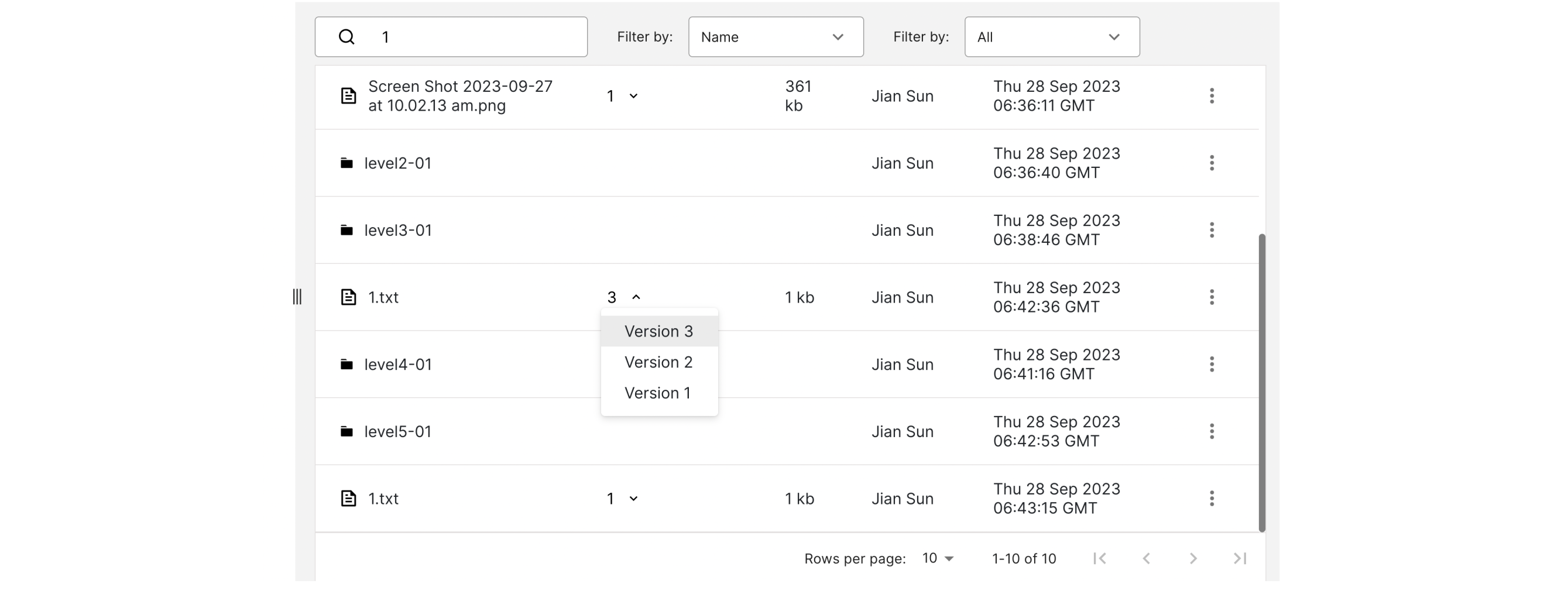
To select a file version, go to the file in the file list and select the version from the dropdown selector.
File version history modal#
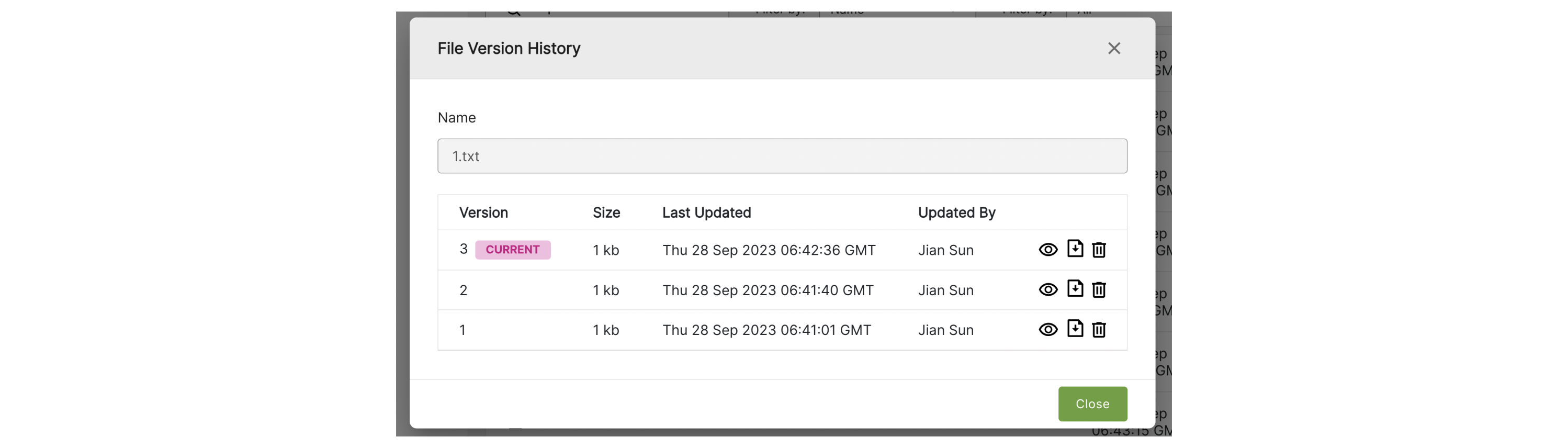
Use the File Version History to view, delete, and dowload file versions. To open the dialog, go to the file row you want, click the Actions icon, then click File Version History.