Notification Service
Overview
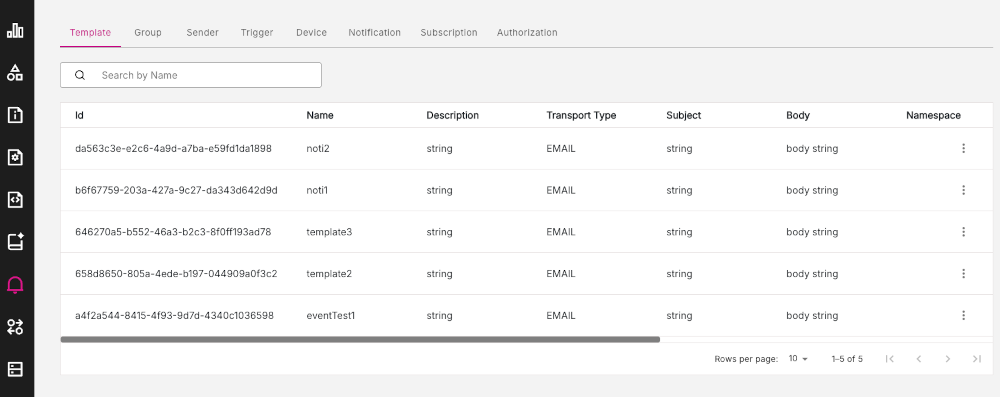
The Notification Service page displays information relating to the Notification Service, presenting a range of tabs for each of the different object types used.
Figure: Notification Service page
Notification Service tabs
Notification Service information is arranged into a set of tabs, namely:
Template tab
The Template tab lists all the templates which are currently available in the current namespace.
Note: In the Notification Service, a template is a predefined outline of the email notification which is sent out to invite people to subscribe to a group.
Figure: Template tab
Applying filters
There is a filter field in the top left of the Template tab where you can enter a template name to search for.
Viewing detailed information about a template
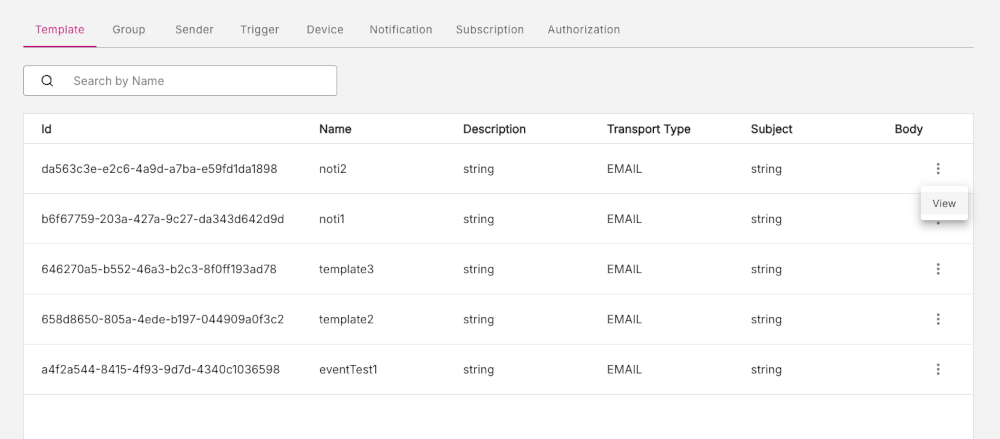
To view detailed information about any template listed, do the following:
-
Find the row of the template you are interested in.
-
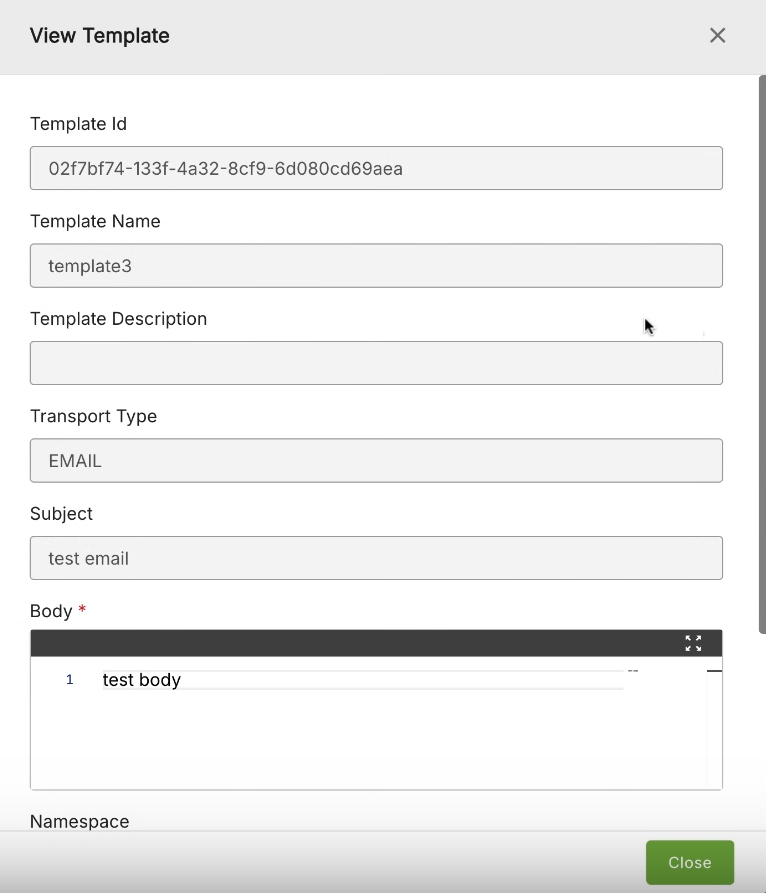
In the far right column, click the three-dot menu (action menu). Click the View option to display detailed information about that particular template on the View Template modal window.
-
Click Close to return to the Template tab.
Figure: View Template modal window
Group tab
The Group tab lists all the notification groups which are available in the current namespace.
Note: In the Notification Service, groups are used to organize subscriptions under specific topics of interest. For example, a notification group could be created for a set of notifications that relate to a specific action in a given application. All users subscribed to that group will then have the same set of notifications distributed to them.
Figure: Group tab
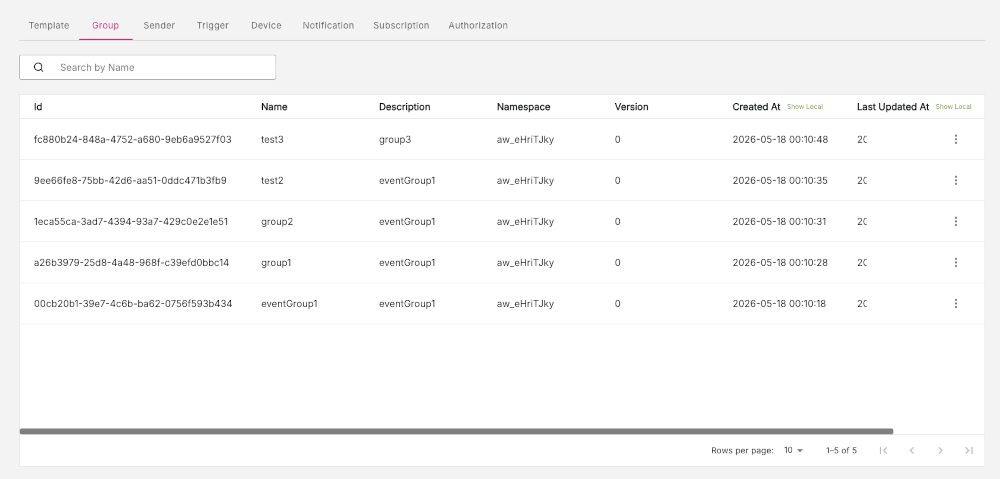
Viewing information about a group
To view detailed information about any group listed, do the following:
-
Find the row of the group you are interested in.
-
In the far right column, click the three-dot menu (action menu). Click the View option to display detailed information about that particular group on the View Group modal window.
-
Click Close to return to the Group tab.
Sender tab
The Sender tab lists all the senders available in the current namespace.
Note: In the Notification Service, senders are used to represent the 'from' identity for email notifications.
Figure: Sender tab
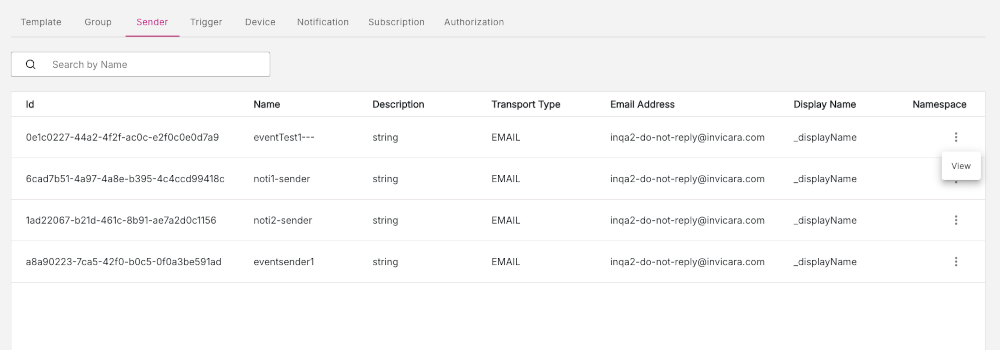
Viewing information about a sender
To view detailed information about any sender listed, do the following:
-
Find the row of the sender you are interested in.
-
In the far right column, click the three-dot menu (action menu). Click the View option to display detailed information about that particular sender on the View Sender modal window.
-
Click Close to return to the Sender tab.
Trigger tab
The Trigger tab lists all the triggers which are available in the current namespace.
Note: A trigger is a rule that determines when a notification is sent. A trigger matches received events and then initiates the sending of notifications to associated notification groups.
Figure: Trigger tab
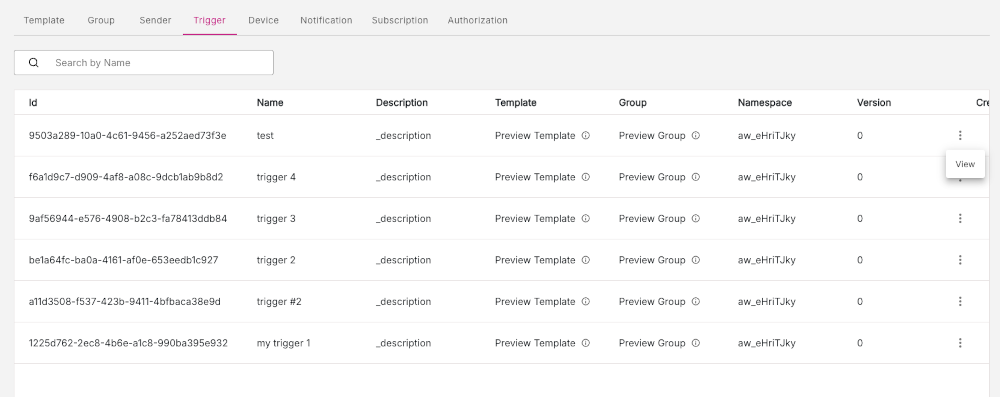
Viewing information about a trigger
To view detailed information about any trigger listed, do the following:
-
Find the row of the trigger you are interested in.
-
In the far right column, click the three-dot menu (action menu). Click the View option to display detailed information about that particular group on the View Trigger modal window.
-
Click Close to return to the Trigger tab.
Figure: View Trigger modal window
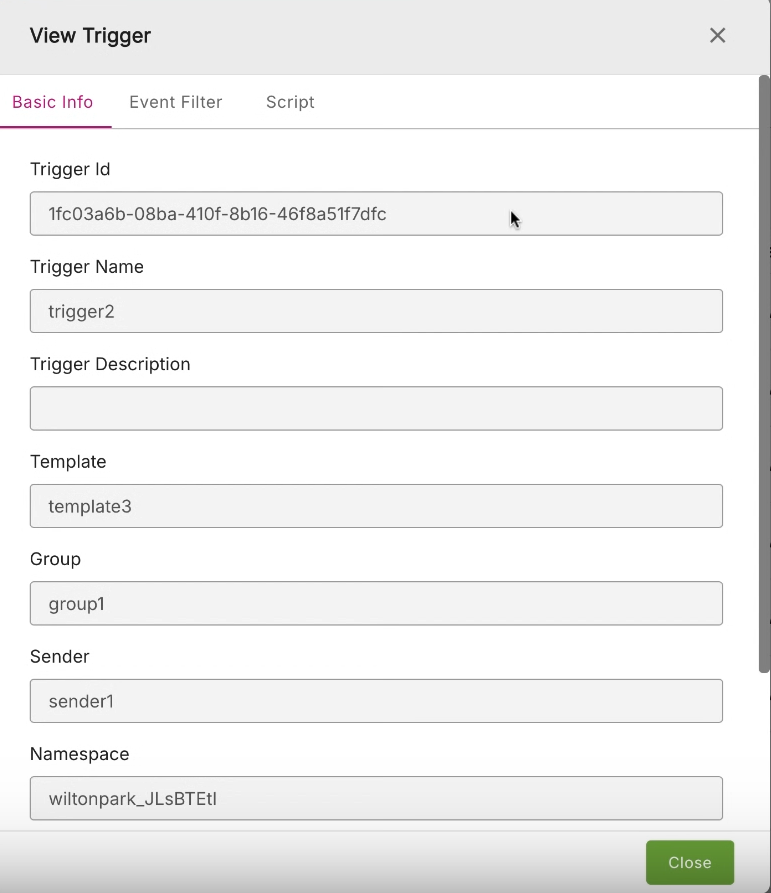
The View Trigger modal displays three tabs of information about a trigger:
- Basic Info tab - Shows basic details about the trigger such as Trigger ID, Trigger Name, Trigger Description etc.
- Event Filter tab - Lists the event filter code for the trigger.
- Script tab - Lists a custom script for the trigger, if one is used.
Device tab
This Device tab lists all the devices which are currently available.
Note: In the Notification Service, the device type determines how you receive notifications. The main example of a device is an email address, which is currently the only type of device which is supported.
Figure: Device tab
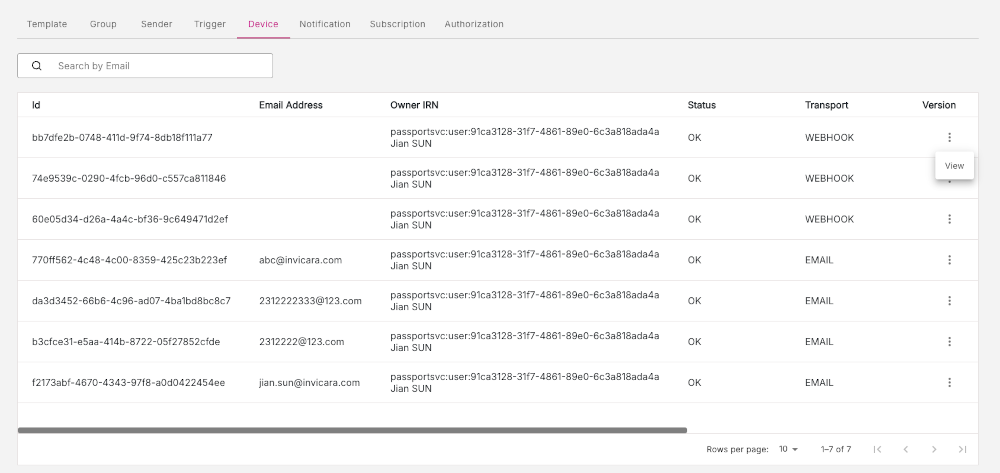
Viewing information about a device
To view detailed information about a device, do the following:
-
Find the row of the device you are interested in.
-
In the far right column, click the three-dot menu (action menu). Click the View option to display detailed information about that particular device on the View Device modal window.
-
Click Close to return to the Device tab.
Notification tab
The Notification tab lists all the notifications which have been sent.
Note: A notification usually takes the form of an email which informs everyone in a notification group that some system event has occured and caused a trigger.
Figure: Notification tab
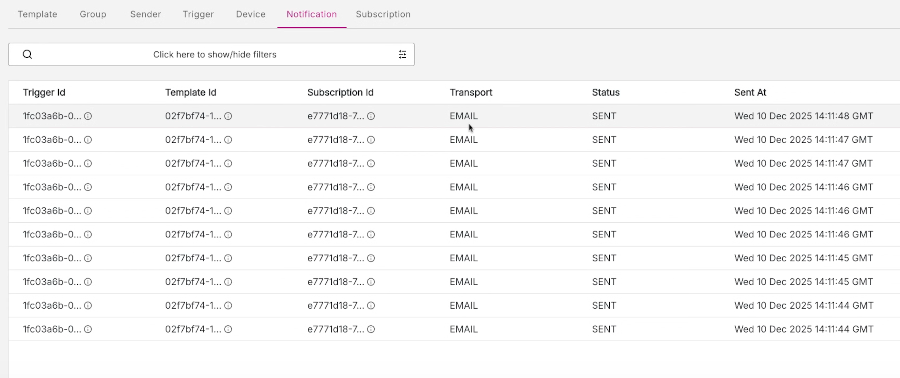
Viewing information about a notification
Unlike in other tabs, to view detailed information about a particular Trigger ID, Template ID, or Subscription ID, simply click on the cell for that item in the notification row. This will display the View Trigger, View Template, or View Subscription modals.
Filter options
In the filter box in the top left of the page, you have a range of options to apply filters to the listing of triggers. You can filter by fields and input text. For example, you can apply a filter to list triggers ordered by trigger.id.
Figure: Trigger filters
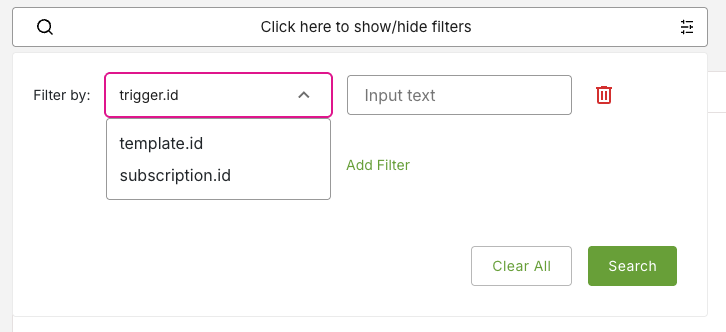
Subscription tab
The Subscription tab lists all the subscriptions which are currently available in the Notification Service.
Note: A subscription usually associates a given device with a group of interested users, ensuring that they get notified by email whenever certain system events occur. The Notification Service supports both device type subscriptions and webhook subscriptions.
Figure: Subscription tab
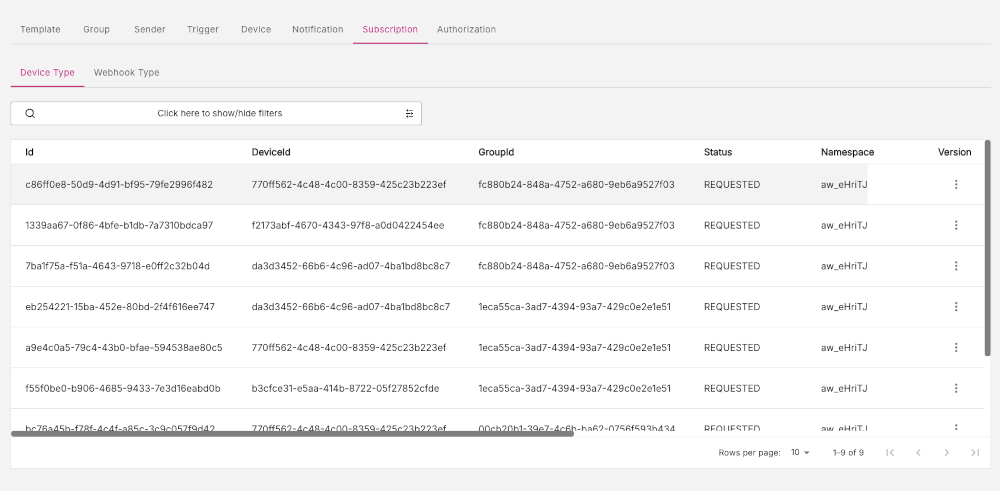
On the Subscription tab, two sub tabs of subscription information are available:
- Device Type tab - Subscriptions associating a given device with a group.
- Webhook Type tab - Subscriptions defining a webhook which will be called when a notification is sent to a particular group.
Viewing subscription information
To view detailed information about a particular subscription, do the following:
-
On either the Device Type or the Webhook Type tab, find the row of the subscription you are interested in.
-
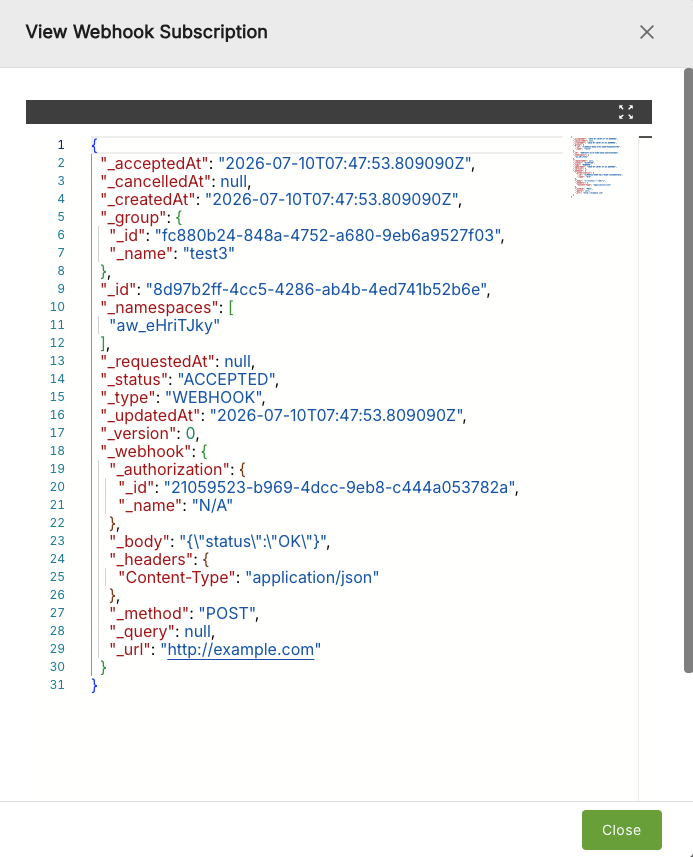
In the far right column, click the three-dot menu (action menu). Click the View option to display a detailed listing for that particular subscription in the View Device Type or View Webhook Subscription modal window.
-
Click Close to return to the Subscription tab.
Figure: View Webhook Subscription modal window
Authorization tab
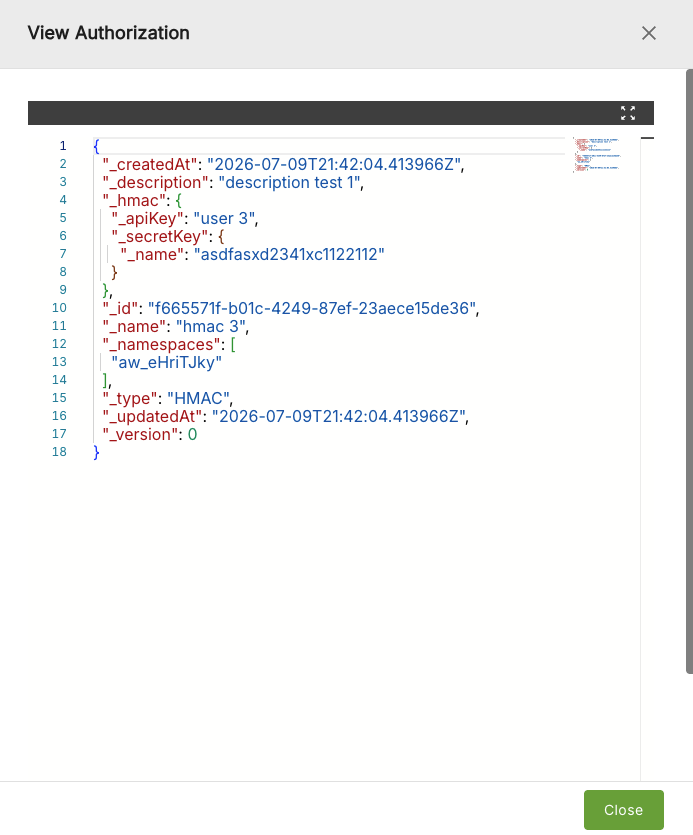
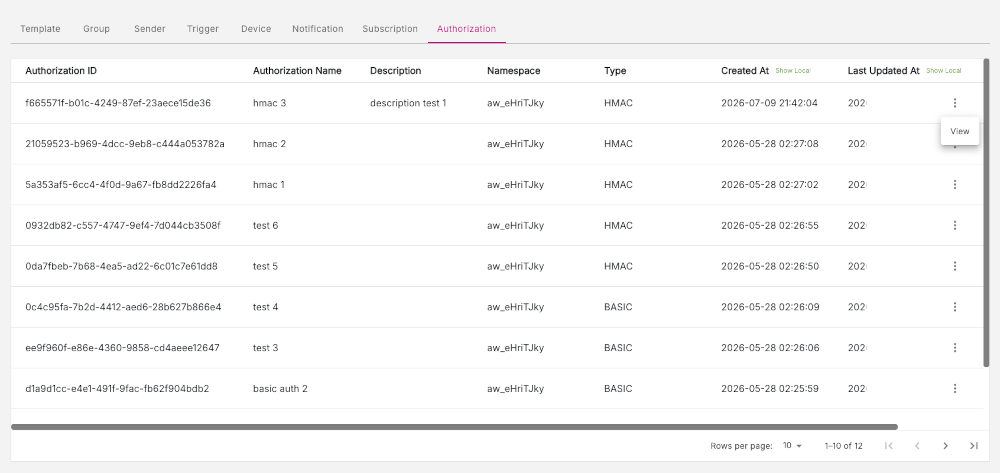
The Authorization tab lists all the current authorizations.
Note: Some webhook type subscriptions require an authorization method. This chooses the authentication logic and ensures that any password or secret value is stored securely using Passport Service secrets.
Figure: Authorization tab
Viewing authorization code
To view a detailed code listing for an authorization, do the following:
-
Find the row of the authorization you are interested in.
-
In the far right column, click the three-dot menu (action menu). Click the View option to display the properties listing for that particular authorization in the View Authorization modal window.
-
Click Close to return to the Authorization tab.
Figure: View Authorization modal window