Workflow Service
Overview
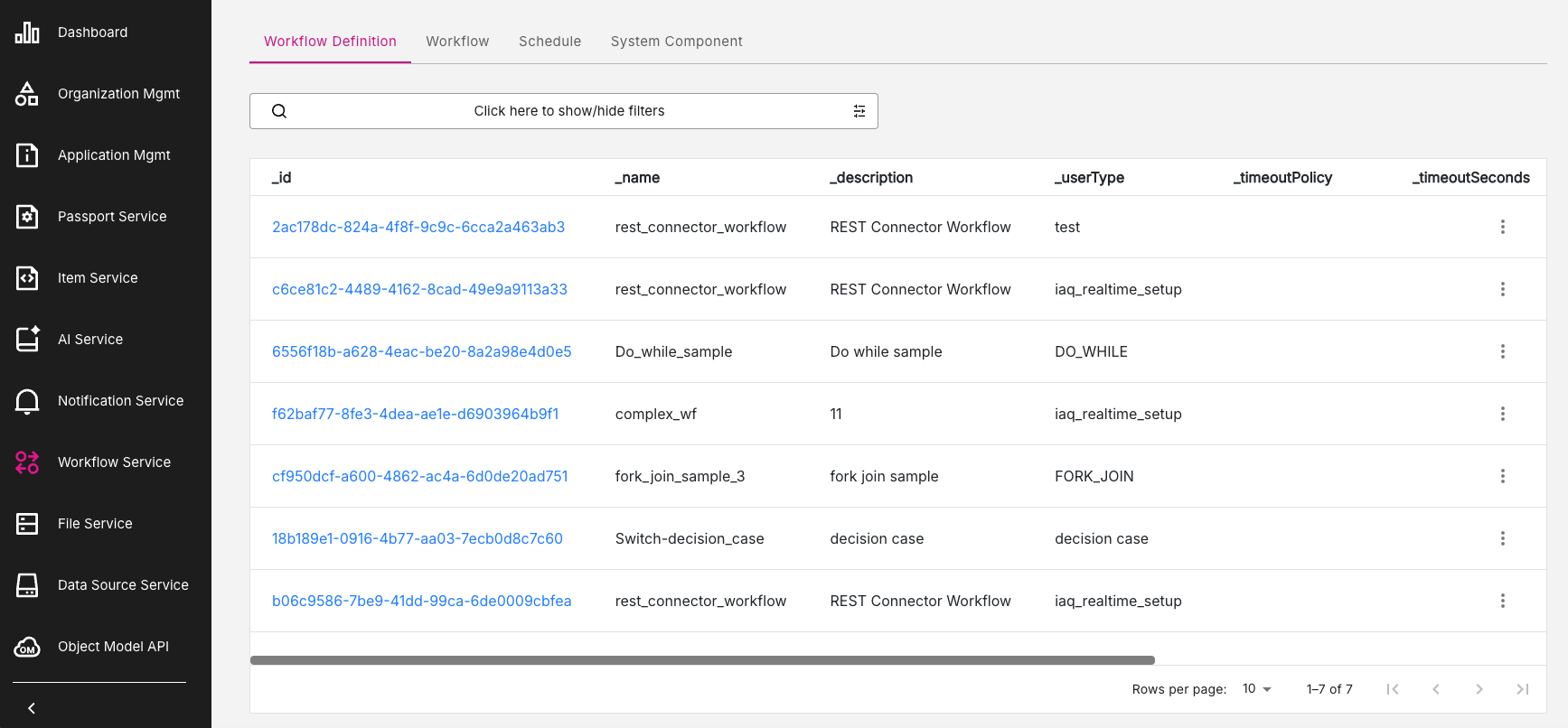
The Workflow Service page displays information relating to the Workflow Service. It displays a range of tabs displaying information on Workflows and scheduling.
Each tab has extensive options for searching and filtering the information being displayed. On certain tabs, you also have the ability to display Workflow diagrams and edit parameters.
Figure: Workflow Service page
Workflow Service tabs
The Workflow Service page information is arranged into a set of tabs, namely:
Workflow Definition
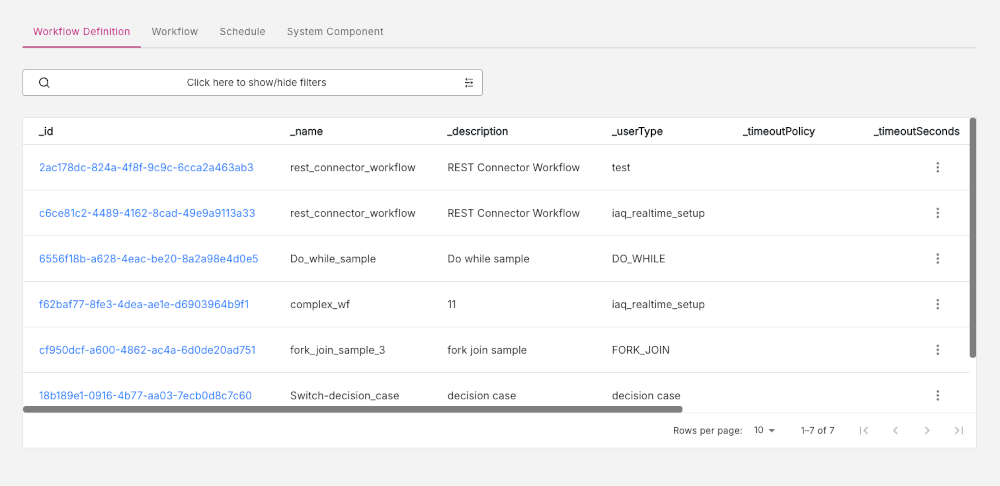
The Workflow Definition tab, lists all the existing Workflow definitions which you have defined.
Using the search bar, you can now perform complex filter searches for particular Workflow definitions.
Figure: Workflow Definition tab
Viewing Workflows for a particular Workflow ID
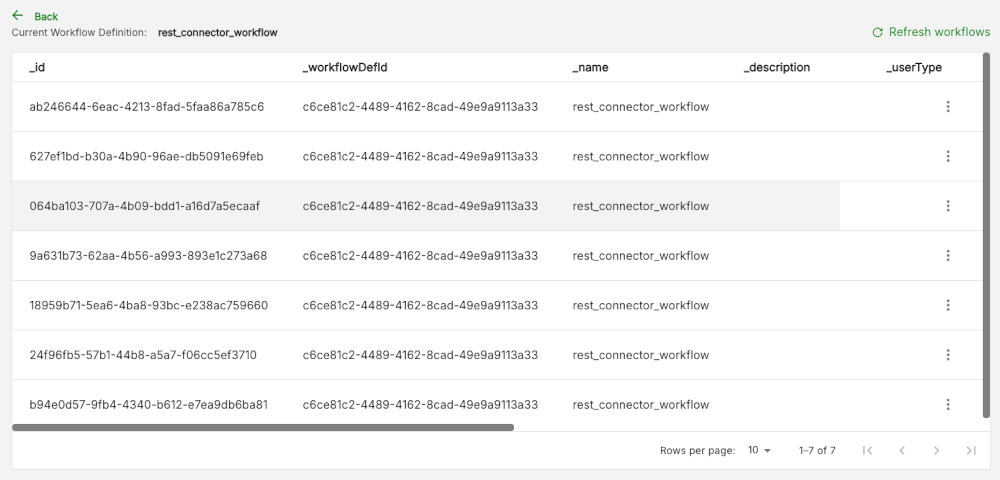
The _id column lists the Workflow definition IDs currently available. You can now click on any of these entries to drill down and view a list of all the Workflows belonging to a particular Workflow definition ID.
Click the Back button to return to the Workflow Definition tab.
Figure: Listing of Workflows for a particular Workflow definition ID
Search options
You can now search for specific Workflow Definitions, using a complex search option. In the search bar at the top-left of the page, you can now apply a set of complex search filters so you can search using different fields.
Three-dot menu icon actions
Click the three-dot icon at the end of each row to reveal more options. For each Workflow definition, the following actions are available:
View Workflow Definition window
Click View to view all the information about a particular Workflow definition which is displayed in the View Workflow Definition window.
Figure: View Workflow Definition
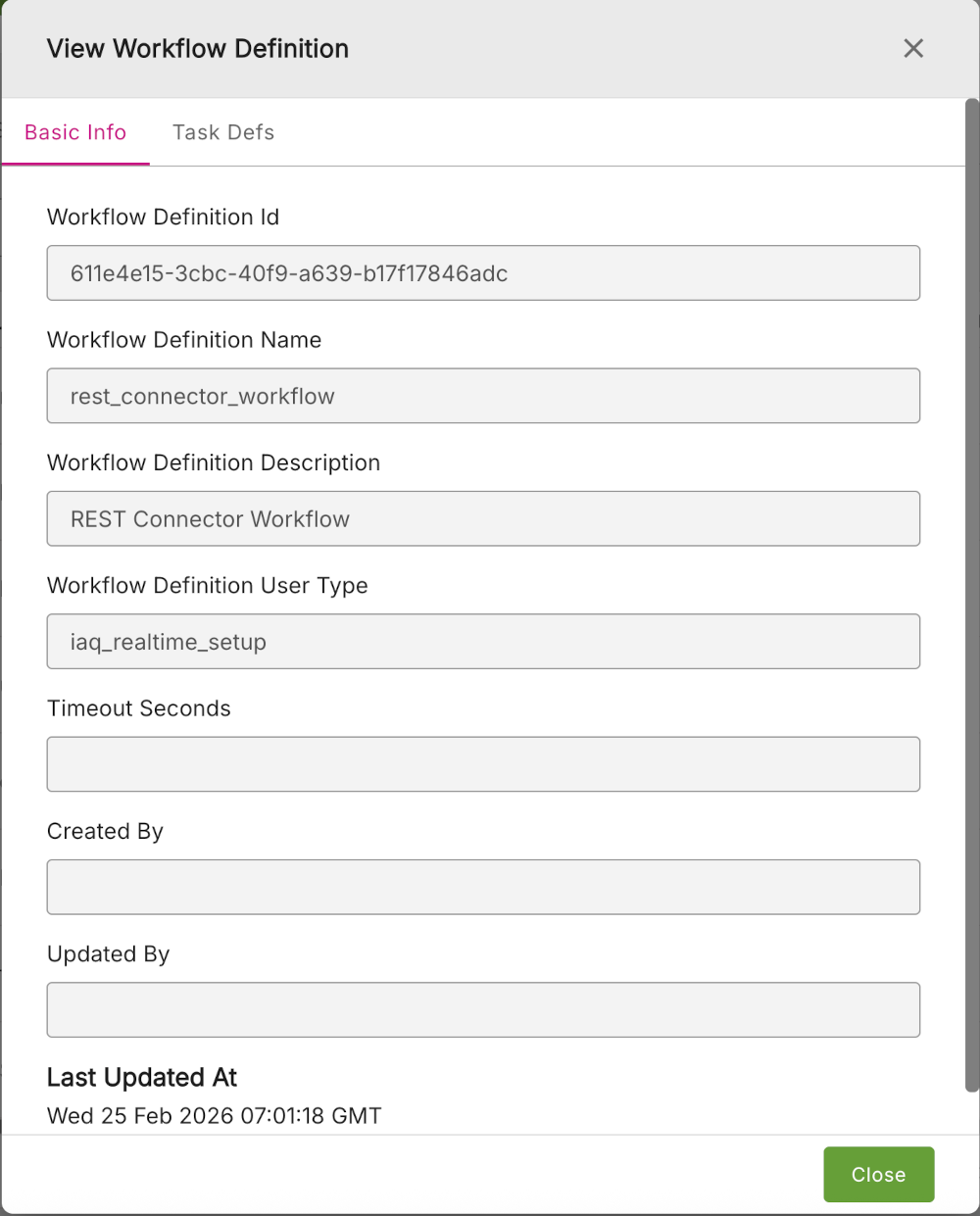
This window contains two tabs:
- Basic Info - Displays main information about a Workflow definition such as Workflow definition ID, name, and description.
- Task Defs - Displays the JSON description of the task definitions for that Workflow. Each Workflow Definition may have several tasks.
Runs window
Click Runs to display the information about each time a particular Workflow definition was run. Each Workflow definition may have multiple runs, all of which will be listed in this window.
The Runs window displays important data such as the status (_status) of each run indicating whether it was completed or not, and time created (_createdAt), and updated (_updatedAt).
Schedules window
Click Schedule to display the Schedules window which lists all the schedules for a particular Workflow definition. This includes information such as intervals between runs (_runInterval), time zone (_timeZone), and parameters (_InputParams).
Tasks
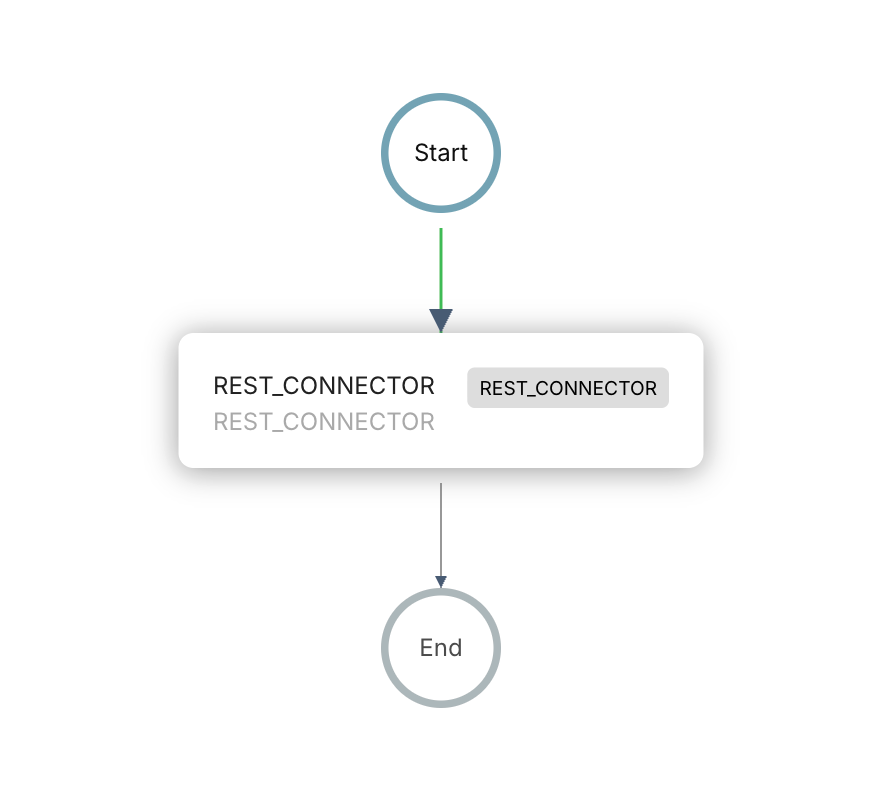
Clicking Tasks to display a diagram which describes the Workflow definition.
Figure: Tasks - Workflow Definition diagram
Workflow
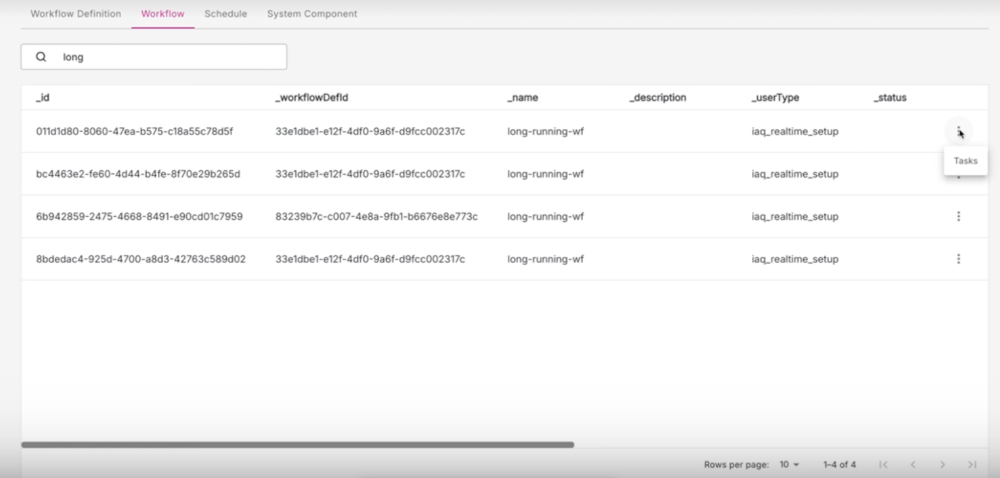
The Workflow tab lists all the information relating to a particular Workflow.
Figure: Workflow tab
Search options
You can search for specific Workflows, using a partial name, by entering the search term in the Search my Name box at the top-left of the window.
Three-dot menu icon actions
On the Workflow tab, each Workflow row will have a three-dot icon at the end of each row to reveal more options. For each Workflow definition, the available action is Task.
Click the Tasks option to reveal a set of tabs listing information about a particular Workflow, namely:
Tasks tab
The Tasks tab displays a task diagram for a Workflow.
Figure: Workflow Tasks diagram
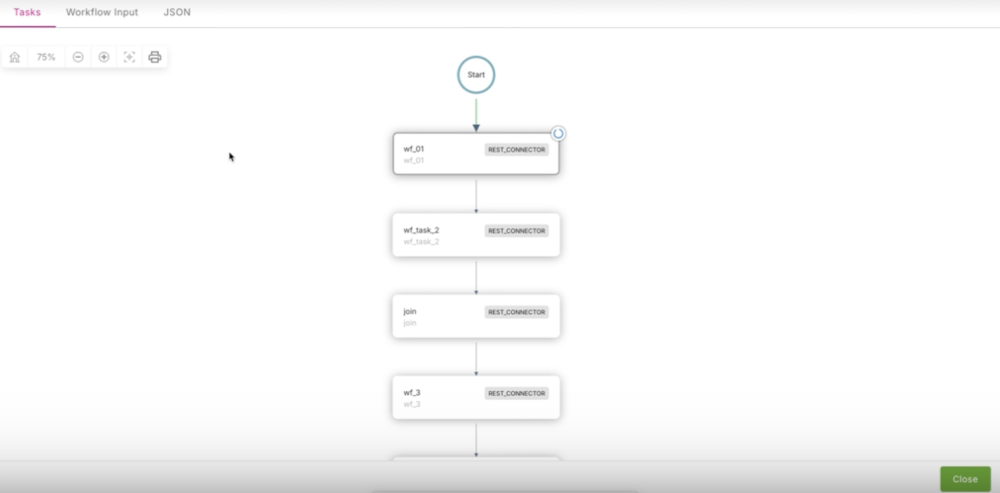
Using the icon bar in the top left of the tab, you can perform a range of options on the diagram, including:
- Reset to original position
- Zoom out
- Zoom in
- Fit to screen
- Print out diagram
You can also click on the image and drag it to reposition in the window.
View Task Logs
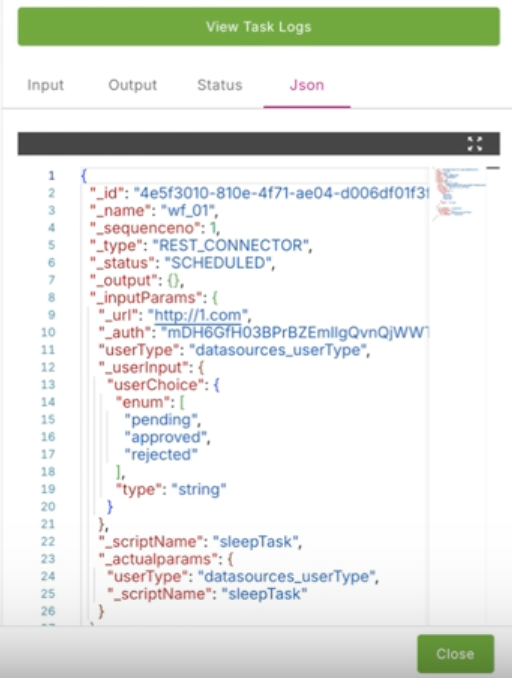
If you click on any component of the diagram, the View Task Logs panel will appear. In this panel, you can view a JSON code listing for the diagram component you have selected.
You will also see the following parts of the task log, each on its own tab:
- Input
- Output
- Status
- Json
Figure: View Task Logs - JSON tab
View Task
Click the View Task Logs button to view a list of tasks.
In this window, you can apply filtering options in the top-right search bar where you can filter based on selecting options such as:
- ALL
- TRACE
- DEBUG
- INFO
Workflow Input tab
The Workflow Input tab shows the definition for the input field used in the Workflow.
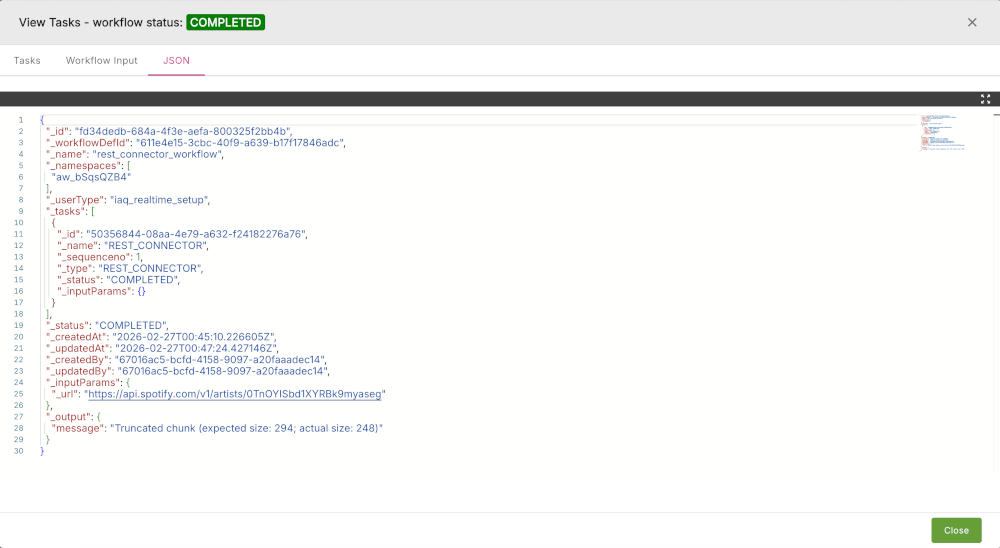
JSON tab
The JSON tab, shows the JSON definition for the Workflow task.
Figure: JSON tab
Schedule
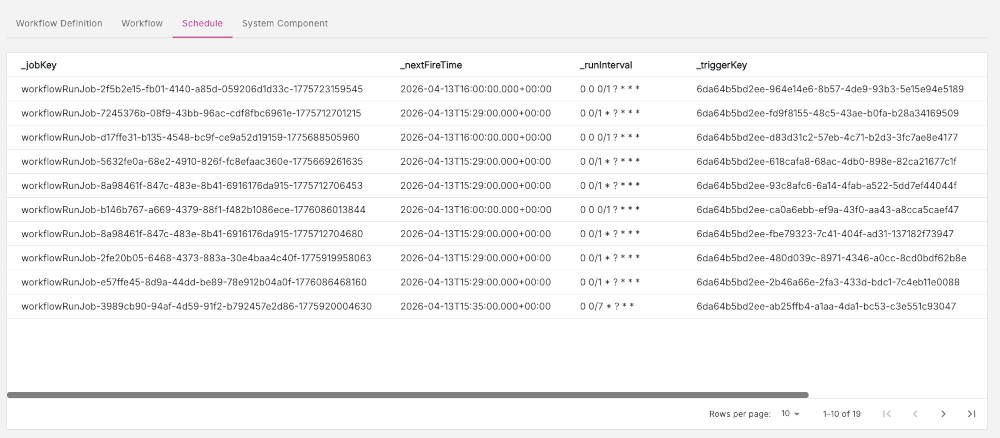
The Schedule tab lists all schedules which have been defined for a Workflow.
Each row defines one schedule and each column lists the various properties of a schedule, including:
_jobKey_nextFireTime_runInterval_triggerKey_workflowDefId
Figure: Schedule tab
System component
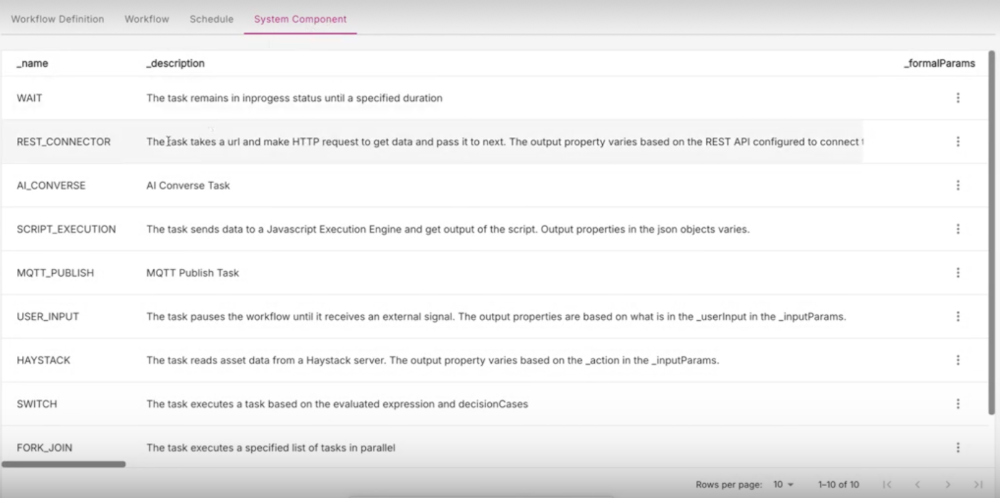
The System Component tab lists all the system components (also known as built-in tasks) for the Workflow Service.
For each system component, it lists the following information:
_name_description_formalParams
Figure: System Component tab
Three-dot menu icon actions
On the System component tab, each row will have a three-dot icon at the end of each row to reveal more options. For each system component, the available action is View.
Click View to display the View System Component window.
Figure: View System Component
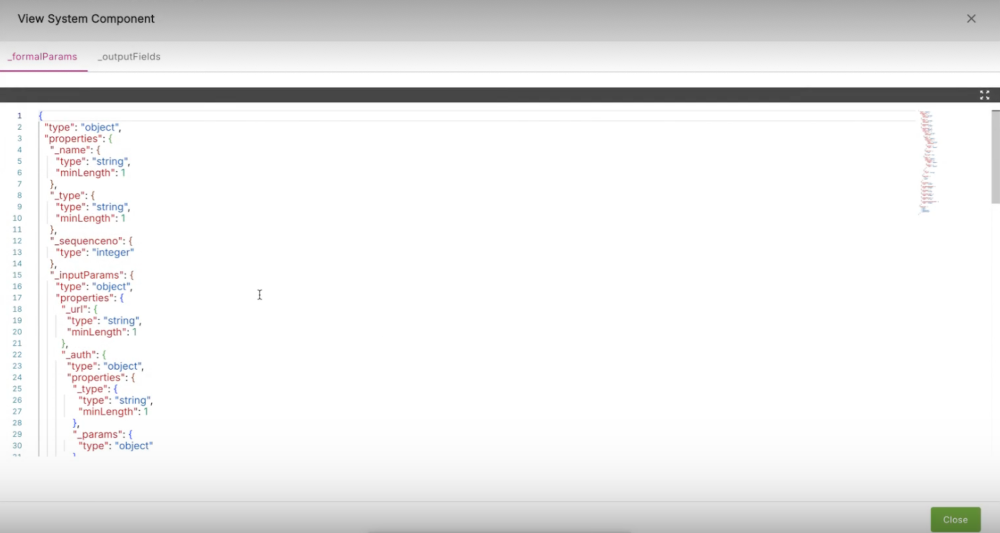
For each system component, this window lists the JSON definitions for:
_formalParams_outputFields