AI Service
Overview
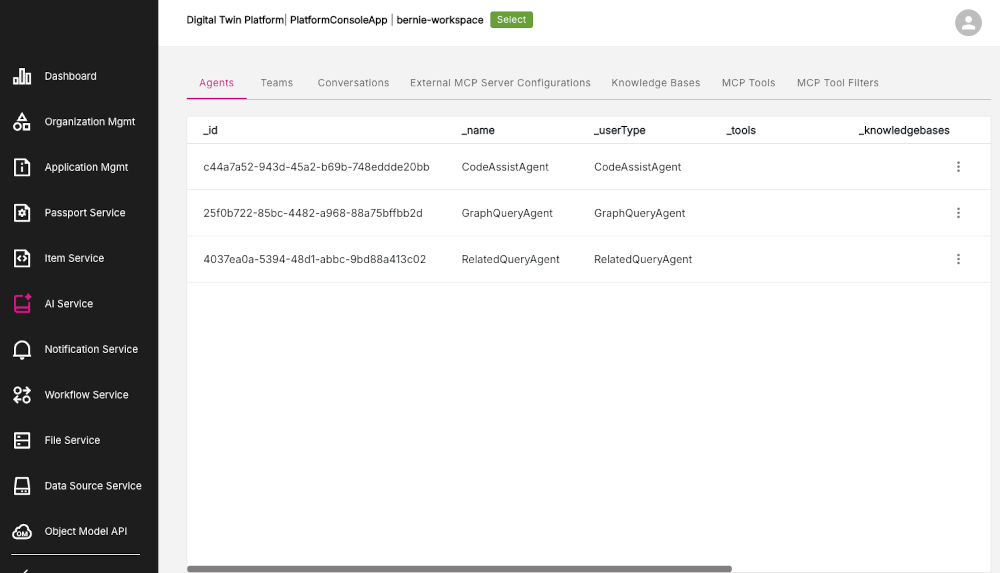
The AI Service page displays information relating to the AI Service. It displays a range of tabs for each of the different objects used in the AI Service.
Figure: AI Service page
AI Service tabs
AI Service information is arranged into a set of tabs corresponding to each of the types of information being displayed, namely:
- Agents
- Teams
- Conversations
- External MCP Server Configurations
- Knowledge Bases
- MCP Tools
- MCP Tool Filters
Agents tab
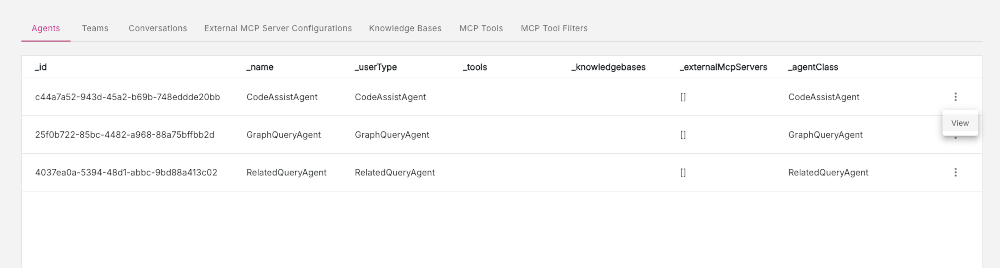
The Agents tab lists all the AI agents which are currently available in the current workspace.
Figure: Detailed view of Agents tab
Note: In the AI Service, agents refer to software components which can communicate with a Large Language Model (LLM) with a given clear role and purpose. Agents are also equipped with specific tools to interact with the platform.
Viewing code listing for an agent
To view a code listing for any agent listed, do the following:
-
Find the row of the agent you are interested in.
-
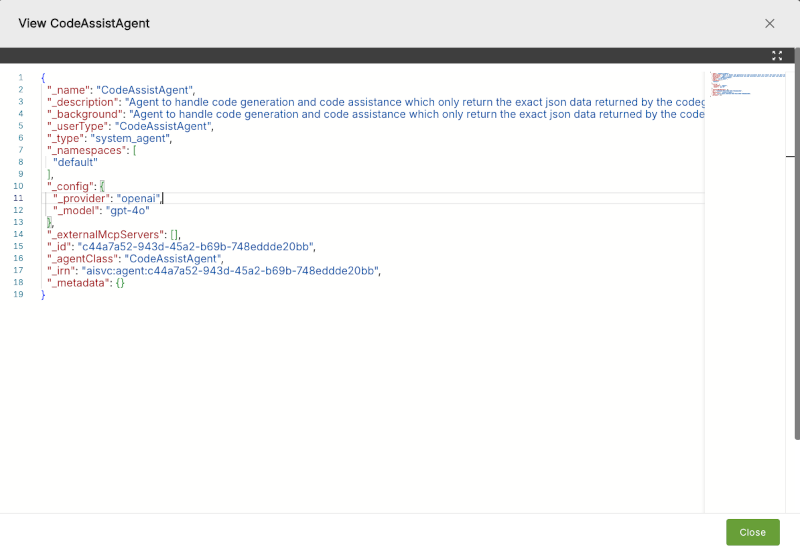
In the far right column, click the three-dot menu (action menu). Click the View option to display the code listing for that particular agent in the View Agent modal window.
-
Click Close to return to the Agents tab.
Figure: View Agent modal window
Teams tab
The Teams tab lists all the AI teams which are currently available in the current workspace.
Figure: Detailed view of Teams tab
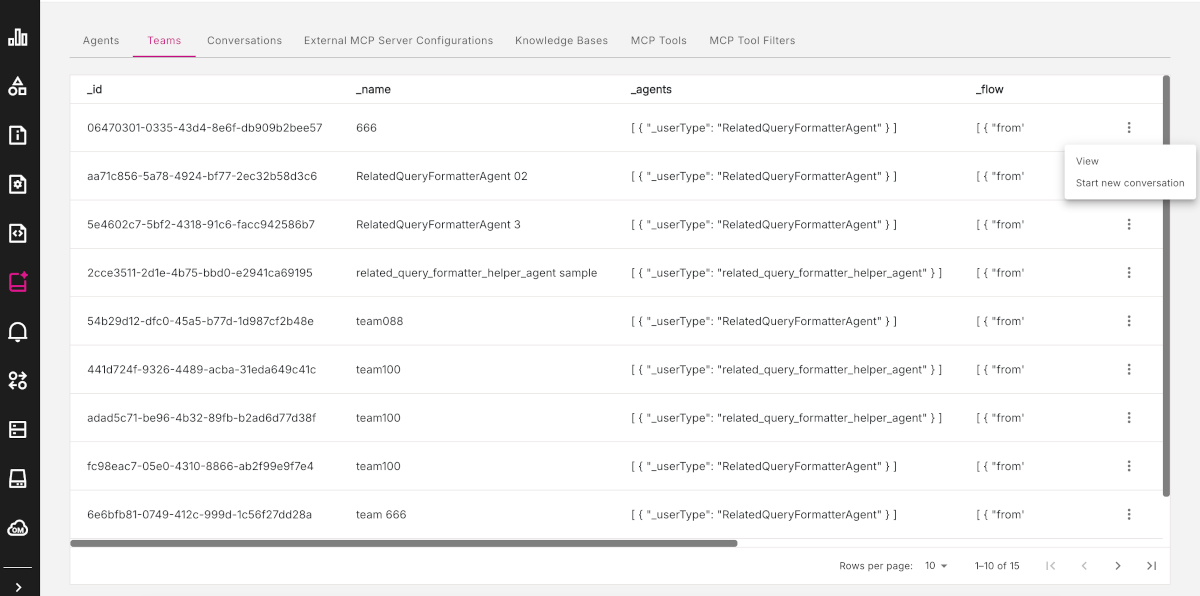
Note: In the AI Service, a team defines a sequential workflow of agents that execute tasks based on a defined order, passing outputs along the chain.
Viewing code listing for a team
To view a code listing for any team listed, do the following:
-
Find the row of the team you are interested in.
-
In the far right column, click the three-dot menu (action menu). Click the View option to display the code listing for that particular team in the View Team modal window.
-
Click Close to return to the Teams tab.
Start a new conversation with a team
To start a new conversation with an AI team, do the following:
-
Find the row of the team you are interested in.
-
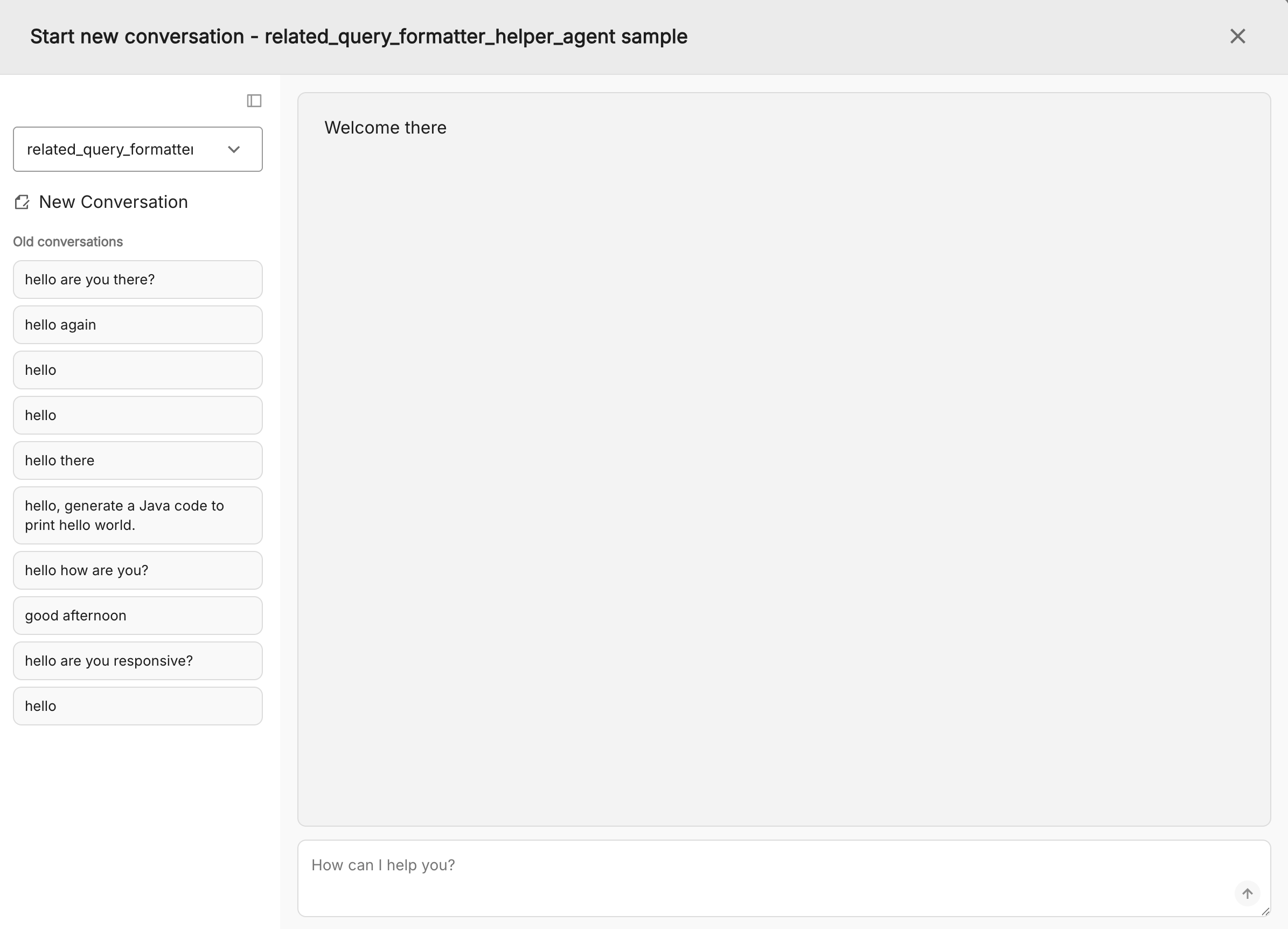
In the far right column, click the three-dot menu (action menu). Click the Start new conversation option to open up the Start new conversation modal window.
-
The team field in the top left, will be populated with the team you just selected. Click New Conversation to begin a new conversation. Alternatively, a list of old converstations are presented and you can choose to use one of those.
-
The conversation panel will appear. At the bottom of the modal window, enter prompts to start a new conversation with the team.
-
Click the exit (X) icon in the top right of the modal. to return to the Teams tab.
Figure: Start new conversation modal window
Conversations tab
The Conversations tab lists all the AI conversations which are currently available in the current workspace.
Figure: Detailed view of Conversations tab
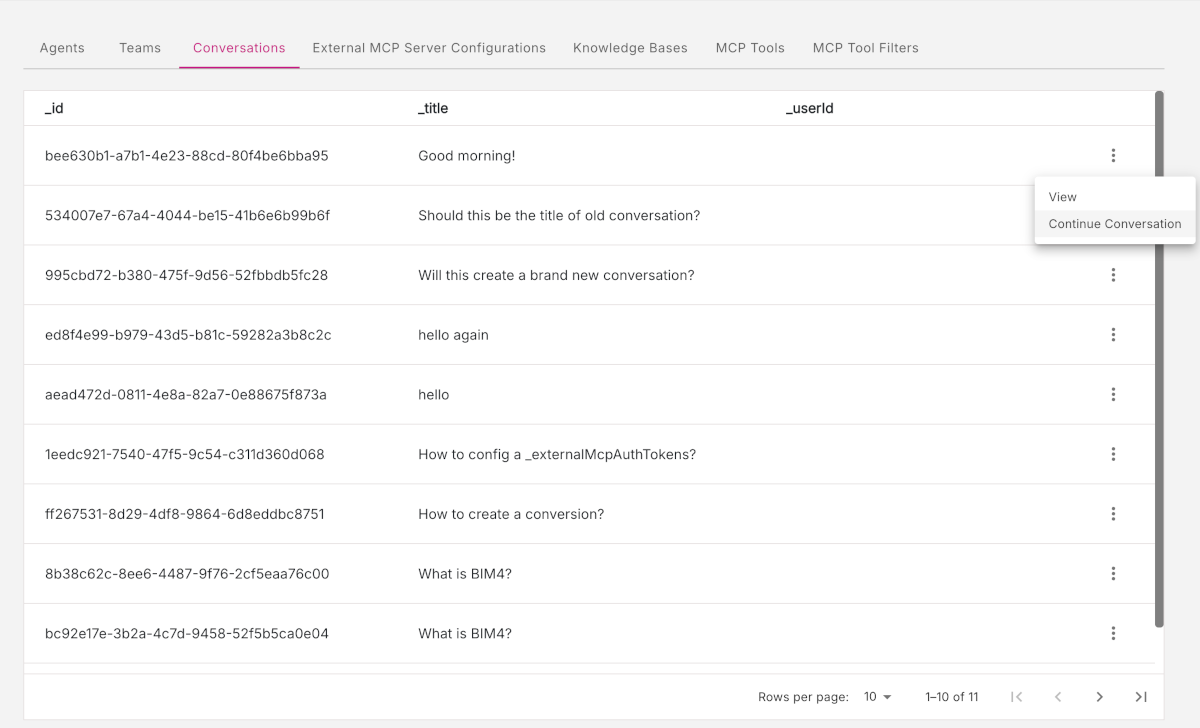
Note: In the AI Service, a conversation refers to a session of prompts and chats, submitted by a user when interacting with an AI agent or team.
The action menu on the converstations has two available options:
-
View - view detailed list of conversation properties
-
Continue conversation - continue a conversation with an AI team
Viewing conversation properties
To view the detailed properties of a conversation, do the following:
-
Find the row of the conversation you are interested in.
-
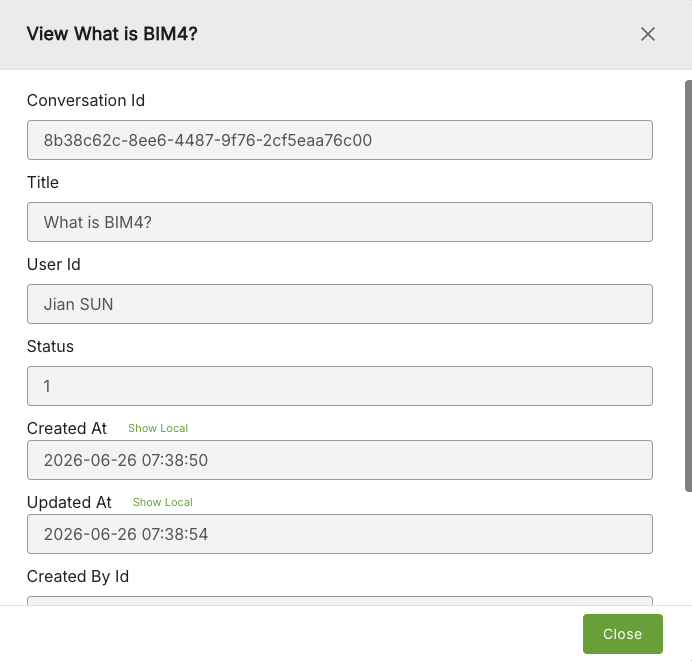
In the far right column, click the three-dot menu (action menu). Click the View option to display the properties listing for that particular conversation in the View Conversation modal window.
-
Click Close to return to the Conversations tab.
Figure: View Conversation modal window
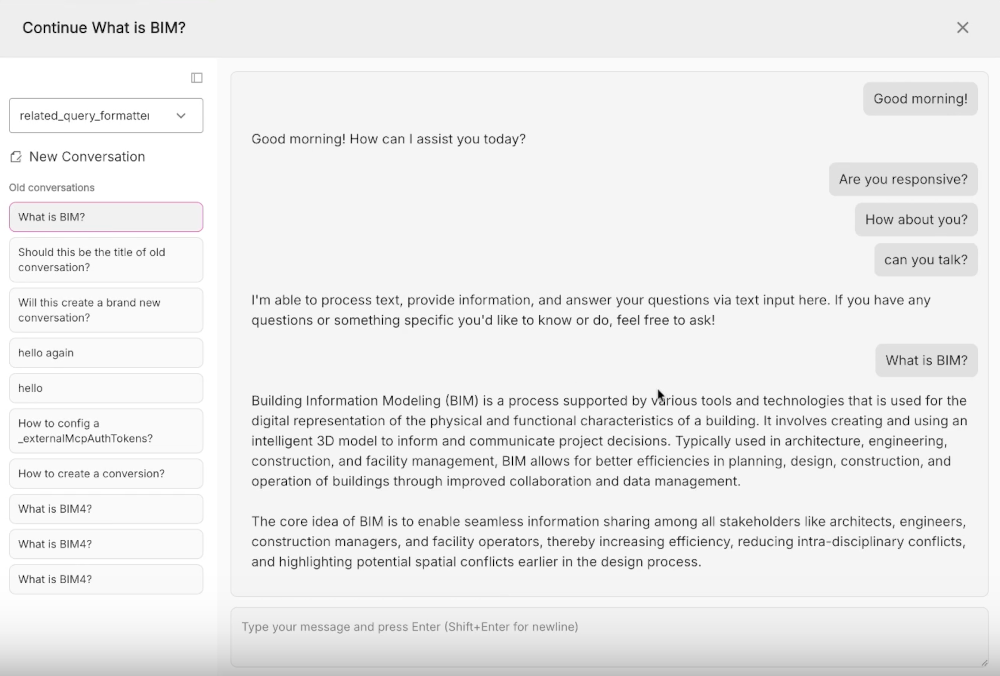
Continuing a conversation
To continue a conversation with an AI team, do the following:
-
Find the row of the conversation you are interested in.
-
In the far right column, click the three-dot menu (action menu). Click the Continue Conversation option to open up the Continue Conversation modal window.
-
You will be presented with a list of available conversations.
-
On the left-hand side of the modal window, select a team to converse with, from the drop-down list.
-
Then either click New Conversation to start a new conversation or from the list of Old conversations, click on the conversation you want to continue.
-
The current state of the conversation will appear. At the bottom of the modal window, enter prompts to start a new conversation or continue an old conversation.
-
Click the exit (X) icon in the top right of the modal. to return to the Conversations tab.
Figure: Continue Conversation modal window
External MCP Server Configurations tab
The External MCP Server Configurations tab lists all the MCP Server configurations which are currently established in the current workspace.
Figure: Detailed view of External MCP Server Configurations tab
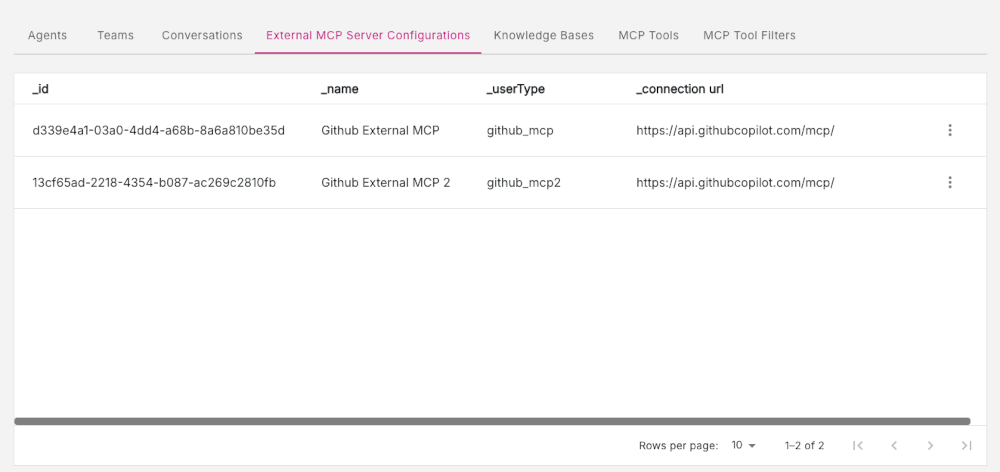
Note: In the AI Service, an external MCP server configuration refers to a standardized connection between the AI Service and external systems such as GitHub.
Viewing detailed listing for a MCP Server configuration
To view the detailed listing for an external MCP Server configuration, do the following:
-
Find the row of the configuration you are interested in.
-
In the far right column, click the three-dot menu (action menu). Click the View option to display the listing for that particular configuration in the View External MCP modal window.
-
Click Close to return to the External MCP Server Configuration tab.
Knowledge Bases tab
The Knowledge Bases tab lists all the knowledge bases used by the AI Service in the current workspace.
Figure: Detailed view of Knowledge Bases tab
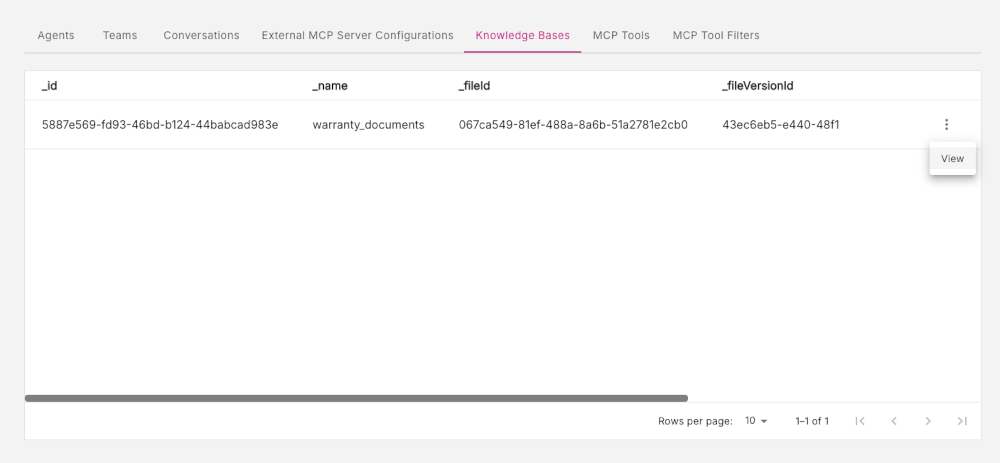
Note: In the AI Service, a knowledge base is a collection of helpful information that the LLM can search through in order to answer questions more accurately.
Viewing knowledge base properties
To view the detailed properties of a knowledge base, do the following:
-
Find the row of the knowledge base you are interested in.
-
In the far right column, click the three-dot menu (action menu). Click the View option to display the properties listing for that particular knowledge base in the View Knowledge Base modal window.
-
Click Close to return to the Knowledge Bases tab.
MCP Tools tab
The MCP Tools tab lists all the MCP Tools available to the AI Service in the current workspace.
Figure: Detailed view of MCP Tools tab
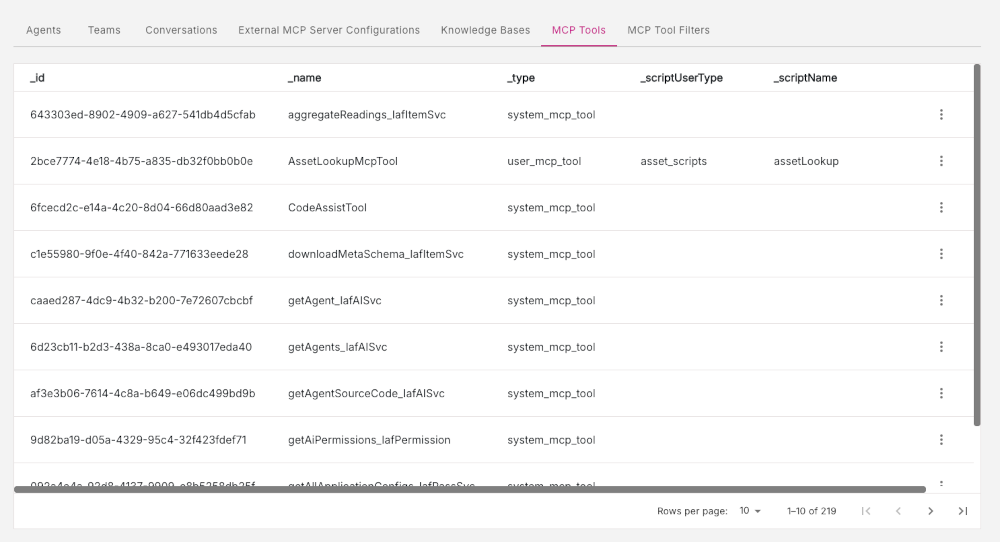
Note: In the AI Service, MCP Tools are executable functions which the LLM can call. There are two types: System MCP Tools and Custom MCP Tools.
Viewing MCP Tool properties
To view the detailed properties of a MCP Tool, do the following:
-
Find the row of the MCP Tool you are interested in.
-
In the far right column, click the three-dot menu (action menu). Click the View option to display the properties listing for that particular MCP Tool in the View MCP Tool modal window.
-
Click Close to return to the MCP Tools tab.
View MCP Tool modal window.
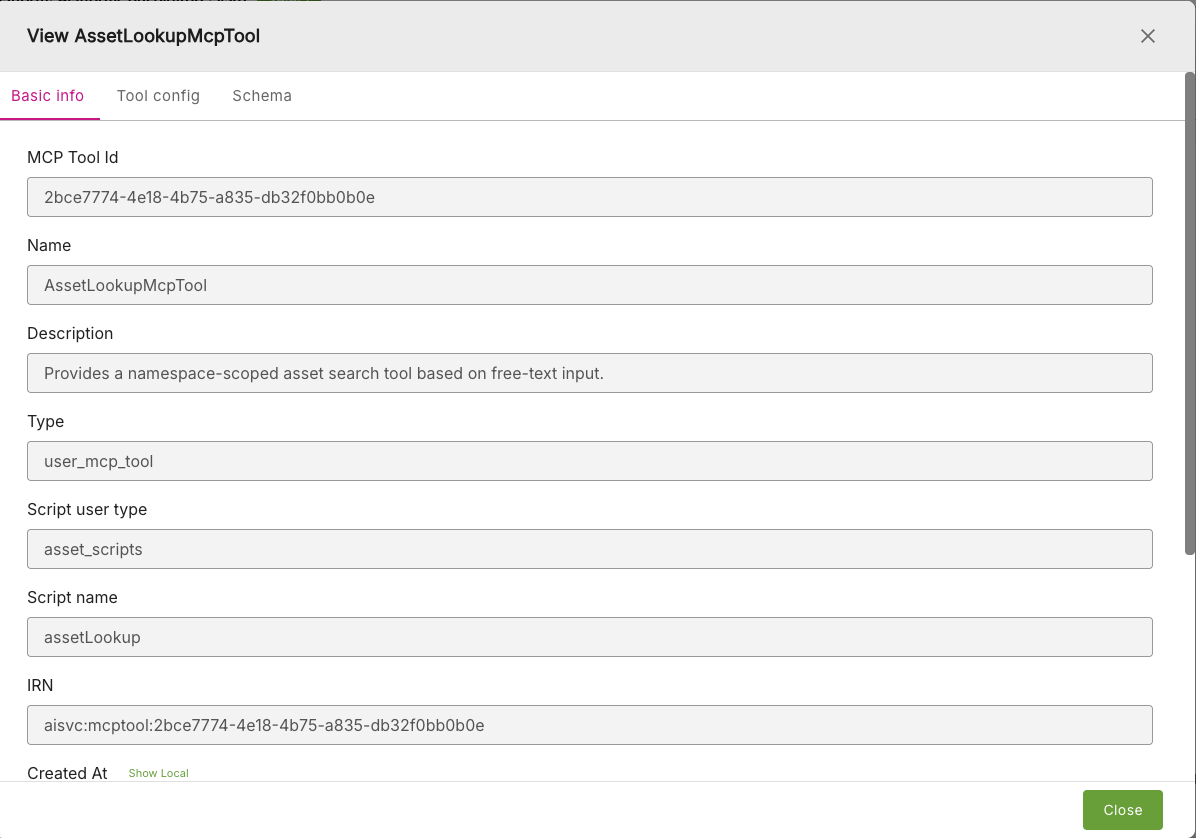
The View MCP Tool modal window contains three sub-tabs of information:
- Basic info - lists basic properties of the MCP Tool
- Tool config - displays configuration settings
- Schema - lists the code specifying the schema used
Figure: View MCP Tool modal window
MCP Tool Filters tab
The MCP Tool Filters tab lists all the MCP Tool Filters available to the AI Service in the current workspace.
Figure: Detailed view of MCP Tools tab
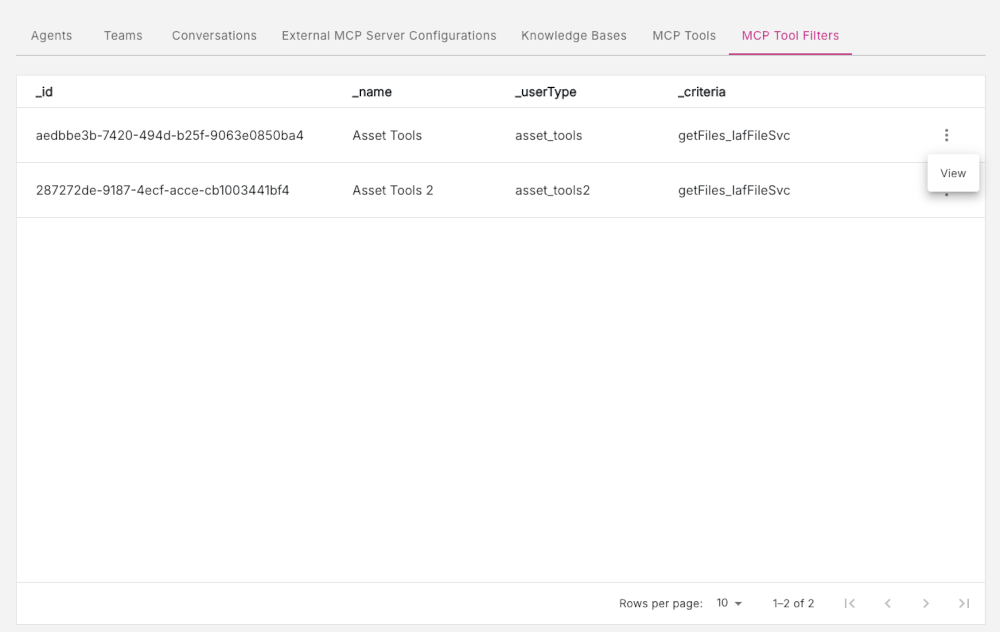
Note: In the AI Service, a MCP Tool filter is a saved, reusable tool-selection rule-set which can be referred to while configuring the MCP server in the MCP client.
Viewing MCP Tool filter properties
To view the detailed properties of a MCP Tool filter, do the following:
-
Find the row of the MCP Tool filter you are interested in.
-
In the far right column, click the three-dot menu (action menu). Click the View option to display the properties listing for that particular MCP Tool filter in the View MCP Tool Filter modal window.
-
Click Close to return to the MCP Tool Filters tab.
View MCP Tool filter modal window
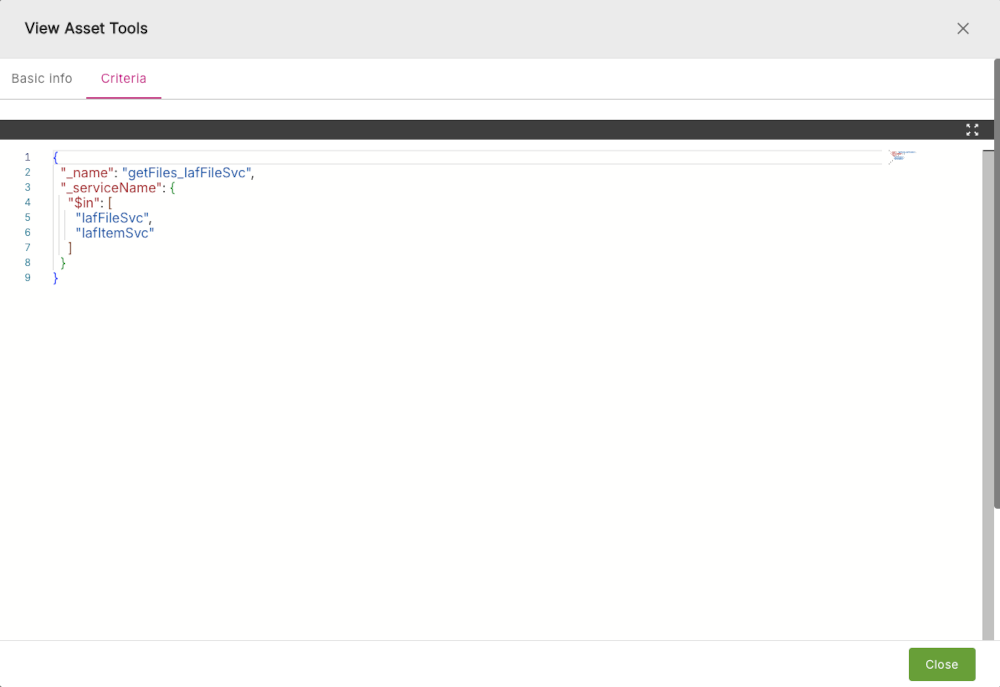
The View MCP Tool filter modal window contains two sub-tabs of information:
- Basic info - lists basic properties of the MCP Tool filter
- Criteria - lists the settings which determine how the filter is applied
Figure: View MCP Tool modal window