Notification Service
Overview#
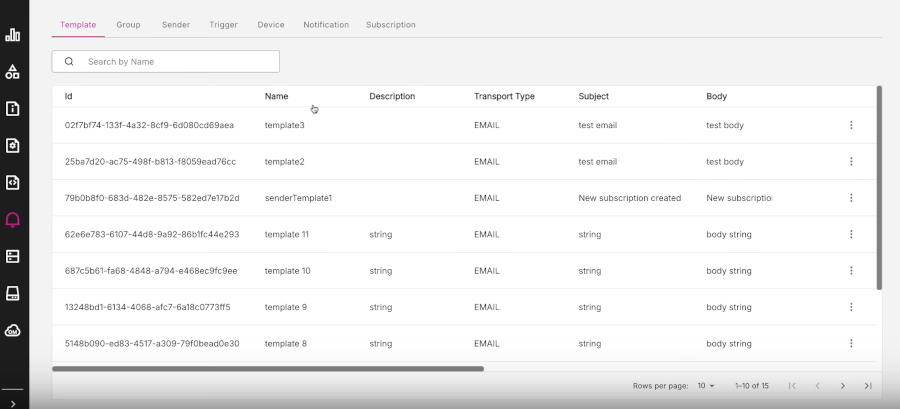
The Notification Service page displays information relating to the Notification Service. It displays a range of tabs for each of the different object types used in the Notification Service.
Figure: Notification Service page
Notification Service tabs#
Notification Service information is arranged into a set of tabs corresponding to each of the main object types, namely:
Template tab#
In the Notification Service, a template is an outline of the email notification which is sent out to invite people to subscribe to a group. The Template tab lists all the templates which are currently available in the current namespace.
Figure: Template tab
Applying filters#
There is a filter field in the top left of the Template tab where you can enter a template name to search for.
Viewing detailed information about a template#
To view detailed information about any template listed, do the following:
Find the row of the template you are interested in.
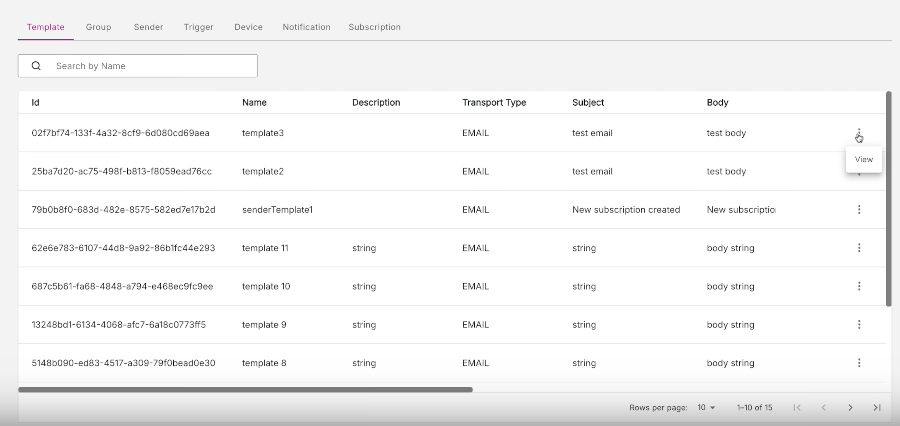
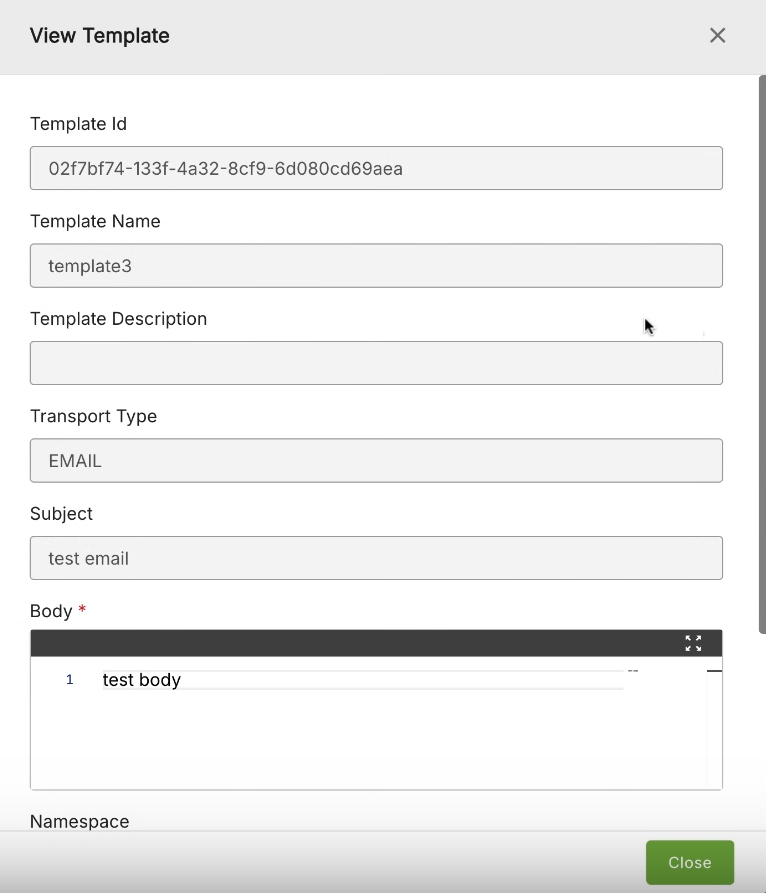
In the far left column, click the three-dot menu (action menu). Click the View option to display detailed information about that particular template on the View Template modal.
Figure: View Template modal
Group tab#
Notifications groups are used to organize subscriptions under specific topics of interest. For example, a notification group could be created for a set of notifications that relate to a specific action in a given application. All users subscribed to that group will then have the same set of notifications distributed to them.
The Group tab lists all the notification groups which are available in the current namespace.
Figure: Group tab
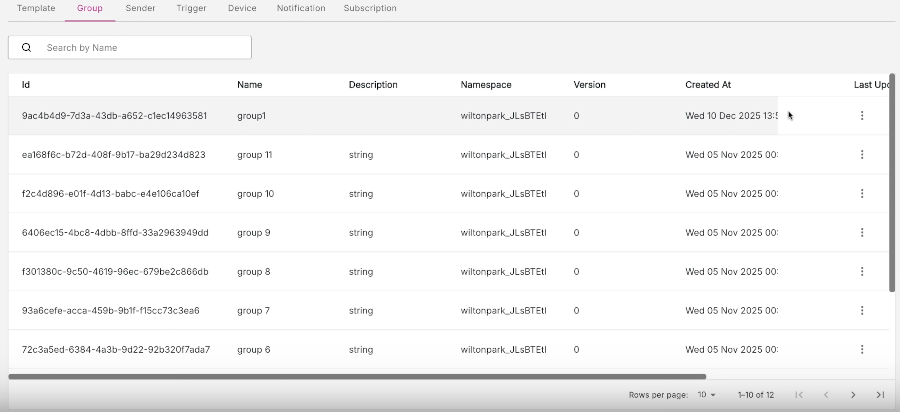
To see detailed information about any group listed, do the following:
Find the row of the group you are interested in.
In the far left column, click the three-dot menu (action menu). Click the View option to display detailed information about that particular group on the View Group modal.
Sender tab#
Senders are used to represent the 'from' identity for email notifications. The Sender tab lists all the senders available in the current namespace.
Figure: Sender tab
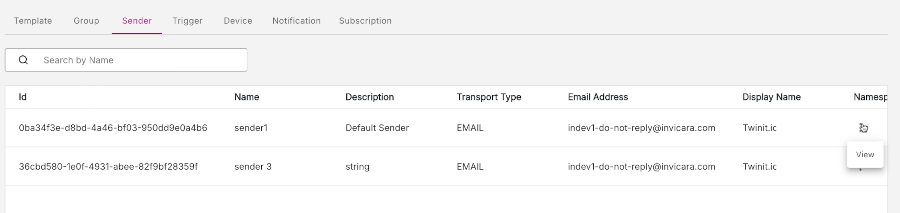
Similar to the Template and Group tabs, to display detailed information on any sender, click the three dot menu on any row and select the View option.
Trigger tab#
A trigger is a rule that determines when a notification is sent. A trigger matches received events and then initiates the sending of notifications to associated notification groups.
The Trigger tab lists all the triggers which are available in the current namespace.
Figure: Trigger tab
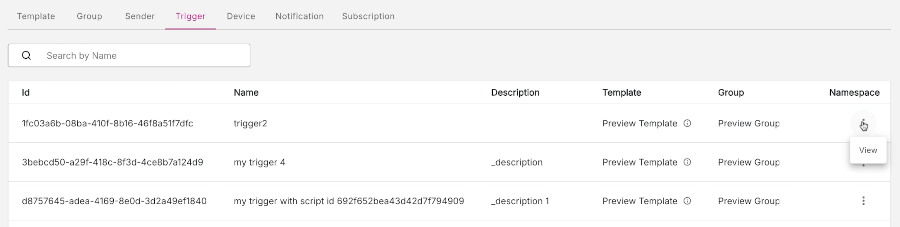
To see detailed information about any trigger listed, do the following:
Find the row of the trigger you are interested in.
In the far left column, click the three-dot menu (action menu). Click the View option to display detailed information about that particular group on the View Trigger modal.
Figure: View Trigger modal
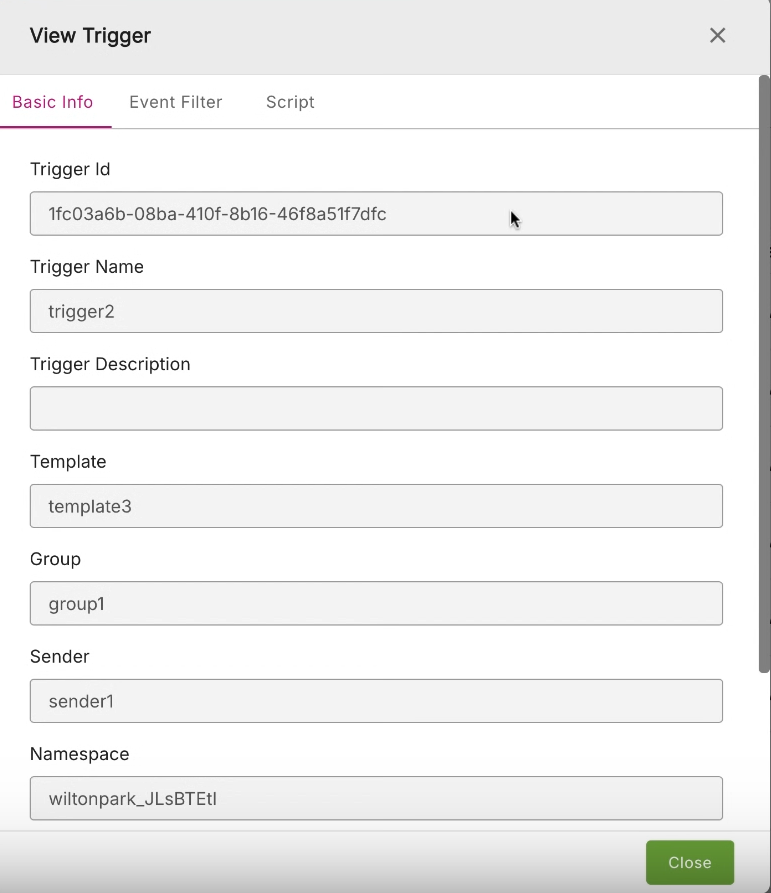
The View Trigger modal displays three tabs of information about a trigger:
- Basic Info tab - Shows basic details about the trigger such as Trigger ID, Trigger Name, Trigger Description etc.
- Event Filter tab - Lists the event filter code for the trigger.
- Script tab - Lists a custom script for the trigger, if one is used.
Device tab#
The device type determines how you receive notifications. The main example of a device is an email address, which is currently the only type of device which is supported.
This Device tab lists all the devices which are currently available.
Figure: Device tab
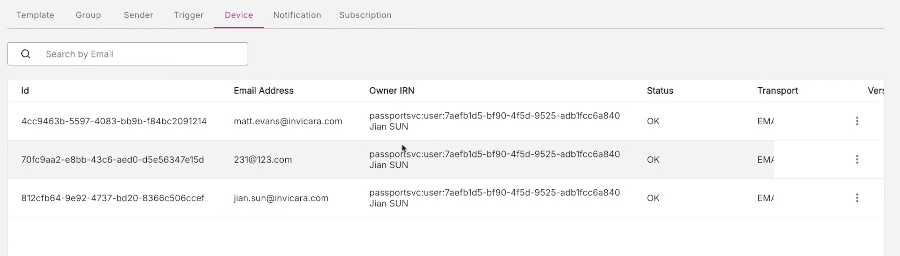
To view detailed information about a device, click the View option in the three dot menu for that device row. This will actually display the View Group modal as this lists the device ID and device owner details, along with other information for the associated group.
Notification tab#
A notification usually takes the form of an email which informs everyone in a notification group that some system event has occured and caused a trigger.
The Notification tab lists all the notifications which have been sent.
Figure: Notification tab
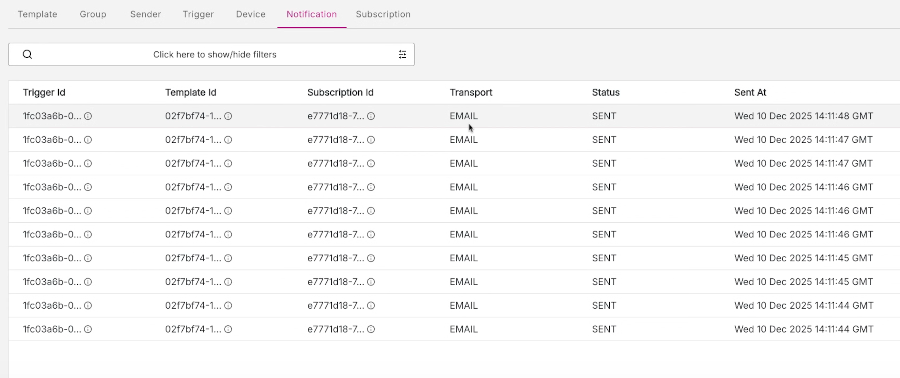
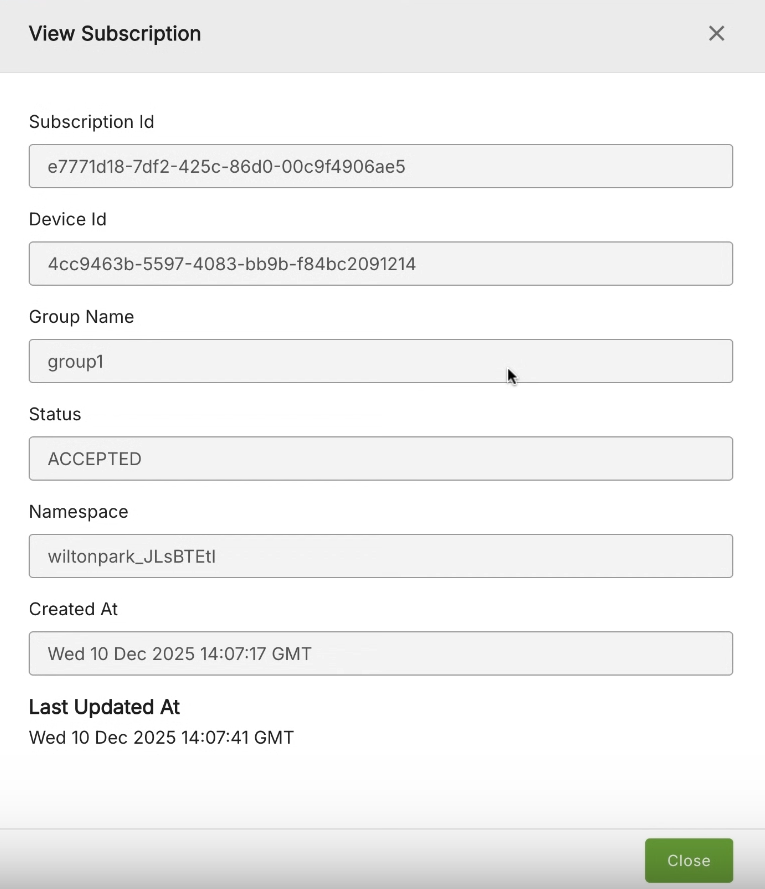
Note: Unlike in other tabs, to view detailed information about a particular Trigger ID, Template ID, or Subscription ID, simply click on the cell for that item in the notification row. This will display the View Trigger, View Template, or View Subscription modals.
Filter options#
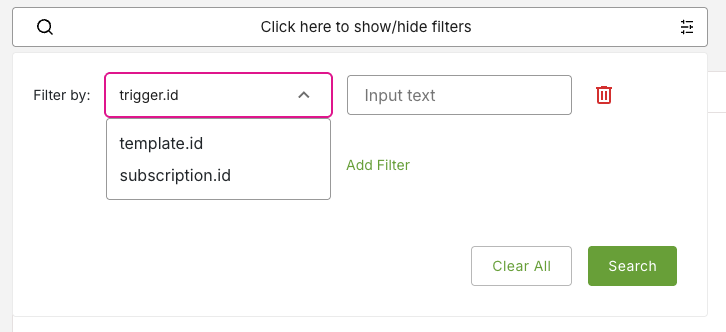
In the filter box in the top left of the page, you have a range of options to apply filters to the listing of triggers. You can filter by fields and input text. For example, you can apply a filter to list triggers ordered by trigger.id.
Figure: Trigger filters
Subscription tab#
A subscription associates a given device with a group. The Subscription tab lists all the subscriptions which are available.
Figure: Subscription tab
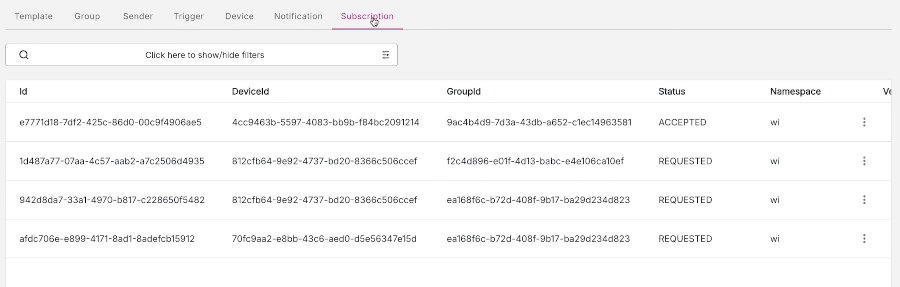
Similar to most of the other tabs, to view detailed information about any subscription listed, click the three dot menu to the right of any row to display the View Subscription modal.
Figure: View Subscription modal