Console Application
The Console Application provides a graphical user interface which you can use to view and manage organization, application and workspace data, and other resources stored across different platform services.
Access and permissions#
Log in to the console application using your platform login credentials.
You can access the Console App via the following links:
You can view and manage data that your platform role has permission to access. For example, with the correct authorization, you can modify resource permissions in the platform services.
Note: For a reminder of the different operations permitted for Platform Managers, Organization Owners, and other Platform roles, refer to the Platform Roles page.
Main page interface#
Figure: Main page elements
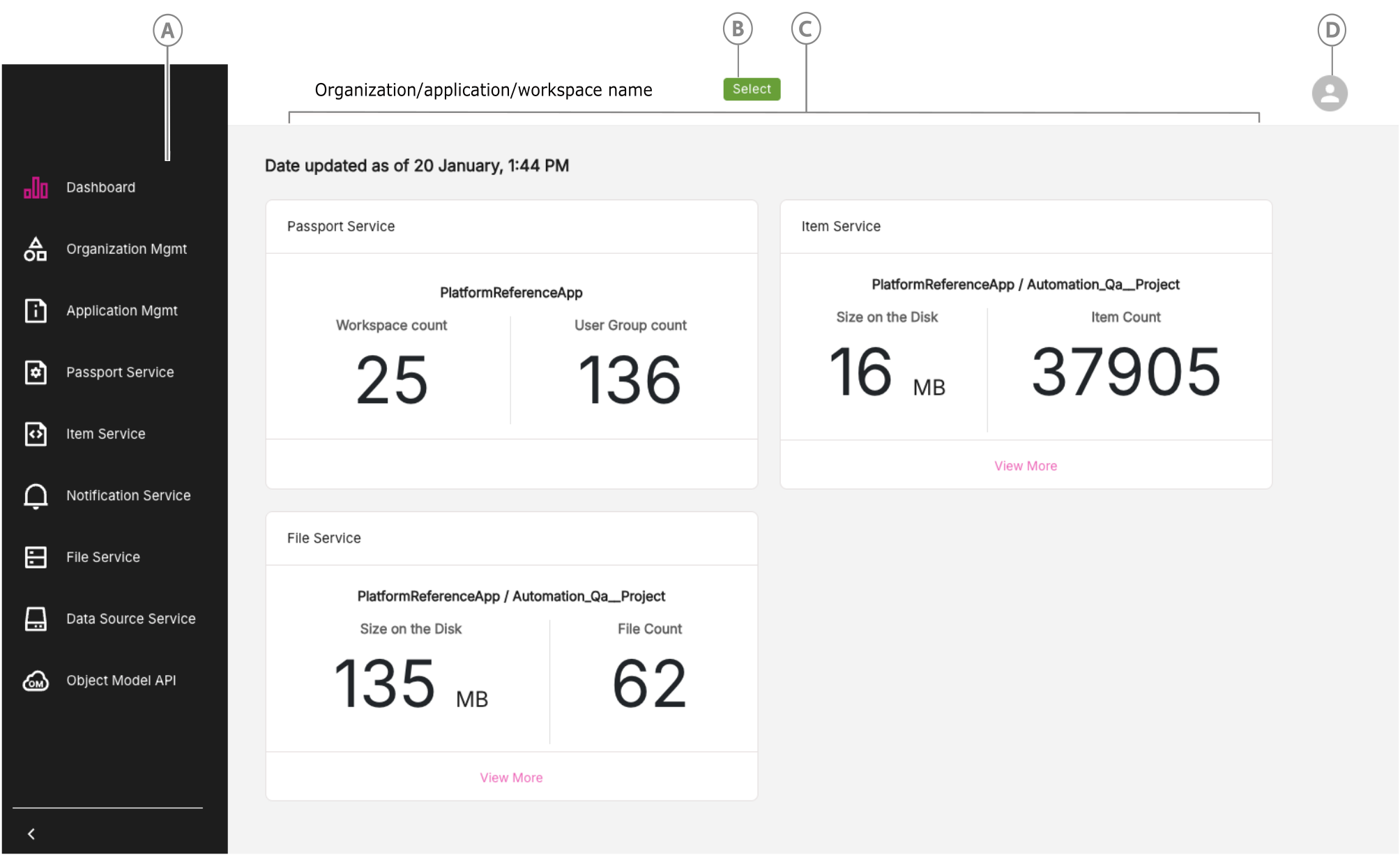
| Callout | Name | Description |
|---|---|---|
| A | Services menu | Click a service to view and manage its data. |
| B | Select button | Use this button to select the relevant organization, application or workspace. When you first log in, you will be prompted to select a Welcome Model. This offers an easy way to switch between organization, application or workspace. On some pages, such as the Passport Service page, a search field will also be available. Each console's search functions differently. For more information, see Server-side filtering. |
| C | Console pane | This lists the various services available and a summary of associated information such as Workspace Count and User Group count. For Passport Service data and resources, select a platform application. To see more resources under the Item Service or File Service, click View More. |
| D | Logged in user | Go to your profile or log out. |
Server-side filtering#
You can use server-side filtering across some consoles in the Console App by using the search field. Each console's server-side filtering functions differently. For more information, see the following examples:
- Organization Management/Application Management: Supports searching by Name, Short Name or Description.
- Passport Service console: Supports fully matched search only. You must enter a complete name in order to find a record from the API.
- File Service console: Supports partial matching
- Item Service console: You can add multiple filters by adding the fields and values you want to filter by to narrow your search. For more information, see the Item Service Console page.
Rotated refresh tokens#
After 24 hours, the Console App automatically refreshes the token, getting a new authentication token without user’s involvement.
Pending user group invites#
When you log in, any pending user group invites appear in a pop-up dialog. You can accept or reject the invite.
