Opening the plug-in in IfcXplorer
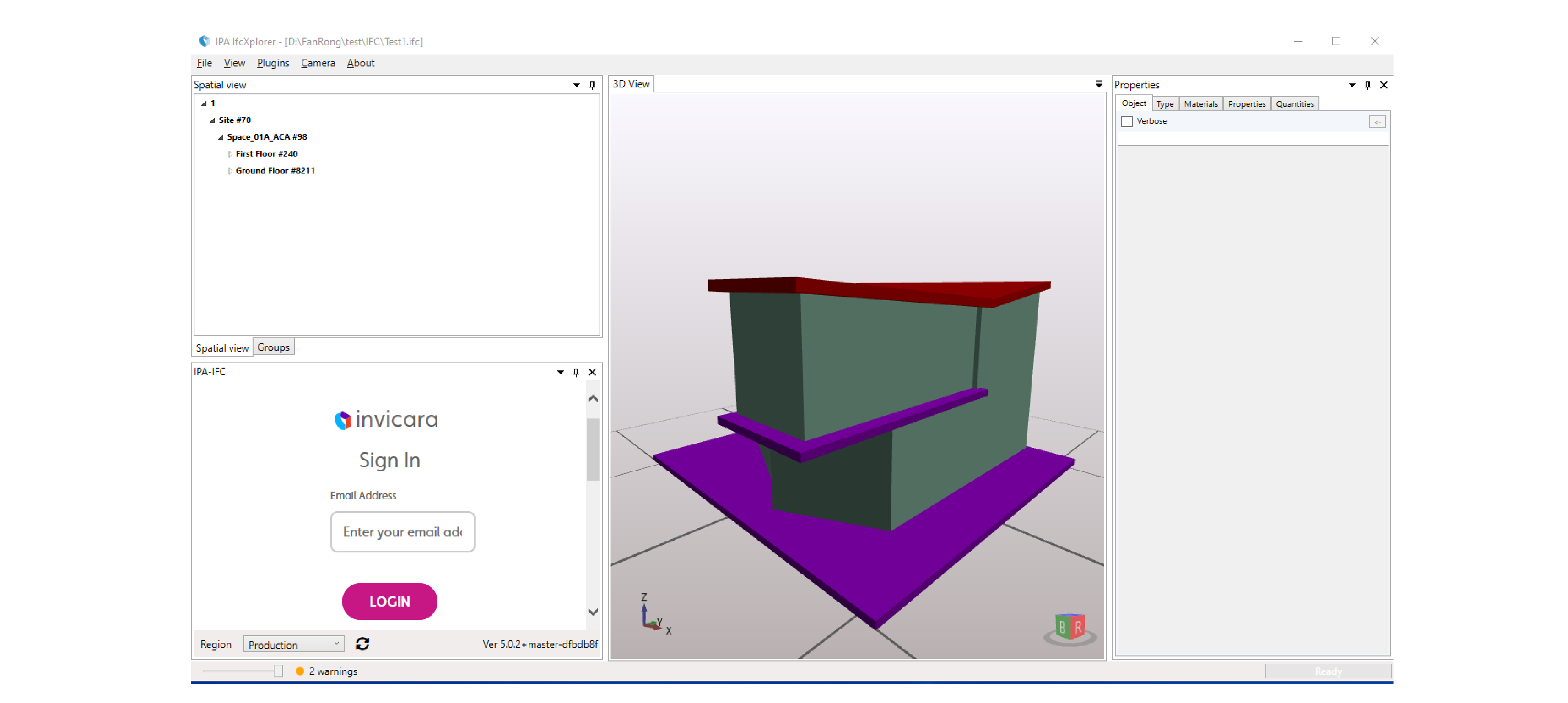
Launch your IfcXplorer application. By default, IPA-IFC plug-in launches when IfcXplorer launches.
Figure: IfcXplorer user interface with docked IPA plug-in
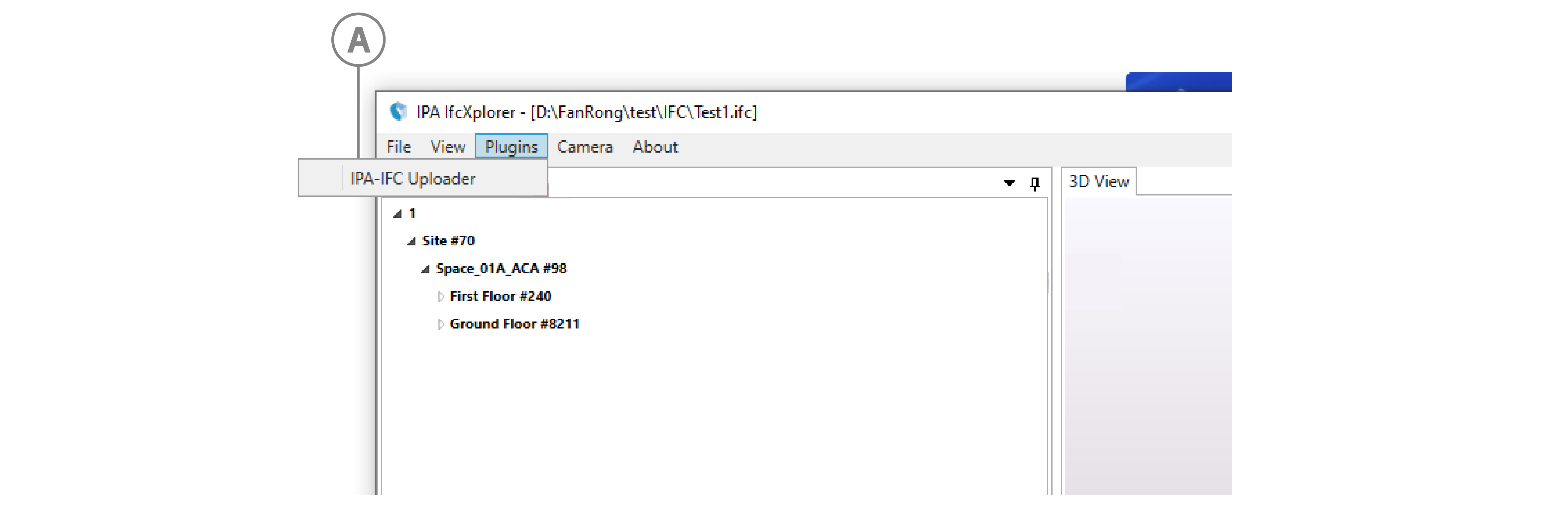
If the plug-in does not launch, from the menu bar, click Plugins, then click IPA-IFC Uploader.
Figure: IfcXplorer with IPA plug-in
If this fails, go to , open PluginConfig.xml and replace the contents of the OnStartup tags with Enabled. For more information, see the following code example:
``` xml <?xml version="1.0" encoding="utf-8"?> <PluginConfiguration> <OnStartup>Enabled</OnStartup> //edit the contents of this tag </PluginConfiguration> ```Optional: You can dock the window to a pane, or undock it and float the plug-in window on your screen and resize it.
In the plug-in window, at the bottom of the window, from the Region dropdown, select your region.
In the Email Address and Password fields, enter your email address and password.
Click LOGIN. To save your login credentials, in the dialog box that appears, click Yes.
Note: If a login attempt fails, the session may have expired. Click the Refresh icon to refresh the page.
Step result: The IPA plug-in main page appears. For more information, see Plug-in main interface.