Queries
Overview#
The Queries option provide access to the main functions available for creating JSON queries for the Item Service.
The Queries menu options are:
- Create
- View
Refer to the sections below for an explanation of each option.
Create#
Click the Create option to create a new JSON query for the Item Service.
To create a new JSON query, do the following:
- In the left side-bar menu, click Queries to expand the Queries options menu.
- Click Create.
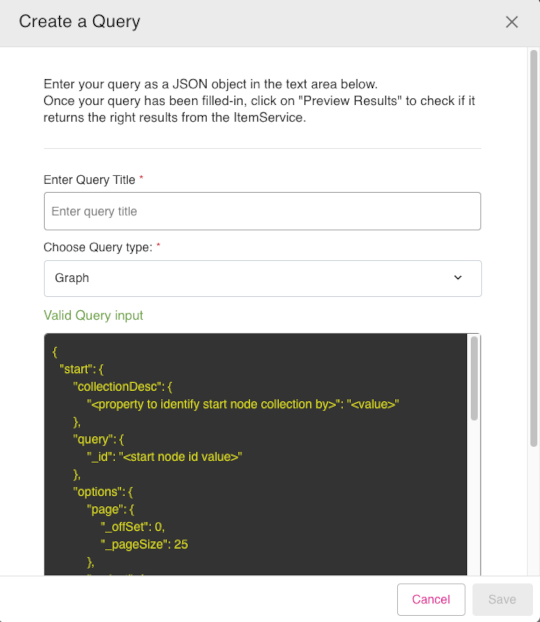
- The Create a Query dialog box will be displayed. Fill in the information fields are required, beginning with Enter Query Title.
- In the Choose Query type drop-down, select from the options Graph or Related.
- You can see an example of a valid JSON query in the Valid Query input box. Scroll down the main dialog window to reveal additional options.
- See the results of the existing query by clicking the button Preview Query.
- For AI help with refining your query. click the button AI Assistant.
- When satisfied with your JSON query, click Save.
Figure: Create a Query dialog
View#
Click the View option to load and view a selected query file.
To view a query file, do the following:
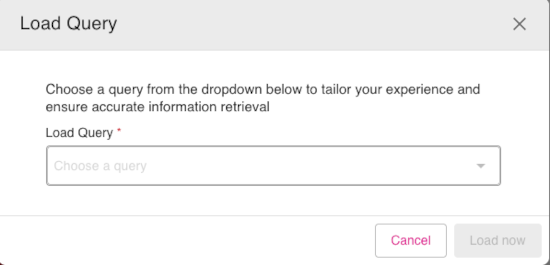
- Click the View option under the Queries section in the side-bar menu.
- The Load Query dialog appears. From the Load Query drop-down, select a query file to view.
- Once a query file is selected, click the button Load Now to load and view the selected query.
Figure: Load Query dialog