Platform Workbench
Overview#
The Platform Workbench is a tool which allows you to quickly implement a digital twin environment on the Platform. It allows you to create a ‘bare’ instance of a digital twin and configure it to meet your requirements.
The primary Workbench interface is structured around a knowledge graph model that shows the Platform components as nodes in the knowledge graph. This is referred to as the project or application model.
When you are in edit mode, right-clicking on any of the nodes in the project model allows you to build or edit those components. Double-clicking on the nodes will expand the knowledge graph to show the contents of that component.
Figure: Workbench main page
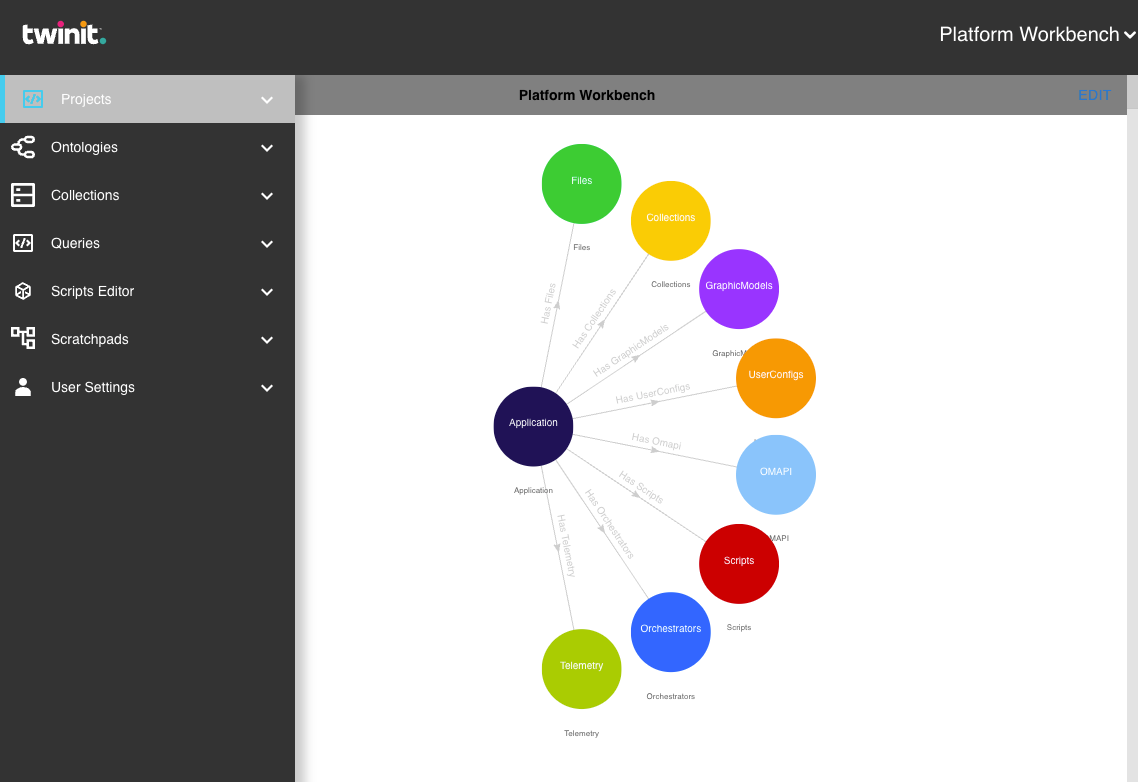
The Workbench has additional features that work in tandem with the primary interface. These options are accessed via the side-bar menu.
Creating a new project#
The Workbench allows you to create and manage multiple projects.
To create a new project, do the following:
- In the left side-bar menu, click Projects to expand the Projects options menu.
- Click Create. The Create a Project dialog will appear.
Figure: Create a Project dialog
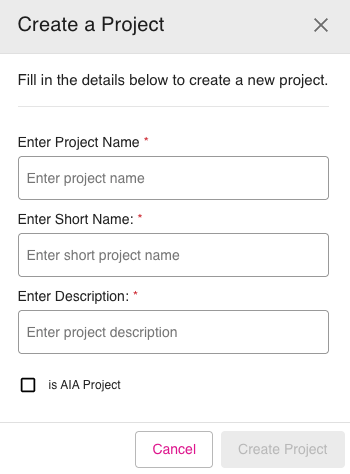
Enter the project name, short name and description.
If you are building against an Assets Intelligence App (AIA) project template, select the is AIA Project checkbox.
Click Create Project.
The project model will then be created and will automatically create the User Configs, Orchestrators, OMAPI and Scripts associated with any template selected.
To switch projects, select Projects -> View and you will be presented with a drop-down to select the project model you want to view.
For a more detailed explanation of the range of functionality available for a project, see Projects.
Editing Projects#
Each digital twin project model consists of a series of nodes. Each node in the project model represents a certain component, configuration, or executional aspect of the model.
Once you click Edit on a project mode, you enter edit mode and you will have exclusive edit rights to the model. This option is available in the top-right corner of the page.
Note: When you have completed editing, to leave edit mode, click Save or Discard. These options are in the top right-hand corner. Click Save to save your changes and make them visible. If you click Discard, you will leave edit mode without your changes being saved.
Editing the Project Model#
To edit, a project model, do the following:
- Click the Edit option in the top-right of the page.
- A message should appear in the bottom right of the page: Project is exclusively locked in Edit Mode, other users cant edit it. This will lock the current project model so only you can now make changes to it.
- Now if you right-click on any nodes, new edit options will appear, specific to to the functionality of each node. For example, see the extended edit options below for when you right-click on the Telemetry node.
Figure: Telemetry node - extended edit options
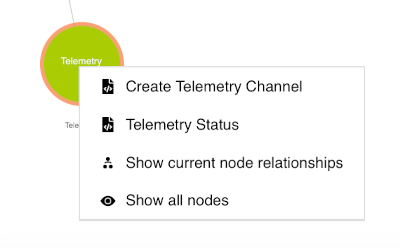
For a more detailed explanation of the range of extended edit options available, refer to the Editing Project nodes section below.
Main Platform Workbench menu options#
On the main Platform Workbench page, the side-bar menu options are:
- Projects - Create and manage projects
- Ontologies - Import and manage ontologies
- Collections - View collections
- Queries - Create and view queries
- Script Editor - Access the Script Editor
- User Settings - View user group
Click on an option for a detailed explaination of the available functions.
Project model#
A project (or application) model is a structured representation of an application's components, behavior, and interactions. The model is used to guide the design, development, and execution of an application.
To see the application model, click Projects -> Model in the left side-bar menu.
Extended editing of project model nodes#
Once you click Edit on a project, you will enter edit mode and will have exclusive edit rights to the model. You can then right-click on any of the project model nodes to access extended edit options and associated UIs specific to each node. These edit functions allows you to set up and edit each node's associated properties.
The different project model nodes are as follows:
- Files - allows you to upload and related files
- Collections - allows you to import data models
- GraphicsModels - allows you to import bimpk files
- UserConfigs - allows you to add and edit user configurations
- OMAPI - allows you to add and edit Object Model APIs
- Scripts - opens the script editor
- Orchestrations - allows you to add, edit, and run orchestrators
- Telemetry - allows you to create and manage telemetry channels
For a detailed explanation of editing these project model nodes, refer to Editing model nodes.