Files page
The Reference App Files page demonstrates a user interface for interacting with a project's files and folders in the following ways:
- Navigate a project's folders and files using the folder navigation tree or by clicking through folders in the folder view
- Create, delete and update folders and files
- Search, filter, and sort a project's files and folders based on multiple properties such as creation date, last updated date, user, and size.
- View and edit file and folder object properties as well as add tags
- View text and Microsoft Office files in the IafDocViewer
Figure: Files page overview
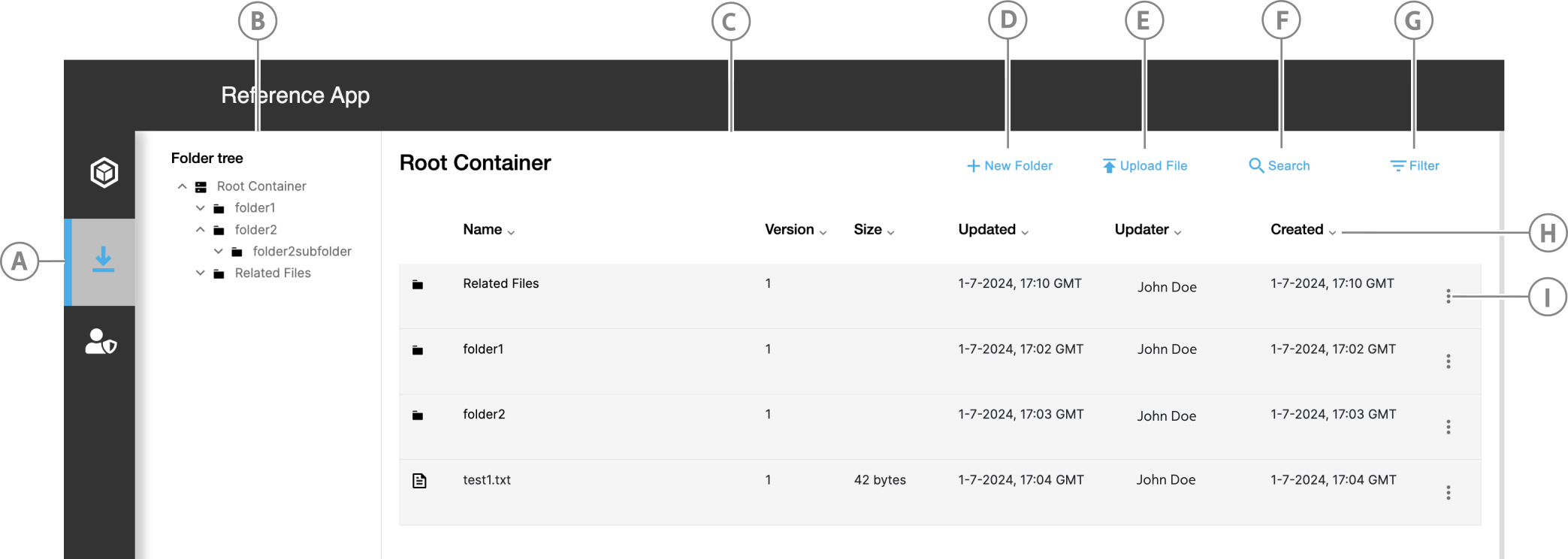
| Callout | Name | Description |
|---|---|---|
| A | Files page icon | Click to mount the file page |
| B | Navigation tree | Use the navigation tree to browse a project's folder structure quickly without losing the currently viewed folder in the folder view. Click a folder name to open it in the Folder view. |
| C | Folder view | Displays a folder's contents with metadata.To navigate a folder structure in the folder view, simply click a folder name to navigate down the hierarchy and click the back button to navigate back up the folder hierarchy. |
| D | New Folder | Click to create a new folder in the current folder and post it to the database as a NamedFileCollection. |
| E | Upload File button | Click to upload a new file to the current folder and post it to the database as a File and FileItem type. |
| F | Search button | Click to show the search input. |
| G | Filter button | Click to show the filter drop-down menus. |
| H | Sort twistie | Click a column's twistie to sort by that property; click it a second time to sort descending. |
| I | Actions icon | Click to view the actions available for that item. For more information, see File and folder actions. |
Folder structure
Root Container
On project set-up, a Root Container folder is created. All files and folders are created under this root folder.
Related Files
Files uploaded for a specific model element in the Model Elements page or Model Navigator add to a Related Files subfolder.
Custom folders
Users can create their own folder structure within the Root Container folder and add files that are not related to a specific element but are relevant to the project.
File and folder actions
Click an item's Actions icon to view the actions available for that item, such as viewing its object properties, version history, file contents, or to download or delete the item.
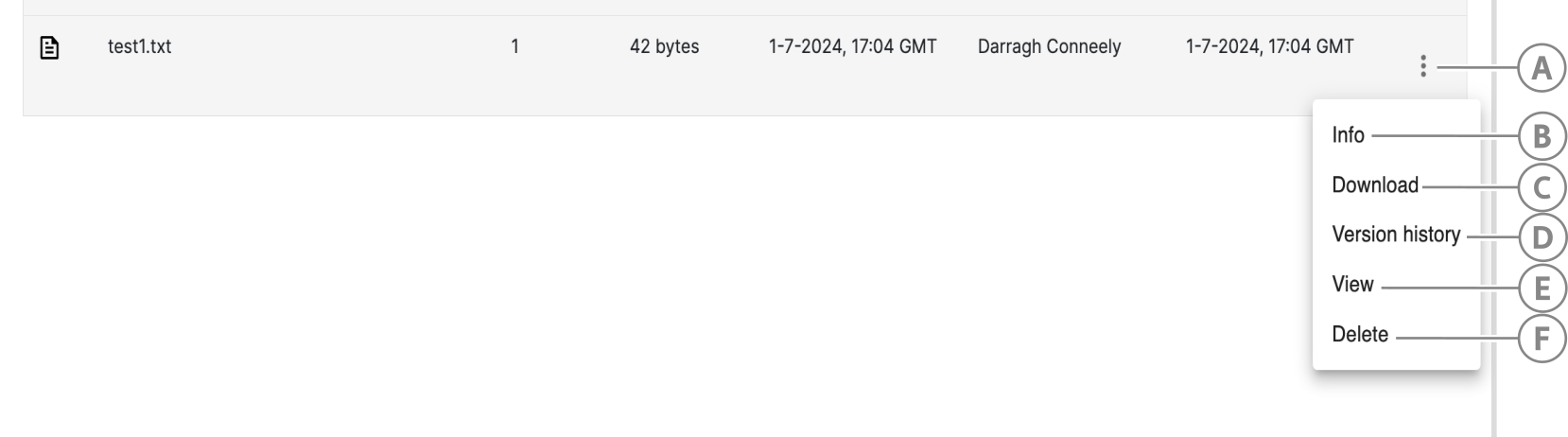
| Callout | Name | Description | Files | Folders |
|---|---|---|---|---|
| A | Actions icon | Click to view actions for a given item | Yes | Yes |
| B | Info | View a folder or file's object properties, edit some properties, and add tags. | Yes | Yes |
| C | Download | Download a file to your local file system | Yes | No |
| D | Version history | View all FileItemVersions for a FileItem. You can view, download, and delete a version. | Yes | No |
| E | View | View a file in the IafDocViewer. You can view the following file types in the IafDocViewer: csv, jpg, png, gif, pdf, doc, docx, rtf, xls, xlsx, ppt, pptx, txt. | Yes | No |
| F | Delete | Delete a FileItem or NamedFileCollection. If a folder you delete has subcontents, a warning appears, indicating the subfolder and subfiles that will also delete. | Yes | Yes |
Info modal
Use the Info modal to view an item's object properties, edit editable fields, and add or remove custom tags.
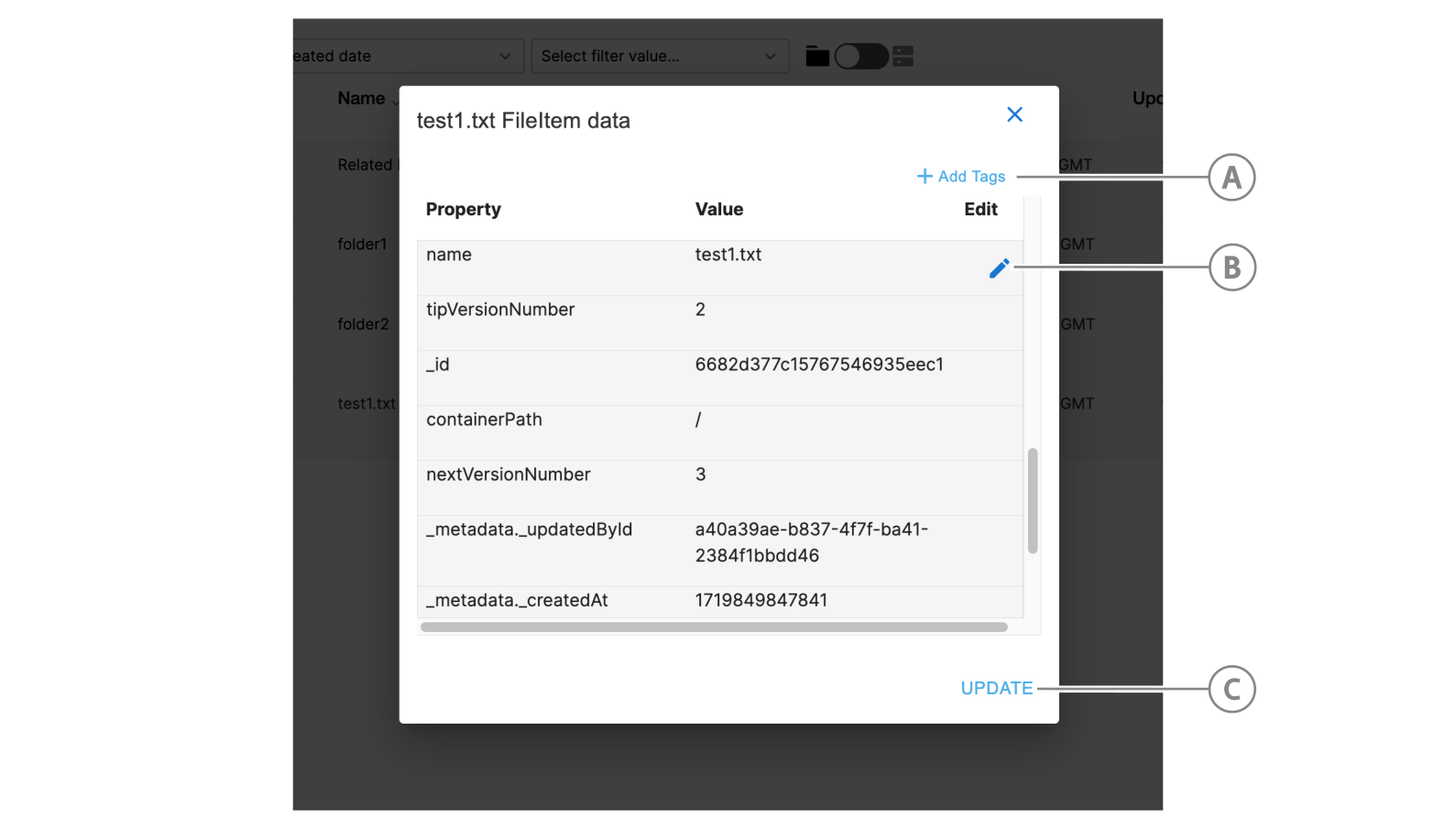
| Callout | Name | Description |
|---|---|---|
| A | Add Tags | Add or remove custom tags from the item. For more information, see Tags modal. |
| B | Edit icon | When you view a folder or file's object properties, you can edit properties with an edit button. When you save your changes, the working object updates. To update this in the database, click UPDATE. |
| C | UPDATE button | Click to post the working item to the database |
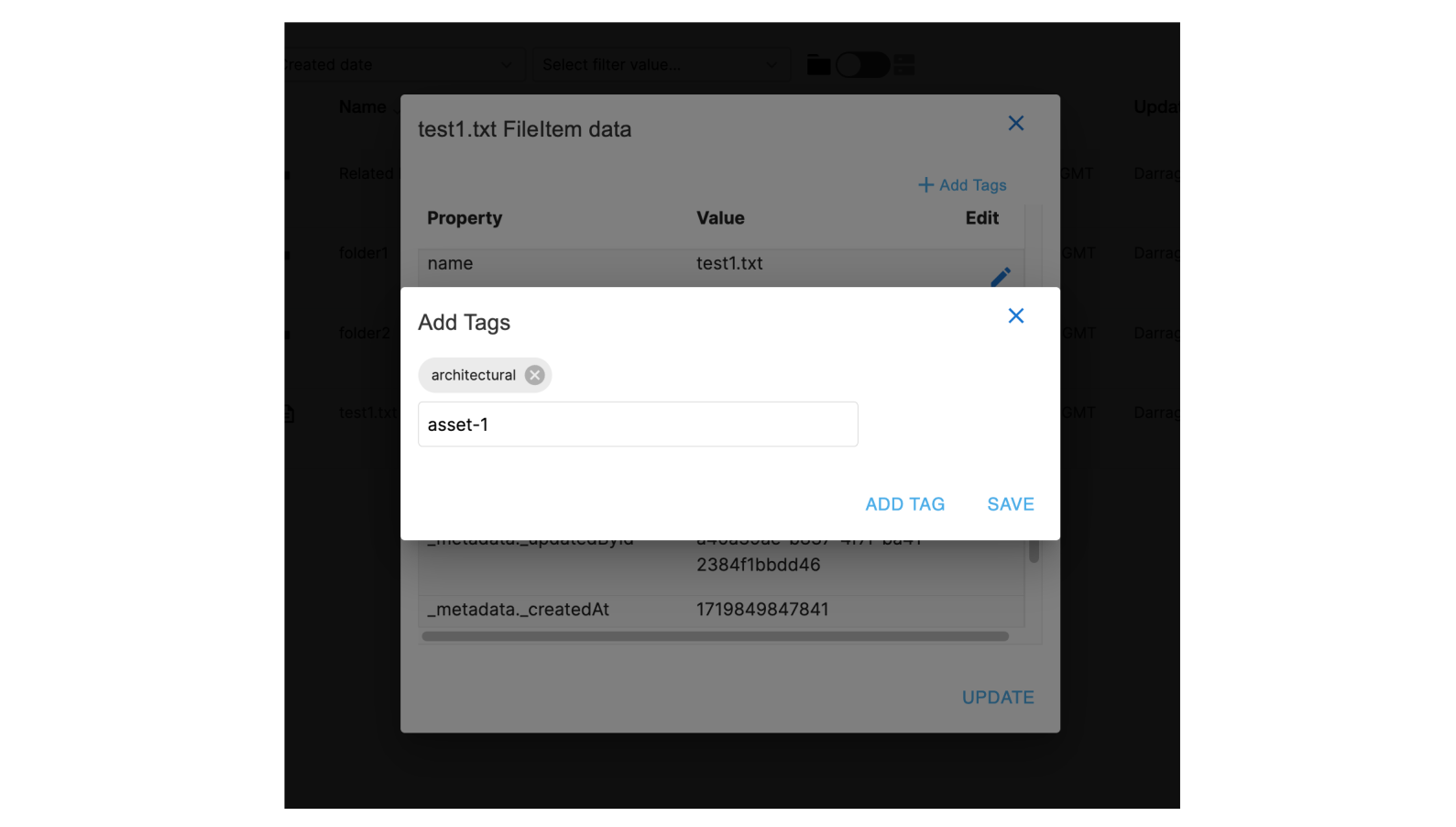
Tags modal
You can add or remove custom tags from a folder or file's object properties. When you save your changes, the working object updates. To update this in the database, click UPDATE.
Search, filter, and sort a project's files and folders
Any search, filter, or sort change event updates the query stored in context and triggers the query hook to run. Based on the folder-project toggle, this query operates on the current folder or the current project.
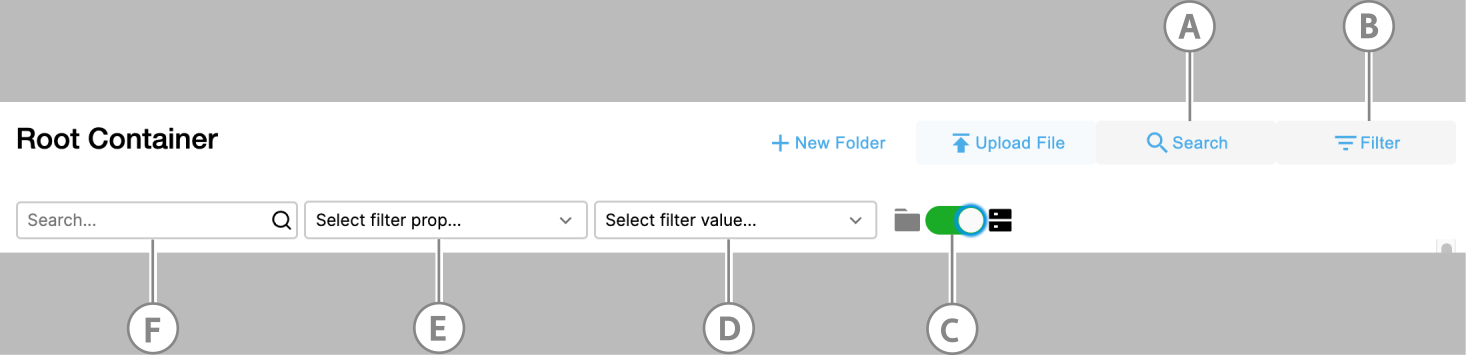
| Callout | Name | Description |
|---|---|---|
| A | Search toggle | Click the SEARCH button to display the search input. |
| B | Filter toggle | Click the FILTER button to display the filter drop-down options. |
| C | Folder-project toggle | Toggles the search, filter, and sort query to operate on the current folder only or the entire project folder structure. |
| D | Filter value drop-down | Loads the distinct values to filter by based on the selected property. Click a distint value to use the filter query on the folder or project. |
| E | Filter property drop-down | Select the property you want to filter by. |
| F | Search input | The search feature uses a regex filter to instantly filter the folders and files by name as the user types. |