Prepare Your Project
Create a Project
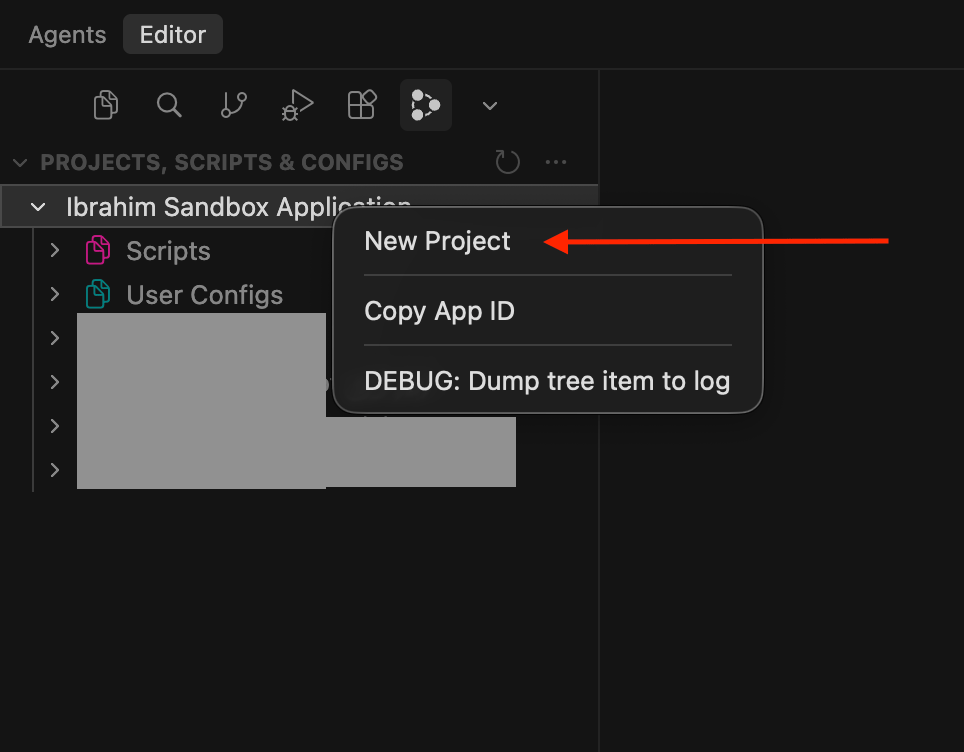
To create a new project, open the Twinit IDE, right-click on your application, and select New Project. The IDE will guide you through the project creation process, prompting you for basic information such as the project name and other required settings. Once completed, the new project will be initialised and ready for further configuration in the following steps.
Upload your OpenAI Key
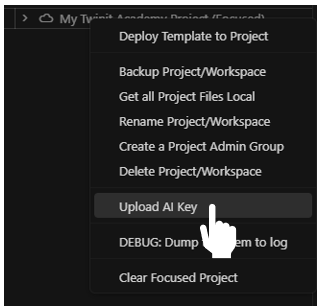
To upload an OpenAI key to your project using the Twinit IDE, simply right-click your project and choose Upload AI Key. After selecting this option, an input box will appear where you can select openai and paste your OpenAI key. Once submitted, the key is securely uploaded to the appropriate location within the Passport Service Secrets. The Twinit AI Service then uses this token automatically when communicating with OpenAI services.
Deploy the Template Package
In this step, we will deploy the template package you downloaded earlier to your project. This template brings the newly created project up to speed by setting up all the resources you will need throughout the course.
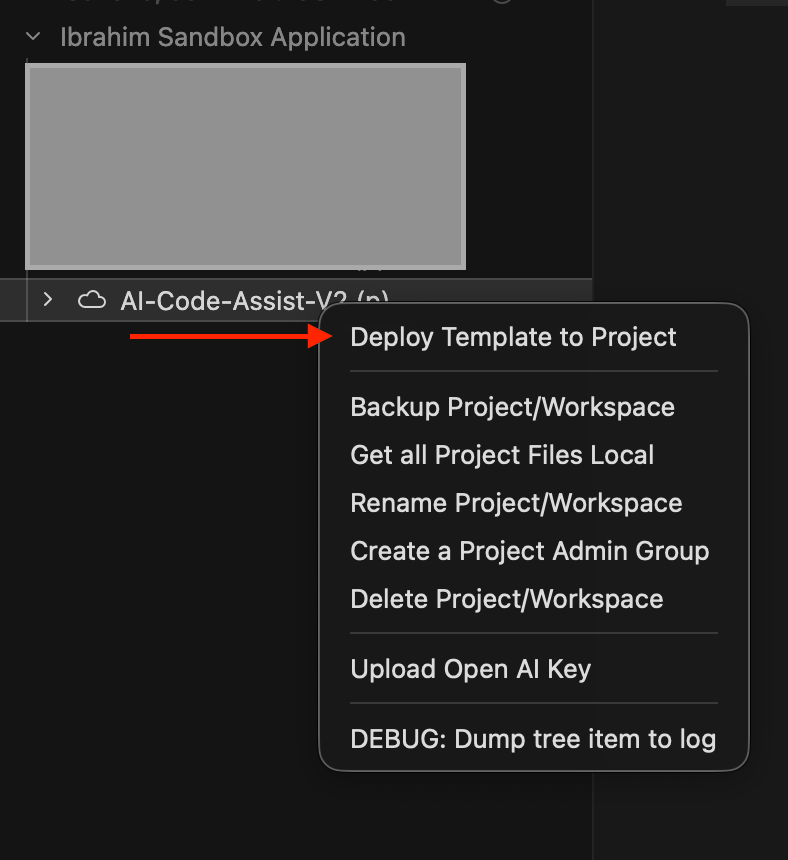
To deploy the template, locate the AI02 - Twinit AI Hands On.zip file you downloaded earlier. In the Twinit IDE, right-click on your project and select Deploy Template to Project. You will be prompted to upload a ZIP file. Select AI02 - Twinit AI Hands On.zip and follow the on-screen messages to track the deployment progress.
Explore the Template Contents
Using the Twinit IDE Extension, familiarise yourself with the contents of your project.
Scripts
Two scripts were added to your project:
- single-agent
- multi-agent
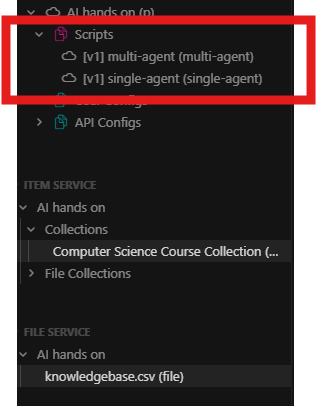
These are the scripts we will run as we progress through the course.
Item Service Collection
A 'Computer Science Course Collection' was created and populated with some sample Computer Science class information.
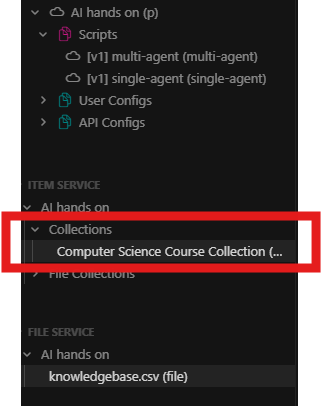
Right click on the collection in the Twinit IDE Extension and select 'Get Newest 15 Items' to see what the sample data looks like. Here's an example of one of the sample course info items:
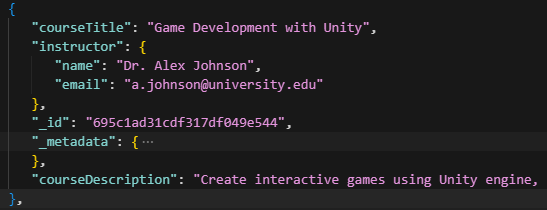
Notice it contains a course title, a course description, and information about the instructor.
CSV File
A csv file was also uploaded to the file service in your project.
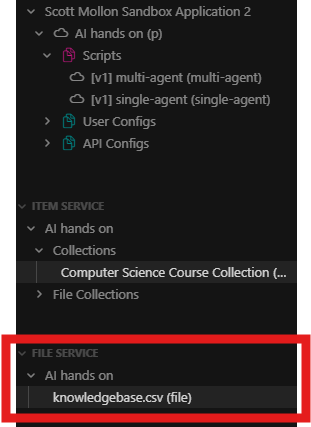
This csv file contains entries for instructor ratings. You can right click on the file to download and open it to examine its contents.
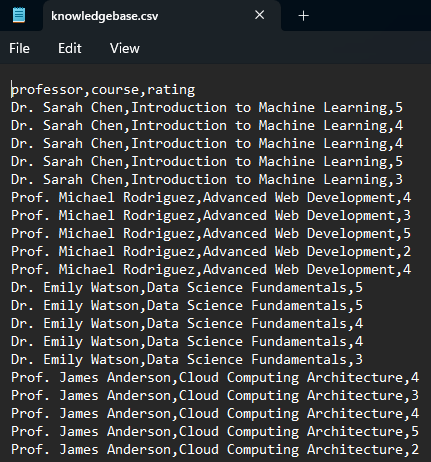
We will use this file to create a Twinit AI knowledgebase and assign it to an Agent.