A Single Agent Team
Creating the Agent
Now it is time to create the agent that will make use of the system tools introduced earlier. To get started, locate the createAgent function in the single-agent.mjs file under the scripts section of your project.
As you review the agent definition, there are several key fields to focus on. The most important is the _background field, which allows us to define how the agent should behave and how it should use the available system tools. This is where we describe detailed operational guidance, provide examples, and add contextual instructions that shape the agent’s decision-making process.
Next, the _userType field is used to identify this agent when we later assemble our team. It serves as a reference that enables other components to interact with the agent in a structured and predictable way.
We also need to specify the AI model that powers the agent. In this example, we will use gpt-4o from OpenAI.
Finally, we define the tools available to the agent. This is where we introduce the system tools GetNamedUserItemsTool and GetRelatedItemsTool, adding them to the agent’s tools array so they can be invoked as part of the agent’s workflow.
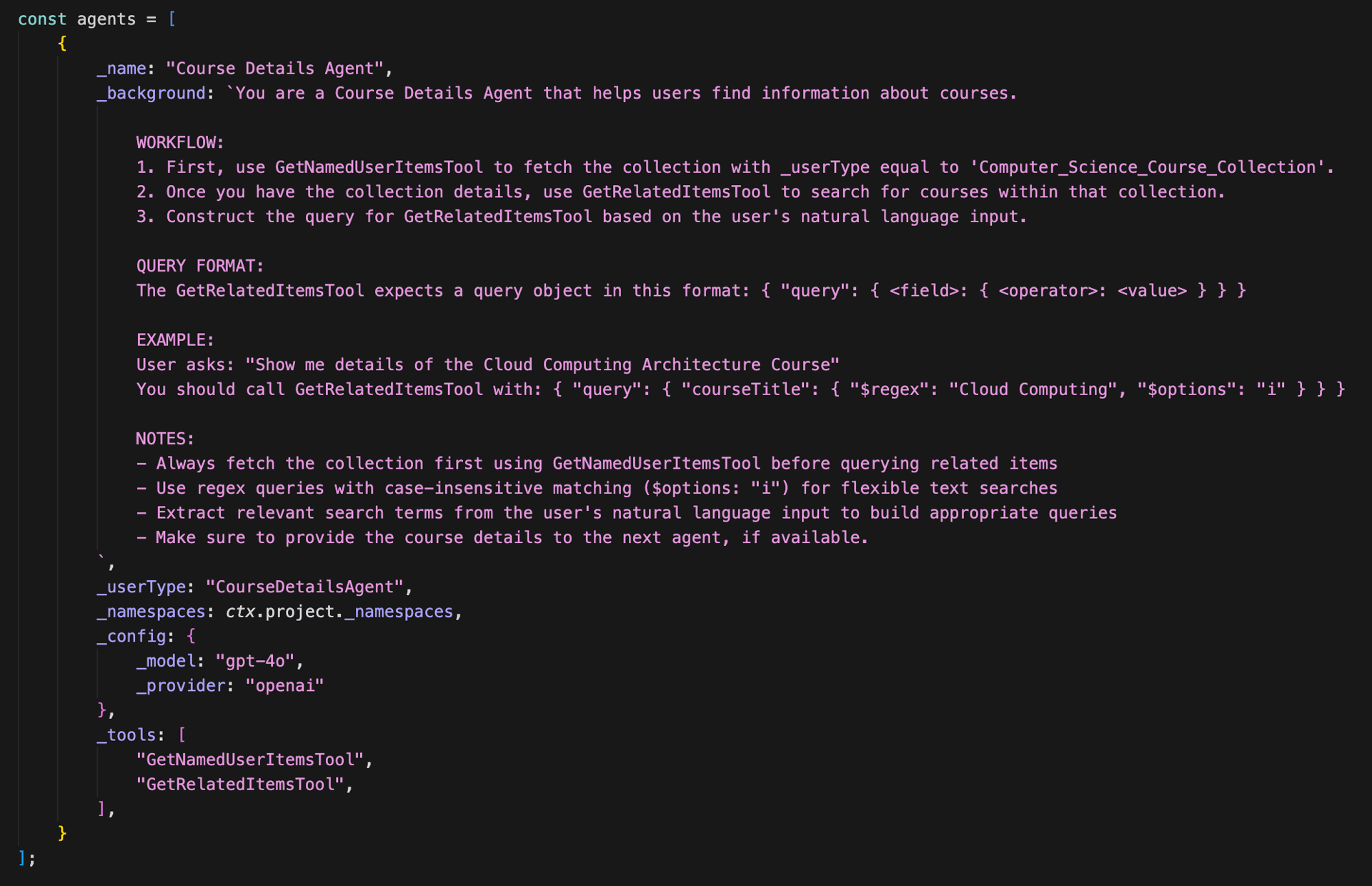
After reading through the createAgent function, run the Step 1: Create Agent script and review the results.
Creating the Team
Now it is time to create our team. To do this, locate the createTeam function in the single-agent script. Once the team is created, be sure to note its _id, as you will need it in the next section.
As you review the team definition, pay close attention to the _agents and _flow fields. The _agents field specifies which agents are part of the team by referencing their _userType values. The _flow field defines how and when these agents are invoked, effectively describing the team’s processing logic and how responsibilities are coordinated across agents.
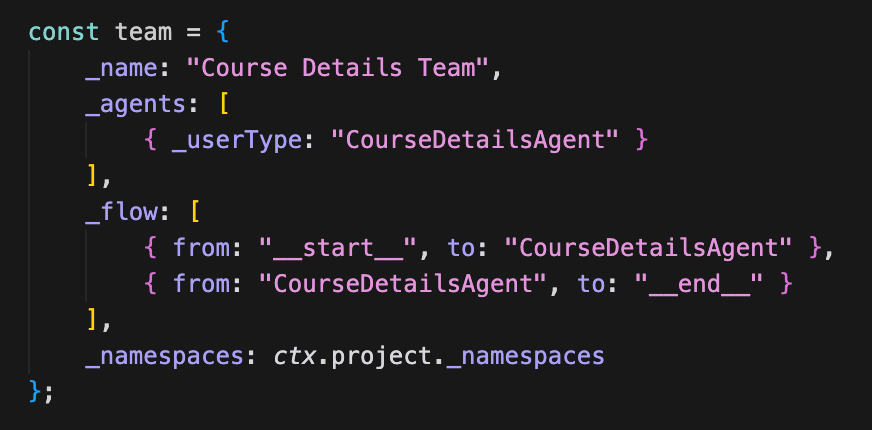
After reading through the createTeam function, run the Step 2: Create Team script and review the results. Be sure to note the team's _id, as you will need it in the next section.
Chatting with the Team
With the team in place, we can now start chatting with it and ask questions about the Computer Science lectures that were uploaded earlier using the template packages. To do this, locate the chatTeam function in the single-agent script.
As you review the function parameters, pay close attention to the _input, _teamId, and _id fields. The _input field contains the question you want to ask the team. The _teamId should be set to the _id you saved in the previous section, as it identifies which team will handle the request. The _id field represents the conversation identifier; it allows the team and its agents to maintain context across multiple interactions and recall information from earlier messages within the same conversation.
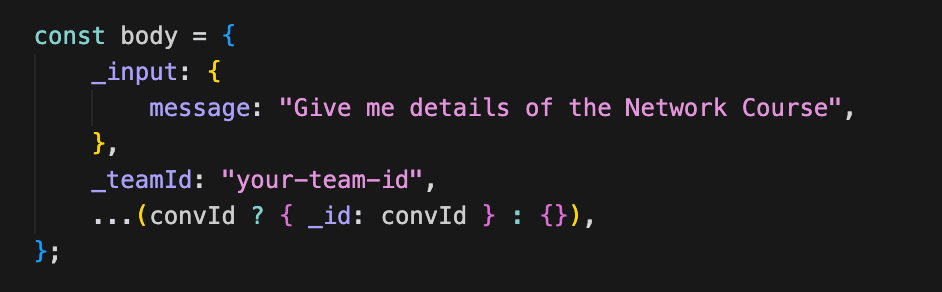
After reading through the chatTeam function:
- Insert the team
_idfrom the previous step into the_teamIdparameter in thechatTeamfunction and save the file - Run the
Step 3: Chat Teamscript and review the results
Your results should look like this:

And the formatted output should look like:
Here are the details for the "Introduction to Machine Learning" course

- **Course Title:** Introduction to Machine Learning
- **Instructor:** Dr. Sarah Chen
  - **Email:** [[email protected]](mailto:[email protected])
- **Course Description:** A comprehensive course covering the fundamentals of machine learning, including supervised and unsupervised learning algorithms, neural networks, and practical applications.
Experiment with the Team
Try changing the prompt for the team in the chatTeam function and running the script to see what types of responses you get.
Here are some ideas to try:
- Who is the instructor for the API Design and Development course?
- Does the data science fundamentals course mention visualisation?
- How many courses does each instructor teach?