Create a Custom MCP Tool
In this lesson we will turn the getCourseByTitle backend script that came with the template package into a Custom MCP Tool. A Custom MCP Tool needs three things: a backend script function to run, a clear name and description so the AI model knows what the tool does, and an input schema so the AI Service can validate the arguments the tool receives.
Review the Backend Script
Before creating the tool, open the course-tools script from the template package and review the getCourseByTitle function. It is a backend Item Service script: it receives the tool's input, uses the platform APIs to find the Computer Science Course Collection, and returns any course whose title matches the supplied text.
async function getCourseByTitle(input, libraries, ctx, callback) {
  const { PlatformApi } = libraries;
  const { IafItemSvc } = PlatformApi;

  const title = input.title;

  // Find the Computer Science Course Collection
  const colResponse = await IafItemSvc.getNamedUserItems(
    { query: { _itemClass: "NamedUserCollection", _name: "Computer Science Course Collection" } },
    ctx,
    { page: { _offset: 0, _pageSize: 1 } }
  );

  const collection = colResponse && colResponse._list && colResponse._list[0];
  if (!collection) {
    return { success: false, message: "Course collection not found" };
  }

  // Find courses whose title matches the supplied text (case-insensitive)
  const response = await IafItemSvc.getRelatedItems(
    collection._id,
    { query: { "properties.courseTitle.val": { "$regex": title, "$options": "i" } } },
    ctx,
    { page: { _offset: 0, _pageSize: input.limit || 5 } }
  );

  return { success: true, courses: response._list };
}
- input – the arguments supplied by the AI model, validated against the schema we define below.
- libraries – provides the platform APIs. Here we destructure
IafItemSvcfromPlatformApito query the Item Service. - ctx – the execution context passed automatically by the platform; it carries the request's authorisation and namespace.
Now we will register this function as a Custom MCP Tool. Choose your preferred workflow below.
- Continue using Code
- Continue using IDE Extension
The template package includes a mcp-setup script so you do not have to write this code yourself. It uses the IafAISvc JavaScript platform library to create and inspect the Custom MCP Tool. Open the mcp-setup script and follow along.
Review the createTool Function
Locate the createTool function in the mcp-setup script. It calls IafAISvc.createMcpTools with a single tool definition that describes our course lookup tool and points at the backend function you just reviewed.
async function createTool(input, libraries, ctx, callback) {
  const { PlatformApi } = libraries;
  const { IafAISvc } = PlatformApi;

  const mcpTools = [
    {
      _namespaces: ctx.project._namespaces,
      _name: "GetCourseByTitle",
      _description: "Looks up Computer Science courses by title and returns the matching course details, including the course title, description, and instructor. Use this tool whenever the user asks about a specific course by name.",
      _schema: {
        type: "object",
        properties: {
          title: { type: "string", description: "The full or partial course title to search for. Matching is case-insensitive." },
          limit: { type: "integer", description: "Maximum number of courses to return." }
        },
        required: ["title"]
      },
      _script: { _userType: "course_tools", _scriptName: "getCourseByTitle" }
    }
  ];

  return await IafAISvc.createMcpTools(mcpTools, ctx);
}
- _name – the tool name the AI model uses to identify the tool. It must match
^[a-zA-Z0-9_-]{1,64}$(letters, numbers, underscores, and hyphens only, no spaces). - _description – a detailed explanation of what the tool does and when to use it. This is the single most important field for reliable tool usage, the model reads it to decide whether to call the tool.
- _namespaces – the namespace(s) the tool belongs to. Here it is read from
ctx.project._namespaces, so you do not need to look it up. - _schema – a JSON Schema
objectdescribing the tool's input arguments. Give every property a cleardescription; this is how the model knows how to fill in the arguments. - _script – points to the backend script that backs the tool, by its
_userTypeand the function name in_scriptName. This is what ties the tool to thegetCourseByTitlefunction.
After reading through the createTool function, run it from the mcp-setup script and review the results. The response contains the created MCP Tool, including its _id.
Verify the Tool
Locate the getTools function in the same script. It uses IafAISvc.getMcpTools to list the custom (user) MCP tools in your namespace.
async function getTools(input, libraries, ctx, callback) {
  const { PlatformApi } = libraries;
  const { IafAISvc } = PlatformApi;

  return await IafAISvc.getMcpTools({ _type: "user_mcp_tool" }, ctx);
}
Run the getTools function and confirm that GetCourseByTitle appears in the results.
Create the Custom MCP Tool
The Twinit IDE Extension provides a guided form for creating Custom MCP Tools, no JSON required.
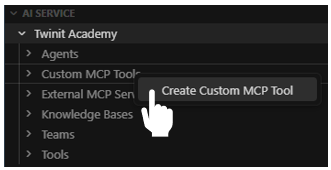
- In the Twinit IDE Extension, expand the AI Service panel
- Expand your project in the tree
- Right click on the Custom MCP Tools folder and select Create Custom MCP Tool
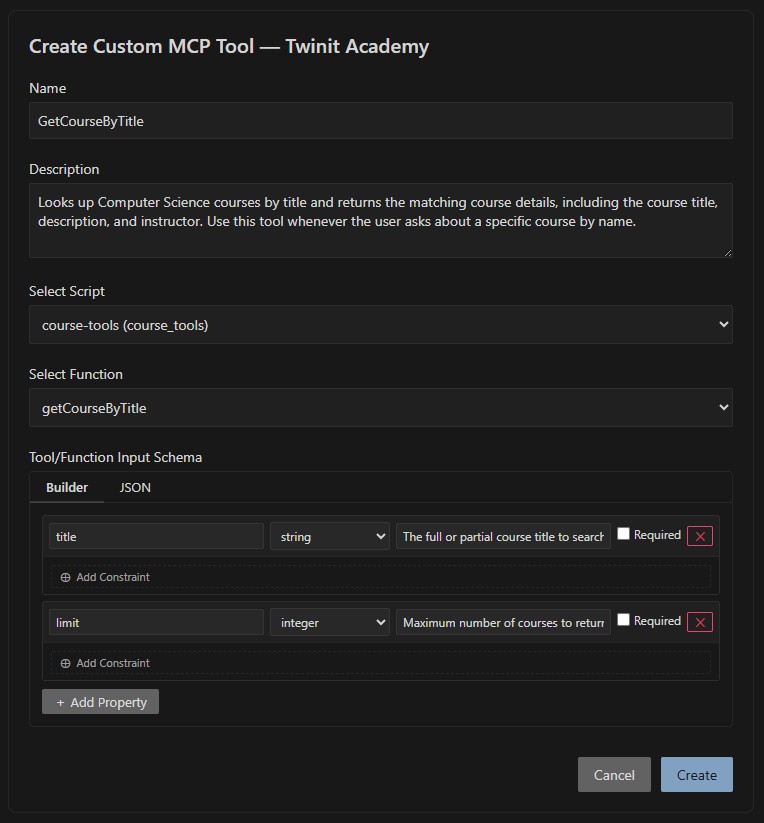
- In the Create Custom MCP Tool form:
- Name:
GetCourseByTitle(a clear, meaningful name an agent can use to understand the tool's purpose; no spaces) - Description: Looks up Computer Science courses by title and returns the matching course details, including the course title, description, and instructor. Use this tool whenever the user asks about a specific course by name.
- Script: select the
course-toolsbackend script (it must be a backend script, not a client script with imports) - Function: select the
getCourseByTitlefunction - Schema: define the input schema with field descriptions:
title(string) – The full or partial course title to search for. Matching is case-insensitive.limit(integer) – Maximum number of courses to return.
- Name:
- Click Create
Your new Custom MCP Tool will appear under the Custom MCP Tools folder in the tree.

After creating a new MCP Tool, you may need to restart your MCP Server Connection or your IDE for it to become available to your MCP client.
You can review the full configuration at any time by right-clicking the tool and selecting View Custom MCP Tool JSON, or make changes with Edit Custom MCP Tool.
With the Custom MCP Tool created, we are ready to expose it through the AI Service MCP endpoint and call it from an MCP client.