Graph Queries
In this module you will learn about how graph queries work in the item service. Graph queries allow you to powerfully query your data in the item service, following relationships in a pattern that you specify to return multiple levels of results.
How are Graph Queries Different than $findWithRelated?
So far, when querying items in the Item Service using relationships we have used a $findWithRelated query that consists of a 'parent' collection and query to start from and an array of 'related' collections and queries to search. We even saw how we could follow relationships between items from child to parent using the _isInverse flag.
$findWithRelated queries are limited though. At most you can search one level of relationship in either or both directions at once. For instance, you can get the Assets in a Room. Or you can get the Room, the Level it is on, and the Assets in the Room. But if the Assets had Sensors, for instance, related to them as children, to query from the Room to the Sensors would require you make two queries: Room to Assets then Assets to Sensors.
Using a graph query, you can use one query to go from the Level all the way to the Sensor.
In the examples illustrated below, findWithRelated queries can only work in some of the cases. Graph queries can return data in all the examples.
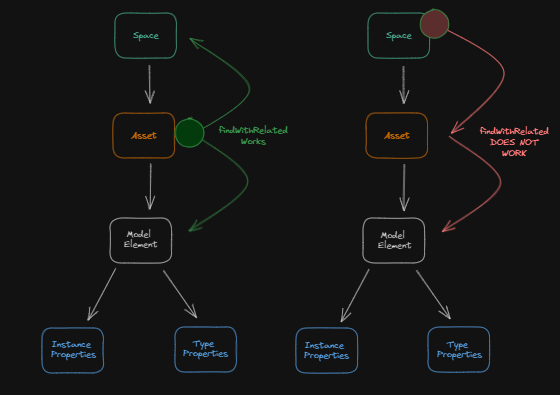
FindWithRelated could find Spaces and Model Elements related to an Asset in a single query, but can't find the Model Elements related to all Assets starting from a Space. A graph query can.
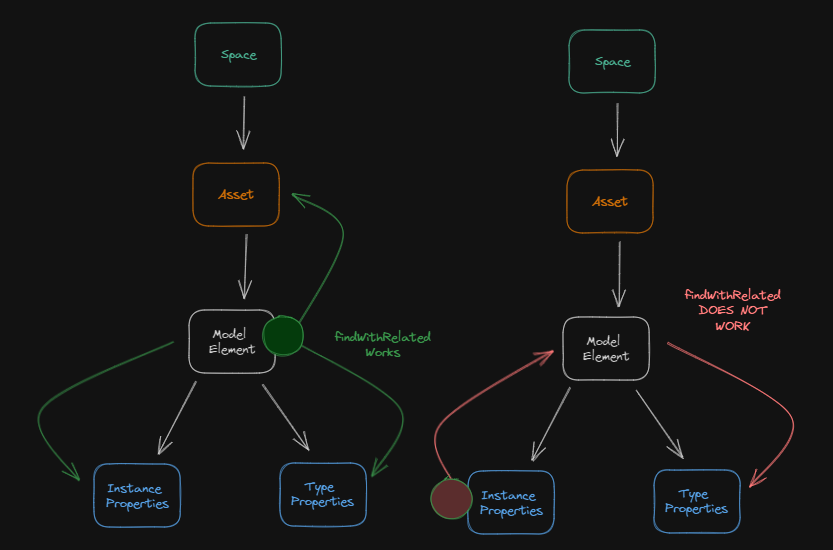
*FindWithRelated could find an Asset and all Instance and Type Properties related to a Model Element in a single query, but can't find the Type Properties for a Model Element starting at its Instance Properties. A graph query can.
Anatomy of a Graph Query
Every graph query will have two parts: where to start the query and the segments to follow from the start.
The start section is much like the parent section of a $findWithRelated query. It specifies the collection in which to begin searching and an optional query for the item to begin searching from.
In the example below, we start the graph query in the systems NamedUserCollection, by finding an item with a system_name of HVAC.
"start": {
   "collectionDesc": {
      "_userItemId": systemsCollection._userItemId
   },
   query: {
      "system name": "HVAC"
   }
},
The next section of the graph query is the to section. This is where you specify the relationships to follow. The relationships are specified in an array of ordered segments.
In the example below we are specifying that from the HVAC system item, we should first follow relationships to the system_elements collection and then to Assets collection.
"to": {
   "segments": [
      {
         "relatedDesc": {
            "_relatedUserType": systemElementsCollection._userType
         },
         "as": "system_elements",
         "options": {
            "project": {
                "_id": 1,
	            "system element name": 1
            }
         }
      },
      {
         "relatedDesc": {
            "_relatedUserType": assetCollection._userType
         },
         "from": "system_elements",
         "as": "assets",
         "options": {
            "project": {
               "_id": 1,
               "name": 1
            }
         }
      }
   ],
   "as": "paths"
}
As you can see the segments are similar to the $findWithRelated related array. For instance you are providing the relatedDesc of the collection to which to follow relationships as well as the as property in which to return the results for that segment.
With segments however, you must also provide a from property specifying the previous segment in the array.
In most cases, you may also want to provide options to project the fields you wish returned from your items. By default the graph query results will only include item _ids. In the example above, we are projecting the Asset's name to be returned on any assets found related to system elements in the first segment.
Finally, the to section overall, must specify an as field set to 'paths'. Currently the only form supported for graph query results is as paths. It is planned to also support 'tree' and other result types.