Permissions Profiles tab
Overview#
The Permissions Profiles tab lists the permissions profiles information for a given workspace.
Click on a permission profile row to view more detailed information. For each row, you can also perform the following tasks:
- View permissions in a profile
- Edit permission profiles
- Add permissions to a particular profile
- Delete a permission profile
You can also search for permission profiles, using the name of a profile.
Permissions Profiles tab elements#
Figure: Permissions Profile tab elements
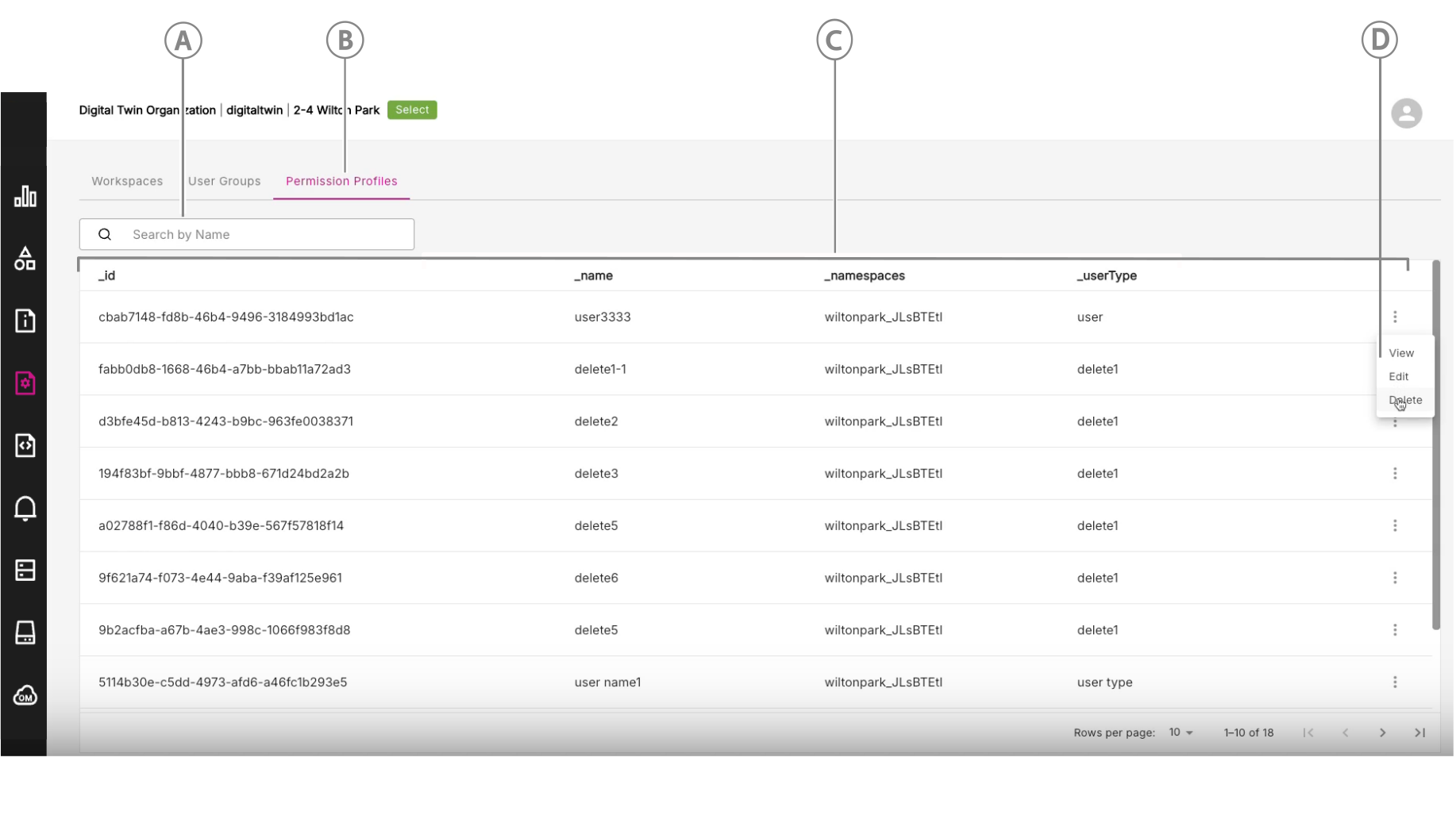
| Callout | Name | Description |
|---|---|---|
| A | Search permissions profiles | Search permissions profiles by name. (Full name is required) |
| B | Permissions Profiles tab | Click to open the Permissions Profiles tab. |
| C | Permissions profiles list | View the list of permissions profiles for the workspace you selected. |
| D | Three-dot menu icon | Click to access other options where you can view, edit, or delete a permission profile. See below for more detailed description of these options. |
Managing permissions profiles#
The main actions you can perform on permissions profiles are:
- View a permission profile
- Edit a permissions profile
- Delete a permission profile
View a permission profile#
To view a permission profile, do the following:
For the permission profile, you are interested in, click the three-dot menu at the end of the row. Click the View option.
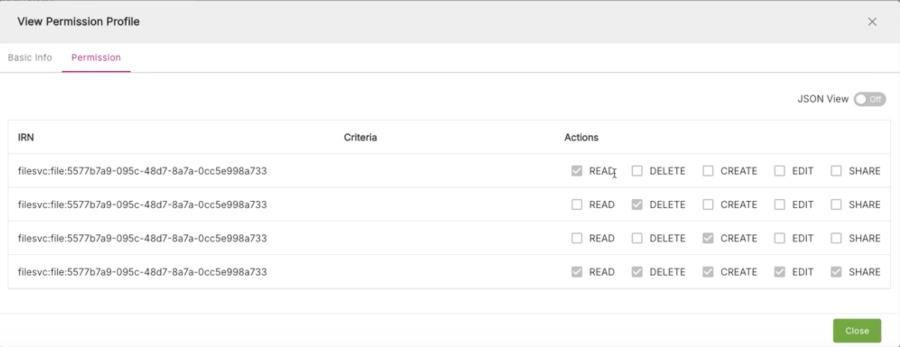
You will be initially presented with a window showing the Basic Info tab for the permissions profile. There are two tabs of information available: Basic Info and Permission.
Click the Permission tab to display detailed permissions for that profile. This will list all the actions permitted, such as EDIT, DELETE, CREATE, EDIT, and SHARE. Each action permitted will be indicated by having a tick symbol beside it.
Note: On the Permission tab, you also have a JSON View button in the top-right corner. Set this to ON to view permission profiles in the format of a JSON file.
Figure: View permissions profile
Edit a permission profile#
To edit a permission profile, do the following:
For the permission profile, you are interested in, click the three-dot menu at the end of the row. Click the Edit option.
You will be initially presented with a window showing the Basic Info tab for the permissions profile. There are two tabs of information available: Basic Info and Permission. You can edit the basic information here. Click Save when done.
Click the Permission tab to display detailed permissions for that profile. This will list all the actions permitted, such as EDIT, DELETE, CREATE, EDIT, and SHARE. You can select or de-select the actions permitted by clicking the tick box beside each action.
On the Permission tab, you can also add a new permission record buy clicking the + Add Permission button at the bottom. You can also delete a record by clicking the trash icon at the end of each row. Click Save when done, to save your changes.
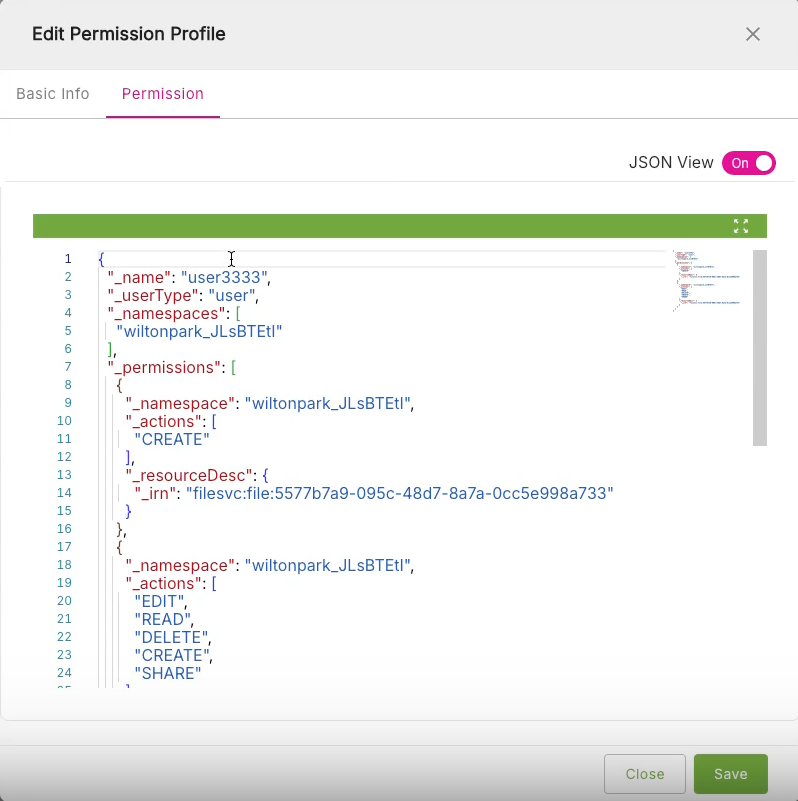
To edit the permission in JSON view, click the JSON View button to On. This will display a JSON editor where you can edit the JSON file as required. Click Save when done.
Figure: Edit Permission Profile in JSON View
Delete a permission profile#
To delete a permission profile, do the following:
For the permission profile, you are interested in, click the three-dot menu at the end of the row. Click the Delete option.
You will be presented with the Delete Permission Profile window. You will be asked if you are sure that you want to delete this workspace.
If you stil want to delete it, then click Yes, Delete It.