Workspaces tab
Overview
The Workspaces tab displays a list of an application's workspaces. Click a workspace to view more detailed information, and with the appropriate permissions, complete the following tasks:
- Create a workspace
- Edit a workspace's details
- Delete a workspace
- Add, edit or remove workspace permissions for other users
Note: Since Console App 3.4, you can now search for workspaces using partial names. This offers an easy way to filter the listing of workspaces and narrow your searches.
Figure: Workspaces tab elements
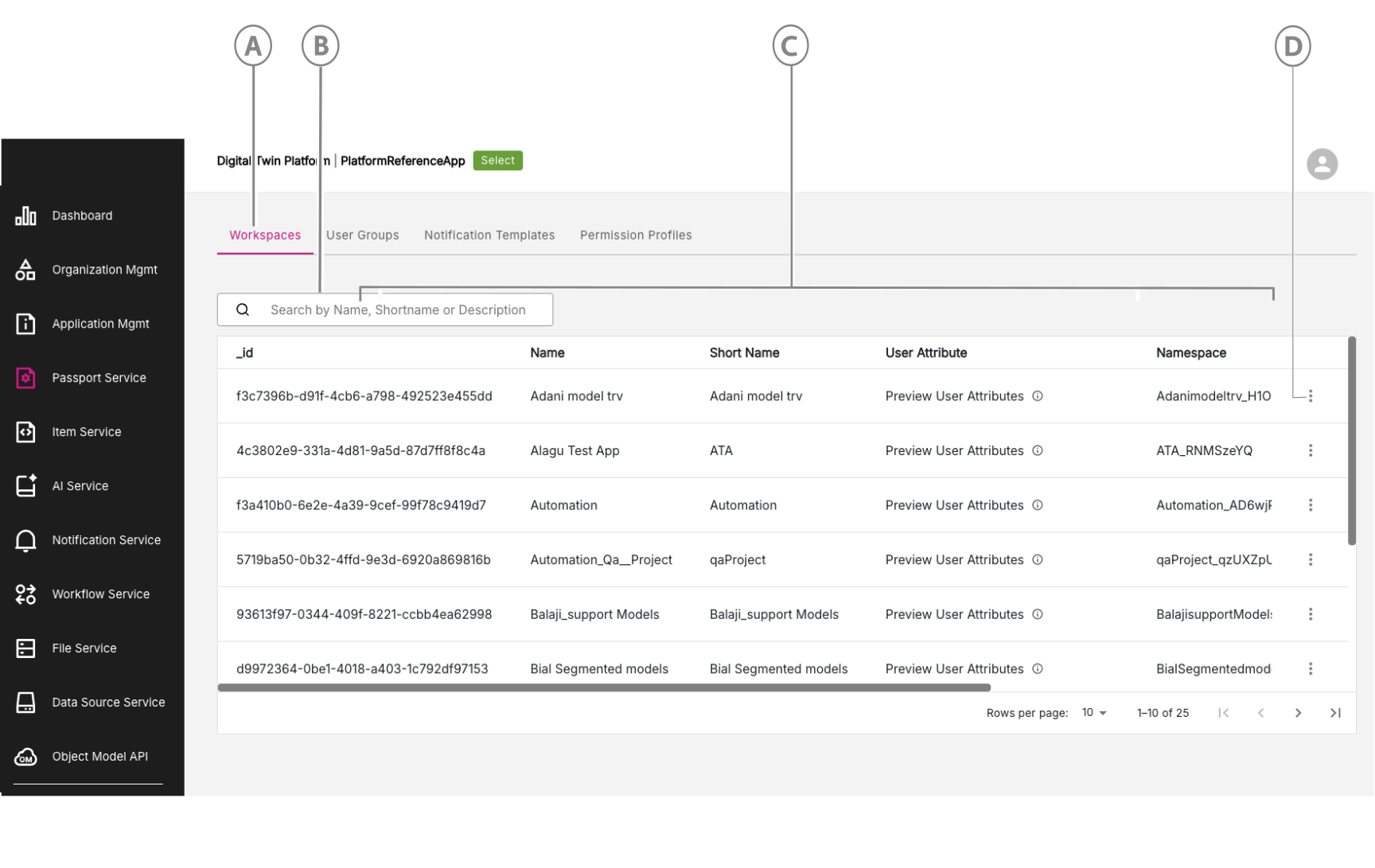
| Callout | Name | Description |
|---|---|---|
| A | Workspaces tab | Click to open the Workspaces tab. |
| B | Search workspaces | Search workspaces by name, ID, and more. You can now search using a partial name. For example, search for anyone with "developer" in their name by simply entering "dev" in the search bar. |
| C | Workspaces list | View the list of workspaces you can access. |
| D | Three-dot menu icon | Click to access other options where you can view, edit, or delete a workspace from the workspaces list, depending on your permissions. |
Managing Workspaces
The main actions you can perform on workspaces are:
- View a workspace
- Edit a workspace
- Delete a workspace
Showing Local and UTC Time in Last Updated column
In the Last Updated column, you can click on the Show Local or Show UTC text to toggle how the time stamp for an update is displayed. You can toggle between displaying your time information in your local time or Coordinated Universal Time (UTC).
Figure: Workspaces - Last Updated column
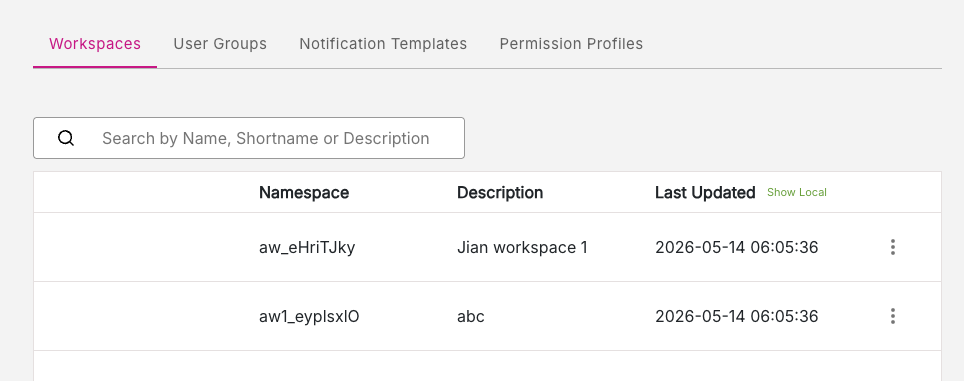
Note: This feature is available throughout the Console App, on any tabs where timestamped information is listed.
View a workspace
To view a workspace, do the following:
-
For the workspace, you are interested in, click the three-dot menu at the end of the row. Click the View option.
-
You will be initially presented with a window showing the Basic Info tab for the workspace. There are two tabs of information available: Basic Info and User Attribute.
Figure: View Workspace - Basic Info tab
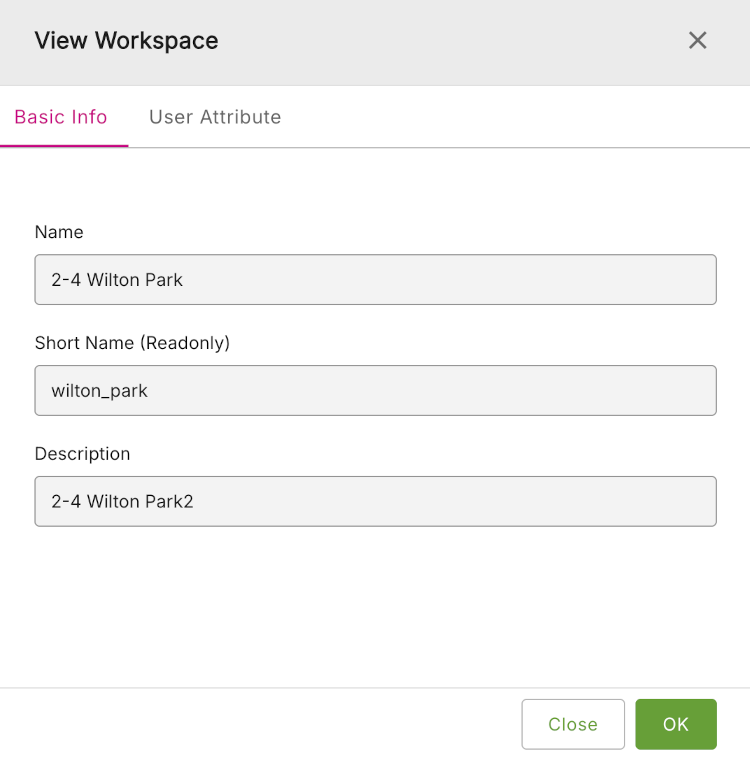
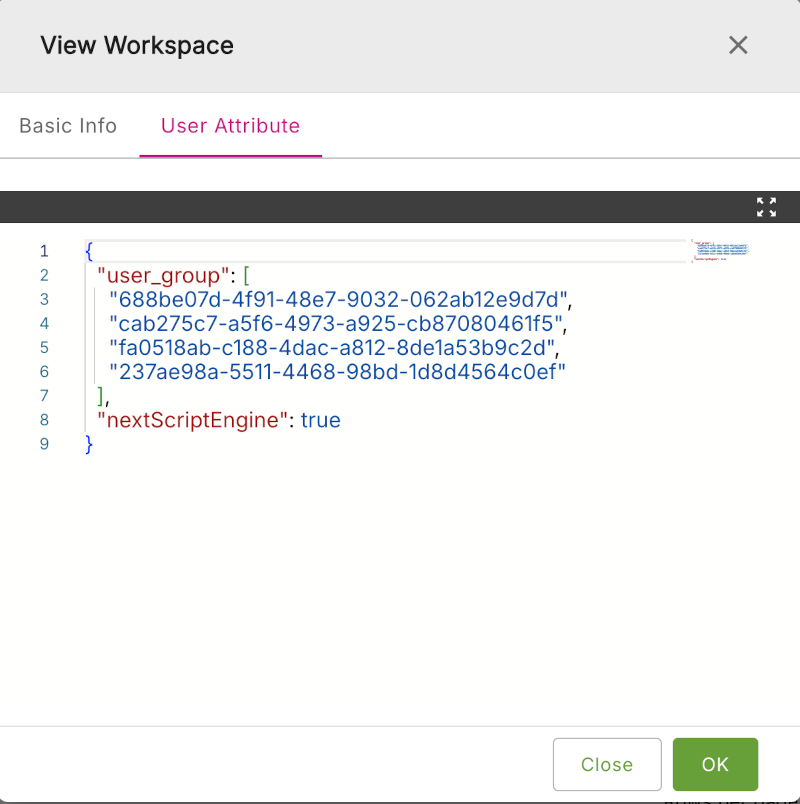
- Click the User Attribute tab to display detailed user attributres for that workspace.
Figure: View Workspace - User Attribute tab
Edit a workspace
To edit a workspace, do the following:
-
For the workspace, you are interested in, click the three-dot menu at the end of the row. Click the Edit option.
-
You will be initially presented with a window showing the ** Basic Info** tab for the workspace. There are two tabs of information available: Basic Info and User Attribute. Edit the details on each tab as required.
-
When done, click Save & Close.
Delete a workspace
To delete a workspace, do the following:
-
For the workspace, you are interested in, click the three-dot menu at the end of the row. Click the Delete option.
-
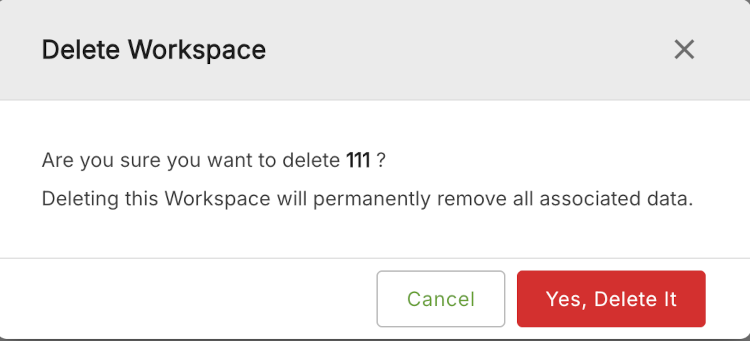
You will be presented with the Delete Workspace window. You will asked if you are sure that you want to delete this workspace.
-
If you stil want to delete it, then click Yes, Delete It.
Figure: Delete Workspace