Workspaces tab
Overview#
Use the Workspaces tab to view a list of an application's workspaces. Click a workspace to view more details about it and with the appropriate permissions, complete the following tasks:
- Create a workspace
- Edit a workspace's details
- Delete a workspace
- Add, edit or remove workspace permissions for other users
Note: Since Console App 3.4, you can now search for workspaces using partial names. This offers an easy way to filter the listing of workspaces and narrow your searches.
Figure: Workspaces tab elements
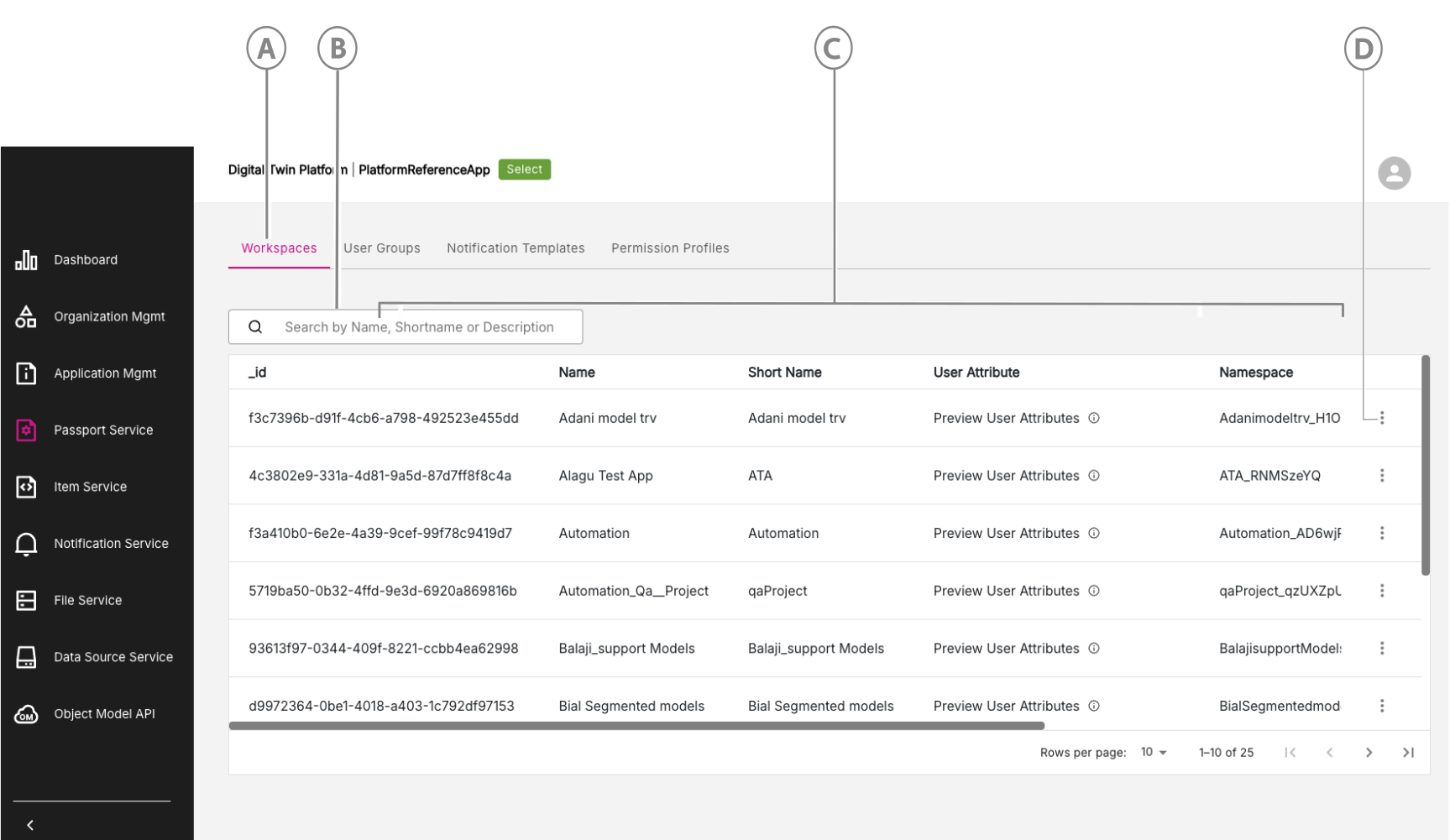
| Callout | Name | Description |
|---|---|---|
| A | Workspaces tab | Click to open the Workspaces tab. |
| B | Search workspaces | Search workspaces by name, ID, and more. You can now search using a partial name. For example, search for anyone with "developer" in their name by simply entering "dev" in the search bar. |
| C | Workspaces list | View the list of workspaces you can access. |
| D | Three-dot menu icon | Click to access other options where you can view, edit, or delete a workspace from the workspaces list, depending on your permissions. |
Managing Workspaces#
The main actions you can perform on workspaces are:
- View a workspace
- Edit a workspace
- Delete a workspace
View a workspace#
To view a workspace, do the following:
For the workspace, you are interested in, click the three-dot menu at the end of the row. Click the View option.
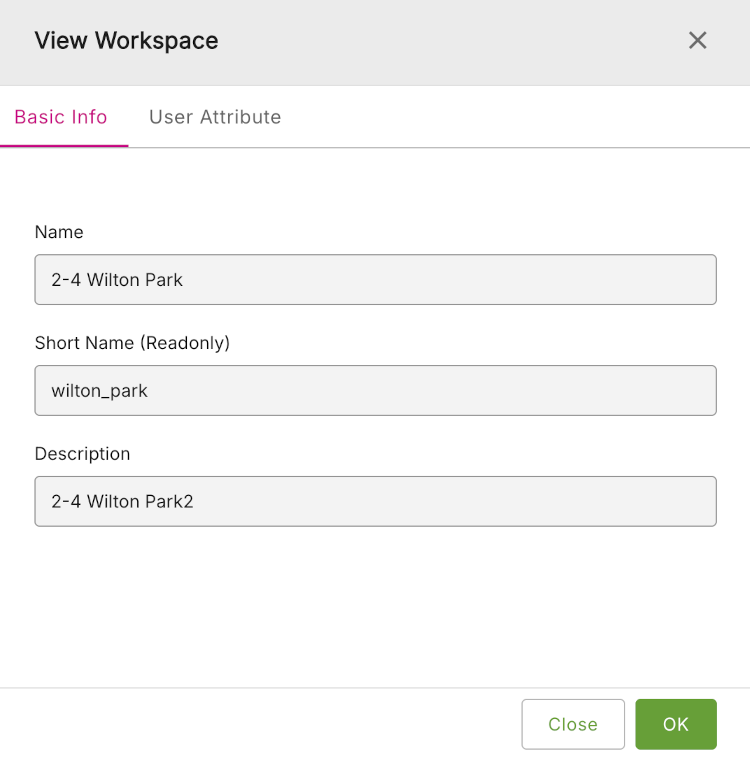
You will be initially presented with a window showing the Basic Info tab for the workspace. There are two tabs of information available: Basic Info and User Attribute.
Figure: View Workspace - Basic Info tab
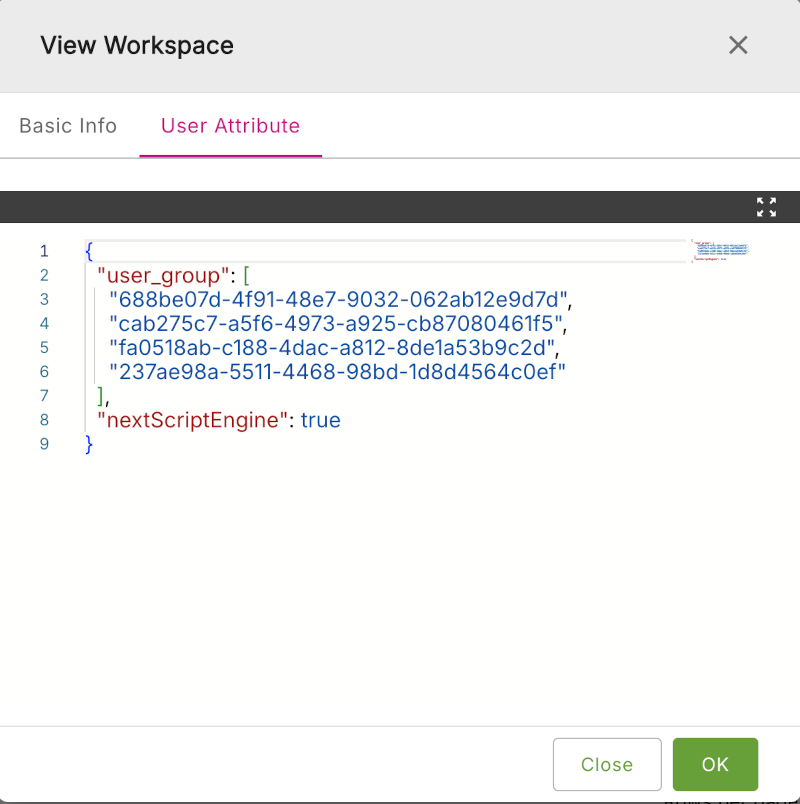
- Click the User Attribute tab to display detailed user attributres for that workspace.
Figure: View Workspace - User Attribute tab
Edit a workspace#
To edit a workspace, do the following:
For the workspace, you are interested in, click the three-dot menu at the end of the row. Click the Edit option.
You will be initially presented with a window showing the Basic Info tab for the workspace. There are two tabs of information available: Basic Info and User Attribute. Edit the details on each tab as required.
When done, click Save & Close.
Delete a workspace#
To delete a workspace, do the following:
For the workspace, you are interested in, click the three-dot menu at the end of the row. Click the Delete option.
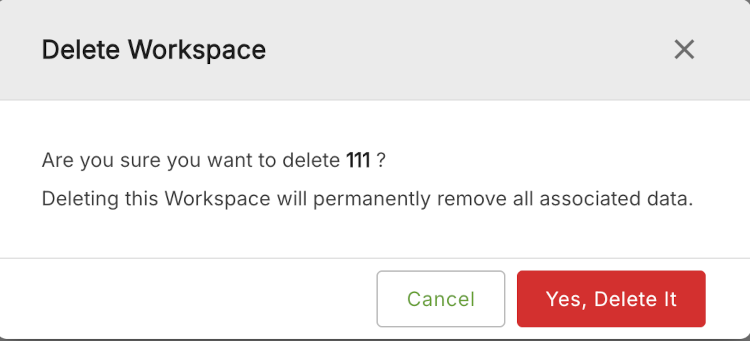
You will be presented with the Delete Workspace window. You will asked if you are sure that you want to delete this workspace.
If you stil want to delete it, then click Yes, Delete It.
Figure: Delete Workspace