Projects
Overview#
The Projects options provide access to the main functions available for managing project models.
The Projects menu options are:
- Model
- Create
- View
- Delete
Refer to the sections below for an explanation of each option.
Model
Click the Model option to select the current project model being displayed.
Create
Click the Create option to create a new project model.
To create a new project, do the following:
- In the left side-bar menu, click Projects to expand the Projects options menu.
- Click Create.
Figure: Create a Project dialog
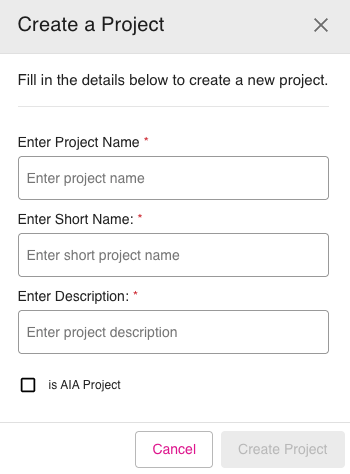
In the Create a Project dialog window, enter the project name, short name and description.
If you are building against an Assets Intelligence App (AIA) project template, select the is AIA Project checkbox.
Click Create Project and a new project model will be created.
The new project model will automatically create the User Configs, Orchestrators, OMAPI and Scripts associated with any template selected.
View
Use the View option to view the other project models which are available and switch to one of them.
To switch to a new project model, do the following:
- In the left side-bar menu, click Projects to expand the Projects options menu.
- Click View.
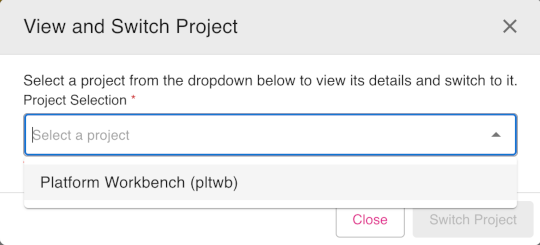
- In the View and Switch Project dialog box, click the down arrow in the Select a project drop-down. You will be presented with a list of projects to choose from.
- Click the project you want to switch to, then click Switch Project.
Figure: View and Switch Project dialog
Delete
Use the Delete option to delect an existing project model.
To delete a project model, do the following:
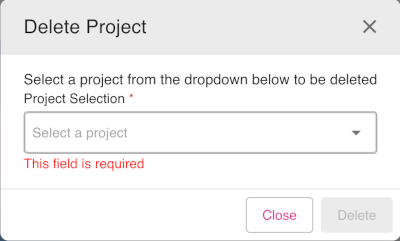
- In the left side-bar menu, click Projects to expand the Projects options menu.
- Click Delete.
- In the Delete Project dialog box, click the down arrow in the Select a project drop-down. You will be presented with a list of projects to choose from.
- Click the project you want to delete, then click the Delete button.
Figure: Delete Project dialog