Twinit AI Concepts
Select an AI Model
To interact with the Twinit AI Service, you first need to choose an AI model that the service will use to process requests and perform its various AI-driven tasks. The Twinit AI Service relies on the model you select to generate responses, execute actions, and support the different interactions you build into your application. Once you have chosen your AI model, you must obtain the appropriate token or API key associated with that model.
For this course, we will be using OpenAI, which means you will need to generate an OpenAI API key.
Refer to the Open AI Developer Quick Start for more information on signing up with OpenAI and generating your API key.
In a later lesson you will learn how to use your OpenAI API Key with Twinit.
Agents
In the Twinit AI Service, Agents are specialised components that handle a specific task or step in a larger workflow. Much like real-world processes rely on a sequence of decisions and actions, Agents work together to evaluate inputs, make choices, and generate meaningful results. At their core, Agents are AI-powered components that understand input, can invoke tools, retrieve real-time data, and then respond based on their assigned role.
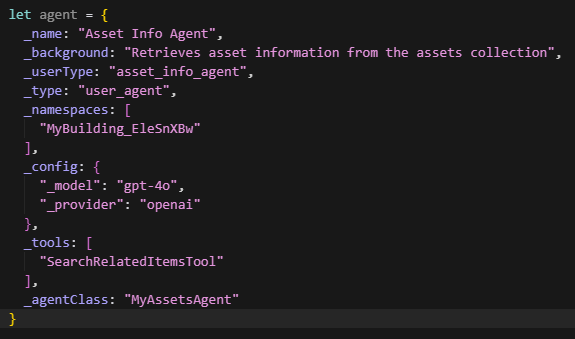
Every Agent defines the model and tools it will use, and may optionally specify an agentClass to control how it processes tasks and coordinates tool usage. The model should correspond to the token or key you use to configure the agent. In this course, that is OpenAI’s gpt-4o. For the purposes of this course’s example, we keep things simple with a Mathematics Agent that relies solely on the underlying LLM to answer questions, so its tools array is left empty and no custom agentClass is specified. Together, these settings shape how an Agent behaves, what capabilities it can access, and how it processes information.
Agents communicate with an LLM using a clearly defined role and purpose and are equipped with tools that allow them to interact with the platform. They understand context and have access to your RAG knowledge bases, enabling them to produce context-aware responses and act intelligently within the larger workflow.
Agents are added to a team where they are executed in a defined order. Each Agent handles the inputs passed from the previous step and produces outputs for the next, allowing you to build structured, multi-stage workflows that operate autonomously across the platform.
There are two types of AI Agents:
- System Agents – Pre-built by Twinit and available for easy invocation.
- Custom Agents – User-defined agents that you can create and configure to suit your application needs.
Here's an example of an Agent in Twinit:
Tools
In the Twinit AI Service, Tools are specialised capabilities that Agents can leverage to perform specific functions. Each Tool provides a focused set of operations, such as generating code snippets, retrieving data, transforming information, or performing calculations, that an Agent can call upon when processing a task. In essence, a Tool is a functional component used by Agents to retrieve or transform data, extending what an Agent can do within a workflow.
By assigning the appropriate Tools to an Agent, you define the Agent’s practical capabilities. For example, the CodeAssistTool equips an Agent with the ability to provide code suggestions and explanations, enabling more effective and intelligent interactions.
Tools come in two types:
- System Tools – Provided by Twinit.
- Custom Tools – Tools that you create on the platform.
A Tool has several defining characteristics:
- Acts as a utility that helps Agents perform specific tasks, such as fetching data from platform services.
- Enables RAG capabilities.
- Is configured with clear usage instructions and input parameters.
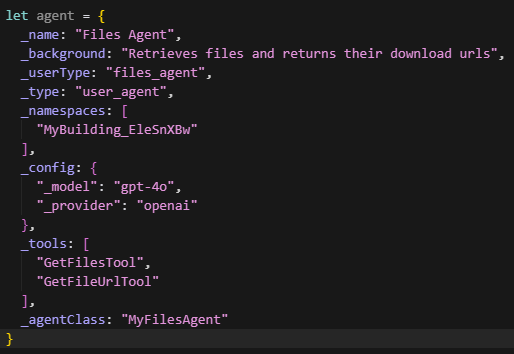
To equip an Agent with a Tool, simply list the desired tool in the Agent’s _tools array.
Here's an example of an agent that uses two tools:
Knowledgebases
A Knowledgebase stores the vectorised embeddings of a file you upload to the File Service, allowing Agents to access richer, domain-specific information during retrieval-augmented generation (RAG). By equipping your Agents with relevant Knowledgebases, you provide them with additional context they can use to produce more accurate, grounded, and meaningful responses.
Supported File Types
The following file types can currently be converted into KnowledgeBases:
- .txt
- .md
- .csv
Creating and Equipping a KnowledgeBase
To create a Knowledgebase and make it available to an Agent, follow these steps:
- Upload a file to the File Service using any supported upload method (e.g., resumable upload).
- Create the Knowledgebase, referencing the uploaded file and its version.
- Retrieve the Knowledgebase from the AI Service to confirm its availability or inspect its metadata.
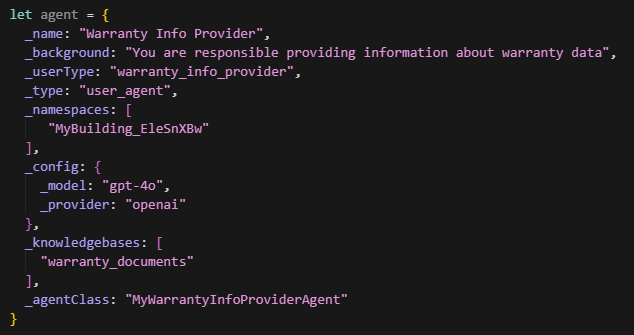
- Create an Agent and equip it with the Knowledgebase by listing the Knowledgebase identifier in the Agent’s _knowledgebases array.
With these steps completed, your Agents gain access to context-rich documentation, datasets, policies, or any other material you have uploaded, enabling them to respond with higher accuracy and relevance in your AI-driven workflows.
Here is an example agent with knowledgebases:
Teams
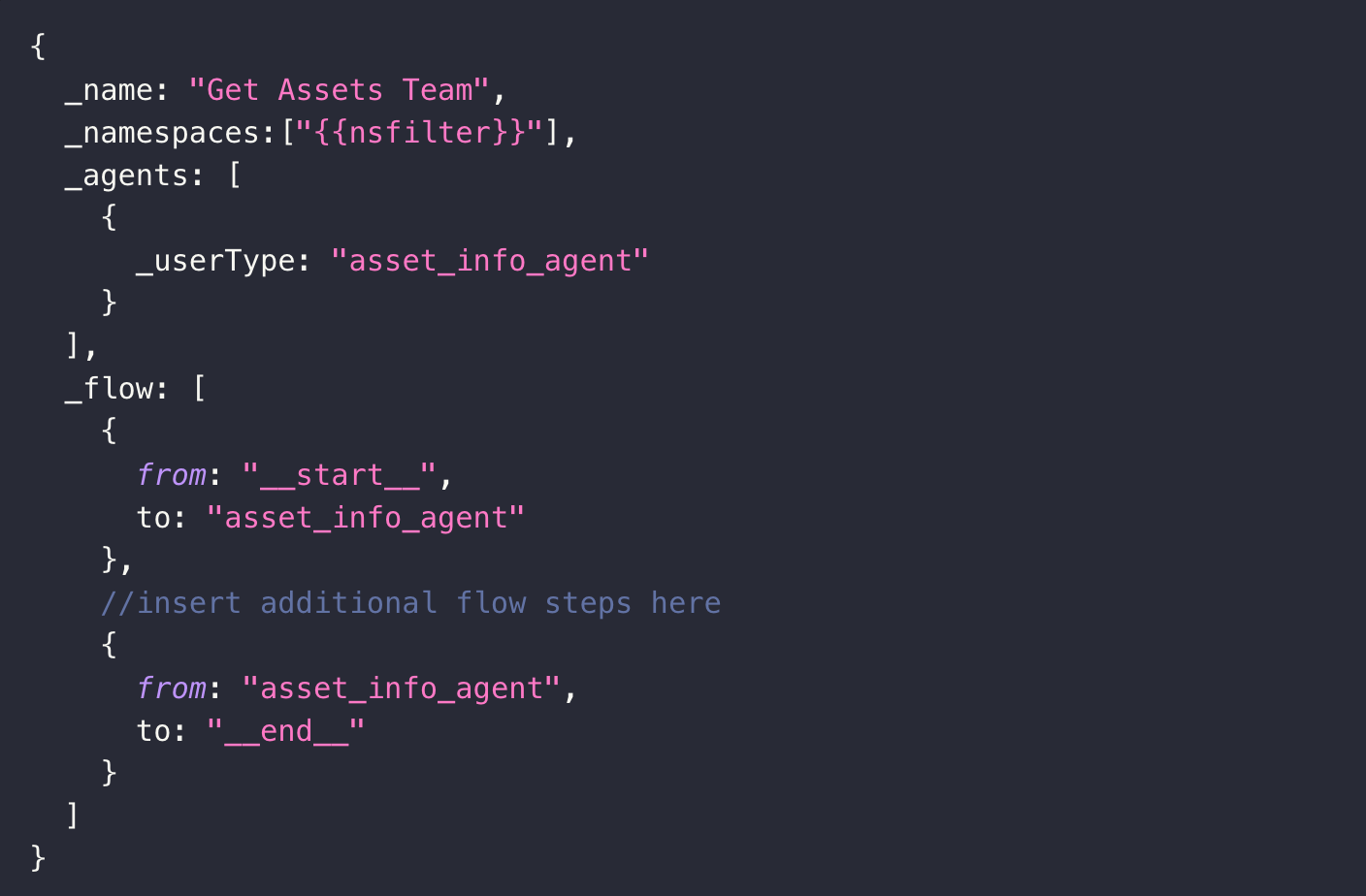
In the Twinit AI Service, a Team is a structured collection of Agents working together to accomplish a specific workflow or goal. A Team defines a sequential workflow in which Agents execute tasks in a defined order, passing their outputs along the chain so each subsequent Agent can build on the work of the previous one. This structure allows you to break complex processes into smaller, manageable steps, where each Agent evaluates its part of the request and contributes to the overall outcome.
Teams also maintain session context across the entire interaction, enabling multi-step conversations that feel coherent and continuous. Within a Team, each Agent has a specific role and its own set of tools, ensuring that every stage of the workflow has the capabilities it needs to operate effectively.
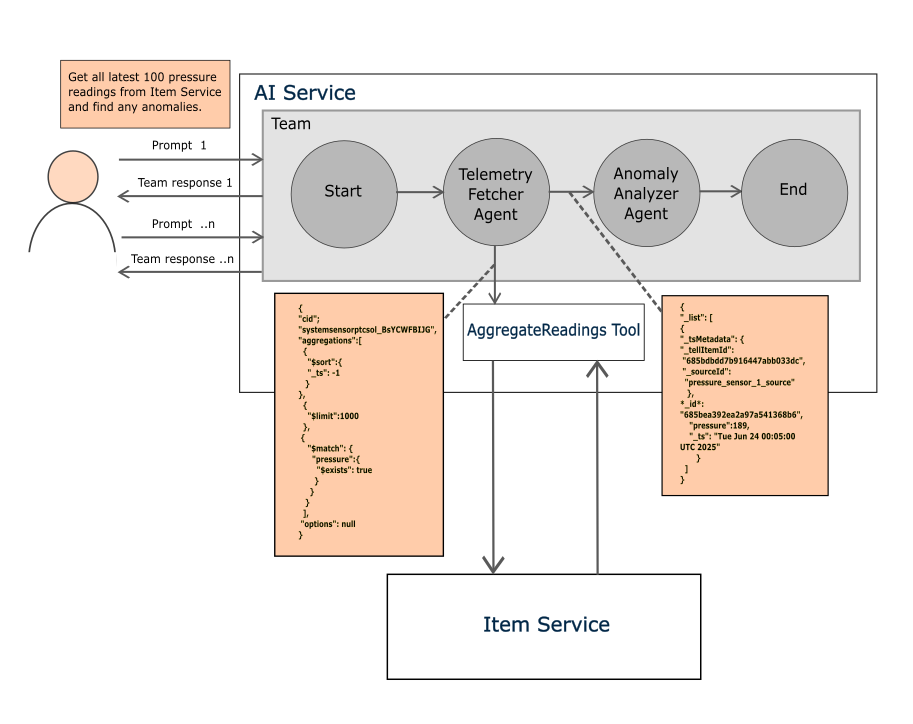
By organising Agents into Teams, you gain modularity and reusability. The same Agents can be combined in different Teams to support multiple workflows without redefining their individual logic. This orchestration enables the Twinit AI Service to coordinate autonomous, multi-step interactions efficiently, ensuring that even complex tasks are executed systematically and reliably.
Here's an example of a Team: