Lesson 3 - Add an ipa-core Provided pageComponent
The ipa-core framework provides various generic pages that you can configure and use in your application alongside your custom pages. To use ipa-core pageComponents you usually provide a configuration in the user config and potentially some additional scripts.
UserGroupView
The UserGroupView pageComponent allows you to see the user groups in your project, the members of those user groups, as well as any pending or expired invites. You can also invite users to user groups and resend expired invites.
Add the Handler
- Open the Developer User Config
- In the list of handlers add the following handler:
"userGroup": {
  "title": "User Groups",
  "icon": "fas fa-users fa-2x",
  "pageComponent": "users/UserGroupView",
  "path": "/UserGroupView",
  "config": {
    "appUrl": "/",
    "allowUserGroupEdit": true,
    "allowUserGroupInvite": true,
    "allowManageInvites": true,
    "allowManageUsers": true
  }
}
Add a Page Group
- In the groupedPages section of the user config add a new group of pages and the userGroup handler as below:
"Ipa-core Pages": {
  "icon": "fas fa-book fa-2x",
  "position": 2,
  "pages": [
    {
      "page": "Users",
      "handler": "userGroup"
    }
  ]
}
Save the user config and commit it to a new version
Result
Note: You will need to reload your user config in the web client by clicking Switch Project in the menu in the top right hand corner (or logging out and back in) and then selecting your project again. If you do not, the page will not function correctly.
You should now see a second group of pages in your application.
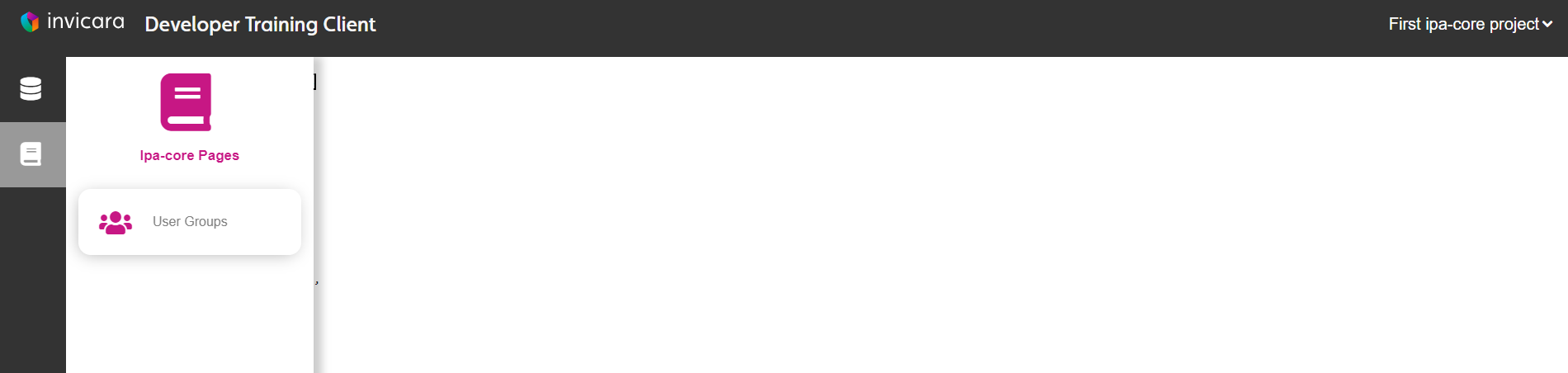 The navigation now shows a new group and the User Group page
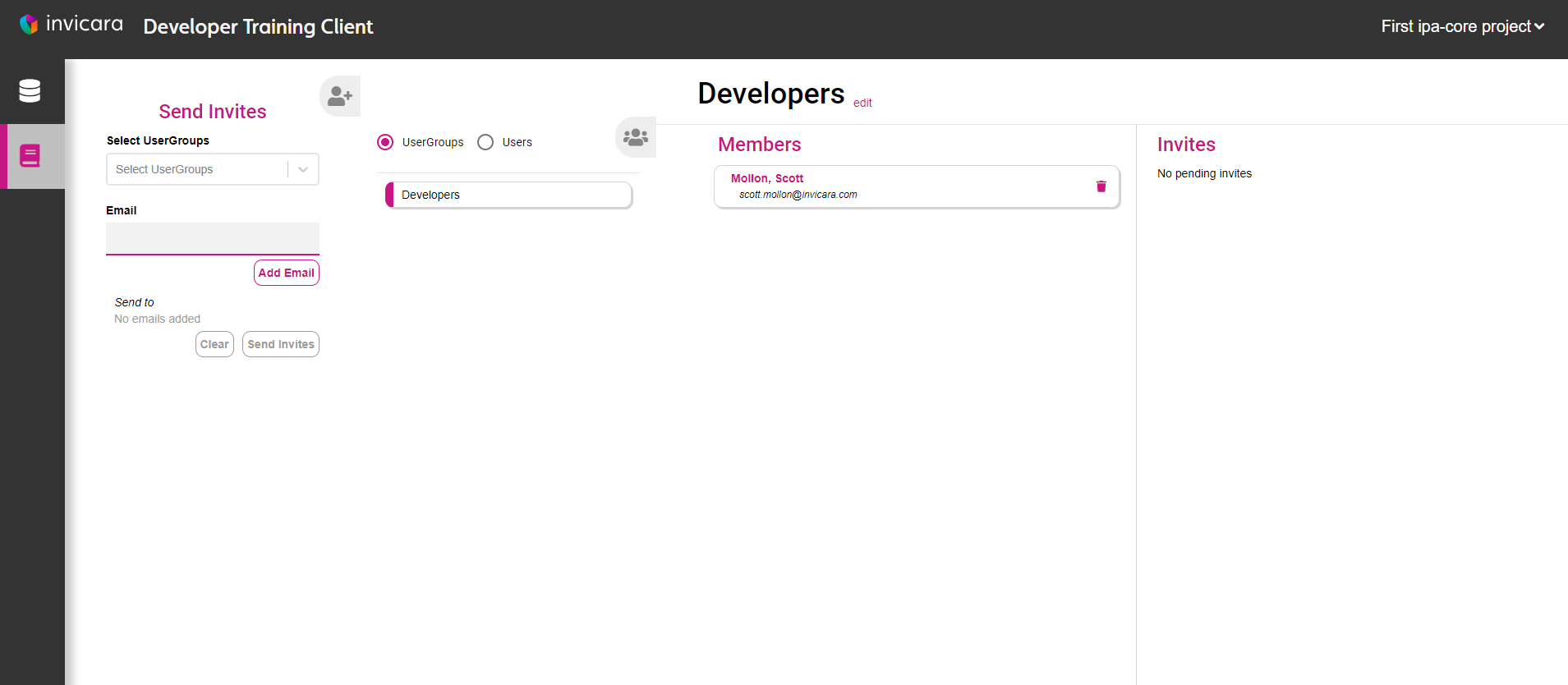 User group page allows for managing users in your project