IafViewer Enhanced Viewing Modes
Detailed feature guides for each IafViewer viewing mode and its user interface. Start with the IafViewer Overview for a bird's eye view of IafViewer's building blocks and integration patterns, then use this section for the specifics of the mode you are configuring.
Several modes can run at once, each in its own IafViewer instance window over the main viewer.
Figure: EVM instances
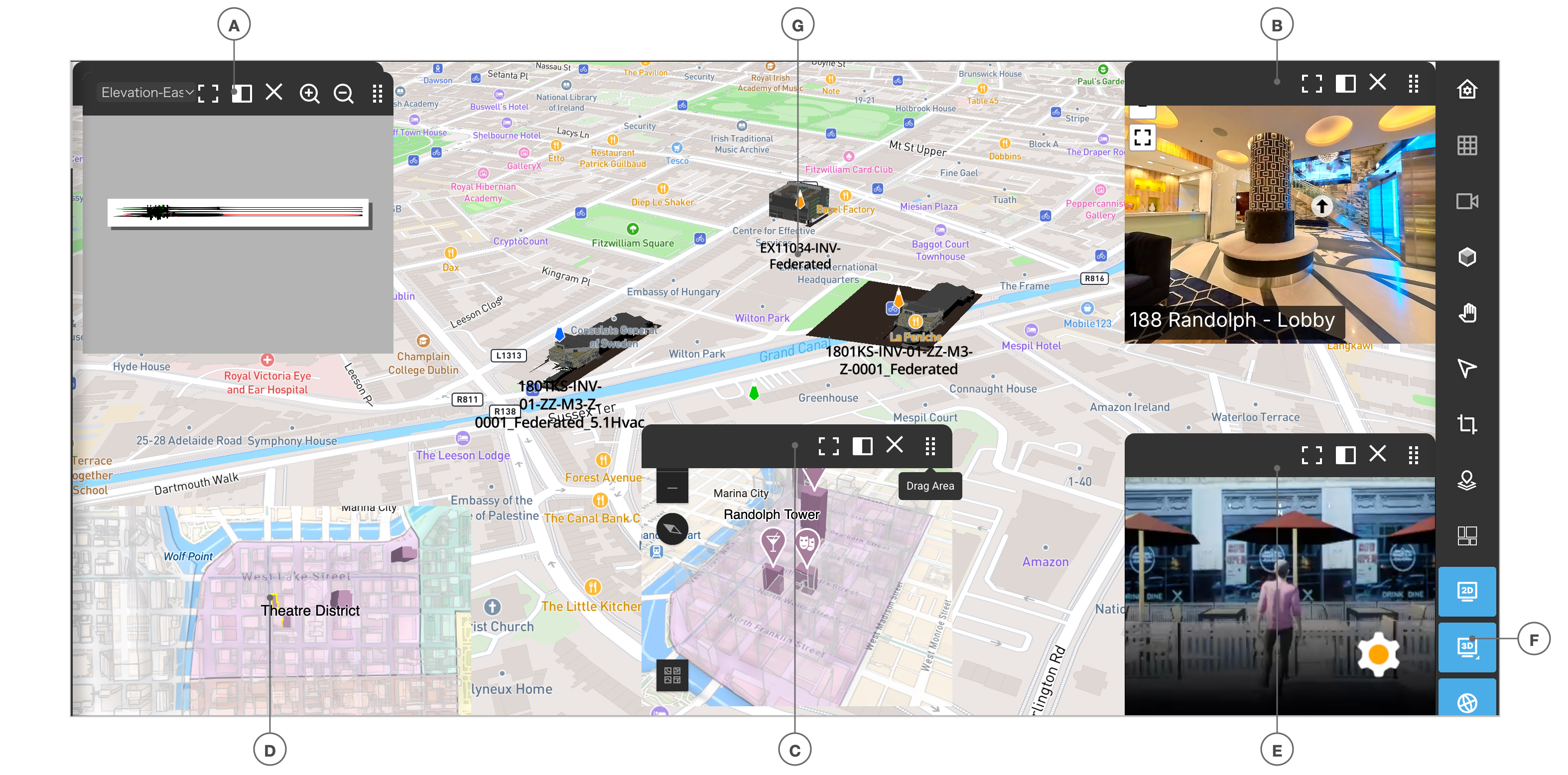
| Callout | Description |
|---|---|
| A | IafViewer View2D instance with toolbar |
| B | IafViewer Photosphere instance with toolbar |
| C | IafViewer ArcGIS instance with toolbar. Drag the toolbar's drag area to move the window. |
| D | IafViewer ArcGIS overview window without toolbar |
| E | IafViewer Unreal Engine instance with toolbar |
| F | EVM window buttons in the main toolbar (2D, 3D, GIS) |
| G | Main view: IafViewer GIS (Mapbox) with federated buildings |
Topics
| Topic | What you will find |
|---|---|
| IafViewer 2D-3D | View2D / View3D props and features: model composition, cutting planes, animations, annotations and measurement, grid helpers |
| IafViewer GIS (Mapbox) | GIS props, Mapbox GIS launcher, interaction and appearance panes, horizontal realignment |
| IafViewer ArcGIS | ArcGIS SceneView integration, dynamic layers, feature highlighting, camera control |
| IafViewer Unreal Engine | Pixel-streamed high-fidelity rendering, ue props, ready callbacks, event handling |
| IafViewer Photosphere | 360 degree panoramic viewing, hotspot transitions, scene-to-building mapping |
| IafViewer APS | Autodesk Platform Services (APS) viewer mode: aps props, callbacks, multi-model URN sets |
| IafViewer internationalization | i18n prop: 17 shipped locales, message overrides, fonts |
| IafViewer UI | Interface elements, toolbar icons, and how selections flow back to your application |
| IafViewer Database Persistence | Persisted model composition, GIS geolocation states, graphics data permissions |
Each mode is enabled independently through IafViewerDBM props, and every enabled mode adds load-time and browser cost — see IafViewer Performance Tips before combining several in one layout.
How prop groups fit together
{{modelComposition}} decides which models belong in the session. {{view3d}}, {{aps}}, {{view2d}}, and {{gis}} decide how those models are shown. GIS is a top-level prop group ({{gis}}), not nested under {{view3d}}.
{{aps}} integrates the same way as {{view3d}}, through {{modelComposition}} and the props and callbacks framework. Only the data source differs: APS design URNs instead of models.
Every mode prop group has both an enable and a visible flag. enable turns the mode on or off. visible, which defaults to true, shows or hides an enabled widget without turning it off.
  Your project / workspace
            │
            ▼
     modelComposition
     (federation type · optional clusters · initial disciplines · quality)
       │       │       │       │
       ▼       ▼       ▼       ▼
    view3d    aps    view2d   gis
    (how models are shown / interacted with)
Prop tables for each group live on the mode pages:
- View3D and View2D props
- APS props
- GIS (Mapbox) props
- modelComposition props and PropertyStore resolution
ArcGIS, Unreal Engine, and Photosphere each carry their own Core components sections on their mode pages.
Related
- IafViewer Overview — modes, building blocks, integration patterns
- IafViewer FAQs — consumer FAQs by category
- IafViewer Performance Tips — load-time levers for app developers
- Integration Patterns — multiple IafViewer instances and layouts
- Federated View3D Buildings on Gis(Mapbox) — multi-building GIS overview
- UE with ArcGIS, Overview Map, and Photosphere — full EVM stack recipe
- Multiple Selection with IafViewerDBM — selection integration recipe
- IafViewer APS — Autodesk Platform Services viewer mode,
apsprops and callbacks - IafViewer internationalization —
i18nprop: 17 locales, message overrides, fonts - IafViewer — full mode object prop tables
- IafViewerDBM — DBM data props, forwards mode objects, animations