Script Versioning
Next we will commit our Hello World script changes to Twinit and explore the versioning capabilities Twinit makes available for Scripts (as well as other Item Service data).
Commit a new script version
- Right click on your '[v1] 01 - Hello World' script in the extension and click 'Commit to New Version'
- When prompted enter "Hello World Commit" for the commit message.
Notice the icon next to the script changes back to the cloud icon and the current version increments to 2 as the script updates to display as '[v2] 01 - Hello World'.
You can hover over the '[v2] 01 - Hello World' to see when the script was created, updated, and the commit message for that version in the tooltip.
View an older script version
- Click the Expand icon next to '[v2] 01 - Hello World' and the script will expand to show you 'version 1'
- Right click on 'version 1' and select 'View'. The first version of the script will open in a read-only window
- Close 'version 1'
Diff with local
- Right click on '[v2] 01 - Hello World' and select 'Open' to open it for editing locally
- Modify the script like so:
let scriptModule = {
	async helloWorld(input, libraries, ctx, callback) {
        return "Goodbye Cruel World!"
	},
}

export default scriptModule
- Save the file (CTRL-S or File > Save)
- The script icon will update to the alert icon again
- Right click on the script and click 'Diff with Local'
'Diff with Local' will open a new file comparing the version of the script on Twinit with the version you have currently edited and saved locally.
Notice you see 'Hello World' changed to 'Goodbye Cruel World'
Diff with version
'Diff with Version...' allows you to select any two versions of the script and compare them.
- Close the 'Diff with Local' file
- Right click on the script and click 'Diff with Version...'
- In the version select at the top of the IDE window select version 1
Notice you see the original v1 with the scaffolded script in the comparison.
Discarding your local copy and script changes
- Close the diff file
- Right click on the script and click 'Discard Changes'
'Discard Changes' will remove any changes you have made locally to the script, in this case discarding the 'Goodbye Cruel World' change and removing your local copy.
Script Error Checking
When committing a script to Twinit, by default the script will be run through JSHint for basic error checking. This may result in you seeing a dialog during commit like this:
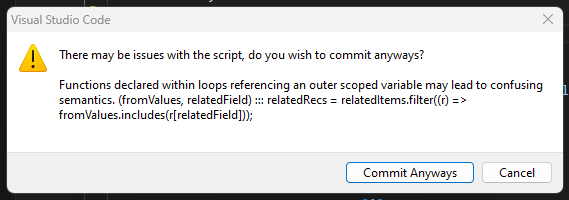
If you would like to commit the script, you can still do so by clicking the "Commit Anyways" button.
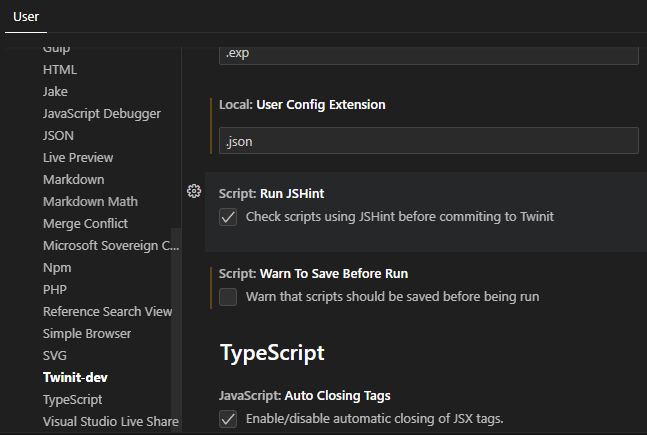
You are able to disable error checking, by disabling the JSHint option in your extension configuration.