Course Materials and Setup
This lesson creates a Twinit project pre-loaded with everything the course needs: the two scripts, the data collections, the site→telemetry links, and the AI agent. You do this once by deploying the template package, then you are ready to create workflows.
You will use the Twinit IDE Extension and the template package in this repository. You need the extension installed, to be signed in to Twinit, and to have your application selected.
1. Prepare the template package zip
The template package lives in WS01WorkflowService.zip.
Download WS01WorkflowService.zip
2. Create a new project
- In the Twinit extension panel, find your application name.
- Right-click the application name and select New Project.
- When prompted, enter a project name (e.g. Workflow Course), an optional description, and a short name (e.g. wfcourse).
3. Add an OpenAI Key
It is highly recommended you conplete this step now if you wish to complete the lesson on using the AI_CONVERSE task as part of a workflow. Without it you will not be able to complete that lesson, or will need to rebuild your project again at a later date to ensure the template package you will deploy in the next step successfully creates the necessary Twinti AI Agents and Teams.
- Right click the new project and select 'Upload AI Key'
- Enter your OpenAI Key and click Save
4. Deploy the template package
-
Expand the new project in the extension.
-
Right-click the project name and select Deploy Template to Project (the exact label depends on your extension version).
-
When prompted, choose the
WS01WorkflowService.zipyou downloaded. -
Confirm and watch the deploy log.
STEP 1: Created "Company Sites" collection with SiteA (New York) and SiteB (San Francisco).STEP 2: Created "Weather Timeseries Collection" (NamedTelemetryCollection, 30-day expiry).STEP 3: Linked 2 site(s) to telemetry items (2 newly created).STEP 4: Provisioned "Weather Forecaster Agent" and "Weather Forecasting Team" (configure the OpenAI key first).Setup complete. Next: open the weather_workflow_demo_static script and run createAllWeatherWorkflows to begin the course.If the log stops at STEP 3 and STEP 4 is skipped. STEP 4 provisions the AI agent and team via the AI Service, which may be disabled or unavailable at deploy time. STEP 4 is deliberately non-fatal: if it fails, the setup logs
STEP 4: SKIPPED …and still finishes withSetup complete.The data foundation (STEP 1–3) is all the course needs to begin. Create the agent later by runningmanageWeatherForecasterAgent(orsetupWeatherFeature) from theweather_featurescript once the AI Service is available — see Rebuilding the foundation by hand below. You only need the agent for Lesson 11: AI_CONVERSE.
What the setup produced
The Template Package populated your project with a scripts and data that will be used in the rest of the lesson.
Scripts
weather_feature and weather_workflow_demo_static
The two scripts used to setup the project and to back the workflows you will be creating in this lesson.
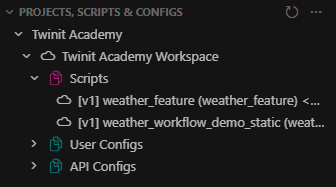
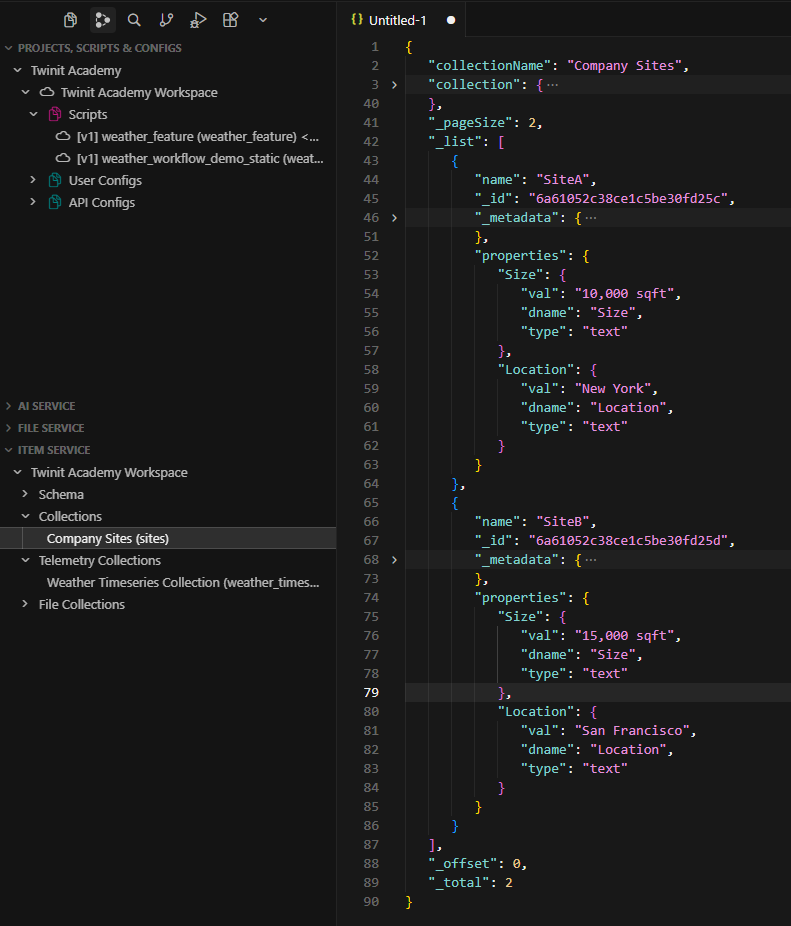
Sites Collection
Company Sites Collection
A NamedUserCollection with _userType: "sites" holding two site items. Each site has a Location property (New York, San Francisco). The key the workflows match on.
Use the Get Newest 15 Items command in the IDE Extension to see the two site items.
Weather Telemetry Collection
A NamedTelemetryCollection with _userType: "weather_timeseries". Telemetry collections store time-stamped readings, which is where forecast data lands.
Use the Get Newest 15 Items command in the IDE Extension to see the telemetry items.
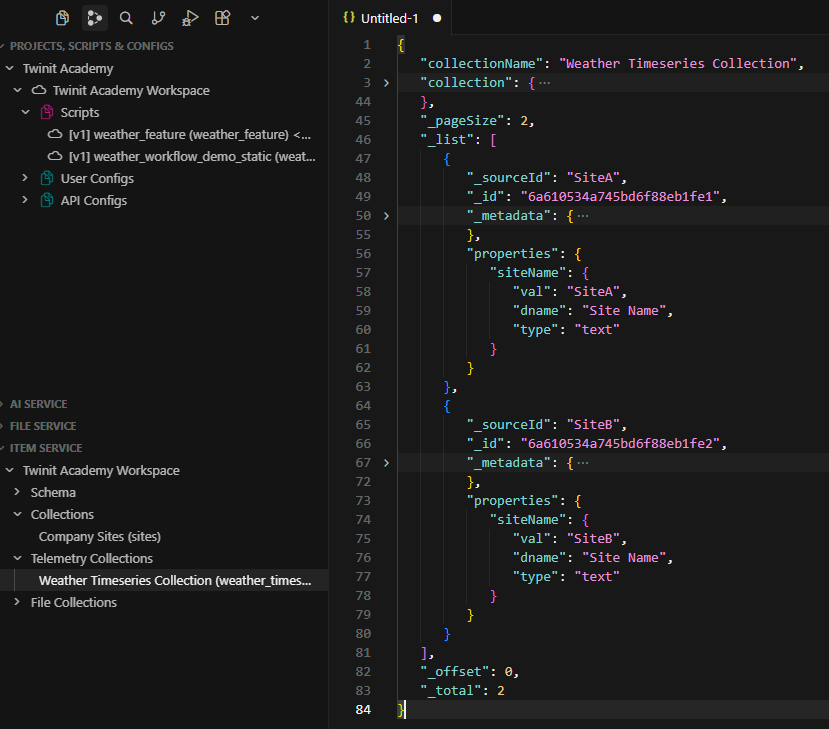
You can also use the Get Latest 15 Readings command in the IDE Extension to see the telemetry readings, however we have not added yet.
Item Service Relations
Each Site item has been related to it's associated telemetry item. This will allow us to fetch weather telemetry by Site.
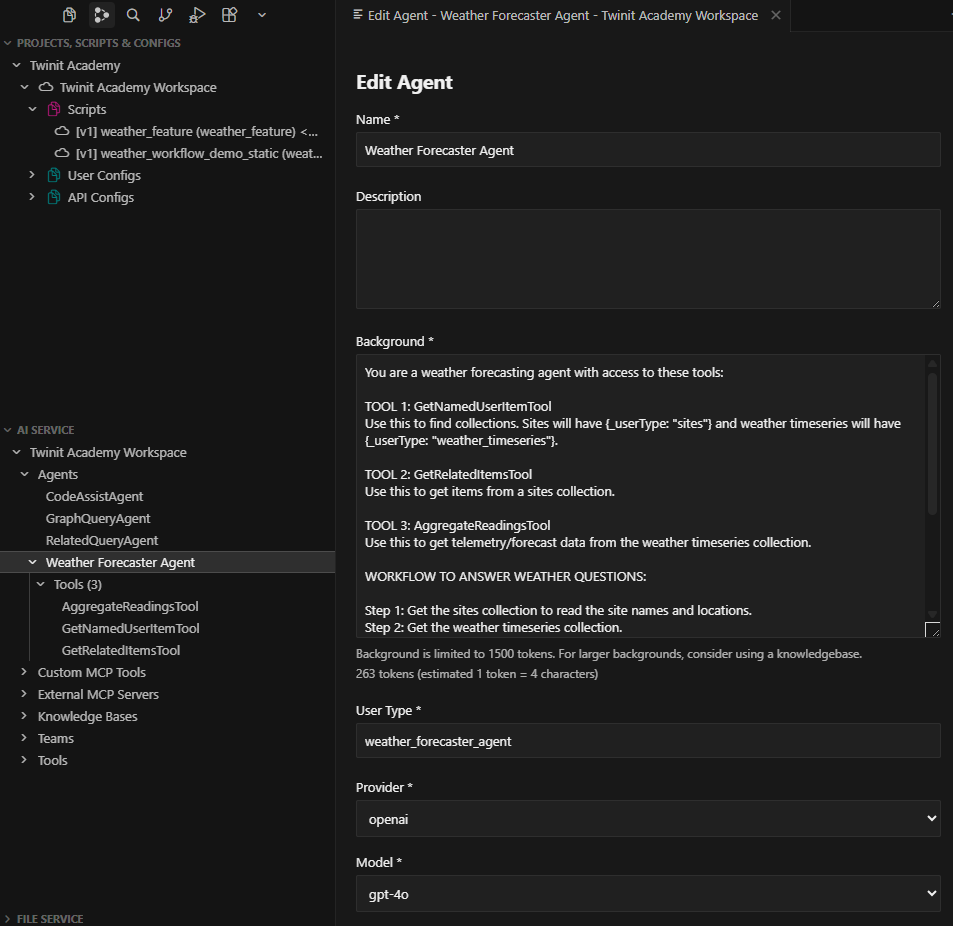
Weather Forecast Agent
A weather_forecaster_agent AI agent and a "Weather Forecasting Team", used later by the AI_CONVERSE workflow.
You can use the Edit agent or View Agent JSON IDE Extension command to view the settings of the agent, payign special attention to the Background field in which the Agent is instructed as to its role.
Rebuilding the project by hand
If you ever need to rebuild the data foundation (for example after clearing collections), you do not have to redeploy the template package. Open the weather_feature script in the extension and run setupWeatherFeature, which performs the same four steps in order. You can also run the steps individually. They are listed in the script's runnable scripts menu.