Setup the IDE Extension
In this step you will set up your Twinit IDE Extension to connect to the Twinit Sandbox environment. The extension allows you to create scripts and user configs directly on the Twinit platform, as well as execute scripts using the various platform apis provided in the @dtplatform/platform-api and @dtplatform/iaf-script-engine javascript sdk modules. The majority of the training materials will rely on using the Twinit IDE Extension.
- Continue using Guided Setup
- Continue using Manual Setup
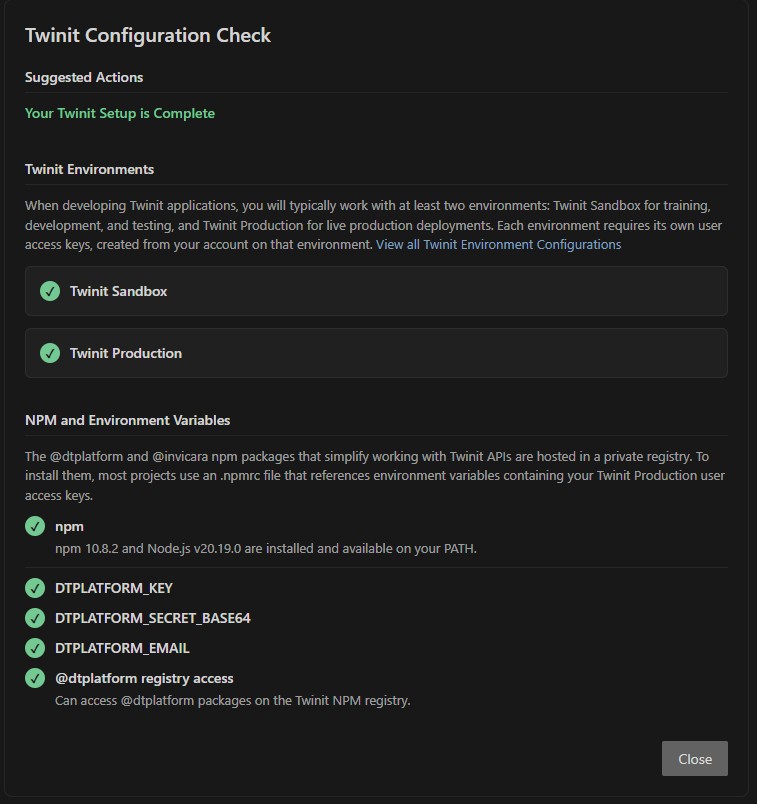
The Twinit Configuration Check is a guided panel built into the extension that scans your setup and walks you through configuring your environments and the environment variables needed to install the official Twinit npm packages.
Open the Twinit Configuration Check
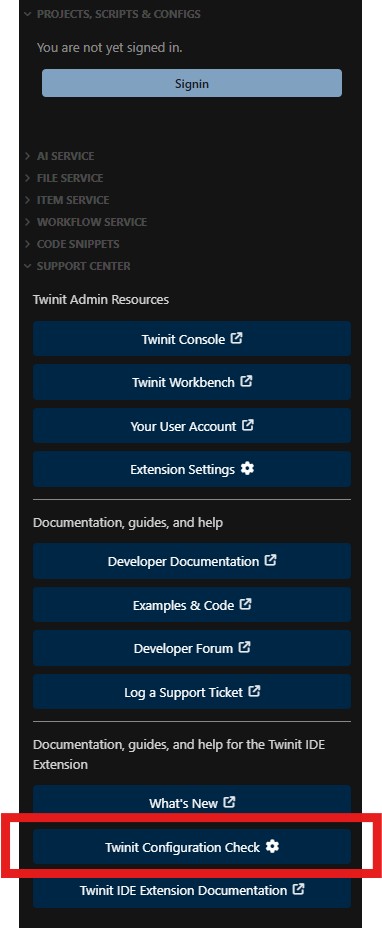
If the Twinit Configuration Check did not open automatically when you opened the Twinit IDE Extension, you can open it through the Support Center Panel in the Twinit IDE Extension.
The panel scans your current configuration. It is organized into three sections:
- Suggested Actions - a checklist of anything still left to configure
- Twinit Environments - the environments the extension can connect to
- NPM and Environment Variables - npm/Node.js status and the environment variables used to install Twinit packages
As you complete each step the panel re-scans automatically and the Suggested Actions list shrinks.
Configure the Twinit Sandbox environment
The training is completed on the Twinit Sandbox environment, so it is required.
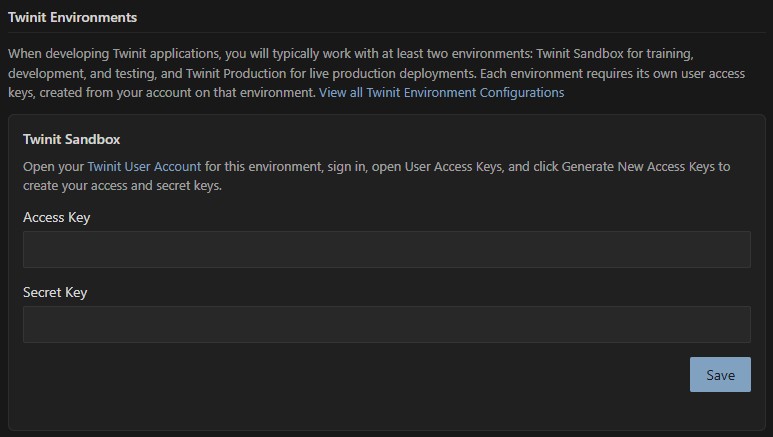
- In the Twinit Environments section find the Twinit Sandbox card
- Click the Twinit User Account link to open the Sandbox accounts page (https://sandbox-api.invicara.com/passportsvc/api/accounts)
- Sign in, open User Access Keys, then click Generate New Access Keys and record your Access and Secret keys
- Back in the panel, paste your keys into the Access Key and Secret Key fields
- Click Save
A green check appears next to the Twinit Sandbox environment once it is configured.
(Recommended) Configure the Twinit Production environment
The Twinit Production environment is optional and can be used to supply the access keys for the npm environment variables in the next step. You can configure it now or skip it and enter the keys manually later.
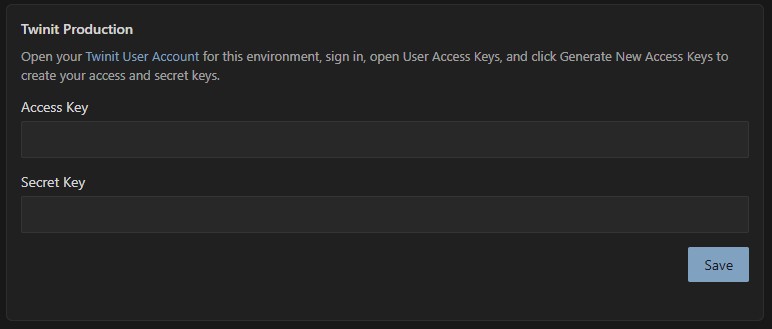
- In the Twinit Environments section find the Twinit Production card
- Click the Twinit User Account link to open the Production accounts page (https://api.invicara.com/passportsvc/api/accounts) and generate your access keys as above; be sure to click the Twinit User Account link in the Production Environment card so you go to your user settings on Twinit Production.
- Paste them into the Access Key and Secret Key fields and click Save
Create the NPM environment variables
The @dtplatform and @invicara npm packages that simplify working with Twinit APIs are hosted in a private registry. Installing them relies on an .npmrc file that reads three environment variables sourced from your Twinit Production access keys.
-
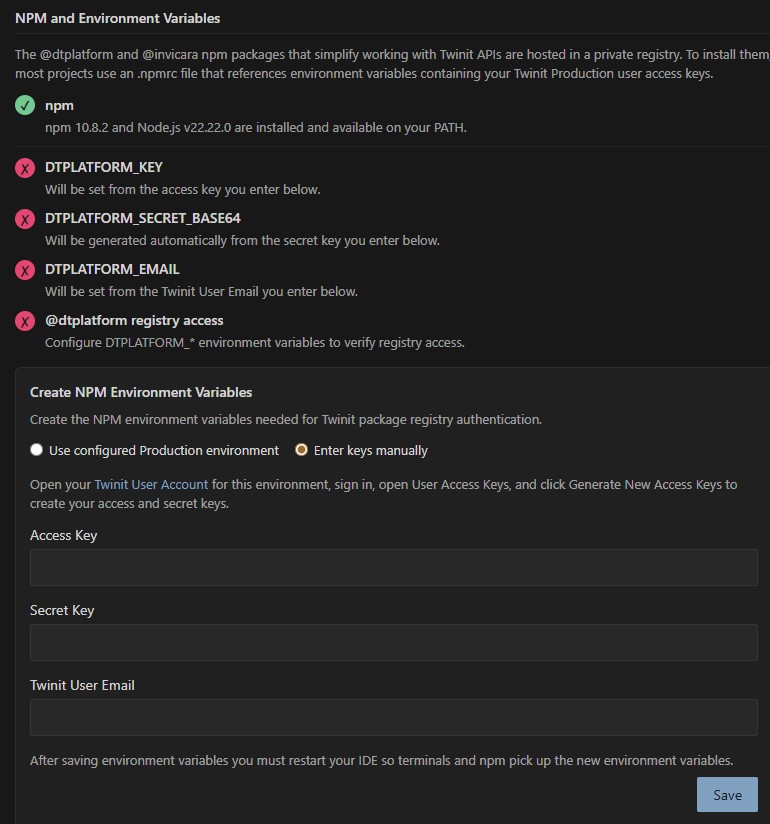
In the NPM and Environment Variables section confirm that npm and Node.js are detected. If npm was not found, use the Install Node.js (includes npm) link, install it, then re-open the panel
-
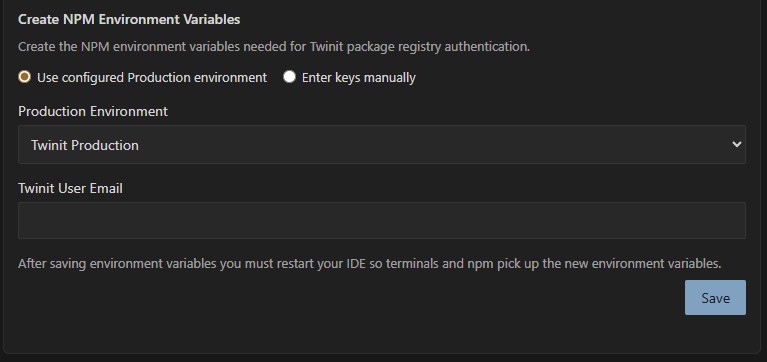
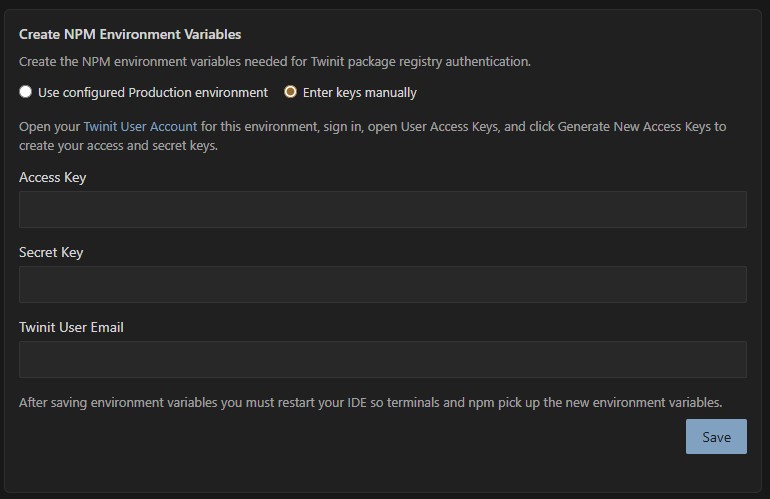
In the Create NPM Environment Variables form choose one of the entry modes:
- Use configured Production environment - if you configured a Twinit Production environment in the previous step select to use it
- Enter keys manually - paste your Production Access Key and Secret Key directly
-
Enter your Twinit User Email address
- If you are signed in to Twinit, this will be populated from the email on your Twinit user
- If you are not signed in to Twinit, you need to enter your user's email address manually
-
Click Save
This creates the following user environment variables for npm registry authentication:
- DTPLATFORM_KEY - your Production user access key
- DTPLATFORM_SECRET_BASE64 - your Production secret key, base64-encoded
- DTPLATFORM_EMAIL - your Twinit account email (filled in from your signed-in account when available)
Restart and confirm
- After saving the environment variables, click the Restart button so your IDE terminals and npm pick up the new environment variables
- When the panel re-scans, the @dtplatform registry access check should pass and the Suggested Actions section should read Your Twinit Setup is Complete
Generate Your API Keys
The first thing you will need is to generate your user access keys. You will use these keys to configure the Twinit IDE extension to connect to the Twinit Sandbox environment.
- Sign in to your Twinit Sandbox user account by pointing your browser to https://sandbox-api.invicara.com/passportsvc/api/accounts
- Click the 'User Access Keys' option under 'Authenticator and Access'
- Click the 'Generate New Access Keys' button and save and record your Access and Secret keys.
Open the Twinit IDE Extension settings
- In your IDE go to File > Preferences > Settings
- In the search field at the top of the settings search for 'twinit'
- Under Twinit-dev > Config: Applications click 'Edit in settings.json'. This opens all the extension settings. Next we will add a Twinit environment.
Add the Twinit Sandbox environment
Add or replace the Twinit-dev.config.environments with the one below.
You may add to this list of environments by adding additional configs in the array.
env: the url to the Twinit platform api for an environment (not where the client is hosted)
name: the name you wish to give this to the environment so you know what it is
access: the user access key
secret: the user secret key
"Twinit-dev.config.environments": [
   {
      "env": "https://sandbox-api.invicara.com",
      "name": "Twinit Sandbox",
      "access": <ADD YOUR ACCESS KEY YOU GENERATED HERE>,
      "secret": <ADD YOUR SECRET KEY YOU GENERATED HERE>
   }

],
Save and close the settings.json file.
Sign in to the Twinit Sandbox Environment in the Extension
- Expand the TWINIT-DEV panel in the Explorer pane
- Click the Sign in Button
- Select the Twinit Sandbox environment
- Select your Organization
- Select the Twinit Academy application
You will see the Twinit Academy app tree appear in the extension panel.
You are now signed in to the Twinit Sandbox environment and your Twinit Academy application.
Troubleshooting
If you do not see a Twinit Academy Application when you sign in to Twinit Sandbox, please log a support ticket here: https://support.twinit.com/support/home