Files
Overview
Use the Files area to browse and manage the project's files and folders in the File Service. For more information about the File Service, see File Service.
The File Service decides which file operations you can perform.
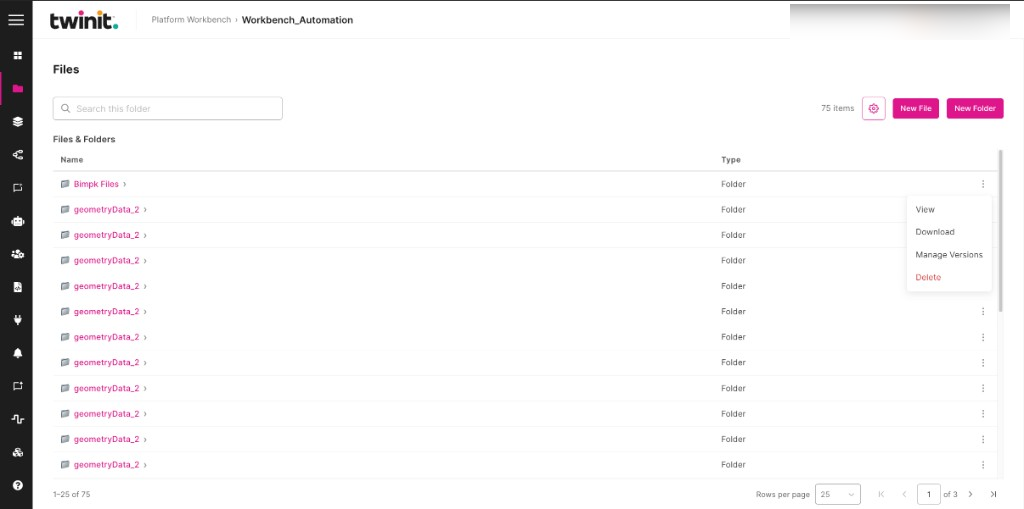
Figure: Files page
Browsing files
The Files & Folders list shows each entry's Name and Type.
- To open a folder, select its name. Workbench loads each folder as you open it.
- To narrow the current folder, enter text in Search this folder.
- The list shows 25 rows at a time. Use Rows per page to change the page size.
Uploading a file
To upload a file, do the following:
- Open the folder where you want the file.
- Select New File.
- In Upload File, choose the file. You can drop it on Drop your file here, or select Choose file.
- Select Upload.
Workbench shows Uploading… while the transfer runs.
Creating a folder
To create a folder, do the following:
- Open the folder where you want the new folder.
- Select New Folder.
- Enter a Folder name.
- Select Create.
Uploading a new version of a file
To upload a new version of a file, do the following:
- Open the file's row menu and select Manage Versions.
- Under Upload new version, choose the file. You can drop it on Drop the new version here, or select Choose file.
- Select Upload New Version.
When the upload finishes, the version list refreshes. To close the panel, select Close.
Managing files and folders
Open a row's menu to do the following:
- View a file.
- Download a file.
- Manage Versions for a file.
- Delete a file or a folder.
Workbench asks you to confirm before it deletes a file or folder. A folder must be empty before you can delete it. Select Cancel to keep it.
Files limits
- You can't view, download, or manage versions of folders.
- Version history loads a limited number of versions.
If a folder is empty, Workbench shows No items found. If Workbench can't load a folder, select Retry.