Model
Overview
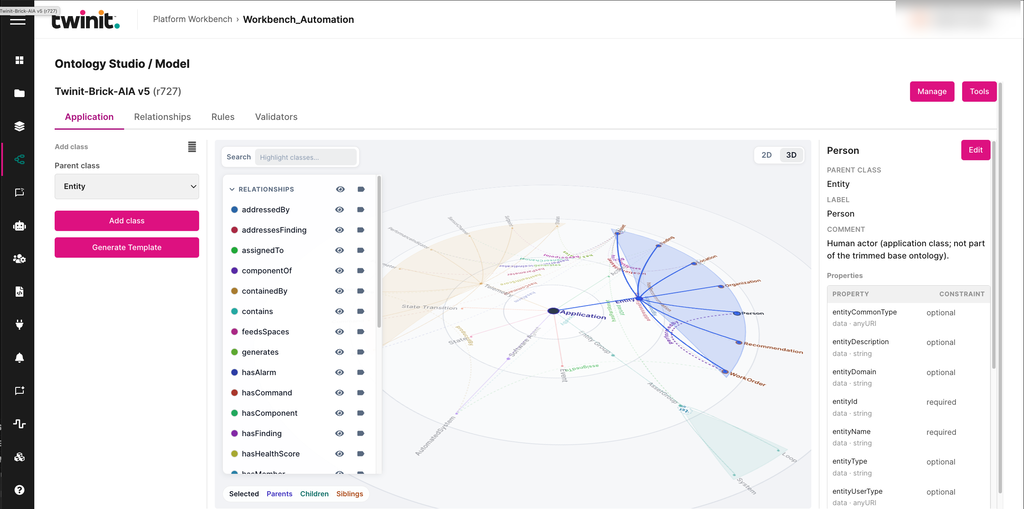
The Model area shows the ontology's application classes, properties, object-property relationships, rules, and validators. It has the following tabs:
- Application: shows the application classes in a radial graph. To switch views, select 2D or 3D.
- Relationships: lists the application-only relationships.
- Rules: lists the application rules.
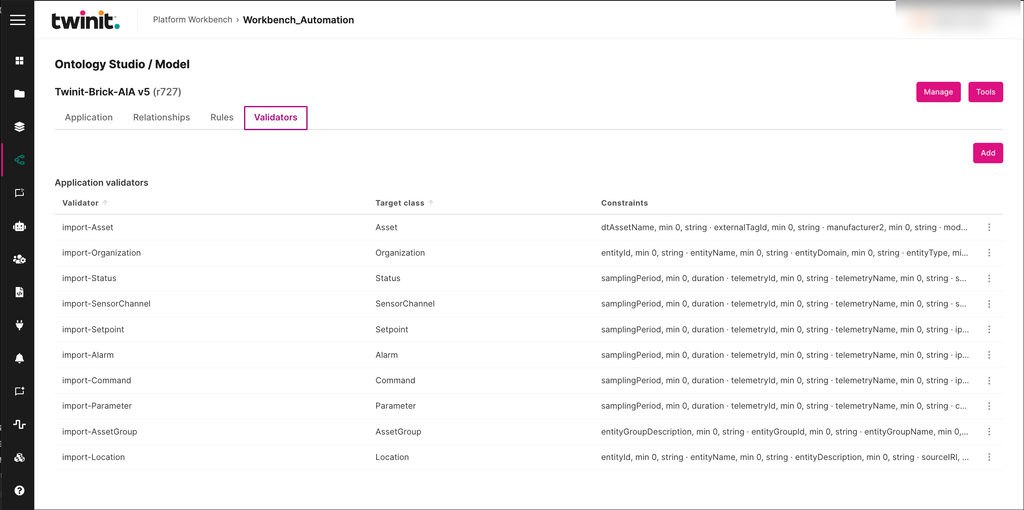
- Validators: lists the application validators.
On the Application tab, you can show or hide each relationship type. You can also show or hide relationship labels separately. To see a class's parent class, label, comment, and properties, select the class.
Figure: Model area Application tab
Authoring the ontology
In the Model area, you can create the following:
- Application classes. On the Application tab, select a Parent class, then select Add class.
- Inherited and local properties. To edit a class, select the class, then select Edit.
- Object-property relationships. On the Relationships tab, select Add.
- Rules. On the Rules tab, select Add.
- SHACL validators. On the Validators tab, select Add.
The micro-core schema, rules, and validators are read-only. On the Application tab, next to Add class, select View core Schema, Rules, and Validators. The Core classes dialog opens. Use its Schema, Rules, and Validators tabs to inspect them. You can't change them.
Figure: Relationships tab
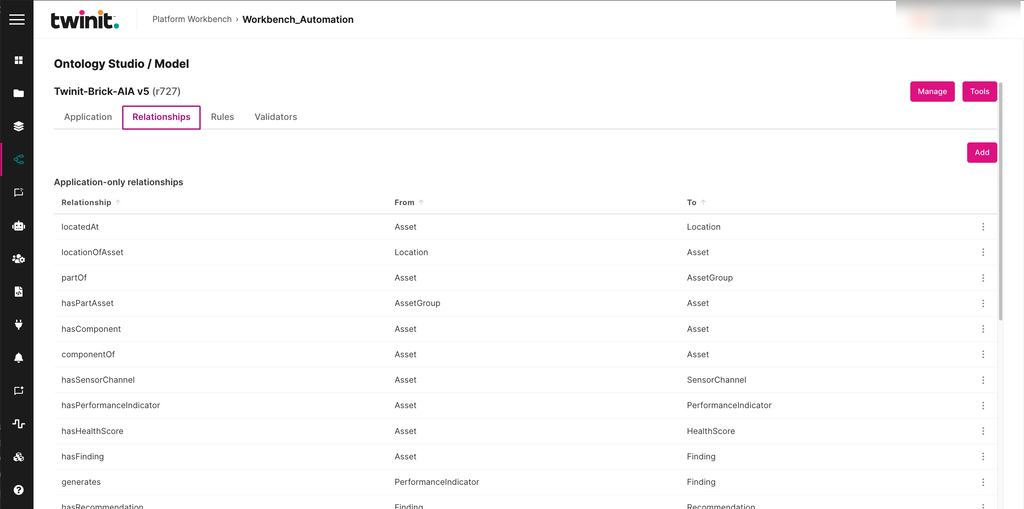
Figure: Rules tab
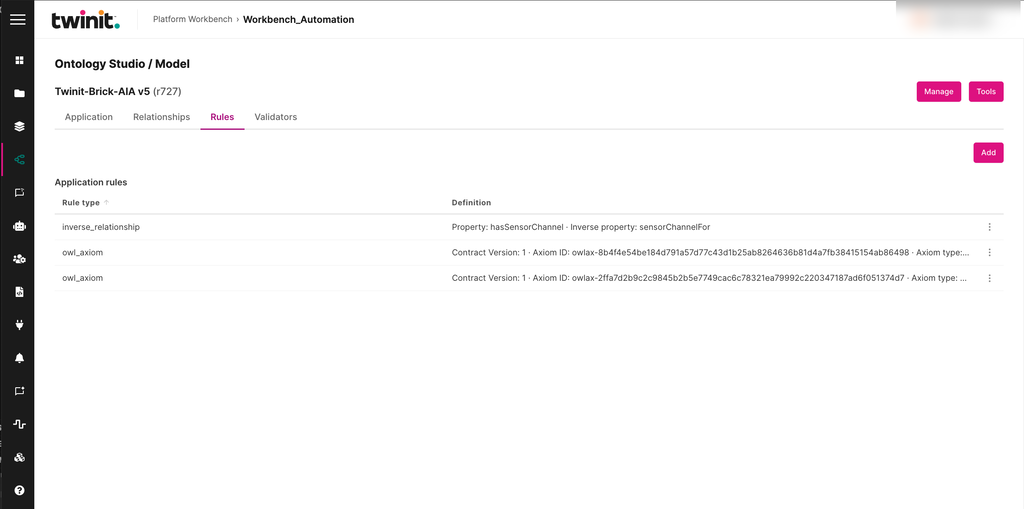
Figure: Validators tab
Note: You can change only a draft version. For more information, see Managing ontology versions.
Building model changes with AI
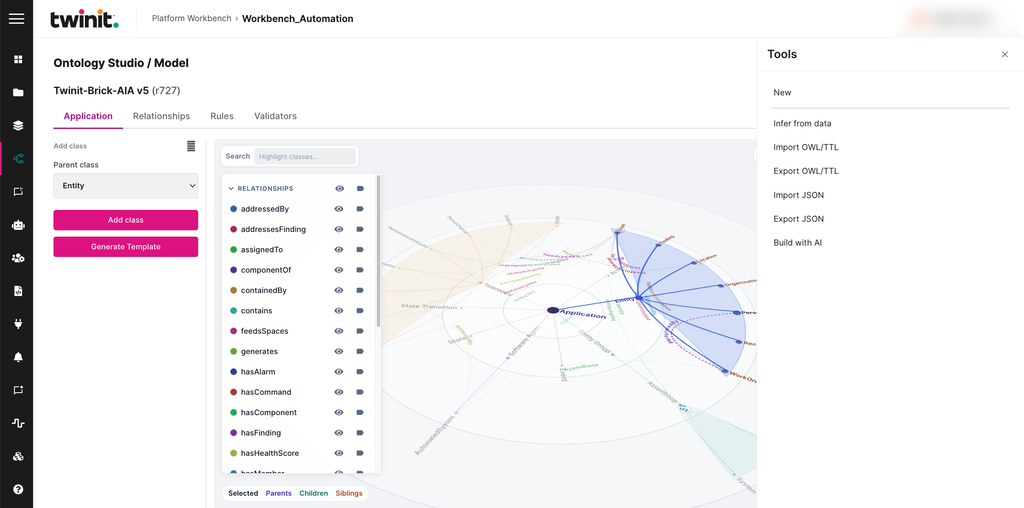
You can use AI to build additions to the model. To start, select Tools, then select Build with AI. You can then apply all the changes, or a subset whose dependencies are valid.
Importing and exporting the model
To import or export the model, select Tools, then select one of the following:
- Import OWL/TTL
- Export OWL/TTL
- Import JSON
- Export JSON
The Tools drawer also has New and Infer from data. For more information about inferring data, see Manage Data.
To generate a template from the current model, select Generate Template on the Application tab.
Figure: Tools drawer